Dual Monitor Setup Tips That Actually Improve Productivity 

A cluttered desktop, constant window switching, and endless tab hunting can slow down even the most organized workflow. You will find that many remote workers, creators, and other professionals have made the move to a dual monitor configuration to put an end to it and work with greater focus and efficiency. If your day is spent on virtual meetings, editing, or project management from home, an extra screen can be a game changer. 

We have put together this guide to show you some hands-on methods for better arranging your monitors and taming the distractions so you can have a workspace that is truly conducive to getting things done. 

Why a Dual Monitor Setup Improves Productivity 

With a dual-monitor setup, you can work in a more natural way, no longer having to minimize windows or dig for an application obscured by another tab. You are not forced to cram everything on one screen; the extra display gives you room to put aside separate zones for your various duties. It is a good way to reduce interruptions and keep what you need visible all day. 

You will see the benefit right away if you are like many who have made the change to two monitors. There is less time wasted going back and forth between programs, which makes for a better flow of work. That is particularly true when you are juggling a mix of spreadsheets, documents, research, creative apps, and your communications at once. 

The numbers back this up: studies show that having more than one display trims the time it takes to switch tasks and in turn boosts your efficiency and focus. You don’t have to break your concentration to find a file; your main work stays in front of you while your support is open on the other side. 
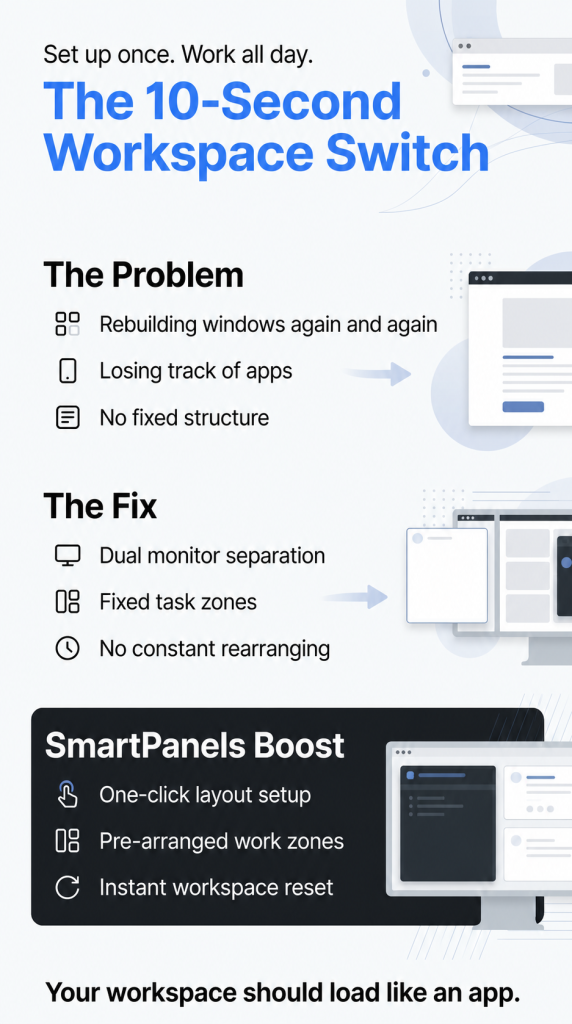
Choosing the Right Monitor Placement 

It is not just a matter of looks where you place your monitor. If it is in the wrong spot, you will have neck strain, tired eyes, and other discomforts after a while at work. You want a setup that is easy on the body so as to avoid physical stress; good posture and the ability to be productive over the long haul depend on it. 

  • Keep Your Main Screen Centered 

Position your main monitor directly in front of you, since that is where you will focus most of the day. A centered display is more natural to look at and spares you from having to keep turning your neck. 

  • Match Monitor Height for Better Comfort 

There is nothing more exasperating than an uneven screen. If one of your displays is perched a little higher or lower than the rest, you find yourself making constant eye adjustments as you go from one to the other. Before long, that kind of thing will leave you with neck and shoulder tension. 

The answer is to use an adjustable stand or arm to keep your monitors level with your eyes.  

  • Maintain a Comfortable Viewing Distance 

You will find that most users are comfortable with their monitor set at about an arm’s length. There is a reason: get too close and you risk straining your eyes, but put it too far out and you have to lean in to see the screen. The right amount of space means you can see everything clearly and stay in a relaxed position for the day. 

Organize Your Workspace with Smart Panels 

You will only see a boost in productivity from extra screen real estate if you keep your workspace in order. Otherwise, having several monitors on hand can be counterproductive; before you know it, they are cluttered with windows on top of one another, superfluous tabs, and other visual noise.  

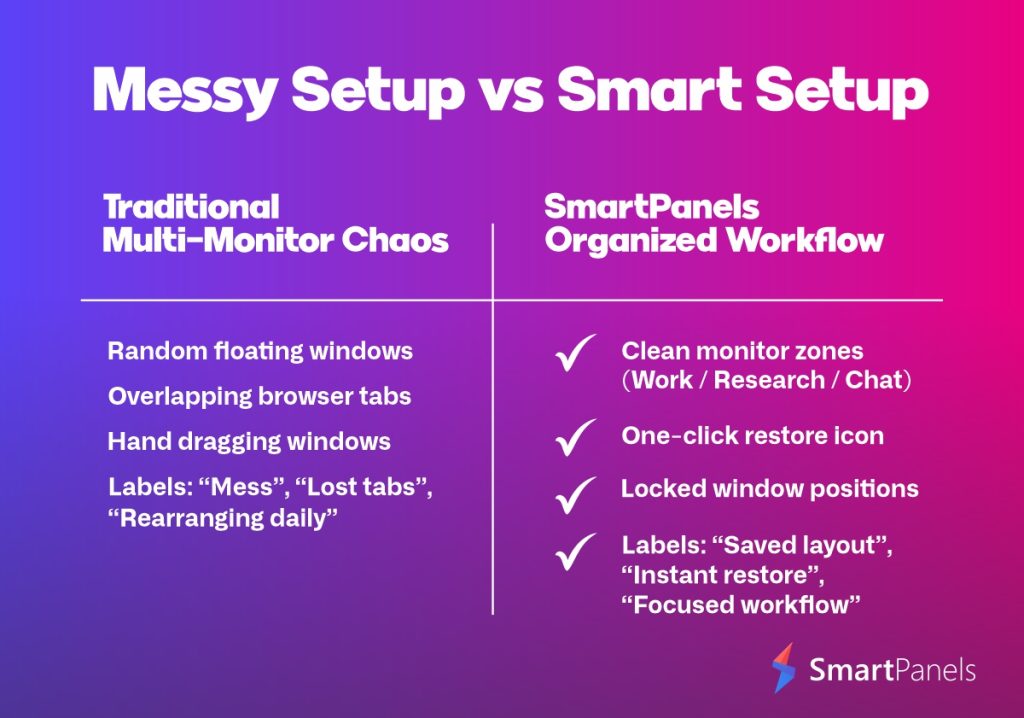
Create Dedicated Work Zones 

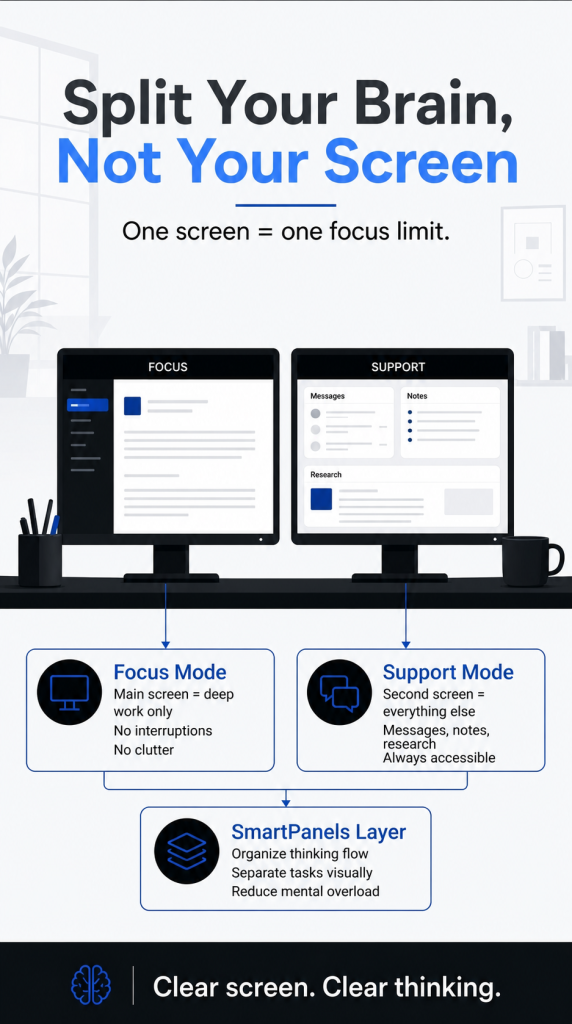
Take a typical setup: one monitor for all your communications like email, Slack, or Microsoft Teams, and the other for whatever project you’re working on. It is a simple way to cut down on mental clutter since your mind will know where to find what it needs. 

Then there are SmartPanels to make the whole setup easier. It lets you stick with a consistent layout from morning to evening, so you don’t have to be constantly repositioning windows. With its structured panels, multitasking is a lot more fluid. 

Reduce Visual Clutter 

You can be as put off by digital clutter as by physical clutter, and it takes an equal toll on your concentration. When you have a screen full of overlapping windows, they are nothing but a distraction from the work that really needs your attention. 

That is why an orderly layout makes for better clarity; there is no time wasted fiddling with windows or looking for an application. With Smart Panels, you can easily navigate your workspace, as they keep every app in its place for a tidier layout.  

How Dual Screens Improve Focus 

It is a common belief that multitasking is the enemy of concentration. But with two well-set-up screens, you can sharpen your focus since there is no need to be constantly toggling from one window to another. 

Organization is what makes the difference. Left to its own devices, multitasking will be nothing but a distraction; do it in a structured way, and you will have a much more seamless workflow. 

Separate Primary and Secondary Tasks 

A good way to do this is to keep the tasks that demand your attention separate from the supporting details. Put your active work on the main monitor, be it for writing, editing, or coding, and relegate the research, references, and communications to a second screen. In this way you can keep your focus and not have your workflow continually broken up. 

Avoid Overloading Both Screens 

You don’t have to put an app on every inch of screen just because you have the room. For the most part, you will be more productive with a tidy workspace than a busy one. That is where SmartPanels comes in to put some order to your layout, letting you keep things structured instead of having to manually wrangle your open applications. 
Improve Your Laptop Dual Monitor Setup 

A laptop dual-monitor setup has become increasingly common as remote and hybrid work environments continue growing. Many professionals now rely on laptops connected to external displays for flexibility and mobility. 

Use the Laptop as a Supporting Screen 

A good way to go about it is to put your main work on the bigger monitors and relegate the laptop screen to secondary duties like your calendar, music, or a messaging app. This way, you can use your screen space more effectively and avoid clutter on the main displays. 

Invest in Better Ergonomics 

Laptop users tend to slouch because they fix the screen on the machine at such a low level. Put your laptop on a stand with an external monitor and you will have better viewing angles and a more ergonomic setup in general. Then pair that with an outside keyboard and mouse and you’ll find long hours at work are far more comfortable. 

Simplify Connections With Docking Stations 

You can put a docking station to good use and make your laptop workspace much more manageable. You don’t need to plug in every cable separately; the hub handles your monitors, charging, and other accessories all at once. It is a way to keep things tidy and save on setup time come morning. 

The Importance of Lighting in Multi-Monitor Workspaces 

Lighting directly impacts comfort, focus, and eye strain. Even the best monitor arrangement can become uncomfortable when paired with poor lighting conditions. 

  • Reduce Screen Glare 

You will find that direct sun or any harsh overhead lights have a way of putting up reflections on your screen, making it hard to look at for long. To improve visibility during the day, keep your monitors away from those light sources. In general, you are more comfortable with soft ambient light than with a room that is too brightly lit. 

  • Adjust Brightness Carefully 

Monitor brightness should feel balanced with the surrounding environment. Screens that appear excessively bright can increase eye fatigue during extended use. Many users find that reducing brightness slightly improves comfort during long sessions. 

  • Consider Bias Lighting 

Bias lighting refers to soft lighting placed behind monitors. This technique reduces contrast between bright screens and darker surroundings, helping minimize eye strain during evening work. 

Why Cable Management Matters More Than You Think 

You can have a productive digital space, but that is only part of the story. The way you organize your space affects your focus and efficiency. Take cables, for instance; when they tangle up, they add to the visual clutter and give off a sense of stress and disarray. A bit of cable management can help reduce that, creating a neater setup and a cleaner environment overall. 

Create a Cleaner Desk Environment 

Cable sleeves, under-desk trays, and monitor arms help hide unnecessary wiring while creating more usable desk space. 

A cleaner desk often feels calmer and easier to work in, especially during long or demanding projects. 

Combine Physical and Digital Organization 

The most productive setups combine physical cleanliness with organized digital layouts. While cable management improves the physical workspace, tools like SmartPanels help maintain structure across multiple displays digitally. 

Together, these improvements create a workspace that feels more efficient and less distracting. 

Final Thoughts 

There is no denying that a well-put-together dual monitor arrangement can change the way you work. The additional screen means fewer interruptions and better multitasking for a more seamless workflow in any industry. But then again, you don’t get that kind of productivity just by tacking on an extra display. What makes the difference is having a workspace that you can comfortably and easily manage from morning to night.  

This is where something like SmartPanels has its place for the modern professional. Instead of tolerating window clutter or reconfiguring your setup on the fly, you can create a consistent, clear workspace. If you are working from home, running creative projects or just prefer a tidy desktop, a smarter approach to your multi-monitor setup will see you working at a quicker pace with less fuss and more focus. 

[Download App Now] 

Dual Monitor Setup: Set Up Once and Save Your Layout Forever 

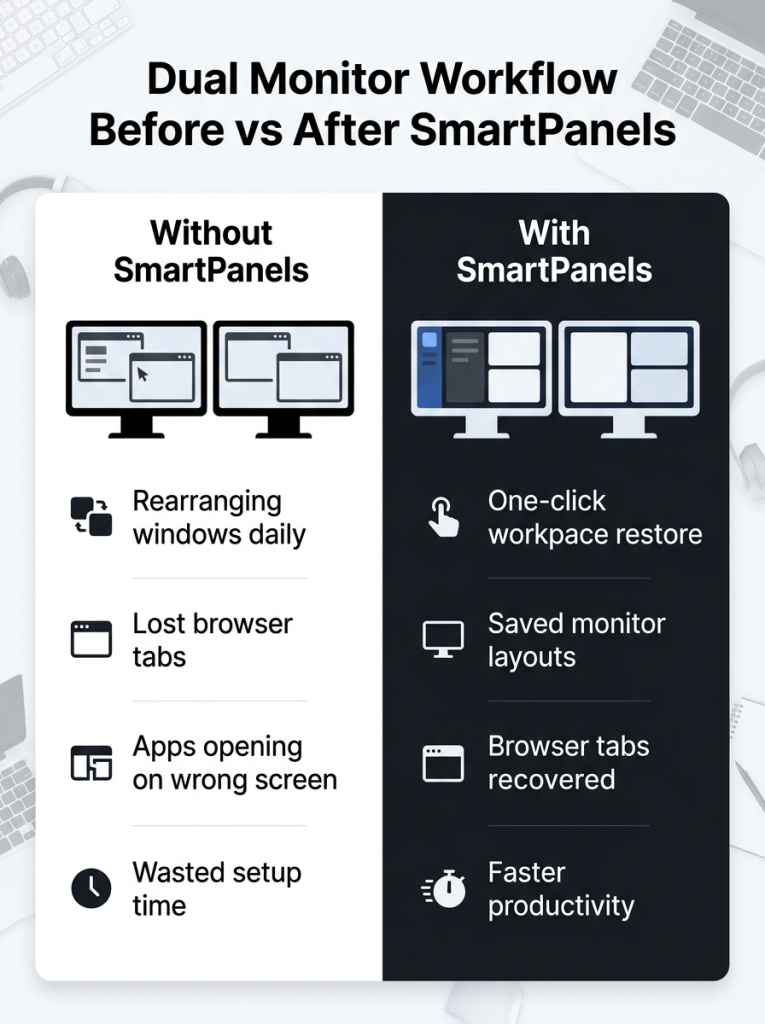
There is nothing to ruin a productive day like a cluttered desktop. You are hardly alone in the annoyance of having to put windows back where they belong, reorganize your tabs, and reopen apps with every restart of your computer.  

A dual monitor arrangement is supposed to be the answer, giving you the space to multitask and stay organized with fewer distractions. But then Windows decides to reset the position of an app, or the monitors come back in the wrong order after an update, and you are left with a mess. 

SmartPanels puts an end to that sort of thing. The software will remember how you like your browser tabs and applications laid out so the screens open as you left them. It is a way to keep things consistent and orderly on your dual monitors, no matter if you are working from home or juggling a host of business tools and creative projects. 

Why a Dual Monitor Setup Improves Productivity 

You don’t have to be a developer or in IT to make use of a dual monitor setup these days. Professionals in all walks of the industry are turning to multiple screens to get more done and stay on task. 

Think of it this way: with just one display, you are always at the mercy of tab switching, minimizing windows, and hunting down an app you can’t see.  

It is a habit that saps your concentration and drags on your workflow over the course of the day. Put a second screen in front of you, and you have all the visible workspace you need, with none of the friction. 

Better Multitasking Without Constant Switching 

There is no better way to put the case for a dual monitor arrangement than the simple fact that you can have your key applications open side by side. It allows you to work in a more natural fashion without the need to shuffle between windows. 

Take the typical professional, for instance: he might reserve one screen for his communications and leave the other for what he is actually working on. You will find this makes for a tidier workflow with fewer distractions.  

Some of the more popular ways to go about it are: 

  • Having email on one display and your spreadsheets on the next 
  • Running video calls while your project dashboards are up 
  • Putting research next to the document you are writing 
  • Or live previews with your editing tools  

When you can see everything immediately, you don’t waste time navigating around; you get on with the job. 

Improved Organization for Daily Work 

Having more than one display is a good way to keep your projects in order. You don’t have to pile up applications; instead, put each monitor to work for its own end.  

Take a marketing person, for instance: he can run his analytics on one screen and handle the campaigns on the other. Designers will do the same, leaving their creative tools apart from any preview windows. In the end, you have a tidier workspace, and it is all the simpler to get through your day with. 

Reduced Repetitive Setup Time 

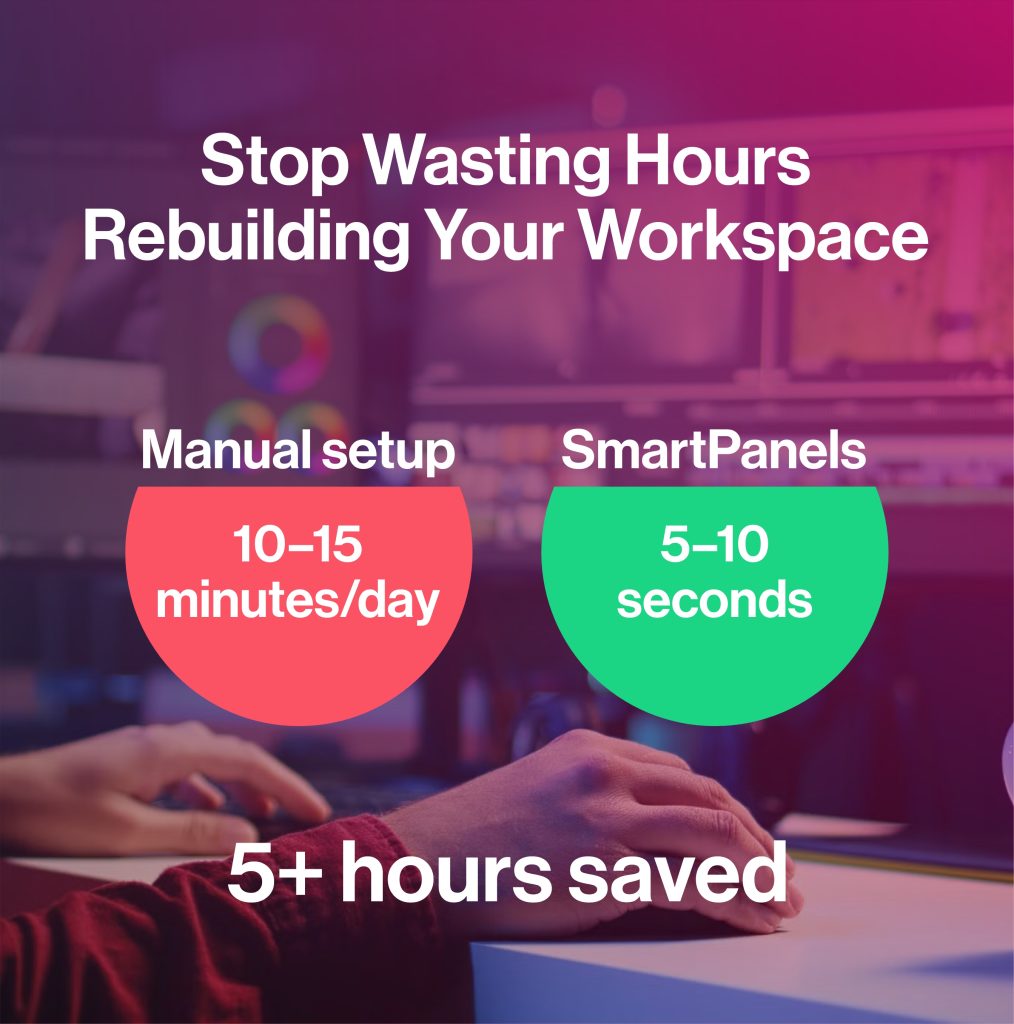
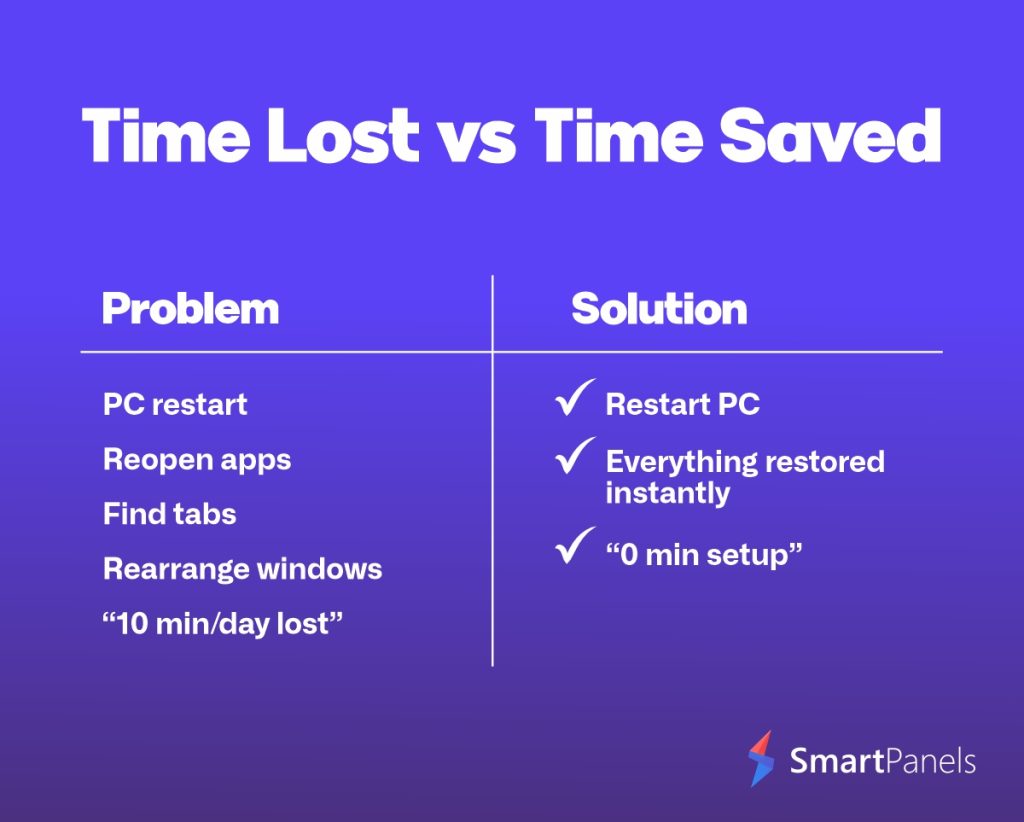
You would think dual monitors are all about productivity, yet for many people, they are a source of wasted time. Reboot the system, and you have to put in the work to move your apps around again; layouts will reset on you, tabs will vanish, and programs will open where they should not.  

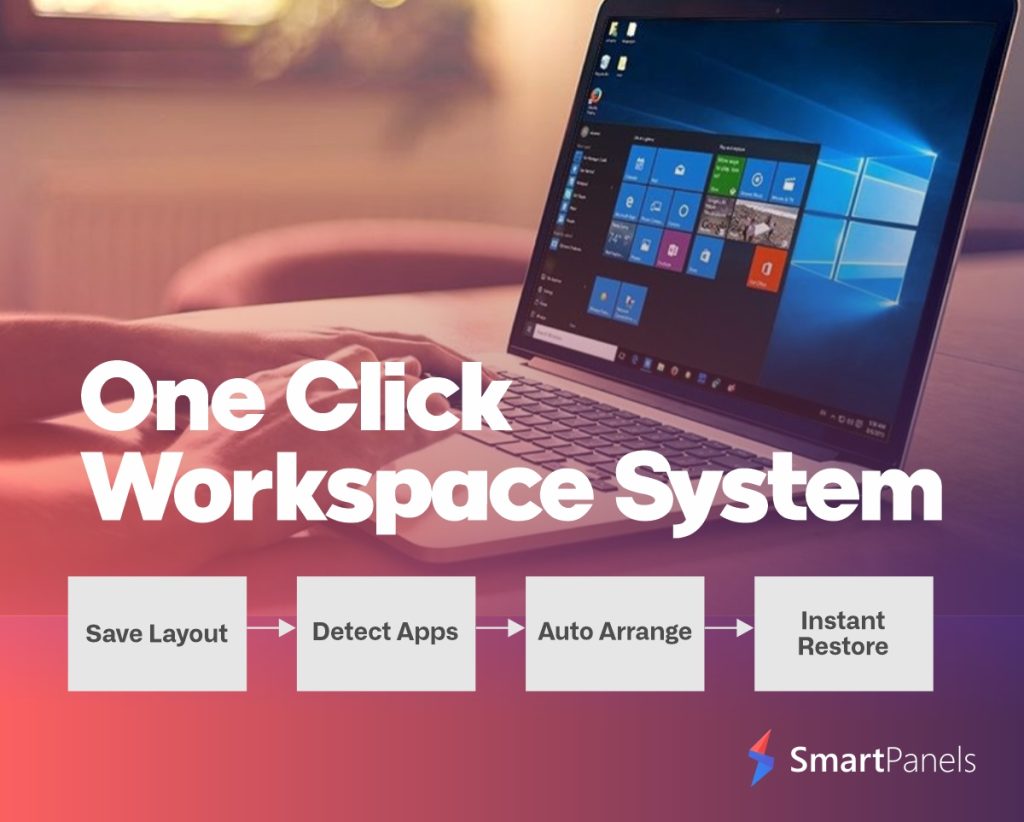
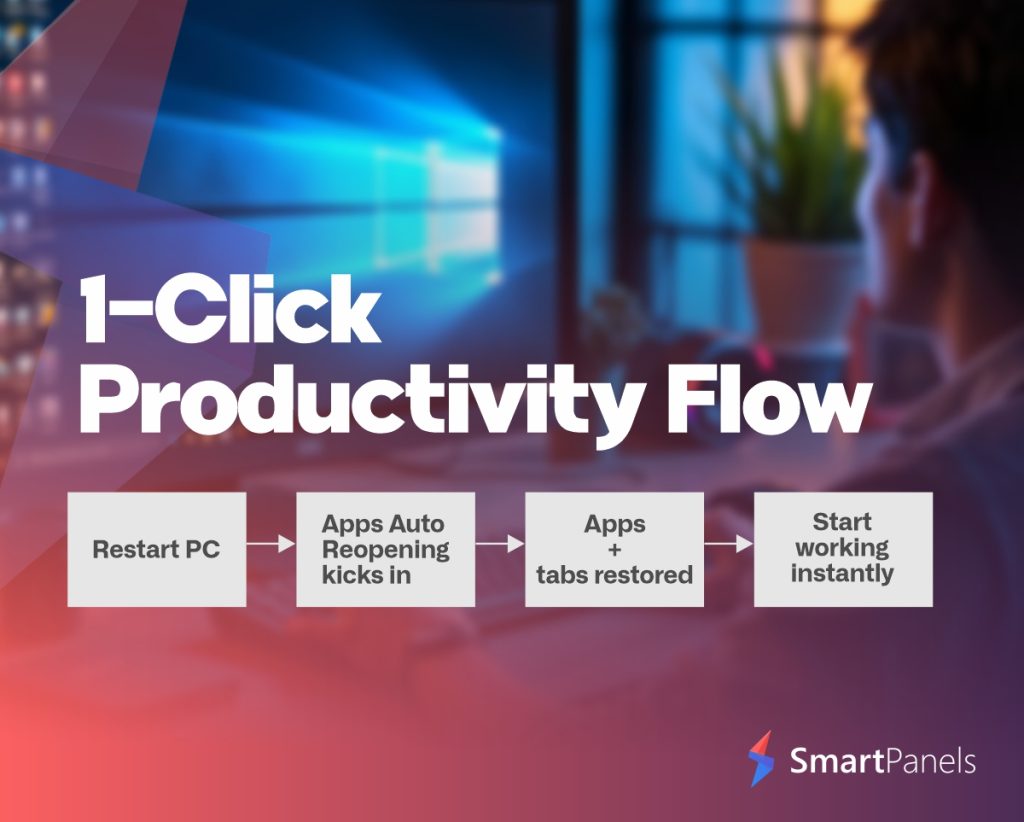
SmartPanels eliminates that kind of issue. It will save your entire workspace for you so there is no need to reconstruct your setup every morning. With a single click you can have everything back exactly as it was. 

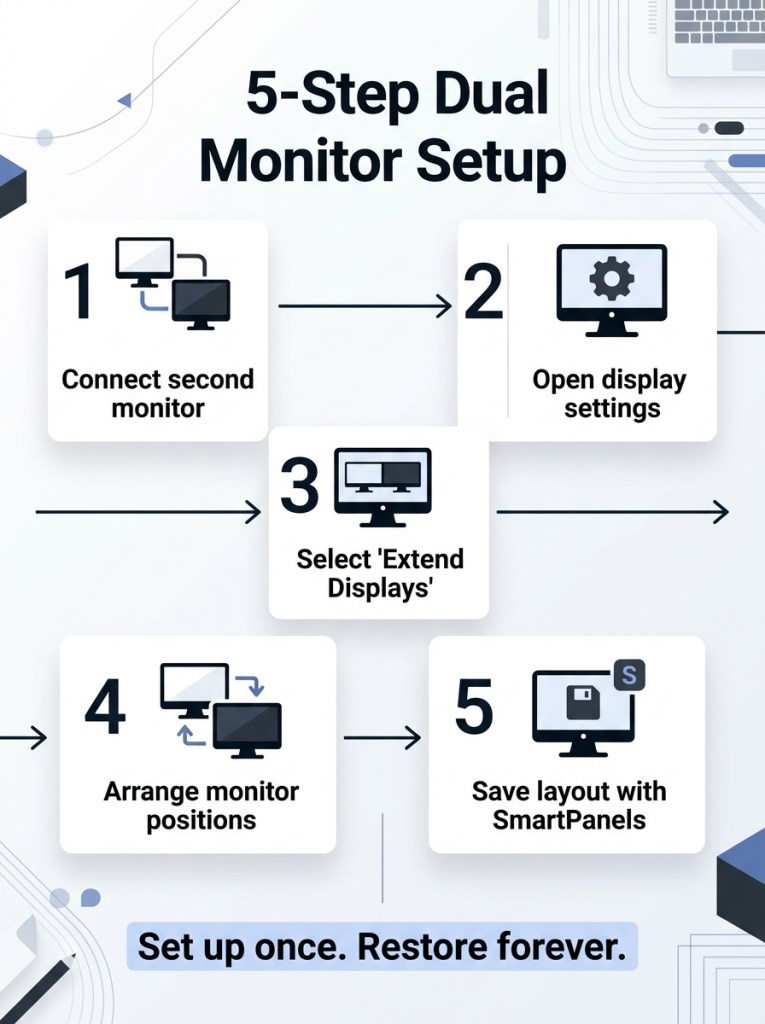
How to Set Up Dual Monitors 

You might wonder what getting dual monitors running involves, but the process is simpler than it seems. Since current Windows systems are built to handle multiple displays from the off, you can set everything up in a matter of minutes. 

Step 1: Check Your Computer Connections 

To begin, look at the display ports on your desktop or laptop and see what you are working with. In most cases, you will encounter one of these: 

  • HDMI 
  • DisplayPort 
  • USB-C 
  • VGA (on an older machine) 

Make sure your monitor is compatible with one of them. If they don’t match up, an adapter will connect the cables. 

Step 2: Connect the Second Monitor 

Once the cable is attached, Windows typically detects the second monitor automatically. In most cases, both screens will become active immediately after connection. 

Usually, restarting the computer or checking cable connections resolves the issue if the display does not appear. 

Step 3: Open Display Settings 

Right-click on the desktop and select Display Settings. Inside this menu, Windows allows users to customize how monitors behave. 

You can: 

  • Rearrange monitor order 
  • Change screen resolution 
  • Adjust display scaling 
  • Rotate screen orientation 
  • Select the primary display 

Positioning the monitors correctly inside settings is important because it controls how the cursor moves between screens. 

Step 4: Select “Extend These Displays” 

For most users, the best option is “Extend These Displays.” This mode turns both monitors into separate workspaces instead of duplicating the same screen. 

Extending displays allows users to spread applications across both monitors and multitask more efficiently. 

Step 5: Save Your Workspace with SmartPanels 

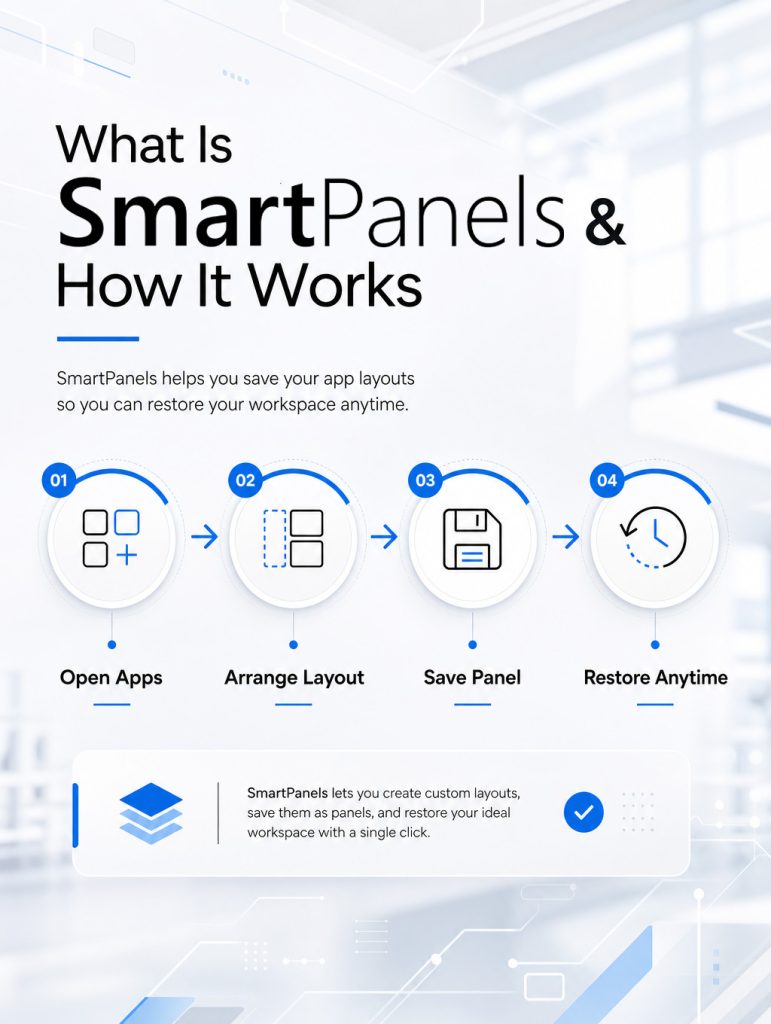
After arranging your applications and browser windows, SmartPanels allows you to save the entire workspace permanently. 

The software remembers: 

  • Window positions 
  • Browser tabs 
  • Screen layouts 
  • App sizes 
  • Monitor arrangements 

As a result, your setup can be restored instantly anytime your system restarts or monitors reconnect. 

Common Problems with Dual Monitor Setups 

Even though dual monitors improve workflow, users often experience frustrating technical difficulties after setup. 

  • Applications Open on the Wrong Monitor 

One of the most common complaints is applications reopening on unexpected screens. For example, a browser may launch on the secondary display while work tools appear on the primary monitor. 

Over time, manually correcting those positions becomes repetitive and inefficient. 

  • Layouts Reset After Updates 

Windows updates and graphics driver changes sometimes reset monitor arrangements completely. Users may need to rebuild their workspace from scratch after every system update. 

This problem is especially frustrating for professionals who rely on consistent layouts daily. 

  • Browser Tabs and Work Sessions Disappear 

Many users also lose browser sessions after restarting their computer. Reopening research tabs, dashboards, and work pages manually can waste valuable time every morning. 

SmartPanels helps prevent these issues by restoring browser windows and saved sessions automatically. 

  • Monitor Detection Issues 

Occasionally, Windows may fail to recognize monitor order correctly after disconnecting docking stations or cables. As a result, users may experience: 

  • Misaligned screens 
  • Incorrect scaling 
  • Rearranged desktop icons 
  • Broken app positioning 

Saving workspace profiles through SmartPanels helps reduce these interruptions significantly. 

How SmartPanels Makes Dual Monitor Settings Smarter 

Basic Windows display tools only manage monitor placement temporarily. SmartPanels goes further by preserving complete workflows and restoring them automatically. 

  • Save Personalized Workspace Profiles 

Different tasks often require different screen layouts. SmartPanels allows users to create separate profiles for specific activities. 

For example: 

  • Work mode 
  • Gaming setup 
  • Video editing workspace 
  • Research sessions 
  • Presentation layouts 

Instead of rearranging apps manually every time tasks change, users can switch profiles instantly. 

  • Restore Applications Automatically 

One of the strongest features of SmartPanels is automatic application recovery. The software remembers where apps belong and restores them correctly. 

Supported applications include: 

  • Google Chrome 
  • Microsoft Edge 
  • Firefox 
  • Excel 
  • Word 
  • PowerPoint 
  • Notepad 

This feature helps users continue work without rebuilding their desktop layout repeatedly. 

  • Keep Browser Tabs Organized 

Professionals often rely on dozens of browser tabs throughout the day. Losing those tabs can interrupt workflow and delay projects. 

SmartPanels restores saved browser sessions so users can continue exactly where they stopped. 

  • Support Large Multi-Monitor Workstations 

Although many users operate two screens, SmartPanels also supports larger workstation environments with up to six displays. 

This flexibility makes it useful for advanced users who manage multiple dashboards, editing tools, or monitoring systems simultaneously. 

Best Dual Monitor Settings for Comfort and Efficiency 

Proper dual monitor settings can improve both productivity and comfort during long work sessions. 

  • Match Monitor Heights and Alignment 

Positioning monitors at equal height reduces unnecessary neck movement and eye strain. Displays should feel visually connected rather than disconnected. 

  • Use Consistent Resolution When Possible 

Monitors with matching resolutions create smoother cursor movement and cleaner transitions between screens. 

If resolutions differ significantly, scaling adjustments may help improve consistency. 

  • Choose the Correct Primary Display 

Your main monitor should contain: 

  • The taskbar 
  • Notifications 
  • Frequently used applications 

This arrangement helps keep important tools centralized and easier to access. 

  • Adjust Brightness and Scaling 

Long hours in front of bright screens can create fatigue. Matching brightness levels across both monitors helps create a more comfortable viewing experience. 

Similarly, proper text scaling improves readability without straining the eyes. 

How to Use Dual Monitors Effectively 

Understanding how to use dual monitors efficiently can make a major difference in productivity. 

  • Separate Communication from Focused Work 

One of the most effective strategies is dedicating one screen entirely to communication platforms such as: 

  • Microsoft Teams 
  • Slack 
  • Outlook 
  • Zoom 

The second monitor can remain focused on core work tasks without interruptions. 

  • Improve Research and Writing Workflows 

Writers, students, and marketers often benefit from placing research material on one monitor while drafting content on the other. 

This setup reduces tab switching and keeps information visible throughout the writing process. 

  • Enhance Creative Work 

Creative professionals frequently need additional workspace for editing software, previews, and asset management. 

Dual monitors provide room for: 

  • Video editing timelines 
  • Design tools 
  • Image libraries 
  • Live previews 
  • Create Better Gaming and Streaming Setups 

Gamers and streamers often use dual monitors to separate gameplay from communication and streaming tools. 

For example, one display may show the game while the second handles: 

  • Chat windows 
  • Streaming controls 
  • Tutorials 
  • Performance monitoring 

SmartPanels helps preserve these layouts automatically for future sessions. 

Why SmartPanels Is Better Than Basic Windows Features 

Windows offers standard multi-monitor support, but it does not consistently preserve complete workspaces. SmartPanels fills that gap by providing advanced workspace restoration tools. 

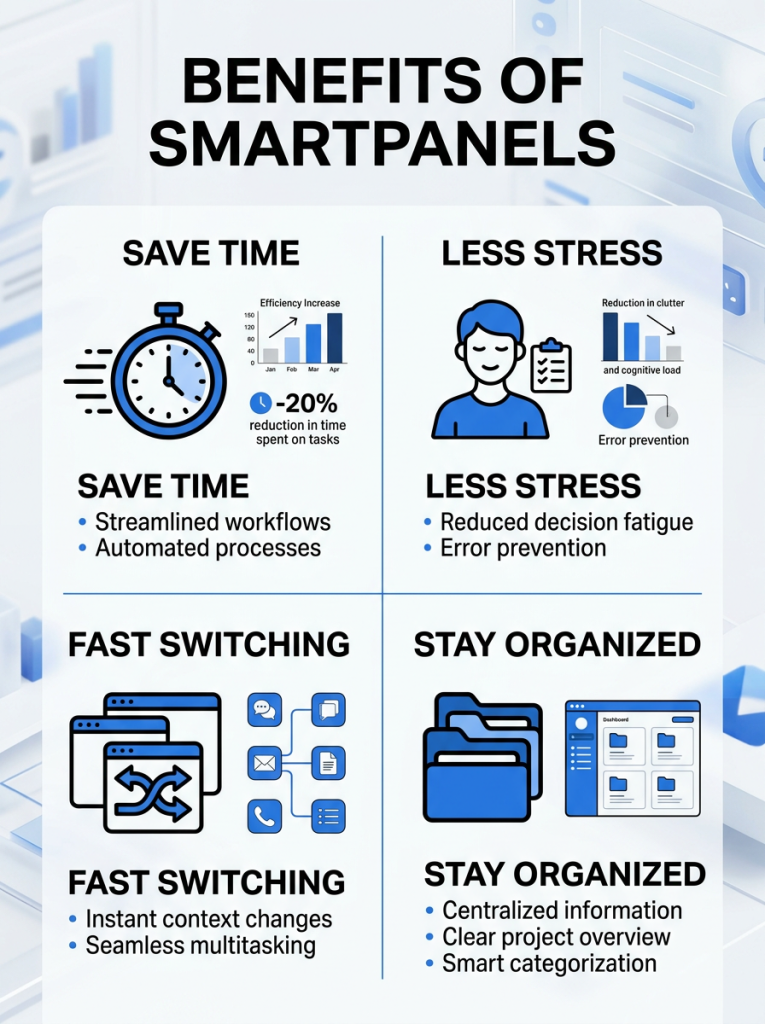
  1. Faster Daily Startup: Instead of rebuilding layouts manually every morning, users can restore everything instantly and begin working immediately. 
  2. Better Workspace Consistency: Consistent layouts reduce distractions and help users maintain focus. SmartPanels ensures applications always appear where users expect them. 
  3. Simplified Workflow Management: Users handling multiple projects can switch between saved workspace profiles without reorganizing windows repeatedly. 
  4. Improved Productivity for Remote Work: Remote professionals often manage meetings, spreadsheets, browsers, and communication tools simultaneously. SmartPanels helps organize these workflows more efficiently across multiple displays. 

        Save Your Workspace Forever with SmartPanels 

        You would think a second monitor is there to make your job easier, not to be another source of setup headaches. Yet for a lot of people it is the opposite; they find themselves wasting time after each restart to put windows back in order and reopen their apps.  

        It is easy to overlook such small hiccups, but they add up, and before you know it, you are less productive and more frustrated than you should be. 

        The better way to go is to have your workspace saved and ready to come back with the turn of a switch. That is the whole idea behind SmartPanels. With one click you can keep your browser tabs, app positions, and general layout just as you like them; no need to put your desktop back together from scratch every morning. 

        It doesn’t matter if your dual monitors are for some business management, research, gaming, or a creative endeavor while working remotely. SmartPanels will give you a more dependable and uncluttered process. The software takes care of the repetitive organising so your screens are instantly where they ought to be and you can get on with what is important. 

        [Download SmartPanels Now] 

        What is Windows Desktop Runtime? (2026 Complete Guide) 

        You will find that Microsoft Windows is home to an array of modern desktop applications, yet a considerable number of them do not run on the OS in a straight line. They need the help of the Windows Desktop Runtime, a software layer that underpins them.  

        As part of the .NET ecosystem, this runtime is indispensable for any application put together with WinForms or WPF technology. If you do without it, you are likely to encounter missing component errors or find that your productivity and business apps, including custom enterprise ones, refuse to open. 

        With 2026 seeing more and more software move in the direction of modular, lightweight frameworks, it is becoming something of a necessity to have a working knowledge of the Windows desktop runtime, whether you are a developer or just an everyday user. 

        This guide explains how the runtime works and its impact on your PC, leaving no room for confusion. 

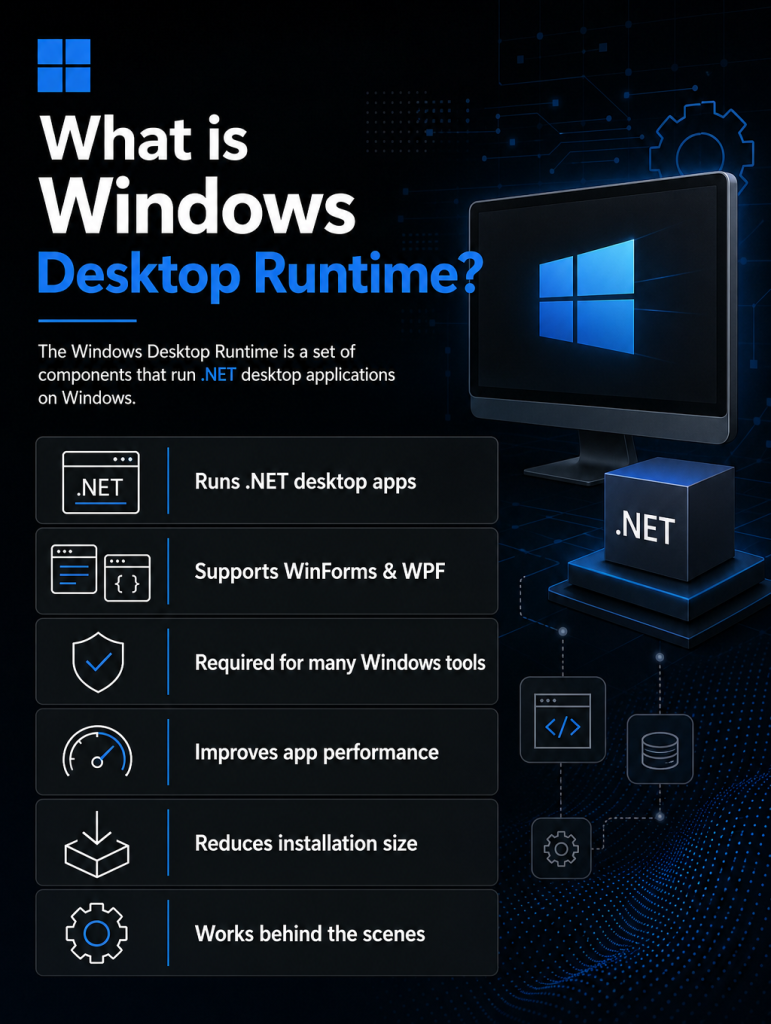
        What is Windows Desktop Runtime? 

        You can’t run a .NET (as in “dot net”) Windows desktop application without the Windows desktop runtime. It is an essential software that acts as a sort of bridge between your OS and the app in question. 

        Most of these programs are put together with Windows Forms (WinForms) or Windows Presentation Foundation (WPF). Rather than have every single one of them come with its set of parts, Microsoft makes available a common runtime for all to use. The result is applications that are more compact, quicker to put in place, and less of a hassle to maintain. 

        A good way to put it is to think of Windows as the house and the apps as the appliances inside; the desktop runtime is the electrical system that allows them to operate. If you do away with it, you will find that a lot of today’s desktop software simply won’t work. 

        Official documentation from Microsoft explains this runtime as part of the .NET Desktop Runtime package: Microsoft .NET Desktop Runtime Documentation  

        Why Windows Desktop Runtime Exists 

        The main reason Microsoft created the Windows Desktop Runtime is efficiency and standardization. 

        Before runtimes existed: 

        • Every application bundled its own libraries 
        • Installers were large and slow 
        • Updates were inconsistent 

        With the runtime: 

        • Shared components are installed once 
        • Apps load faster 
        • Developers spend less time managing dependencies 

        This approach also reduces system clutter and improves stability across applications. 

        How Windows Desktop Runtime Works 

        When you install a .NET desktop application, it checks your system for the required runtime version. 

        If it is missing: 

        • The app may refuse to install 
        • Or prompt you to download the runtime 
        • Or crash on launch 

        If it is already installed: 

        • The application uses shared system libraries 
        • It runs smoothly without extra downloads 

        The runtime includes: 

        • Core .NET libraries 
        • Windows UI components (WinForms/WPF support) 
        • Garbage collection system (memory management) 
        • Just-in-time (JIT) compiler or sometimes AOT support 

        This ensures that applications can focus on features instead of system-level setup. 

        What is Microsoft Windows Desktop Runtime (Simplified) 

        If you search for “what is Microsoft Windows Desktop Runtime,” put simply, it is the software framework you need to run any modern .NET desktop application on Windows. You won’t use it as an app; it works behind the scenes when needed. 

        You might see it installed under: 

        • “Microsoft Windows Desktop Runtime 6” 
        • “Microsoft Windows Desktop Runtime 7” 
        • “Microsoft Windows Desktop Runtime 8” 

        Each version supports different app generations. 

        Is Windows Desktop Runtime Already on My Computer? 

        Many users ask, “Is Windows Desktop Runtime already on my computer?” 

        The answer depends on your usage. 

        How to check: 

        You can verify it in a few ways: 

        1. Open Settings → Apps → Installed Apps 
        2. Search for: Microsoft Windows Desktop Runtime , .NET Desktop Runtime 
        3. Check versions like 6, 7, or 8 

                When it is usually already installed: 

                • You installed modern business software 
                • You use developer tools 
                • You installed apps like Power BI or Visual Studio components 

                When it may NOT be installed: 

                • Fresh Windows installation 
                • Lightweight personal laptops 
                • Systems used only for browsing 

                If it’s missing, apps that depend on it will usually prompt installation automatically. 

                Windows Desktop Runtime vs .NET Runtime 

                These two are often confused. 

                Component Purpose 
                .NET Runtime Runs backend or console applications 
                Windows Desktop Runtime Runs Windows UI applications (WinForms/WPF) 

                So, if an app has a graphical interface on Windows, it likely needs the Windows Desktop Runtime instead of only the base .NET runtime.


                Why It Matters in 2026 

                In 2026, Windows application development is heavily centered around: 

                • .NET 8 LTS adoption 
                • Faster startup times 
                • Smaller application footprints 
                • Cloud-connected desktop apps 

                Microsoft is also improving performance with: 

                • ReadyToRun (precompiled binaries) 
                • Native AOT (Ahead-of-Time compilation) 

                These improvements reduce load time and make apps more responsive. 

                The Windows Desktop Runtime continues to evolve alongside these technologies to support: 

                • Better performance 
                • Lower memory usage 

                Improved security patching cycles 

                Common Issues and Fixes 

                1. Application won’t open 

                Cause: Missing runtime 

                Fix: Install the required version from Microsoft 

                2. Version mismatch error 

                Cause: App requires a newer or older runtime 

                Fix: Install the correct version (6, 7, or 8) 

                3. Slow performance 

                Cause: Conflicting or outdated runtime versions 

                Fix: Update all installed runtimes 

                4. Multiple runtime versions installed 

                This is normal. Different apps may require different versions. 

                How to Install Windows Desktop Runtime 

                You can install it from Microsoft’s official .NET page: Download .NET Desktop Runtime 

                Steps: 

                1. Visit the official download page 
                2. Choose the latest Windows Desktop Runtime version 
                3. Download the installer 
                4. Run setup and restart your PC if required 
                Security and Updates 

                Microsoft regularly releases updates for the runtime to fix: 

                • Security vulnerabilities 
                • Performance issues 
                • Compatibility problems 

                Keeping your runtime updated ensures: 

                • Safe execution of apps 
                • Better stability 
                • Compatibility with new software releases 

                Most updates are delivered through: 

                • Windows Update 
                • Manual .NET installer updates 

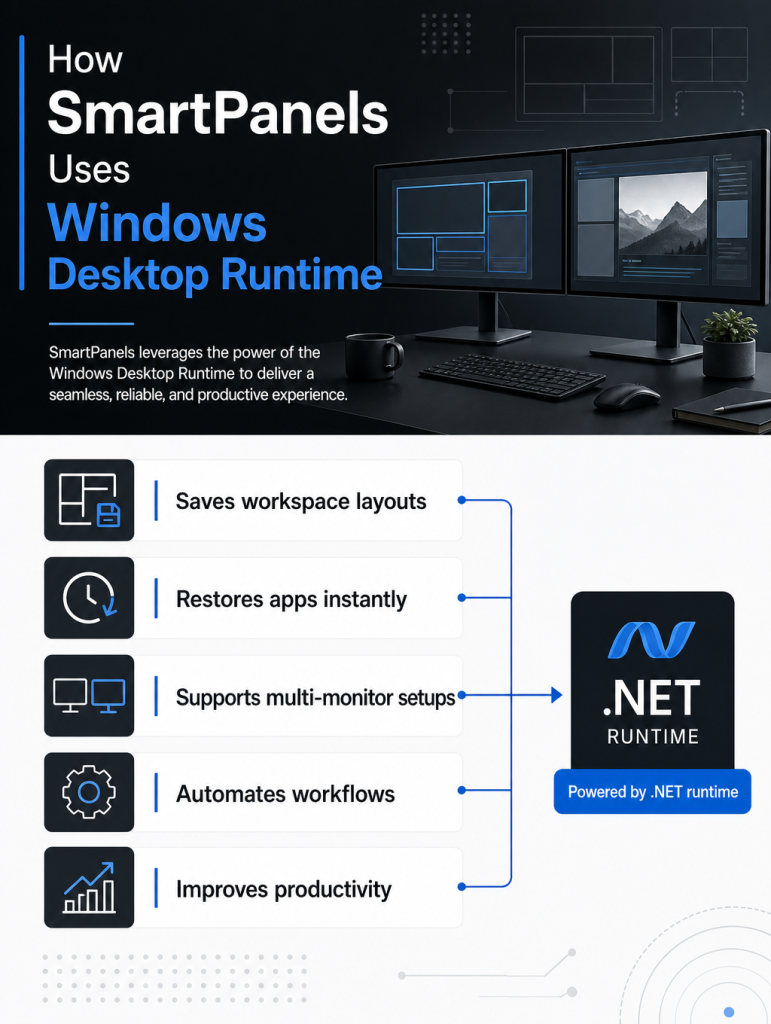
                SmartPanels and Windows Desktop Runtime 

                You will find that platforms of the SmartPanels variety are constructed on top of modern Windows application frameworks. The aim is to provide the kind of dashboards and business tools that a professional can count on for speed and reliability in his or her day-to-day work.  

                They are made to be lightweight yet capable of managing complicated workflows so as not to get in the way of the user; this is what necessitates the use of core system components like the Windows desktop runtime. 

                Take SmartPanels, for instance; you will see them used to run internal analytics dashboards, giving teams a real-time view of their key performance metrics. Or, in the case of business reporting, you need to process and display structured data on screen without any lag in performance. Then there are the custom enterprise apps many an organization puts in place to drive automation and productivity across departments. 

                All of these are .NET-based technologies at heart, which means they need the Microsoft Windows Desktop Runtime to do their job right on a Windows machine. It is the only way to guarantee the stability and compatibility you want between system environments. 

                Future of Windows Desktop Runtime (2026 and Beyond) 

                Going forward, you can look to the Windows desktop runtime for greater speed and efficiency. Microsoft has made it a point to ensure applications are as light as possible on any Windows device.  

                Their focus is to reduce the overall footprint of the runtime; in practice, that will free up some hard drive space and put less strain on your system’s background resources. 

                We also want to improve how quickly things open. The idea is for your desktop software to be up and running in an instant, even on mid-range machines. To make performance more stable, we are shifting from Just-In-Time (JIT) to native compilation. It is a way of bringing more uniformity to the .NET ecosystem so developers aren’t left guessing at how their app might act in varying conditions. 

                You’ll notice a more streamlined installation process and fewer separate packages to deal with, all with a closer link to the Windows App SDK. For the user, the result is a more trouble-free experience with none of the usual compatibility or runtime hiccups. 

                Final Thoughts 

                Any modern Windows software has the Windows desktop runtime at its core, even if you don’t hear it in the background. It is what makes .NET desktop applications so dependable and able to run smoothly. Whether you are using a productivity tool, a business dashboard, or a bespoke enterprise solution, you can attribute the smoothness of it all to this runtime. 

                Understanding how it works on your system and why you find different versions is valuable. That sort of insight will save you from installation headaches and let you deal with the usual issues more easily. These days, in 2026, the runtime is more efficient than ever and better integrated with the OS. 

                For those in business or development looking to build or deploy new Windows tools, SmartPanels offer a scalable way to do it with these technologies. 

                Want to manage your desktop effectively? 

                [Get Started] 

                      SmartPanels App: Save & Restore Your Workspace Instantly 

                      It’s really easy to get your PC swamped by many applications, browser tabs, and windows, particularly if you have lots of different things you’re working on during the day.  

                      Additionally, frequently changing between workspaces and opening all apps or tabs on daily basis to do tasks breaks your concentration, which is something developers, designers, and people working from home will all understand. 

                      Rather than endlessly opening programs again and having to move things on your screen, you might need a tool that lets you save how everything is arranged and then get it back exactly as you left it in a flash. 

                      SmartPanels App gives a straightforward, but effective, way to organize your computer world and get some order back, and you don’t need to be a computer expert or do complicated settings.  

                      As the way we work changes and becomes more flexible, things like this aren’t just a nice bonus anymore; they’re important for being efficient and for getting rid of the mess of digital files, programs, and so on. So, let’s look at how the app does what it does and what is special about it. 

                      SmartPanels Review: How Does It Work 

                      SmartPanels is fundamentally a way to organize your computer screen, and it will save and bring back how your applications are arranged with just one click. You can create “profiles” that remember your preferred arrangement, so you don’t have to open programs, change window sizes, and position them on the screen each time.  

                      Think of each profile as a layout of how your screen should look. So, you could have a dedicated workspace for work, one for meetings, and another for things like art or writing. When you move between these profiles, everything on your screen will change immediately to match the selected workspace.  

                      This SmartPanels application is particularly helpful if you use a lot of different programs at the same time. You won’t lose time getting your workspace set up, and instead can quickly get to the task you are doing. 

                      Key Features That Make Smart Panels Stand Out 

                      1. One-Click Workspace Restoration 

                      SmartPanels software really shine because of how quickly you can get all your work exactly as you left it. You won’t have to set up repeatedly and can focus on what you’re doing. 

                      2. Custom Profile Creation 

                      You also get to make as many profiles as you need for whatever you’re working on. So, for coding, writing, or looking at data, each one can be arranged to do exactly what you want. 

                      3. Seamless Switching Between Tasks 

                      Moving between those different workspaces is fast and easy. This is what makes handling many things at once much better, particularly for people with a lot of different jobs. 

                      4. Lightweight and Easy to Use 

                      Unlike complicated desktop management programs, SmartPanels are meant to be straightforward and easy to use. You don’t have to be a computer expert to start using them.

                      Benefits of Using Smart Panels Daily 

                      If you use Smart Panels regularly, you’ll likely find a big change in how you work. Some of the most obvious upsides are as follows. 

                      • Improved Productivity: You’ll get more done because you’re not wasting time arranging things on your screen over and over. This means you can put more energy into finishing your work and less into getting ready for it. 
                      • Reduced Cognitive Load: It’s surprisingly tiring to jump from one application to another and move all your windows around. This tool has everything you need where it should be, so you won’t feel worn out by all the little choices. 
                      • Better Organization: A dedicated profile for each job will give you a tidy, orderly area on your computer. This will help you to be more organized and avoid getting sidetracked. 
                      • Faster Workflow Transitions: Switching from one thing to another is much quicker. You won’t break your flow and can work at a good pace all day long. 

                      SmartPanels Dual Monitor Setup: Power Your Productivity 

                      SmartPanels are even better when you have more than one screen. With a dual monitor setup, you can save how things are arranged on both, so all your windows will be in precisely the place you like.  

                      As an illustration, you might have your email or messaging on one screen and use the other screen for the thing you’re actually doing. And when you change between screen setups, both layouts will change at the same time for a smooth transition.  

                      People with complicated jobs, like programmers, video people, and those who analyze money, will find this especially helpful. 

                      Looking to set up a multi-monitor workstationLearn More! 

                      Smart Panels vs Traditional Workspace Management 

                      With the usual way of doing things in an office, you have to do a lot of work by hand. You start programs, get them into the order you want, and you do this repeatedly as you go from one job to another.  

                      This takes time, and it’s just not a great way to work.  

                      SmartPanels, however, do all of that for you. After you’ve made a profile, how you have it set up is saved for good. So, you can get it back exactly as it was whenever you like without doing anything else.  

                      Real-World Use Cases 

                      SmartPanels smoothly works with all the things you do every day and simplifies keeping track of what you’re doing without having to set it all up over and over. It makes your workspace change to whatever you are working on, be that creative projects, office work, or meetings, in a more straightforward way.  

                      You won’t have to arrange windows by hand each time; you can use set arrangements to have everything where you expect it. This means you’ll use less time on organizing, have fewer things to break your concentration, and be able to get more done all day. 

                      • Project Management: Imagine managing multiple projects with different requirements. Instead of mixing everything into one workspace, you can create separate panels for each project. 
                      • Content Creation: Writers and marketers can create panels for research, drafting, and editing. This keeps each stage of the process organized and efficient. 
                      • Meetings and Collaboration: You can dedicate a panel specifically for meetings, including video conferencing tools, notes, and documents. Switching to this panel instantly prepares you for collaboration. 

                      Tips to Get the Most Out of Smart Panels 

                      Consider the following practical tips, you can maximize efficiency, reduce distractions, and maintain a well-organized, highly productive workspace.  

                      • Create profiles for specific tasks rather than general use. This helps you stay focused and ensures each workspace is tailored to a clear purpose, making transitions smoother and more effective. 
                      • Keep your layouts simple and clutter-free. Avoid overcrowding your screen with unnecessary apps so you can quickly find what you need and maintain better concentration throughout your work sessions. 
                      • Update your work profile as your workflow evolves. As your tasks or priorities change, refining your saved layouts will help keep your setup relevant and efficient over time. 
                      • Use proper naming conventions to quickly identify each profile. Clear and consistent names make it easier to switch between setups without confusion, especially when managing multiple workspaces over dual screens. 

                      Security and Reliability Considerations 

                      When you’re getting things done with any program, keeping your information safe and the program working steadily are key.  

                      SmartPanels is built to work well and not mess with how quickly your computer runs. Since it’s about arranging what you see on the screen, not holding onto private details, it’s not likely to cause problems. Plus, it’s not demanding on your computer, so it won’t make things slower.  

                      For these reasons, you can confidently use it at home, or for work. 

                      The Future of Workspace Management 

                      Because the way we work is constantly changing, SmartPanels (and things like them) are getting to be more and more useful. Many people are working from home and using phones, laptops, tablets, and so on, so we need to manage office space well.  

                      Down the line SmartPanels will probably work even more closely with other programs, have more things done for you by the system, and let you change things to fit your preferences in even more ways.  

                      But even now, as it is, this took is a good starting point for getting things done more quickly. 

                      Conclusion: Why Smart Panels Is Worth Trying 

                      It’s often hard to keep things tidy when you’re working quickly with lots of digital things and jumping between different tasks. That’s why professionals who want to get things done easily are starting to like things like SmartPanels. You won’t have to arrange everything again; the system will remember it all and restore your preferences immediately.  

                      Plus, you can build your own panels, which means your work setup will change with what you require, not the other way around. It’s easy to use and works the same whether you have one screen or many. And all these little changes can really boost how much you get done and your ability to concentrate.  

                      If you want a more intelligent way to deal with your workspace that doesn’t make things more complicated, SmartPanels is a good option to look at. 

                      [Get Free 14-Day Trial] 

                      Windows Task Manager vs. Smart Panels: Which Productivity Tool Works Better? 

                      It’s really easy to get a lot less done when you’re juggling loads of apps, browser windows, meetings, and files all at once. A surprising number of people still turn to the Windows Task Manager to check how things are running, force programs that have stopped responding to shut down, and figure out why their computer is crawling.  

                      While Task Manager is still good for monitoring the system, the way we work now requires a more organized and faster way to return to where we were.  Professionals now flip between their browser, spreadsheets, video calls, and things like Photoshop, often on multiple monitors. And because of that, getting your work exactly as you had it before is vital.  

                      SmartPanels saves you time by automatically restoring your apps, browser tabs, and screen layout. 

                      Understanding the Purpose of Windows Task Manager 

                      For ages, Windows Task Manager has been a friend to anyone using Windows. It’s what nearly everyone launches when a program gets stuck, your computer slows down, or suddenly uses a ton of memory. It gives you a lot of specifics about what’s going on with what you’re running, the programs that start up with Windows, your internet use, and how your computer’s parts are doing.  

                      But the way we work is different now. We’re all doing loads of different things at once, flipping between browser windows, applications, files, and multiple screens.

                       What SmartPanels Does Differently

                      SmartPanels is different from the Task Manager in Windows. Where Task Manager looks at what’s happening inside your computer, SmartPanels is all about controlling how you work.  

                      SmartPanels workflow lets you save your entire arrangement of open things and restore it quickly. 

                      This includes: 

                      So, instead of spending time every day getting everything back to exactly how you like it, you can get all of it back with just a single click.  

                      Why Modern Professionals Need Better Workspace Management 

                      These days, hardly anyone sticks with just one program all day. We generally have a bunch of things going on at once, like chatting with colleagues, working with spreadsheets, using the internet, being in video calls, being in cloud spaces, and jotting down notes.  

                      And when things get busier, it’s amazingly frustrating and breaks your train of thought to have to set up all your programs on your desk over and over again.  

                      The Task Manager will show you what apps are running in the background, sure, but it won’t put everything back exactly as you had it. 

                      SmartPanels resolves this issue by fully remembering how you arrange your desktop. When you return to work, your apps will be in the same places, showing what you were viewing. This efficient workspace management helps you keep your work on track.

                      By this you’ll get into your work much more quickly, and with a lot less hassle. 

                      SmartPanels Improves Multi-Monitor Productivity 

                      Many of us working from home, doing video editing, graphic design, keeping up with finances, or coding, are using two or more monitors these days. And while more screens help you get more done, arranging everything on those displays can be a headache.  

                      Windows’ Task Manager isn’t for sorting your screens out or getting your programs to go back to where you had them; it only keeps an eye on what’s currently running.  

                      SmartPanels is different; it’s built around how you work. 

                      It handles multi-monitor productivity and puts your applications back exactly where you had them before. So, your browser windows, your Excel sheets, Slack or Teams, and any files will automatically pop up in the places you expect.  

                      Browser Session Restoration Saves Time 

                      These days, pretty much all work goes on in a browser. Most of us have many browser tabs open all day for looking things up, keeping in touch with people, using online services, and checking our progress on various things.  

                      It’s seriously annoying to restart and lose all those open tabs.  

                      SmartPanels gets you back to exactly how you had your browser set up, and does it by itself. It brings back your open tabs, where your browser windows were on your screen, how big the windows were, and what display you were using for them.  

                      It works with Chrome, Firefox, Microsoft Edge, and a lot of other browsers.  

                      This browser recovery offers a huge benefit, unlike the Windows Task Manager, which cannot restore your browser to its previous state. 

                      Workflow Automation Creates Better Efficiency

                      Doing the same things over and over, bit by bit, really drags down how much you accomplish. All those little things at the start of each day, like opening the usual apps, fiddling with window sizes, and putting icons where you want them on your screen, don’t seem like much on their own, but they quietly steal a lot of your time.  

                      SmartPanels puts a stop to all that by doing it for you. 

                      You can set up exactly how you like your computer to look for all sorts of things:  

                      • work 
                      • meetings 
                      • digging up information for research 
                      • gaming, creative pursuits 
                      • or even when you’re studying  

                      Each of these ‘profiles’ remembers every detail of your desktop arrangement, helping streamline your workflow automation and daily multitasking. With a single click, you can instantly restore your entire setup exactly the way you left it. 

                      Comparing Performance Monitoring and Workflow Management 

                      What Task Manager and SmartPanels are for is fundamentally different. Task Manager, the one that comes with Windows, is all about monitoring your computer’s performance and fixing issues when they arise.  

                      With it, you can find out which programs are hogging all your computer’s memory, force anything that’s stopped responding to close, control which programs automatically open when you start up your computer, and check how busy your computer’s brain (CPU) or internet connection is.  

                      SmartPanels, on the other hand, is for getting back to how you were working and tidying things up. It doesn’t look at what programs are running, but allows you to save everything. about a particular way you have things set up on your computer and then go right back to it with a click.  

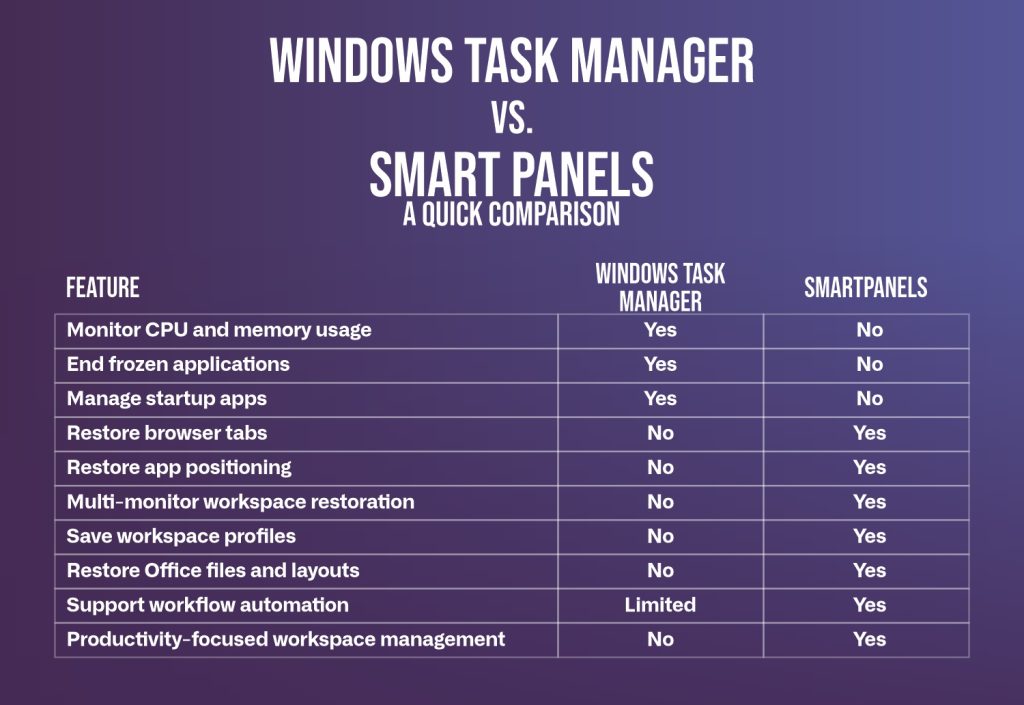
                      Here is a direct comparison between both tools: 

                      These two programs are for quite different things.  

                      Windows Task Manager is still the go-to for when your computer is acting up or for keeping an eye on how much it’s doing, but SmartPanels is all about making your work flow seamlessly by bringing all your desktop stuff back as it was.  

                      In fact, if you’re a professional juggling lots of projects, many browser windows, and perhaps a bunch of screens, getting your work set back up for you probably ends up being a bigger time saver each day than fixing problems as they come along. 

                      Final Thoughts 

                      Task Manager in Windows is still a really important tool for anyone with a Windows computer. It lets you keep an eye on how your computer’s doing, force programs that have stopped responding to close, control which programs automatically start up when you turn on your computer and get to the bottom of many technical headaches. It’s still best for figuring out what’s going wrong with the computer itself.  

                      But the way we work now is very different. Most of us have several screens going, tons of browser tabs open, are using things in the cloud, have Microsoft Office files open, and are on a bunch of messaging apps all at the same time. And having to set all of that back up from scratch each day is a real drain on your time and breaks your train of thought.  

                      SmartPanels is a program designed to solve this. It’s able to bring back your browser tabs, where your applications are on the screen, how your monitors are arranged, and your whole work setup with an immediate click.  

                      Task Manager is about keeping the computer running smoothly. SmartPanels, on the other hand, ensures your work flows and maximizes your productivity. 

                      Want to streamline your daily workflow? Switch to SmartPanels. 

                      [Download it Now] 

                      The Ultimate Multi-Monitor Display Setup (That Actually Works in 2026) 

                      Ultimate Multi Monitor Display Setup

                      Most of us think dual display tools are the perfect way to boost how much you get done, giving you a bigger area, more programs open, and a quicker workflow. Yet, in 2026 most of us are still dealing with cluttered windows, browser tabs that have disappeared, and endlessly moving things around on the screens instead of finishing work.  

                      The problem isn’t how many screens you have, it’s that you have no organized way of using them.  

                      That’s where SmartPanels, and tools like it, are currently the best options. Rather than seeing each monitor as a completely different display, SmartPanels organizes all of them into one system that ‘remembers’ things and immediately brings back the way you like to work. 

                      Why Most Multi-Monitor Display Setups Fail 

                      Today’s computers are strong, but most of us have a messy experience with them because we don’t have an organized way to do things. We generally move windows around by hand, open programs in any order that comes to mind, and pretty much create our work area all over again each time we start.  

                      Frequently, this means you have to keep putting your windows in the right places during each session. This is time you’d better spend getting your work done, and you end up wasting it just with app placement.  

                      Also, you lose where you were on the internet and in all your open tabs. Often this leads to you having to look for websites again instead of keeping your browsing organized. You have no way to do things the same way each time and starting from scratch every workday removes a lot of predictability. 

                      What a Proper Multi-Monitor Display Should Actually Do 

                      A high-performance multi-monitor display is not just about screen count; it’s about workflow clarity. Each screen should serve a purpose and reduce decision-making. 

                      A well-structured setup usually includes: 

                      • A primary screen for deep work: This is where your core task happens, such as writing, coding, designing, or analysis. 
                      • A secondary screen for reference or support: Use it for documentation, research, dashboards, or media reference. 
                      • An optional third screen for communication: Utilize it for chat apps, email, meetings, or system monitoring tools. 

                      When each display has a defined role, your workflow becomes predictable and significantly faster. 

                      Fixing the Real Productivity Bottleneck: Window and Browsers’ Tab Chaos

                      People generally think a slow or frustrating computer is because of the machine itself. But it’s about being in charge.  

                      A good system means you won’t have to bother with things like getting back tabs you’ve accidentally closed or repeatedly arranging what you see on the screen. It just gets rid of those annoyances. 

                      Core frustrations users face: 

                      • Reopening lost browser sessions repeatedly 
                      • Searching for misplaced application windows 
                      • Relearning layout placement every day 
                      • Manually resizing apps across screens 

                      A much better way to work is to have your system stop the mess in the first place. This means using layouts that are saved and remembering where you were in your work (session memory) as opposed to having to do everything by hand. 

                      Why SmartPanels Is the Best Multi-Monitor Display Tool in 2026

                      SmartPanels is designed specifically to eliminate the repetitive setup problem in multi-monitor workflows. Instead of treating screens individually, it manages your entire workspace as a single system. 

                      What makes SmartPanels different: 

                      • Instant Workspace Restoration: Save your full multi-monitor layout and restore it in one click without rebuilding anything. 
                      • Multiple Workspace Profiles: Switch between work modes like development, meetings, research, or design instantly. 
                      • Full Application Memory: Your apps, positions, and layouts come back exactly as you left them. 
                      • Seamless Multi-Monitor Support: Built for complex setups where users can connect up to six monitors. 

                      This is why SmartPanels is considered one of the most effective productivity tools for multi-monitor display users, it removes manual work entirely. 

                      Setting Up a Proper Multi-Monitor Display System 

                      Building a productive setup is about structure first, tools second. 

                      Step 1: Define your workflow types 

                      Start by identifying how you work: 

                      • Deep work sessions 
                      • Communication-heavy tasks 
                      • Research or browsing work 
                      • Creative or design tasks 

                      Each of these deserves its own workspace. 

                      Step 2: Assign meaning to each monitor 

                      Instead of random placement, assign roles to each screen. 

                      • Primary monitor for focused execution 
                      • Secondary monitor for supporting information 
                      • Third monitor for communication or tracking 

                      This removes confusion and builds consistency. 

                      Step 3: Add visual consistency with wallpapers 

                      Visual structure matters more than people realize. A unified or coordinated wallpaper setup helps reduce distraction. 

                      • Use a multi-monitor wallpaper for a seamless visual flow 
                      • Or apply a dual-display desktop wallpaper for alignment across screens 
                      • On Windows 11, some users prefer two different backgrounds on dual monitors to separate tasks visually 

                      This improves mental clarity and reduces screen fragmentation. 

                      Step 4: Automate your workflow with SmartPanels 

                      Instead of manually setting everything every day, SmartPanels lets you: 

                      • Save complete multi-monitor layouts 
                      • Restore them instantly 
                      • Switch contexts in seconds 

                      This removes repetitive setup entirely and creates a true system-based workflow.

                      The Future of Multi-Monitor Display Workflows 

                      It’s becoming clear how we will get things done in 2026: the old way of having a bunch of things on your desk that don’t change isn’t how we work now. Having multiple monitors isn’t simply about having more screens anymore, but about how those screens cleverly change with what you’re doing, as it’s happening.  

                      The way we’ve always done it makes people have to create their entire work area all over again, and that slows you down before you even start. 

                      Instead of having to rebuild things each day, people are moving past habits that take up time and mental energy. Having to drag windows to where you want them every morning stops your flow and is unnecessarily annoying. This endless shuffling, over time, is a secret drag on how much you get done and most of us don’t even realize it.   

                      People are now going for more intelligent systems that emphasize a sensible arrangement and quickness, instead of you having to oversee everything by hand.  

                      SmartPanels is a part of this change. It transforms your multi-monitor display into an orderly, self-managing setup instead of a pile of stuff you have to arrange.  

                      As a result, your whole workspace can instantly change to your needs, instead of needing to be rebuilt each day. 

                      Conclusion 

                      Having multiple screens is supposed to make your job easier, but for many people it doesn’t. Instead, they end up with messy windows, can’t find what they have open in their browser, and have to rearrange everything repeatedly. 

                      The answer isn’t to get even more screens, but to get things more organised.  

                      If you give each screen a specific job, arrange how you do things, and stop needing to do the same setting up each time, you’ll get a lot more done. Plus, with something like SmartPanels, all of this can happen instantly, can be done in the same way each time, and won’t take effort.  

                      Looking ahead to 2026, the people getting the most done won’t be those with the highest number of screens, they’ll be the ones with the best ways of working. 

                      SmartPanels is at the front of this change, changing any multiple screen setup into a clever, in control and totally automatic work area. 

                      Want to avoid daily hassle of arrange your workspace? 

                      [Get a Free 14-day Trial] 

                      How to Stop Repetitive Typing on Windows with a Text Automation Tool 

                      Stop Repetitive Typing on Windows

                      When you type the same things over and over, your work gets done much more slowly, and this phenomenon is particularly true if your job is full of emails, reports, computer code, or filling in data. Repetitive writing, like ending messages with the same phrases, is boring and error-prone. With more to do and people expecting things to be done quickly, even little things that slow you down build up and make a real difference in how much time you lose.  

                      Because of this, lots of people are changing to better ways of working to do less work by hand. A dependable text automation tool can completely change how you finish tasks by reducing the need to repeat yourself and ensuring your communications are consistent.  

                      SmartPanels developed SmartText to easily automate typing on Windows. It uses shortcodes, instantly turns those into longer text, and allows process automation to give you back valuable time to concentrate on work that truly matters and makes a difference instead of endlessly typing. 

                      What Is a Text Automation Tool? 

                      A text automation tool lets you stop doing the monotonous work by using smart shortcuts to create longer text for you. Rather than typing out phrases you use frequently, you make little “commands,” and the program will turn them into much bigger chunks of text. It happens immediately as you type, with the program noticing what you’re writing and swapping it for text you’ve already set up. 

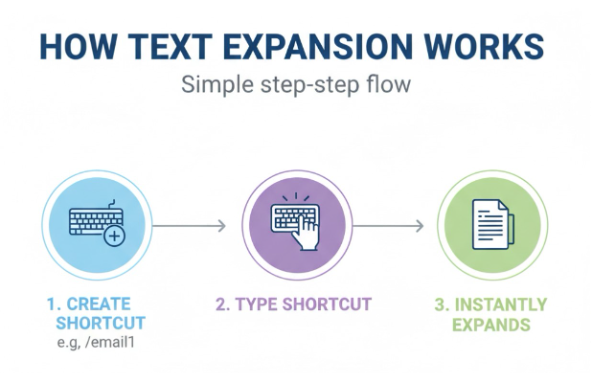
                      How Text Expansion Works 

                      A three-step diagram titled "How Text Expansion Works: Simple step-step flow." Step 1 shows a keyboard icon with a plus sign labeled "Create Shortcut (e.g., /email1)." Step 2 shows a finger pressing a key labeled "Type Shortcut." Step 3 shows a document icon labeled "Instantly Expands."

                      Text expanders, simply put, let you create shortcuts for your most frequently typed phrases. For example, instead of having to write or copy and paste a whole email, you could type something quick like “/email1” and it will turn into your complete, professionally written email.  

                      This means you don’t have to keep repeating yourself with the same words. It happens immediately, improving how quickly you work and not breaking your train of thought. 

                      Why It Matters in Daily Work 

                      Most jobs that involve computers require a lot of typing. In fact, research shows people at work spend over two hours every day on emails and messages. If you’re typing the same things over and over, it makes you do more work than you should. Even a small amount of automation can save people several hours each week and enhance their work efficiency.  

                      From Basic Tools to Smart Automation 

                      In the past, text automation applications would only change one bit of text for another. Now, tools like SmartText offer complete automation; they give you content that changes as you use it and quick ways to make things happen with ‘hotkeys.’  

                      Because of this feature, these tools are now really important for anyone who wants to work more efficiently. 

                      Why Repetitive Typing Is a Problem 

                      Repetitive typing may feel like a normal part of work, but it introduces inefficiencies that can impact both productivity and mental focus over time. 

                      Time Loss Adds Up Quickly 

                      While it may seem insignificant to repeatedly type the same things, it accumulates significantly. If you spend a mere twenty minutes each day retyping, you’ll lose more than six hours a month. And when you look at a whole year, that’s a surprisingly large amount of time you could have used for other, more useful work. 

                      Mental Fatigue and Reduced Focus 

                      Doing the same thing repeatedly makes you bored and your work feel tedious. This eventually makes you mentally exhausted, and that makes it harder to focus or come up with new ideas. You end up using your energy for just typing things in, rather than the important parts of your job. 

                      Workflow Disruptions 

                      And the routine of going from typing to copying to fixing things breaks up what you’re doing. In fact, studies have shown that jumping between tasks like these can lower how much you get done by as much as 40%. A lot of this is down to all that repetitive typing, and it’s this that really interrupts your flow and makes things take longer. 

                      SmartText: The Best Text Expander Tool for Windows 

                      SmartText is a program for Windows that’s designed to make typing things automatically really easy and straightforward. It has some powerful options, so it works well for both new and experienced users. 

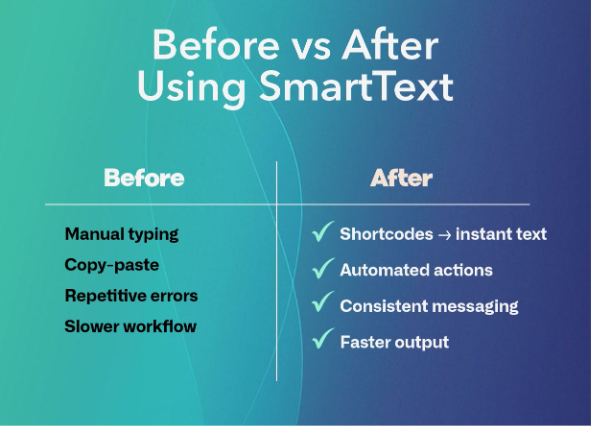
                      An infographic titled "Before vs After Using SmartText" comparing workflow efficiency. The "Before" column lists manual typing, copy-paste, repetitive errors, and slower workflow. The "After" column features checkmarks next to shortcodes for instant text, automated actions, consistent messaging, and faster output.
                      • Custom Text Expansion for Everyday Tasks 

                      With SmartText, you can make little blocks of text to use repeatedly for things like emails, reports, or anything else you type a lot. That way you aren’t doing the same typing again and instead have a fast, uniform way to get it done. Many people find they get 20 to 30% more done when they start using tools like this. 

                      • Hotkey Automation for Faster Execution 

                      You can do things much faster with hotkeys, because they let you make something happen immediately. They are especially handy when you need to be efficient and things are moving quickly. Just press one set of keys at once instead of clicking through menus or writing instructions. 

                      • Built-In Computational Commands 

                      SmartText is not just a simple way to write things out longer; it also has commands that perform actions. You can quickly do math right as you’re working, meaning you don’t have to go to a calculator or another program. This is a huge help if your job involves typing in numbers all the time. 

                      • Seamless Cross-Application Compatibility 

                      Something SmartText does very well is to work in lots of different programs. It fits easily into what you’re doing in your internet browser, Microsoft Word, or a program for computer code, really in anything. 

                      • Lightweight and Efficient Performance 

                      SmartText works quietly in the background and doesn’t hog your computer’s speed or memory. Because of this, automating things with it won’t slow you down, so it’s something you can easily use all the time. 

                      SmartText vs Other Text Expander Tools 

                      While many text expander tools for Windows exist, SmartText stands out due to its balance of usability and functionality. 

                      • Simplicity Without Compromise: SmartText is both simple to get going with and operate, so anyone can use it, yet it doesn’t hold back on the more complex options for those who already know what they’re doing. 
                      • Advanced Automation Capabilities: Where simpler programs fall short, SmartText lets you really automate things because it handles content that changes and actions you give it as instructions. 
                      • Cross-Application Flexibility: SmartText collaborates with all your programs, providing a seamless and interconnected approach to your tasks. 

                      Best Practices for Using a Typing Automation Tool 

                      To get the most out of SmartText, you have to use it with a plan:  

                      Beginning with the things you do all the time will show you how useful it is right away, and easy-to-remember quick keys (or hotkeys) will mean people will actually start using it. When you group your saved chunks of text into understandable folders, it’ll keep things quick as you use SmartText more and more.  

                      Additionally, regularly changing and updating it ensures that it continues to align with how you perform your job as your work evolves. 

                      Common Mistakes to Avoid 

                      People sometimes get in the way of automation actually helping them by setting up loads of quick keys all at once or by giving those keys names that don’t make much sense.  

                      Also, many people do not use more complicated options, such as hotkeys and commands that change depending on what they are doing, and therefore do not benefit from everything these options offer.  

                      To steer clear of these problems and make sure automation works well for you over time, it’s best to keep things tidy and add to your automation bit by bit. 

                      Final Thoughts 

                      You can avoid slowdowns and reduced productivity by not repeating the same typing. With a reliable text expanding tool for Windows, you can stop having to do those boring things, make fewer mistakes, and get a lot of time back.  

                      SmartText is a good, simple answer to your typing needs, and it’s also very powerful. You can have your own quick keys, use hotkeys (those key combinations), and set up commands that change based on what you’re doing. Because of all these features, you can make how you work a lot easier and without a lot of difficulty.  

                      When you’re sending emails, doing computer programming, or offering customer support services, automating things lets you work at a quicker and steadier pace. Ultimately, this will lead to increased productivity and reduced mental fatigue. Getting a robust text automation tool isn’t simply about making life easier; it’s about creating a better, more efficient way of working as the digital world asks more and more of us. 

                      Ready to automate your typing tasks? 

                      [Get Free 14-Day Trial] 

                      How to Restore Your Entire Workspace in One Click (SmartPanels Guide) 

                      Restore Windows

                      It’s an annoying feeling, isn’t it? Each morning, you have to completely start over with your computer, rebuilding your “desk” of programs. Many people doing office work, or anything on a computer, are used to reopening all their applications, fiddling with window sizes, and searching for the browser tabs they had open every single day. 

                      Luckily, there are many better tools available to make this whole process a lot easier. Programs such as SmartPanels allow you to save your desktop exactly as it is, every application, every browser tab, and where they all are on your screen, and then get it all back immediately.   

                      You go from a lot of different actions to a much smoother way of working, and your workspace is right there, looking precisely how you left it.  

                      This blog will show you how to restore your Windows desktop, how to get those tabs from the last session open again, and how SmartPanels can really help you save time. 

                      What Does “Restore Windows Workspace” Mean? 

                      When you’re using Windows, a workspace includes all the stuff: the programs you have running, what you have open in your web browser, how big each window is, and where they all are on your monitor (or monitors).  

                      Usually, if you turn your computer off and then on, all of that is lost. You’d have to go to the trouble of opening everything up, getting the windows to be the size you want, and arranging it all again. That’s what workspace restoration tools are for: to avoid that hassle. 

                      SmartPanels allows you to: 

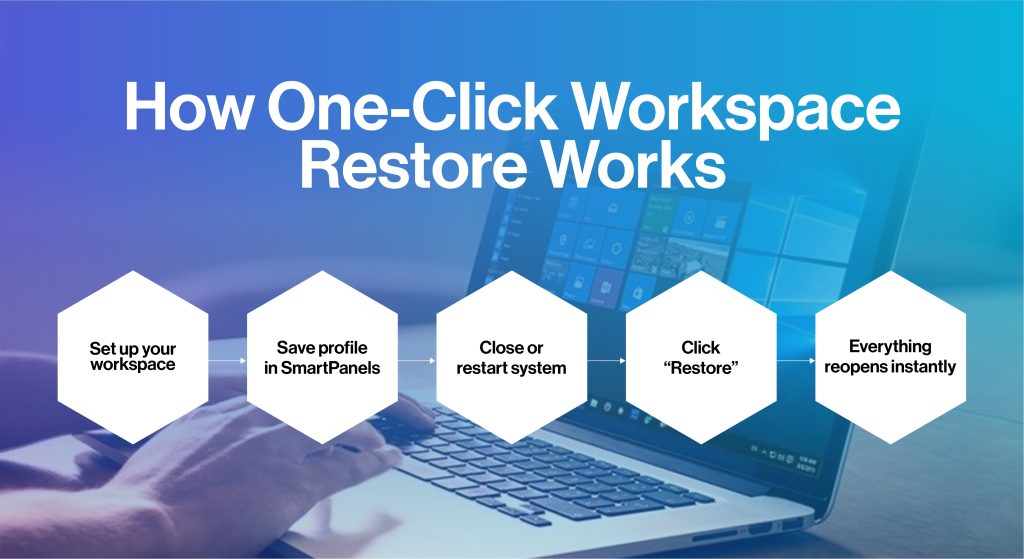
                      1. Save your complete desktop layout 
                      2. Restore apps with their exact size and position 
                      3. Reopen browser tabs automatically 
                      4. Manage multiple displays and profiles 

                      Instead of spending minutes or even hours setting things up again, you can restore everything in just one click.

                      Why Workspace Restoration Matters 

                      These days, we all professionals have a lot going on with an array of applications, browser tabs, and files open at the same time. Doing that is how we work. But having to get all of that back exactly as you had it again manually, well, that’s a waste of time. 

                      Here’s why using tools to restore your workspace is essential: 

                      • Saves Time Daily: No need to reopen apps one by one 
                      • Reduces Cognitive Load: You don’t need to remember what was open 
                      • Improves Productivity: Jump straight into work 
                      • Supports Multi-Monitor Setups: Restore complex layouts easily 

                      And it’s a really common problem to be annoyed after your computer needs to restart or if it unexpectedly crashes. Without something to help, you have to open and arrange everything all over again. Programs like SmartPanels help you get rid of that hassle by bringing your whole workspace back in a flash. 

                      Step-by-Step: Restore Windows Workspace with SmartPanels 

                      Let’s walk through the exact process of setting up and restoring your workspace using SmartPanels. 

                      Step 1: Open Your Apps and Arrange Your Workspace 

                      Start opening all the programs you typically use at work: 

                      • Browsers (Chrome, Edge, Firefox)  
                      • Microsoft Office tools (Word, Excel, PowerPoint)  
                      • Design or development tools  

                      Now resize and position each window as per your needs. You can even get them spread across up to six monitors. SmartPanels allows you to create multiple workspaces for different tasks such as work, entertainment or study. 

                      Step 2: Save Your Workspace as a Profile 

                      Once you have created the layout: 

                      1. Right-click the SmartPanels icon 
                      2. Select Create Profile 
                      3. Name your workspace (e.g., “Work Setup” or “Personal Mode”) 

                      Doing this saves your Window sizes, app positions, and active browser tabs. Ready to restore anytime. 

                      Step 3: Restore Your Workspace in One Click 

                      After a break, or sudden PC restart, when you’re ready to resume work: 

                      1. Right-click the SmartPanels icon 
                      2. Click Restore Profiles 
                      3. Select your saved profile 

                      Within the blink of an eye, your workspace restores exactly as it was, same apps, same layout, and same tabs. This instant restoration eliminates manual setup efforts and boost productivity while saving your time significantly. 

                      How to Reopen Closed Tabs

                      Among professionals, losing browser tabs is a common frustration, although there are basic shortcuts with some limitations. 

                      Manual Methods 

                      • Press Ctrl + Shift + T to reopen the last closed tab 
                      • Use browser history to find recently closed tabs 

                      However, these methods only work for recent sessions and may not restore full windows or tab order.  

                      SmartPanels: The Smart Approach 

                      SmartPanels goes further by: 

                      • Saving complete browser sessions 
                      • Restoring tabs in the exact order 
                      • Reopening multiple browser windows simultaneously 

                      SmartPanels even remembers URLs, Window sizes, and display positions. Thus, instead of reopening tabs one by one, this tool allows you to restore your complete browsing session instantly. 

                      Managing Multiple Displays Like a Pro 

                      If you are one of those who use multiple monitors during work, workspace restoration becomes even more critical. SmartPanels allows you to: 

                      • Attach up to six displays 
                      • Assign apps to specific monitor 
                      • Restore layouts across all monitors 

                      Once saved, no matter how complex the setup is, your multi-monitor setup can be restored with a single click. 

                      Key Features That Make SmartPanels Stand Out 

                      1. One-Click Workspace Restoration 

                      Instead of fiddling around and getting everything looking just right every time your computer restarts, or crashes, SmartPanels instantly gets all your programs, how big their windows are, and where they are on the screen all back to the way you had them.  

                      It’s as if nothing happened! This stops you from having to do the same setup again. This means you can get right back to what you were doing, with no annoying delays.  

                      2. Browser Tab Recovery 

                      Imagine being able to get all your browser windows and every single tab open exactly as you left them. SmartPanels does that. It doesn’t just use where you’ve been recently or a bunch of links; instead, it remembers your entire browsing history, lots of windows, all your tabs organized in them. 

                      So, for things like in depth research, keeping track of projects, or when you’re logged into many different accounts, you can have everything back looking as it was in a matter of seconds, and crucially, you won’t lose what you were doing. 

                      3. Multi-Profile Support 

                      SmartPanels allows you to build separate spaces for work, gaming, and studying. And you can flip between these with no trouble at all. Each profile is set up exactly how you like it for whatever you’re doing, meaning you won’t have to be endlessly fiddling with things on your desk whenever you decide to do something else.  

                      With your work profile, for instance, you’ll have all those programs and files you need for being productive, while your gaming world is about getting the best speed and a big area to see everything on your screen. 

                      4. Multi-Monitor Optimization 

                      Juggling across multiple screens? SmartPanels makes it a breeze. It remembers where you have all your applications laid out on all your monitors and puts them back just as you had them, whether you have two, three, or a whole bunch. 

                      This is amazingly helpful if you’re one of those people with a complicated multi-monitor arrangement. You won’t have to drag and resize everything back to where it belongs every time. 

                      5. Intelligent App Positioning 

                      SmartPanels doesn’t just bring your apps back when you need them; it puts them back in exactly the way you like to have them. If you like using apps side-by-side in a split screen, having a window fill the whole display, or arranging them in a specific way you’ve designed, each app will be in its right place.  

                      This makes things flow much better when you’re working and stops you from having to endlessly change sizes and move things around.

                      Final Thoughts

                      You don’t have to reconstruct all your work things each day. Get everything back, apps and browser pages included, with one click if you go about it the right way. SmartPanels does the work of remembering your whole desktop look and gives it right back to you as soon as you want it.  

                      When your work gets more complicated, working efficiently matters even more. Instead of doing things by hand or using simple shortcuts, a more intelligent way of doing things will give you the same results every time and free up your hours. Managing many screens, a ton of browser tabs, or leaping from one job to another? A dependable way to get things back to how they were totally transforms your working life.  

                      Following the instructions in this guide will give you a smooth, uninterrupted workspace that helps you get stuff done and concentrate. Once you’re all set, your desktop is perpetually ready, precisely as you had it before.

                      SmartText Explained: Best Text Automation Tool for Windows 

                      Best Text Automation Tool for Windows

                      Typing the same phrases repeatedly, without thinking about it, gradually makes you work more slowly. This is particularly true in jobs with lots of emails, reports, or answering customers. Surprisingly, even a little bit of retyping something you say frequently really reduces your overall productivity. 

                      SmartPanels is a really supportive tool to automate this kind of work. Instead of all that repetitive typing, it allows you to use and reuse short chunks of text, so you type faster and are less likely to make errors.  

                      So, if you are looking for the best text-expanding programs or simply want to automate typing on Windows, SmartText is a simple and effective solution. This blog will cover what it does, the benefits of using it, what it’s for, and how it helps when you’re actually using it. 

                      What is SmartText? 

                      SmartText is a powerful tool that automates your text, allowing you to create blocks of text that you frequently use and quickly access them while writing. You don’t have to keep typing out the same things over and over, because SmartText will do it for you with a short shortcut or a chosen ‘trigger.’  

                      It’s a lot like a very clever auto-complete for text; when you type a brief word or phrase, SmartText will turn it into a whole sentence, a paragraph, or even a properly formatted document. For instance, if you typed “/intro”, a full email opening could appear right away.  

                      This tool is useful in all sorts of situations: for emails to customers, for notes and documents you use at work, and for many other applications across lots of different kinds of businesses. It’s a typing shortcut you can depend on. 

                      Why SmartText Matters for Productivity 

                      We so often forget how much time we lose just by doing the same typing repeatedly and it’s a serious hit to how much we get done. Studies show people in office jobs spend almost a fifth to nearly a third of their workday on boringly similar things on the computer, like typing out the same answers, or making things look nice. 

                      SmartText does a lot of the typing for you, almost as if by magic. It’s important for these reasons:  

                      1. You can save a lot of time, as much as half, on things you type over and over.  
                      2. People who use automated tools get things done 30 to 40% more quickly. Because you aren’t repeating yourself as much, you can concentrate on the work that really needs your brainpower.  
                      3. And finally, keeping to standard replies makes your messages easier to understand and makes you look more polished and professional. 

                          Key Features of SmartPanels SmartText 

                          SmartText is cleverly designed to be both straightforward and do a lot. Here are the things that will really make a difference for you: 

                          1. Smart Text Snippets and Templates 

                          You can make content to use repeatedly for emails, reports, responding to customers, and all sorts of things. It’s a place to keep anything from quick bits of wording to a longer explanation, so it’s a cinch to utilize organized details. 

                          2. Instant Auto Text Expansion 

                          SmartText is a robust automatic text expander, changing quick little abbreviations into full paragraphs of text right away. This means far less typing, and things get done at a seriously quicker pace. 

                          3. Dynamic Placeholders 

                          Instead of just sounding like a robot, SmartText lets you insert things like people’s names, the current date, or whatever specific information you want into your automatic replies. It’s what makes them feel like they’re coming from a real person, not just a standard form. 

                          4. Cross-Workflow Integration 

                          This isn’t limited to one program. You can use it to speedily type out things in email, your web browser, Word documents, or tons of other applications. 

                          5. Centralized Content Management 

                          You get to keep all those little chunks of text you use all the time in a single spot, neatly arranged. So, finding what you need and keeping things under control is much easier. 

                          6. Windows Optimization 

                          As a text expander for Windows, SmartText is optimized for performance and compatibility, making it a seamless addition to your workflow. 

                          How SmartText Works

                          SmartText is a program that’s not hard to learn to use, even if you don’t know a lot about computers. It operates in a very straightforward way, with these steps:  

                          1. First, you make a snippet; that means you write out a piece of text you use again, perhaps a reply to an email, a standard greeting, or a document template. 
                          2. Next, you give this snippet a quick “shortcut,” something like “/thanks” or “/followup.”  
                          3. Then, when you are in any program, simply type your shortcut. And almost immediately, the entire piece of text will show up, totally taking the place of the shortcut you typed. 

                              For example;  

                              If you write or support, you’ll receive an immediate response:  
                               
                              “Thank you for reaching out. We’ve received your request and will respond shortly.” You will not need to retype the entire content, and importantly, you will reproduce it consistently in the same manner each time. 

                              SmartText transforms typing from a manual process into an automated system, making it far more efficient. 

                              Common Use Cases of SmartText 

                              SmartText works in lots of different jobs and types of businesses. For example: 

                              1. Customer Support Teams 

                              Customer support people frequently get asked the same things again. SmartText lets them give a quick answer with responses they’ve already written, and this can get the answer to the customer up to 40% faster. 

                              2. Sales Professionals 

                              Salespeople can use SmartText to automatically send out initial emails, later follow-ups, and proposals, meaning everyone hears the same message and the sales team can contact more people. 

                              3. Marketing Teams 

                              Marketing teams can use previous campaign designs, wording for ads, and ways of expressing things to work quicker and be more consistent. 

                              4. Content Writers and Bloggers 

                              When it comes to writing articles and blog posts, writers can keep collections of plans, how to lay things out, and phrases they use often, which greatly decreases how long it takes to write. 

                              5. Administrative Professionals 

                              Administrative assistants can automate typical tasks such as meeting minutes, reports, and updates, freeing up many hours each week. 

                              How SmartText Helps You Automate Repetitive Tasks 

                              Doing the same typing repeatedly isn’t just a waste of time; it really doesn’t have to be done that way. SmartText does the repetitive work for you with automatic processes.  

                              You simply create something once, use it immediately, and then let it work on its own, instead of typing the same email repeatedly, copying and pasting replies, or endlessly reworking standard messages.  

                              For professionals who deal with lots of messages, this change could get you 5 to 10 hours back in your week.  

                              And if you’re asking yourself how to ditch all that repetitive typing?  

                              SmartText is one of the easiest, best ways to get it stopped. 

                              SmartText vs Other Text Expander Tools 

                              Lots of programs will let you quickly type out phrases from short abbreviations, but SmartText is really all about being simple to work with and fast. What’s great about it? 

                              Key advantages: 

                              • Easy to set up and use 
                              • Designed specifically for Windows users 
                              • Clean and intuitive interface 
                              • Suitable for individuals and teams 

                              Tips for Getting Started with SmartText 

                              To fully utilize SmartText, follow these steps:  

                              1. Begin by creating shortcuts for things you type all the time. Make those shortcuts easy to remember and straightforward.  
                              2. Next, please organize your saved snippets into groups to easily locate them when needed.  
                              3. Don’t just set it and forget it; keep going back to your templates to improve them.  

                                  And it’s a good idea to see how much time SmartText is saving you to prove to yourself how worthwhile it is. You’ll be much faster and get a lot more done in just a few days, you’ll find. 

                                  Conclusion 

                                  SmartText isn’t simply about typing things quicker; it’s a whole way to get a lot more done and with much less hassle. It does all your text work, saving you time, reducing errors, and ensuring consistency. And those little time-savers really add up to a much smoother and more productive way of working. 

                                  For Windows users, SmartText is a reliable text automation tool that is both easy to use and surprisingly capable. It’s a text expander for Windows, an auto-text expander, and a typing automation tool that can grow with your needs, all delivering improvements you can actually see and without being overly complicated.  

                                  In simple terms, SmartText is a straightforward and powerful solution if repetitive typing slows you down. It’ll quickly become a vital part of how you do things, helping you to work with more intelligence, at a quicker pace, and with a lot more efficiency, day in and day out. 

                                  Want to save your time? 
                                   
                                  [Switch to SmartText] 

                                  Auto Reopening Apps: You’re Losing Hours Reopening Apps Every Week 

                                  Auto Reopen Apps

                                  Each time you restart your computer and have to go through the process of getting all your usual programs, browser windows, and files open again. Well, you’re slowly but surely losing precious time and getting pulled away from what you want to do. What seems like a little thing you do every day surprisingly builds into a lot of interruptions, holding up truly important work. You’re not beginning your day with a clear head, but rather reconstructing your whole working area, bit by bit.  

                                  That’s where Auto Reopening Apps is really helpful. It lets your computer put all your apps and browser activity, exactly as you left them, right back on your screen. So you avoid all those repeating actions, and instead of a different space each time you start up, your workspace is always how you like it, is always the same, and is always ready to go when you are. 

                                  The Hidden Cost of Reopening Everything Manually 

                                  It won’t take a huge amount of time to start up your apps by hand, a little bit each day, but all those minutes really do pile up. Even five minutes of getting everything back the way you need it every single day is almost a whole hour wasted over the course of a week. And over a few months? That’s a serious chunk of work time you’ll never get back.  

                                  But it’s not just the time. Every single time you go to get programs going again, hunt for documents, or get your browser tabs back, you lose where you were in your thinking. Your brain needs a moment to get its bearings, and that makes it tougher to really concentrate. All this shifting back and forth between tasks makes you work more slowly and makes you feel worn out.  

                                  What’s more, if things aren’t exactly as you had them, it’s easy to get mixed up. You might not remember what files you had showing, forget which tabs were open in your browser, or have to spend ages moving windows around. Little snags like these become bigger problems as the day goes on. 

                                  How to Reopen Closed Tabs on Desktop Browsers 

                                  It happens to everyone who uses a computer and it’s particularly easy to do if you’re doing lots of things at once: accidentally closing a browser tab! Luckily, getting it back is really easy. 

                                  Here are the most effective methods: 

                                  • Press Ctrl + Shift + T to reopen the last closed tab 
                                  • Repeat the shortcut to restore multiple tabs 
                                  • Right-click on the tab bar and select “Reopen closed tab” 
                                  • Open your browser history to find and restore previous pages 

                                  If you’ve looked up how to get those tabs back, these are by far the speediest fixes.   

                                  Plus, nearly all browsers on your desktop computer can be set to automatically bring back all the tabs from the time before you turned off or restarted your computer. Turning this on means your tabs will spring back to life for you. And if you use apps that also come back after restarting, you’ll have a really smooth browsing time, saving you from repeating yourself and from being annoyed. 

                                  Built-In Windows Features That Support Auto Reopening Apps

                                  Windows has a lot of ways to help applications open up on their own, though many of us aren’t getting the full benefit. 

                                  1. Startup Applications 

                                  You can tell some of your desktop programs to fire up as soon as your computer begins, and this is perfect for things you use all the time: your messaging program, your file explorer, or your programs for getting work done. Just don’t add loads of them, or your computer will take longer to get going. 

                                  2. Restart Apps Feature 

                                  Windows 10 and 11 have a “Restart Apps” feature. When you’ve got this on, programs that are compatible will automatically reopen for you after your computer has restarted, so you can get back to what you were doing almost immediately. 

                                  3. Microsoft Windows Desktop Runtime 

                                  The Microsoft Windows Desktop Runtime is a foundation for many desktop apps, making sure they run as they should. If you keep this runtime updated, your apps are more likely to stay running without issues and, importantly, to reopen correctly after a restart.

                                  How to Maximize a Window Efficiently on PC 

                                  A little bit of smart window handling really can make your work go more quickly. Things like making windows fill the whole screen, or changing their size, don’t seem like a big deal each time, but they add up to a lot of delays if you do them over and over. 

                                  Here are quick ways to maximize a window: 

                                  • Double-click the title bar 
                                  • Press Windows + Up Arrow 
                                  • Click the maximize button in the top corner 

                                  Advanced Tools for Auto Reopening Apps on PC

                                  Windows does the basics, but when you’re doing a lot of things at once it doesn’t quite get you as organized as you might like. If you’re a person who has loads of programs, files, and lots of pages open in your browser, you’ll still find yourself wasting time getting everything arranged just how you like it. 

                                  Workspace Automation Software 

                                  Workspace automation software can actually recall and perfectly recreate your whole work area. This means they’ll put your applications open, size and place all your windows, show you the folders you had open in File Explorer, and even bring back all of your browser windows and tabs. Essentially, this neat trick makes absolutely certain your computer looks exactly as you left it, every single time you turn it on. 

                                  Layout and Session Management 

                                  Beyond just remembering your apps, certain programs let you actually save how your screen is organized. Think of it as being able to build totally different “desks” for different things, one for when you’re getting stuff done at work, another for looking into things, and a third for when you’re in a meeting, and you can jump between all of them with no trouble at all. 

                                  Why Auto Reopening Apps Is Essential for PC-Based Work 

                                  When you’re at a desk or with a laptop, how quickly you get going really affects how much you get done. Even little hiccups at the beginning of the day can sort of color everything else.  

                                  Auto Reopening Apps gets rid of those hiccups by making sure your computer is all set for you right away. You don’t have to waste time getting programs open and webpages to return to where you left off, you can just do the work. 

                                  This is especially important for professionals who: 

                                  • Work with multiple applications daily 
                                  • Rely on browser-based tools 
                                  • Handle ongoing projects that require continuity 

                                  By stopping you from doing the same starting steps repeatedly, Auto Reopening Apps helps you stay concentrated and get more from your time. 

                                  The Future of Desktop Workspace Automation 

                                  The way we do things on our computers is changing, and becoming more and more automatic, and a lot quicker. As programs get better, the “auto-reopen apps” feature will get to know you and your preferences.  

                                  Down the line, we can expect apps to reopen smartly based on when and how you use them, a way to have related apps and all their windows neatly bundled together for specific jobs, and getting back to where you were in a program after a restart being much, much faster and more correct.  

                                  All of this means you’ll have to do even less fiddling around with things yourself, and your computer will adjust to how you work, not the other way around.

                                  Final Thoughts: Stop Rebuilding Your Workspace Every Day

                                  Every day when you start work, you probably go through the motions of getting your programs open, your browser tabs back where you had them, and everything in your work area arranged. It doesn’t sound like much, but all of that takes time, and it slows you down. Repeated over weeks and months, these little interruptions really eat into your time and make it harder to truly concentrate.  

                                  Fortunately, Windows already has ways to help, and with a few easy keyboard commands (like getting those closed tabs back!) and a bit of a change in how you do things, you can get rid of a lot of this hassle. And a really good â€˜Auto Reopening Apps’ system means your computer will be perfectly prepared to go whenever you are.  

                                  If you want to be far more effective at work and stop doing the same things over and over to begin with, you’ll want to leave behind doing it all by hand. Programs like SmartPanels will do the work of organizing your desktop, instantly bringing your applications to life and making everything flow together so you can dive into the important stuff instead of a basic restart. 

                                  [Manage Your Desktop Efficiently]