
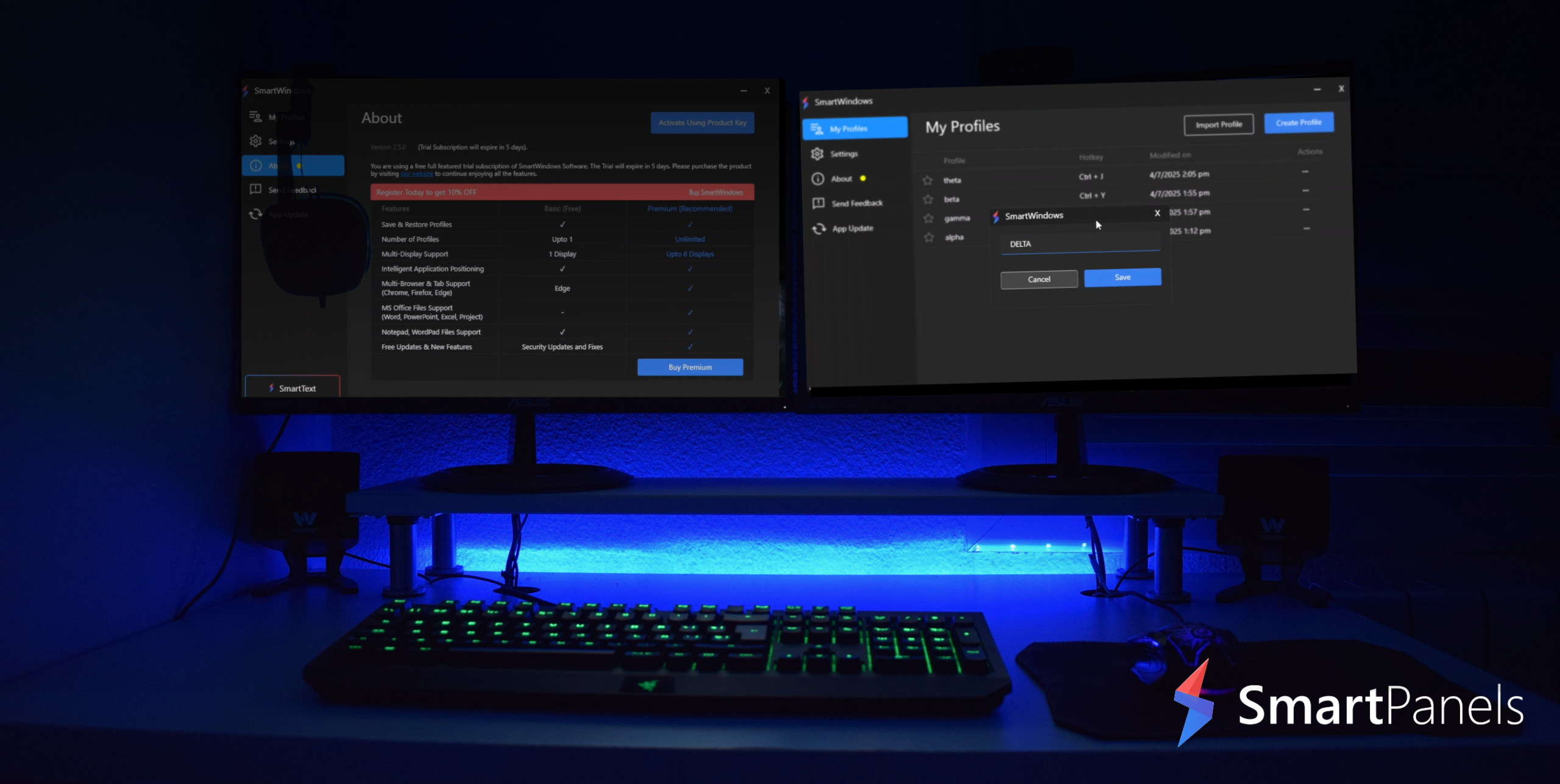
A cluttered desktop, constant window switching, and endless tab hunting can slow down even the most organized workflow. You will find that many remote workers, creators, and other professionals have made the move to a dual monitor configuration to put an end to it and work with greater focus and efficiency. If your day is spent on virtual meetings, editing, or project management from home, an extra screen can be a game changer.
We have put together this guide to show you some hands-on methods for better arranging your monitors and taming the distractions so you can have a workspace that is truly conducive to getting things done.
Why a Dual Monitor Setup Improves Productivity
With a dual-monitor setup, you can work in a more natural way, no longer having to minimize windows or dig for an application obscured by another tab. You are not forced to cram everything on one screen; the extra display gives you room to put aside separate zones for your various duties. It is a good way to reduce interruptions and keep what you need visible all day.
You will see the benefit right away if you are like many who have made the change to two monitors. There is less time wasted going back and forth between programs, which makes for a better flow of work. That is particularly true when you are juggling a mix of spreadsheets, documents, research, creative apps, and your communications at once.
The numbers back this up: studies show that having more than one display trims the time it takes to switch tasks and in turn boosts your efficiency and focus. You don’t have to break your concentration to find a file; your main work stays in front of you while your support is open on the other side.
Choosing the Right Monitor Placement
It is not just a matter of looks where you place your monitor. If it is in the wrong spot, you will have neck strain, tired eyes, and other discomforts after a while at work. You want a setup that is easy on the body so as to avoid physical stress; good posture and the ability to be productive over the long haul depend on it.
- Keep Your Main Screen Centered
Position your main monitor directly in front of you, since that is where you will focus most of the day. A centered display is more natural to look at and spares you from having to keep turning your neck.
- Match Monitor Height for Better Comfort
There is nothing more exasperating than an uneven screen. If one of your displays is perched a little higher or lower than the rest, you find yourself making constant eye adjustments as you go from one to the other. Before long, that kind of thing will leave you with neck and shoulder tension.
The answer is to use an adjustable stand or arm to keep your monitors level with your eyes.
- Maintain a Comfortable Viewing Distance
You will find that most users are comfortable with their monitor set at about an arm’s length. There is a reason: get too close and you risk straining your eyes, but put it too far out and you have to lean in to see the screen. The right amount of space means you can see everything clearly and stay in a relaxed position for the day.
Organize Your Workspace with Smart Panels
You will only see a boost in productivity from extra screen real estate if you keep your workspace in order. Otherwise, having several monitors on hand can be counterproductive; before you know it, they are cluttered with windows on top of one another, superfluous tabs, and other visual noise.
Create Dedicated Work Zones
Take a typical setup: one monitor for all your communications like email, Slack, or Microsoft Teams, and the other for whatever project you’re working on. It is a simple way to cut down on mental clutter since your mind will know where to find what it needs.
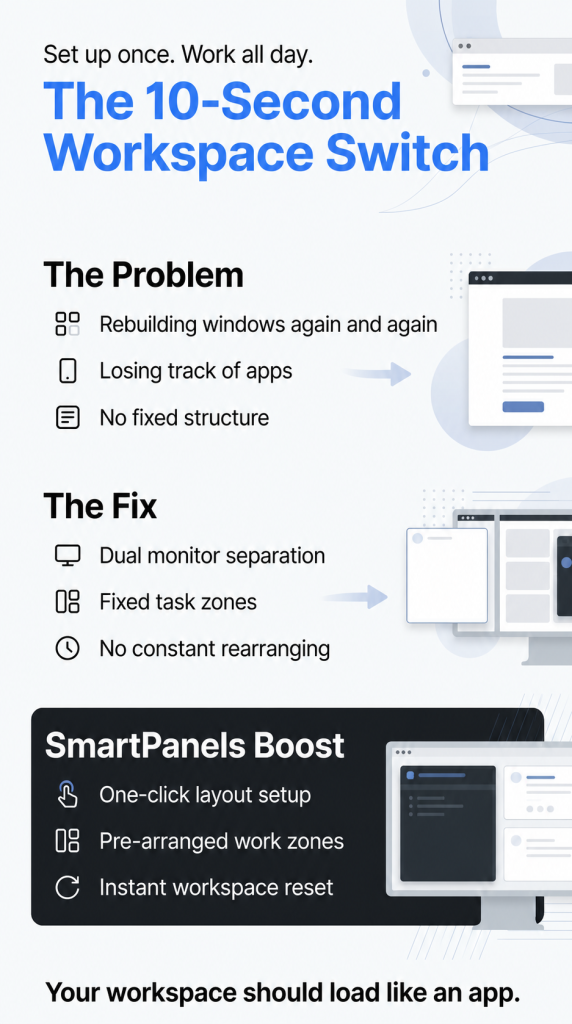
Then there are SmartPanels to make the whole setup easier. It lets you stick with a consistent layout from morning to evening, so you don’t have to be constantly repositioning windows. With its structured panels, multitasking is a lot more fluid.
Reduce Visual Clutter
You can be as put off by digital clutter as by physical clutter, and it takes an equal toll on your concentration. When you have a screen full of overlapping windows, they are nothing but a distraction from the work that really needs your attention.
That is why an orderly layout makes for better clarity; there is no time wasted fiddling with windows or looking for an application. With Smart Panels, you can easily navigate your workspace, as they keep every app in its place for a tidier layout.
How Dual Screens Improve Focus
It is a common belief that multitasking is the enemy of concentration. But with two well-set-up screens, you can sharpen your focus since there is no need to be constantly toggling from one window to another.
Organization is what makes the difference. Left to its own devices, multitasking will be nothing but a distraction; do it in a structured way, and you will have a much more seamless workflow.
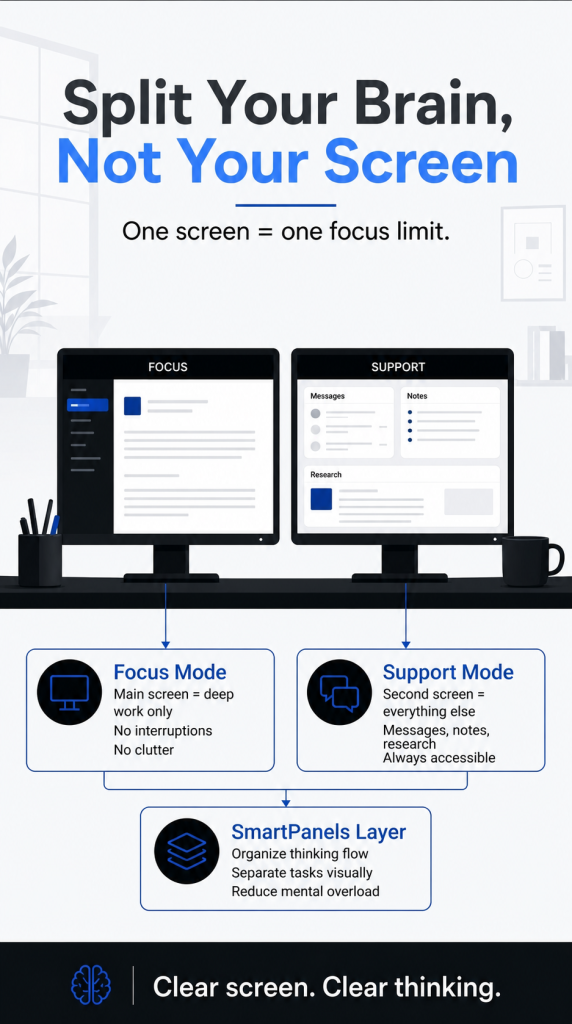
Separate Primary and Secondary Tasks
A good way to do this is to keep the tasks that demand your attention separate from the supporting details. Put your active work on the main monitor, be it for writing, editing, or coding, and relegate the research, references, and communications to a second screen. In this way you can keep your focus and not have your workflow continually broken up.
Avoid Overloading Both Screens
You don’t have to put an app on every inch of screen just because you have the room. For the most part, you will be more productive with a tidy workspace than a busy one. That is where SmartPanels comes in to put some order to your layout, letting you keep things structured instead of having to manually wrangle your open applications.
Improve Your Laptop Dual Monitor Setup
A laptop dual-monitor setup has become increasingly common as remote and hybrid work environments continue growing. Many professionals now rely on laptops connected to external displays for flexibility and mobility.
Use the Laptop as a Supporting Screen
A good way to go about it is to put your main work on the bigger monitors and relegate the laptop screen to secondary duties like your calendar, music, or a messaging app. This way, you can use your screen space more effectively and avoid clutter on the main displays.
Invest in Better Ergonomics
Laptop users tend to slouch because they fix the screen on the machine at such a low level. Put your laptop on a stand with an external monitor and you will have better viewing angles and a more ergonomic setup in general. Then pair that with an outside keyboard and mouse and you’ll find long hours at work are far more comfortable.
Simplify Connections With Docking Stations
You can put a docking station to good use and make your laptop workspace much more manageable. You don’t need to plug in every cable separately; the hub handles your monitors, charging, and other accessories all at once. It is a way to keep things tidy and save on setup time come morning.
The Importance of Lighting in Multi-Monitor Workspaces
Lighting directly impacts comfort, focus, and eye strain. Even the best monitor arrangement can become uncomfortable when paired with poor lighting conditions.
- Reduce Screen Glare
You will find that direct sun or any harsh overhead lights have a way of putting up reflections on your screen, making it hard to look at for long. To improve visibility during the day, keep your monitors away from those light sources. In general, you are more comfortable with soft ambient light than with a room that is too brightly lit.
- Adjust Brightness Carefully
Monitor brightness should feel balanced with the surrounding environment. Screens that appear excessively bright can increase eye fatigue during extended use. Many users find that reducing brightness slightly improves comfort during long sessions.
- Consider Bias Lighting
Bias lighting refers to soft lighting placed behind monitors. This technique reduces contrast between bright screens and darker surroundings, helping minimize eye strain during evening work.
Why Cable Management Matters More Than You Think
You can have a productive digital space, but that is only part of the story. The way you organize your space affects your focus and efficiency. Take cables, for instance; when they tangle up, they add to the visual clutter and give off a sense of stress and disarray. A bit of cable management can help reduce that, creating a neater setup and a cleaner environment overall.
Create a Cleaner Desk Environment
Cable sleeves, under-desk trays, and monitor arms help hide unnecessary wiring while creating more usable desk space.
A cleaner desk often feels calmer and easier to work in, especially during long or demanding projects.
Combine Physical and Digital Organization
The most productive setups combine physical cleanliness with organized digital layouts. While cable management improves the physical workspace, tools like SmartPanels help maintain structure across multiple displays digitally.
Together, these improvements create a workspace that feels more efficient and less distracting.
Final Thoughts
There is no denying that a well-put-together dual monitor arrangement can change the way you work. The additional screen means fewer interruptions and better multitasking for a more seamless workflow in any industry. But then again, you don’t get that kind of productivity just by tacking on an extra display. What makes the difference is having a workspace that you can comfortably and easily manage from morning to night.
This is where something like SmartPanels has its place for the modern professional. Instead of tolerating window clutter or reconfiguring your setup on the fly, you can create a consistent, clear workspace. If you are working from home, running creative projects or just prefer a tidy desktop, a smarter approach to your multi-monitor setup will see you working at a quicker pace with less fuss and more focus.