

It’s an annoying feeling, isn’t it? Each morning, you have to completely start over with your computer, rebuilding your “desk” of programs. Many people doing office work, or anything on a computer, are used to reopening all their applications, fiddling with window sizes, and searching for the browser tabs they had open every single day.
Luckily, there are many better tools available to make this whole process a lot easier. Programs such as SmartPanels allow you to save your desktop exactly as it is, every application, every browser tab, and where they all are on your screen, and then get it all back immediately.
You go from a lot of different actions to a much smoother way of working, and your workspace is right there, looking precisely how you left it.
This blog will show you how to restore your Windows desktop, how to get those tabs from the last session open again, and how SmartPanels can really help you save time.
What Does “Restore Windows Workspace” Mean?
When you’re using Windows, a workspace includes all the stuff: the programs you have running, what you have open in your web browser, how big each window is, and where they all are on your monitor (or monitors).
Usually, if you turn your computer off and then on, all of that is lost. You’d have to go to the trouble of opening everything up, getting the windows to be the size you want, and arranging it all again. That’s what workspace restoration tools are for: to avoid that hassle.
SmartPanels allows you to:
- Save your complete desktop layout
- Restore apps with their exact size and position
- Reopen browser tabs automatically
- Manage multiple displays and profiles
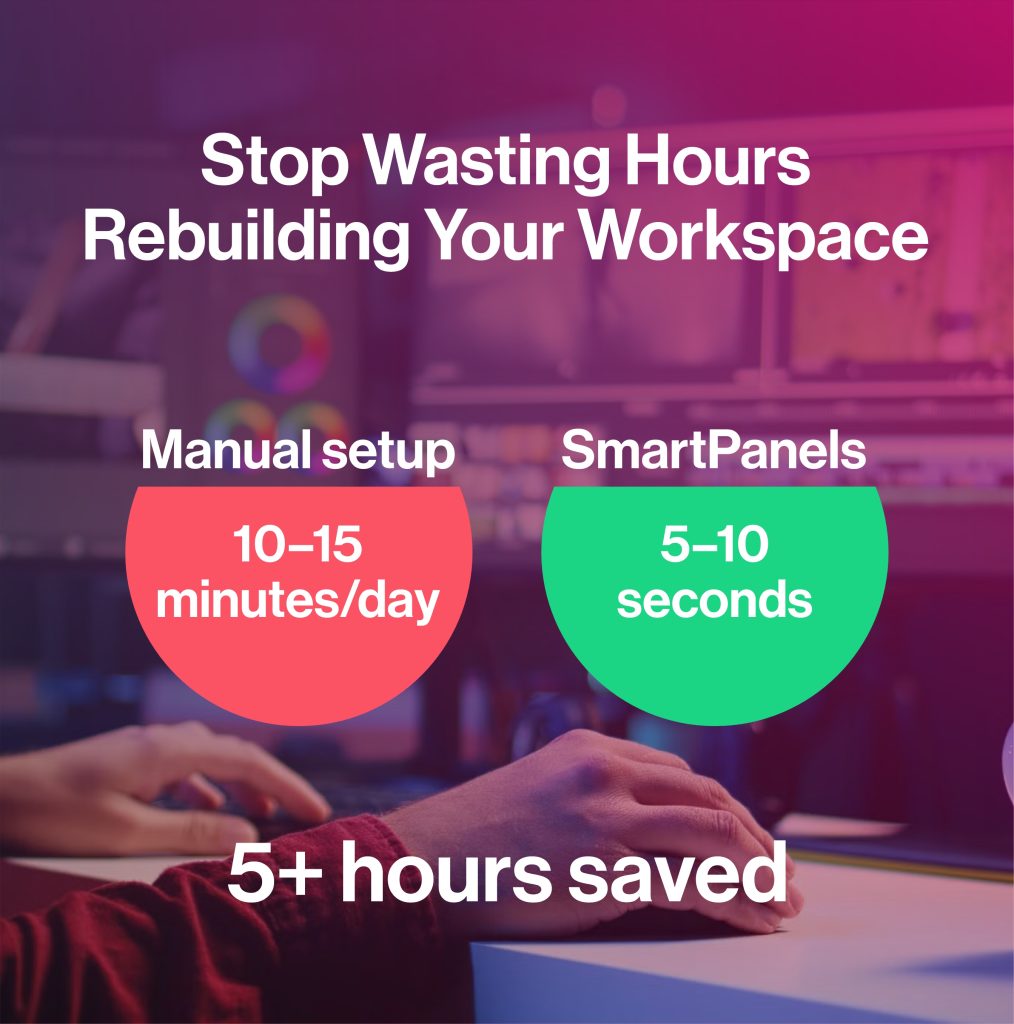
Instead of spending minutes or even hours setting things up again, you can restore everything in just one click.
Why Workspace Restoration Matters
These days, we all professionals have a lot going on with an array of applications, browser tabs, and files open at the same time. Doing that is how we work. But having to get all of that back exactly as you had it again manually, well, that’s a waste of time.
Here’s why using tools to restore your workspace is essential:
- Saves Time Daily: No need to reopen apps one by one
- Reduces Cognitive Load: You don’t need to remember what was open
- Improves Productivity: Jump straight into work
- Supports Multi-Monitor Setups: Restore complex layouts easily
And it’s a really common problem to be annoyed after your computer needs to restart or if it unexpectedly crashes. Without something to help, you have to open and arrange everything all over again. Programs like SmartPanels help you get rid of that hassle by bringing your whole workspace back in a flash.
Step-by-Step: Restore Windows Workspace with SmartPanels
Let’s walk through the exact process of setting up and restoring your workspace using SmartPanels.
Step 1: Open Your Apps and Arrange Your Workspace
Start opening all the programs you typically use at work:
- Browsers (Chrome, Edge, Firefox)
- Microsoft Office tools (Word, Excel, PowerPoint)
- Design or development tools
Now resize and position each window as per your needs. You can even get them spread across up to six monitors. SmartPanels allows you to create multiple workspaces for different tasks such as work, entertainment or study.
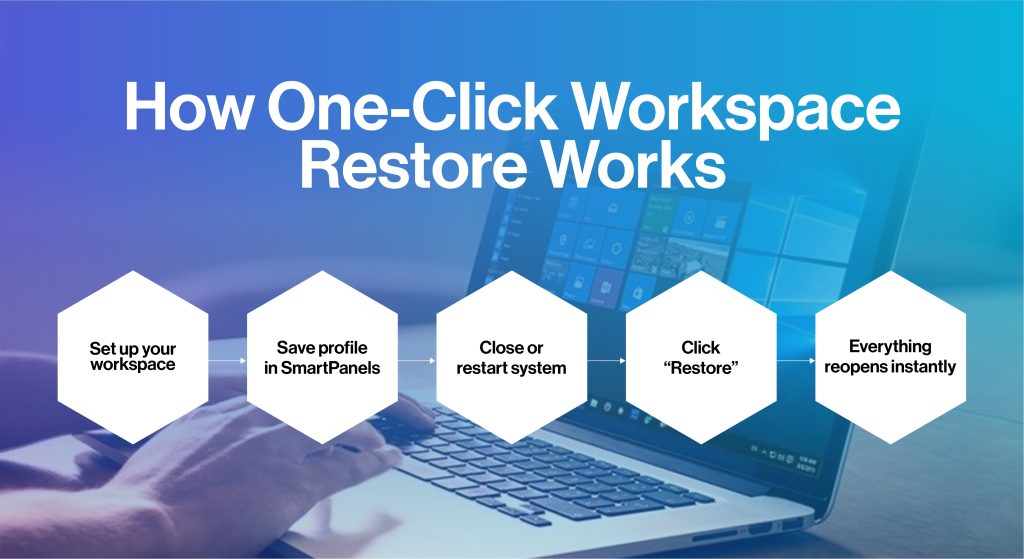
Step 2: Save Your Workspace as a Profile
Once you have created the layout:
- Right-click the SmartPanels icon
- Select Create Profile
- Name your workspace (e.g., “Work Setup” or “Personal Mode”)
Doing this saves your Window sizes, app positions, and active browser tabs. Ready to restore anytime.
Step 3: Restore Your Workspace in One Click
After a break, or sudden PC restart, when you’re ready to resume work:
- Right-click the SmartPanels icon
- Click Restore Profiles
- Select your saved profile
Within the blink of an eye, your workspace restores exactly as it was, same apps, same layout, and same tabs. This instant restoration eliminates manual setup efforts and boost productivity while saving your time significantly.
How to Reopen Closed Tabs
Among professionals, losing browser tabs is a common frustration, although there are basic shortcuts with some limitations.
Manual Methods
- Press Ctrl + Shift + T to reopen the last closed tab
- Use browser history to find recently closed tabs
However, these methods only work for recent sessions and may not restore full windows or tab order.
SmartPanels: The Smart Approach
SmartPanels goes further by:
- Saving complete browser sessions
- Restoring tabs in the exact order
- Reopening multiple browser windows simultaneously
SmartPanels even remembers URLs, Window sizes, and display positions. Thus, instead of reopening tabs one by one, this tool allows you to restore your complete browsing session instantly.
Managing Multiple Displays Like a Pro
If you are one of those who use multiple monitors during work, workspace restoration becomes even more critical. SmartPanels allows you to:
- Attach up to six displays
- Assign apps to specific monitor
- Restore layouts across all monitors
Once saved, no matter how complex the setup is, your multi-monitor setup can be restored with a single click.
Key Features That Make SmartPanels Stand Out
1. One-Click Workspace Restoration
Instead of fiddling around and getting everything looking just right every time your computer restarts, or crashes, SmartPanels instantly gets all your programs, how big their windows are, and where they are on the screen all back to the way you had them.
It’s as if nothing happened! This stops you from having to do the same setup again. This means you can get right back to what you were doing, with no annoying delays.
2. Browser Tab Recovery
Imagine being able to get all your browser windows and every single tab open exactly as you left them. SmartPanels does that. It doesn’t just use where you’ve been recently or a bunch of links; instead, it remembers your entire browsing history, lots of windows, all your tabs organized in them.
So, for things like in depth research, keeping track of projects, or when you’re logged into many different accounts, you can have everything back looking as it was in a matter of seconds, and crucially, you won’t lose what you were doing.
3. Multi-Profile Support
SmartPanels allows you to build separate spaces for work, gaming, and studying. And you can flip between these with no trouble at all. Each profile is set up exactly how you like it for whatever you’re doing, meaning you won’t have to be endlessly fiddling with things on your desk whenever you decide to do something else.
With your work profile, for instance, you’ll have all those programs and files you need for being productive, while your gaming world is about getting the best speed and a big area to see everything on your screen.
4. Multi-Monitor Optimization
Juggling across multiple screens? SmartPanels makes it a breeze. It remembers where you have all your applications laid out on all your monitors and puts them back just as you had them, whether you have two, three, or a whole bunch.
This is amazingly helpful if you’re one of those people with a complicated multi-monitor arrangement. You won’t have to drag and resize everything back to where it belongs every time.
5. Intelligent App Positioning
SmartPanels doesn’t just bring your apps back when you need them; it puts them back in exactly the way you like to have them. If you like using apps side-by-side in a split screen, having a window fill the whole display, or arranging them in a specific way you’ve designed, each app will be in its right place.
This makes things flow much better when you’re working and stops you from having to endlessly change sizes and move things around.
Final Thoughts
You don’t have to reconstruct all your work things each day. Get everything back, apps and browser pages included, with one click if you go about it the right way. SmartPanels does the work of remembering your whole desktop look and gives it right back to you as soon as you want it.
When your work gets more complicated, working efficiently matters even more. Instead of doing things by hand or using simple shortcuts, a more intelligent way of doing things will give you the same results every time and free up your hours. Managing many screens, a ton of browser tabs, or leaping from one job to another? A dependable way to get things back to how they were totally transforms your working life.
Following the instructions in this guide will give you a smooth, uninterrupted workspace that helps you get stuff done and concentrate. Once you’re all set, your desktop is perpetually ready, precisely as you had it before.