

There is nothing to ruin a productive day like a cluttered desktop. You are hardly alone in the annoyance of having to put windows back where they belong, reorganize your tabs, and reopen apps with every restart of your computer.
A dual monitor arrangement is supposed to be the answer, giving you the space to multitask and stay organized with fewer distractions. But then Windows decides to reset the position of an app, or the monitors come back in the wrong order after an update, and you are left with a mess.
SmartPanels puts an end to that sort of thing. The software will remember how you like your browser tabs and applications laid out so the screens open as you left them. It is a way to keep things consistent and orderly on your dual monitors, no matter if you are working from home or juggling a host of business tools and creative projects.
Why a Dual Monitor Setup Improves Productivity
You don’t have to be a developer or in IT to make use of a dual monitor setup these days. Professionals in all walks of the industry are turning to multiple screens to get more done and stay on task.
Think of it this way: with just one display, you are always at the mercy of tab switching, minimizing windows, and hunting down an app you can’t see.
It is a habit that saps your concentration and drags on your workflow over the course of the day. Put a second screen in front of you, and you have all the visible workspace you need, with none of the friction.
Better Multitasking Without Constant Switching
There is no better way to put the case for a dual monitor arrangement than the simple fact that you can have your key applications open side by side. It allows you to work in a more natural fashion without the need to shuffle between windows.
Take the typical professional, for instance: he might reserve one screen for his communications and leave the other for what he is actually working on. You will find this makes for a tidier workflow with fewer distractions.
Some of the more popular ways to go about it are:
- Having email on one display and your spreadsheets on the next
- Running video calls while your project dashboards are up
- Putting research next to the document you are writing
- Or live previews with your editing tools
When you can see everything immediately, you don’t waste time navigating around; you get on with the job.
Improved Organization for Daily Work
Having more than one display is a good way to keep your projects in order. You don’t have to pile up applications; instead, put each monitor to work for its own end.
Take a marketing person, for instance: he can run his analytics on one screen and handle the campaigns on the other. Designers will do the same, leaving their creative tools apart from any preview windows. In the end, you have a tidier workspace, and it is all the simpler to get through your day with.
Reduced Repetitive Setup Time
You would think dual monitors are all about productivity, yet for many people, they are a source of wasted time. Reboot the system, and you have to put in the work to move your apps around again; layouts will reset on you, tabs will vanish, and programs will open where they should not.
SmartPanels eliminates that kind of issue. It will save your entire workspace for you so there is no need to reconstruct your setup every morning. With a single click you can have everything back exactly as it was.
How to Set Up Dual Monitors
You might wonder what getting dual monitors running involves, but the process is simpler than it seems. Since current Windows systems are built to handle multiple displays from the off, you can set everything up in a matter of minutes.
Step 1: Check Your Computer Connections
To begin, look at the display ports on your desktop or laptop and see what you are working with. In most cases, you will encounter one of these:
- HDMI
- DisplayPort
- USB-C
- VGA (on an older machine)
Make sure your monitor is compatible with one of them. If they don’t match up, an adapter will connect the cables.
Step 2: Connect the Second Monitor
Once the cable is attached, Windows typically detects the second monitor automatically. In most cases, both screens will become active immediately after connection.
Usually, restarting the computer or checking cable connections resolves the issue if the display does not appear.
Step 3: Open Display Settings
Right-click on the desktop and select Display Settings. Inside this menu, Windows allows users to customize how monitors behave.
You can:
- Rearrange monitor order
- Change screen resolution
- Adjust display scaling
- Rotate screen orientation
- Select the primary display
Positioning the monitors correctly inside settings is important because it controls how the cursor moves between screens.
Step 4: Select “Extend These Displays”
For most users, the best option is “Extend These Displays.” This mode turns both monitors into separate workspaces instead of duplicating the same screen.
Extending displays allows users to spread applications across both monitors and multitask more efficiently.
Step 5: Save Your Workspace with SmartPanels
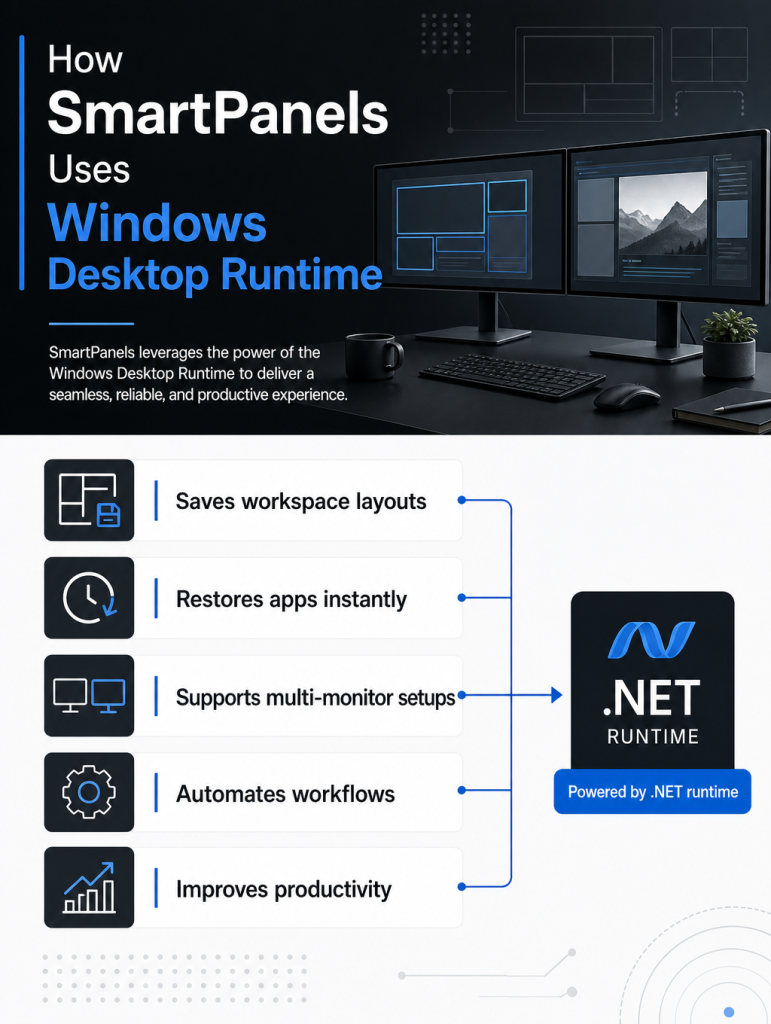
After arranging your applications and browser windows, SmartPanels allows you to save the entire workspace permanently.
The software remembers:
- Window positions
- Browser tabs
- Screen layouts
- App sizes
- Monitor arrangements
As a result, your setup can be restored instantly anytime your system restarts or monitors reconnect.
Common Problems with Dual Monitor Setups
Even though dual monitors improve workflow, users often experience frustrating technical difficulties after setup.
- Applications Open on the Wrong Monitor
One of the most common complaints is applications reopening on unexpected screens. For example, a browser may launch on the secondary display while work tools appear on the primary monitor.
Over time, manually correcting those positions becomes repetitive and inefficient.
- Layouts Reset After Updates
Windows updates and graphics driver changes sometimes reset monitor arrangements completely. Users may need to rebuild their workspace from scratch after every system update.
This problem is especially frustrating for professionals who rely on consistent layouts daily.
- Browser Tabs and Work Sessions Disappear
Many users also lose browser sessions after restarting their computer. Reopening research tabs, dashboards, and work pages manually can waste valuable time every morning.
SmartPanels helps prevent these issues by restoring browser windows and saved sessions automatically.
- Monitor Detection Issues
Occasionally, Windows may fail to recognize monitor order correctly after disconnecting docking stations or cables. As a result, users may experience:
- Misaligned screens
- Incorrect scaling
- Rearranged desktop icons
- Broken app positioning
Saving workspace profiles through SmartPanels helps reduce these interruptions significantly.
How SmartPanels Makes Dual Monitor Settings Smarter
Basic Windows display tools only manage monitor placement temporarily. SmartPanels goes further by preserving complete workflows and restoring them automatically.
- Save Personalized Workspace Profiles
Different tasks often require different screen layouts. SmartPanels allows users to create separate profiles for specific activities.
For example:
- Work mode
- Gaming setup
- Video editing workspace
- Research sessions
- Presentation layouts
Instead of rearranging apps manually every time tasks change, users can switch profiles instantly.
- Restore Applications Automatically
One of the strongest features of SmartPanels is automatic application recovery. The software remembers where apps belong and restores them correctly.
Supported applications include:
- Google Chrome
- Microsoft Edge
- Firefox
- Excel
- Word
- PowerPoint
- Notepad
This feature helps users continue work without rebuilding their desktop layout repeatedly.
- Keep Browser Tabs Organized
Professionals often rely on dozens of browser tabs throughout the day. Losing those tabs can interrupt workflow and delay projects.
SmartPanels restores saved browser sessions so users can continue exactly where they stopped.
- Support Large Multi-Monitor Workstations
Although many users operate two screens, SmartPanels also supports larger workstation environments with up to six displays.
This flexibility makes it useful for advanced users who manage multiple dashboards, editing tools, or monitoring systems simultaneously.
Best Dual Monitor Settings for Comfort and Efficiency
Proper dual monitor settings can improve both productivity and comfort during long work sessions.
- Match Monitor Heights and Alignment
Positioning monitors at equal height reduces unnecessary neck movement and eye strain. Displays should feel visually connected rather than disconnected.
- Use Consistent Resolution When Possible
Monitors with matching resolutions create smoother cursor movement and cleaner transitions between screens.
If resolutions differ significantly, scaling adjustments may help improve consistency.
- Choose the Correct Primary Display
Your main monitor should contain:
- The taskbar
- Notifications
- Frequently used applications
This arrangement helps keep important tools centralized and easier to access.
- Adjust Brightness and Scaling
Long hours in front of bright screens can create fatigue. Matching brightness levels across both monitors helps create a more comfortable viewing experience.
Similarly, proper text scaling improves readability without straining the eyes.
How to Use Dual Monitors Effectively
Understanding how to use dual monitors efficiently can make a major difference in productivity.
- Separate Communication from Focused Work
One of the most effective strategies is dedicating one screen entirely to communication platforms such as:
- Microsoft Teams
- Slack
- Outlook
- Zoom
The second monitor can remain focused on core work tasks without interruptions.
- Improve Research and Writing Workflows
Writers, students, and marketers often benefit from placing research material on one monitor while drafting content on the other.
This setup reduces tab switching and keeps information visible throughout the writing process.
- Enhance Creative Work
Creative professionals frequently need additional workspace for editing software, previews, and asset management.
Dual monitors provide room for:
- Video editing timelines
- Design tools
- Image libraries
- Live previews
- Create Better Gaming and Streaming Setups
Gamers and streamers often use dual monitors to separate gameplay from communication and streaming tools.
For example, one display may show the game while the second handles:
- Chat windows
- Streaming controls
- Tutorials
- Performance monitoring
SmartPanels helps preserve these layouts automatically for future sessions.
Why SmartPanels Is Better Than Basic Windows Features
Windows offers standard multi-monitor support, but it does not consistently preserve complete workspaces. SmartPanels fills that gap by providing advanced workspace restoration tools.
- Faster Daily Startup: Instead of rebuilding layouts manually every morning, users can restore everything instantly and begin working immediately.
- Better Workspace Consistency: Consistent layouts reduce distractions and help users maintain focus. SmartPanels ensures applications always appear where users expect them.
- Simplified Workflow Management: Users handling multiple projects can switch between saved workspace profiles without reorganizing windows repeatedly.
- Improved Productivity for Remote Work: Remote professionals often manage meetings, spreadsheets, browsers, and communication tools simultaneously. SmartPanels helps organize these workflows more efficiently across multiple displays.
Save Your Workspace Forever with SmartPanels
You would think a second monitor is there to make your job easier, not to be another source of setup headaches. Yet for a lot of people it is the opposite; they find themselves wasting time after each restart to put windows back in order and reopen their apps.
It is easy to overlook such small hiccups, but they add up, and before you know it, you are less productive and more frustrated than you should be.
The better way to go is to have your workspace saved and ready to come back with the turn of a switch. That is the whole idea behind SmartPanels. With one click you can keep your browser tabs, app positions, and general layout just as you like them; no need to put your desktop back together from scratch every morning.
It doesn’t matter if your dual monitors are for some business management, research, gaming, or a creative endeavor while working remotely. SmartPanels will give you a more dependable and uncluttered process. The software takes care of the repetitive organising so your screens are instantly where they ought to be and you can get on with what is important.