
Each time you restart your computer and have to go through the process of getting all your usual programs, browser windows, and files open again. Well, you’re slowly but surely losing precious time and getting pulled away from what you want to do. What seems like a little thing you do every day surprisingly builds into a lot of interruptions, holding up truly important work. You’re not beginning your day with a clear head, but rather reconstructing your whole working area, bit by bit.
That’s where Auto Reopening Apps is really helpful. It lets your computer put all your apps and browser activity, exactly as you left them, right back on your screen. So you avoid all those repeating actions, and instead of a different space each time you start up, your workspace is always how you like it, is always the same, and is always ready to go when you are.
The Hidden Cost of Reopening Everything Manually
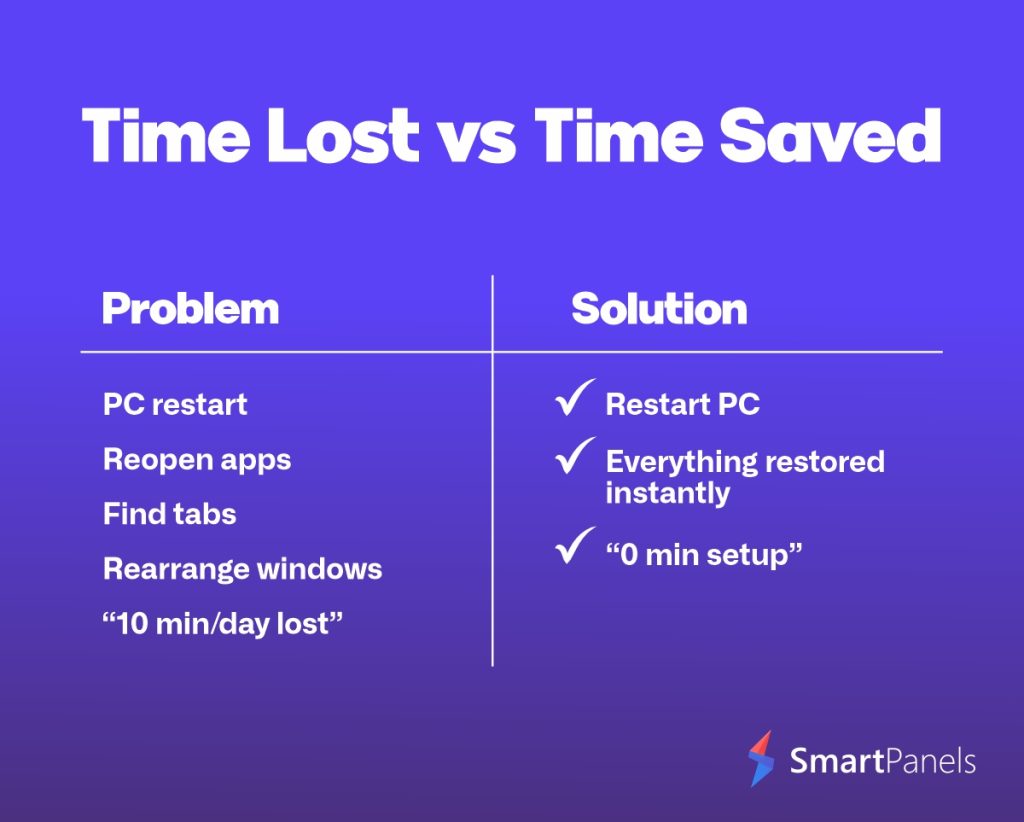
It won’t take a huge amount of time to start up your apps by hand, a little bit each day, but all those minutes really do pile up. Even five minutes of getting everything back the way you need it every single day is almost a whole hour wasted over the course of a week. And over a few months? That’s a serious chunk of work time you’ll never get back.
But it’s not just the time. Every single time you go to get programs going again, hunt for documents, or get your browser tabs back, you lose where you were in your thinking. Your brain needs a moment to get its bearings, and that makes it tougher to really concentrate. All this shifting back and forth between tasks makes you work more slowly and makes you feel worn out.
What’s more, if things aren’t exactly as you had them, it’s easy to get mixed up. You might not remember what files you had showing, forget which tabs were open in your browser, or have to spend ages moving windows around. Little snags like these become bigger problems as the day goes on.
How to Reopen Closed Tabs on Desktop Browsers
It happens to everyone who uses a computer and it’s particularly easy to do if you’re doing lots of things at once: accidentally closing a browser tab! Luckily, getting it back is really easy.
Here are the most effective methods:
- Press Ctrl + Shift + T to reopen the last closed tab
- Repeat the shortcut to restore multiple tabs
- Right-click on the tab bar and select “Reopen closed tab”
- Open your browser history to find and restore previous pages
If you’ve looked up how to get those tabs back, these are by far the speediest fixes.
Plus, nearly all browsers on your desktop computer can be set to automatically bring back all the tabs from the time before you turned off or restarted your computer. Turning this on means your tabs will spring back to life for you. And if you use apps that also come back after restarting, you’ll have a really smooth browsing time, saving you from repeating yourself and from being annoyed.
Built-In Windows Features That Support Auto Reopening Apps
Windows has a lot of ways to help applications open up on their own, though many of us aren’t getting the full benefit.
1. Startup Applications
You can tell some of your desktop programs to fire up as soon as your computer begins, and this is perfect for things you use all the time: your messaging program, your file explorer, or your programs for getting work done. Just don’t add loads of them, or your computer will take longer to get going.
2. Restart Apps Feature
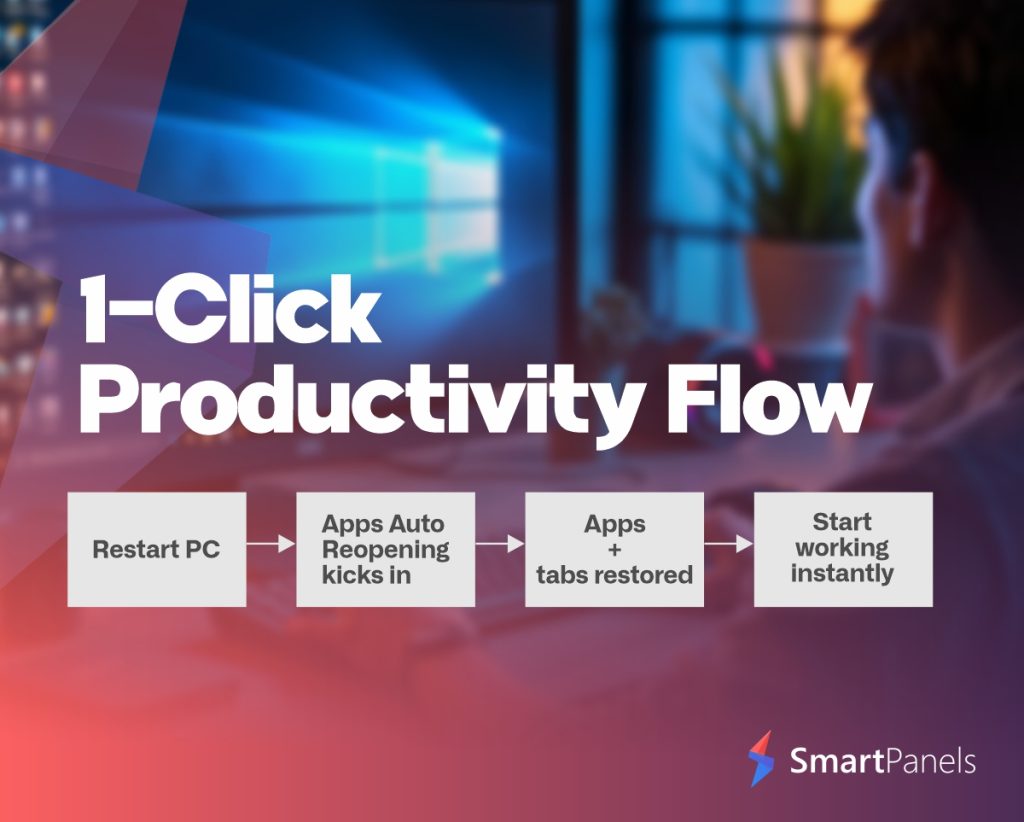
Windows 10 and 11 have a “Restart Apps” feature. When you’ve got this on, programs that are compatible will automatically reopen for you after your computer has restarted, so you can get back to what you were doing almost immediately.
3. Microsoft Windows Desktop Runtime
The Microsoft Windows Desktop Runtime is a foundation for many desktop apps, making sure they run as they should. If you keep this runtime updated, your apps are more likely to stay running without issues and, importantly, to reopen correctly after a restart.
How to Maximize a Window Efficiently on PC
A little bit of smart window handling really can make your work go more quickly. Things like making windows fill the whole screen, or changing their size, don’t seem like a big deal each time, but they add up to a lot of delays if you do them over and over.
Here are quick ways to maximize a window:
- Double-click the title bar
- Press Windows + Up Arrow
- Click the maximize button in the top corner
Advanced Tools for Auto Reopening Apps on PC
Windows does the basics, but when you’re doing a lot of things at once it doesn’t quite get you as organized as you might like. If you’re a person who has loads of programs, files, and lots of pages open in your browser, you’ll still find yourself wasting time getting everything arranged just how you like it.
Workspace Automation Software
Workspace automation software can actually recall and perfectly recreate your whole work area. This means they’ll put your applications open, size and place all your windows, show you the folders you had open in File Explorer, and even bring back all of your browser windows and tabs. Essentially, this neat trick makes absolutely certain your computer looks exactly as you left it, every single time you turn it on.
Layout and Session Management
Beyond just remembering your apps, certain programs let you actually save how your screen is organized. Think of it as being able to build totally different “desks” for different things, one for when you’re getting stuff done at work, another for looking into things, and a third for when you’re in a meeting, and you can jump between all of them with no trouble at all.
Why Auto Reopening Apps Is Essential for PC-Based Work
When you’re at a desk or with a laptop, how quickly you get going really affects how much you get done. Even little hiccups at the beginning of the day can sort of color everything else.
Auto Reopening Apps gets rid of those hiccups by making sure your computer is all set for you right away. You don’t have to waste time getting programs open and webpages to return to where you left off, you can just do the work.
This is especially important for professionals who:
- Work with multiple applications daily
- Rely on browser-based tools
- Handle ongoing projects that require continuity
By stopping you from doing the same starting steps repeatedly, Auto Reopening Apps helps you stay concentrated and get more from your time.
The Future of Desktop Workspace Automation
The way we do things on our computers is changing, and becoming more and more automatic, and a lot quicker. As programs get better, the “auto-reopen apps” feature will get to know you and your preferences.
Down the line, we can expect apps to reopen smartly based on when and how you use them, a way to have related apps and all their windows neatly bundled together for specific jobs, and getting back to where you were in a program after a restart being much, much faster and more correct.
All of this means you’ll have to do even less fiddling around with things yourself, and your computer will adjust to how you work, not the other way around.
Final Thoughts: Stop Rebuilding Your Workspace Every Day
Every day when you start work, you probably go through the motions of getting your programs open, your browser tabs back where you had them, and everything in your work area arranged. It doesn’t sound like much, but all of that takes time, and it slows you down. Repeated over weeks and months, these little interruptions really eat into your time and make it harder to truly concentrate.
Fortunately, Windows already has ways to help, and with a few easy keyboard commands (like getting those closed tabs back!) and a bit of a change in how you do things, you can get rid of a lot of this hassle. And a really good ‘Auto Reopening Apps’ system means your computer will be perfectly prepared to go whenever you are.
If you want to be far more effective at work and stop doing the same things over and over to begin with, you’ll want to leave behind doing it all by hand. Programs like SmartPanels will do the work of organizing your desktop, instantly bringing your applications to life and making everything flow together so you can dive into the important stuff instead of a basic restart.