
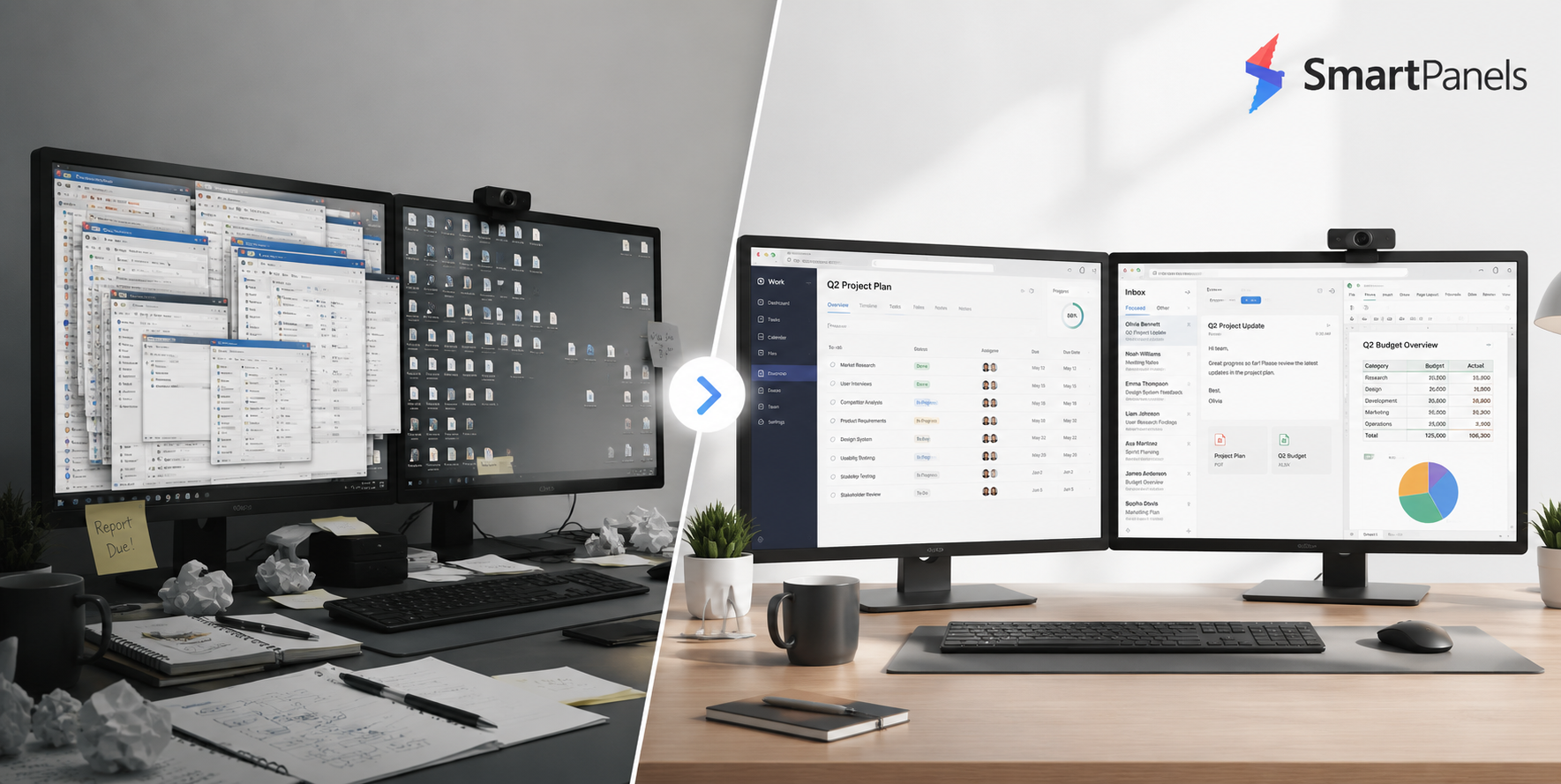
There is a good case for doubling the active screen on your laptop with a dual monitor setup; it will have you working at a much better pace day in and day out. Then there is the question of how to go about connecting them to a laptop without the usual technical headaches, something that crosses the mind of more than one professional. In truth, creating extra room in your digital workspace is not complicated.
The process is straightforward. Start by seeing what physical ports are on hand with your machine, then pick the appropriate video cables or a powered docking station. A little configuration of the Windows display settings is all that follows.
Of course, if you have to be shuffling open application windows around each morning, it can get tiresome. SmartPanels remembers the precise position of every window on your connected screens, restoring your entire workspace with a single click. Read on and put your workstation to work for you.
Understanding How to Connect Dual Monitors to Laptop Options & Hardware Setup
A good rule of thumb is to give your laptop hardware a once-over before you start running cables. It takes the stress out of setup when you are familiar with what video port options are at your disposal.
Video Output Ports Explained
Start by looking over the side panels of the machine. You will find that most contemporary laptops have a full-size HDMI port for sending video and audio to an external display without issue. An older business model may have VGA or Mini DisplayPort in its place. Then there are the ultra-slim varieties, which tend to make do with USB-C or Thunderbolt. Be aware, though: a USB-C port is not automatically capable of video output unless it has support for DisplayPort Alternate Mode (DP Alt Mode). With an understanding of the ports on hand, connecting dual monitors to a laptop is straightforward.
Cable Types and Signal Adapter Protocols
Then look at the video inputs on the pair of external monitors. There you get HDMI, DisplayPort, or USB-C ports. The idea is to make a direct connection between those and the outputs on your laptop. Say your machine has an HDMI port as well as a USB-C one; in that case you would need an HDMI cable and a USB-C cable to hand. Should your laptop not have sufficient native ports for the job, there is no need to be concerned. An active display adapter will do the trick. These devices handle the conversion of the video signal within themselves, so you can run more than one display off a single port and still have a clear picture.
Docking Stations and Multi-Stream Transport (MST)
There is no better way to put the hardware in a dual monitor configuration to work with your laptop than with a multi-port docking station. It is not uncommon for a portable machine to have but a single video output, but a USB-C or Thunderbolt dock will remedy that in short order. You need to insert the device into the main port of the laptop and run the two monitors directly to the hub.
In addition, Multi-Stream Transport (MST) lets you easily daisy-chain DisplayPort signals from one monitor to the next. The net effect is a tidy workspace free of unsightly cables and a laptop that stays always powered up.
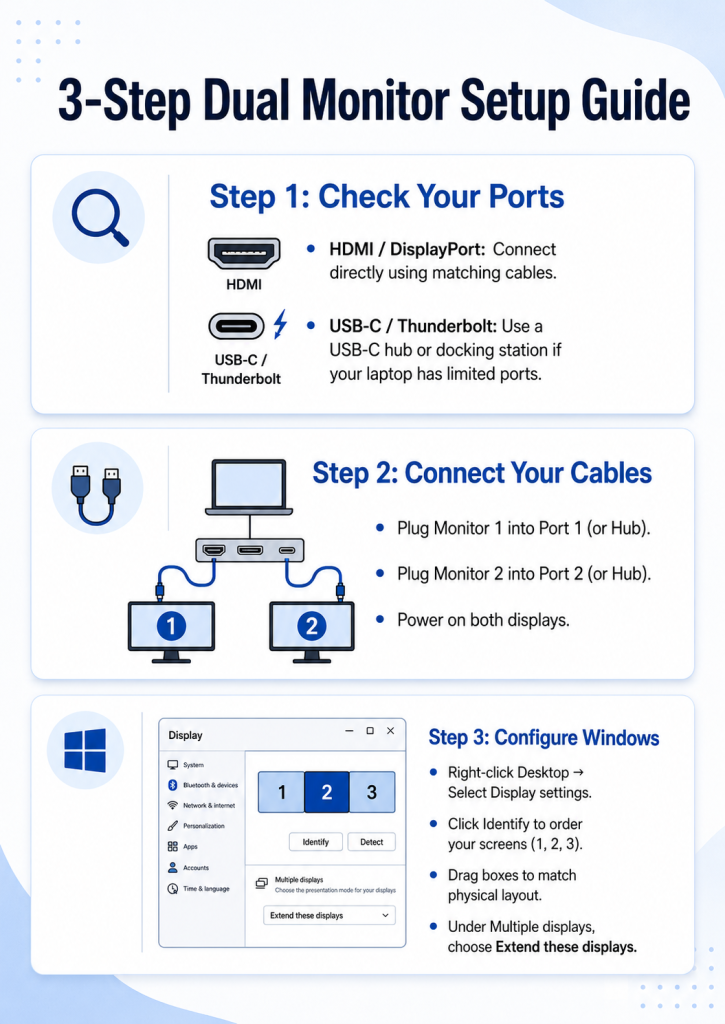
Step-by-Step Software Configuration for How to Connect Dual Monitors to Laptop
After connecting your cables correctly, you must adjust your operating system software settings. Proper settings ensure both external screens show desktop content cleanly.
Accessing Windows Display Settings
To begin, right-click on an open spot of the desktop and select Display settings from the menu that appears. Windows usually detects new external monitors automatically. However, if a screen stays unresponsive, click the Detect button.
This brings up a set of numbered rectangles for your displays. To see which monitor is which, click Identify. The actual screens will then show their corresponding numbers. Then arrange the rectangles by dragging them into position so they reflect the way your desk is set up. A click on Apply will put those changes in place.
Choosing Display Modes: Extend vs. Duplicate
The next step is to determine the way desktop content will be shown. Go to Display settings and find the Multiple displays area further down the page. You can duplicate these displays to mirror your laptop screen. However, extending your display boosts productivity much more.
In this mode, your screens form a single, expansive canvas. You can easily move documents, tabs, and apps between them. Such a configuration is a must for anyone looking to make the most of dual monitors on their laptop.
Adjusting Resolution, Refresh Rates, and High DPI Scaling
Screen visuals are another matter for fine-tuning. One should verify that every monitor is operating at its native resolution and look at the refresh rates in the advanced display options; a 60Hz setting or better will keep cursor motion smooth.
It is also worth adjusting the scale percentage on each monitor to have text that is crisp and legible. Good High DPI scaling is the way to avoid any blurriness or the kind of eye strain that comes with long hours at work.
Dedicated Solution: Automate Your Workspace with SmartPanels
There is only so much a multi-monitor set-up can do in terms of physical screen space; when it comes to keeping your open apps in order, the task is still one that eats up time. A well-configured SmartPanels system puts an end to that sort of software hassle on a day-to-day basis.
How SmartPanels Interacts with Windows API
For Windows users with several displays, SmartPanels is the workspace application of choice. It is not merely another window-snapping utility. Operating at the Windows API level, this tool will monitor process IDs and application state handles as well as the exact display coordinates on any of six screens for a truly seamless experience.
Restoring Complete Workspaces, Files, and Browser Tabs
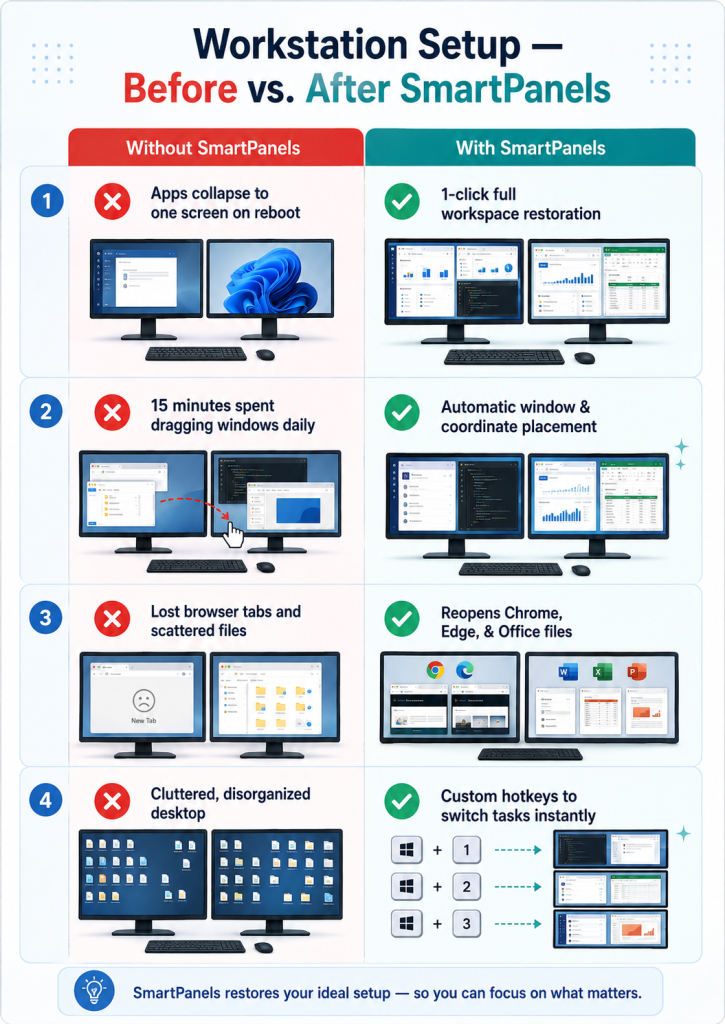
There is nothing to it when it comes to hooking up your screens, yet having to reopen your apps each morning is an unnecessary drain on time. A case in point is what happens with Windows after a reboot or when you have unhooked from the dock; all your open windows are condensed to a single display.
SmartPanels makes short work of that. With a launch of the program, any open application is put right back where it was on the monitor. It also has the courtesy of automatically bringing back your recent spreadsheets and documents, not to mention active tabs in Edge, Firefox, or Chrome. In short, it preserves your workspace layout without any effort on your part.
Creating Custom Hotkeys and Workspace Sharing
With SmartPanels it is possible to put together separate workspace profiles to suit the task at hand. One might be set up for coding, another for your communications and a third for research purposes. To move between them in an instant, simply assign the layout of your choosing to a custom hotkey on the keyboard. There is also the option to export and email your workspace setup to colleagues, a handy way to make onboarding remote team members more efficient and orderly.
Advanced Technical Tips for How to Connect Dual Monitors to Laptop Efficiency
- Managing Graphics Processing Unit (GPU) Resources
Consider that an integrated graphics chip has to make do with the system’s own RAM. If you are putting a strain on the card by running several high-resolution screens and notice some video lag, the remedy is to shut down any resource-intensive applications in the background. With a proper dedicated card, dual 4K monitors are no trouble at all. As for rendering efficiency, be sure to use the manufacturer’s utilities to keep GPU drivers current.
- Erasing Desktop Cable Chaos and Power Delivery
There is value in organizing the cables at your desk; it is good for hardware longevity and helps with concentration. Opt for USB-C with Power Delivery (PD) capability to handle video as well as power. Such a single-cable approach will charge the laptop and put out dual video feeds at the same time. To keep things in order, bundle up the monitor wires behind the desk arms with some velcro ties. In the end, you are left with a tidy workspace that is free of clutter and distraction.
Troubleshooting Common Issues in How to Connect Dual Monitors to Laptop Setups
One is bound to run into the odd technical glitch when first installing hardware. The following will have you past any display problems in short order.
- Fixing Unrecognized Displays and Resetting Display Drivers
A “No Signal” on the screen can be alarming, but there is no need for concern. Start by making sure every physical cable is properly seated. Then try hitting Win + Ctrl + Shift + B; that keyboard combination will give your graphics driver an instant reset and leave your work as is. Should the monitor remain unresponsive after that, a simple restart of the laptop with the cables in place should do the trick.
- Resolving Mouse Cursor Alignment Problems
You may find the cursor tending to hang up on screen edges as you move the mouse from one monitor to another. It is a quirk of Windows when the display setup does not correspond with the actual height of your screens. The remedy is to go back into the Windows Display settings and make sure the virtual monitor boxes are in proper order. Take some time to line up the top or bottom edges, and the cursor will have no trouble moving freely between them.
2nd Monitor Not Detected? Learn 10 Main Reasons and How to Fix It
Frequently Asked Questions (FAQs)
1. Can I connect two monitors to a laptop with only one HDMI port?
Connecting a pair of monitors is straightforward. An active USB-to-HDMI adapter with DisplayLink or a USB-C docking station will do the job for any extra displays you wish to run.
2. What is the difference between DisplayPort Alt Mode and DisplayLink?
The difference in how they work is worth noting: DisplayPort Alt Mode is a hardware solution that puts native GPU video right through the connection. DisplayLink, on the other hand, relies on software drivers to compress the data and pass it along via conventional USB ports.
3. Will a dual monitor setup slow down my laptop overall speed?
For the most part, one will not find that dual monitors put a drag on ordinary office applications. That said, if the work involves 3D rendering of any complexity or top tier gaming on several screens at once, a good graphics card is a must.
4. How does SmartPanels save time on dual monitor setups?
Then there is SmartPanels to consider. With it, you can have your full multi-screen setup back in place with one click after a reboot; the program remembers where every window was along with your open files and browser sessions.
5. Can I use dual monitors with different display resolutions?
As for Windows, it has no trouble handling a mix of resolutions. Should you want to maintain uniform text sizes, the Display settings allow for individual scaling on each monitor.
Conclusion: Master How to Connect Dual Monitors to Laptop
All in all, there is nothing complicated about setting up dual monitors on a laptop. The process is simple: determine which video ports are on your machine and get the proper cables, then head into Windows to set your native resolutions and display layout. Such a hardware setup will give you more visual room in no time.
But for day-to-day applications, one needs a bit of software ingenuity to keep things in order. That is where SmartPanels comes in; it is an intelligent automation tool that does away with desktop clutter and the effort that goes with it. Once installed, it will handle the placement of your windows and browser tabs on every screen, remembering them for you so you are not left to put everything back in place after a reboot. With the distractions removed, attention can be given to what really matters.
We recommend following this guide to put together the kind of multi-display workstation you want. Make the upgrade to your workflow and see your productivity improve right away.