
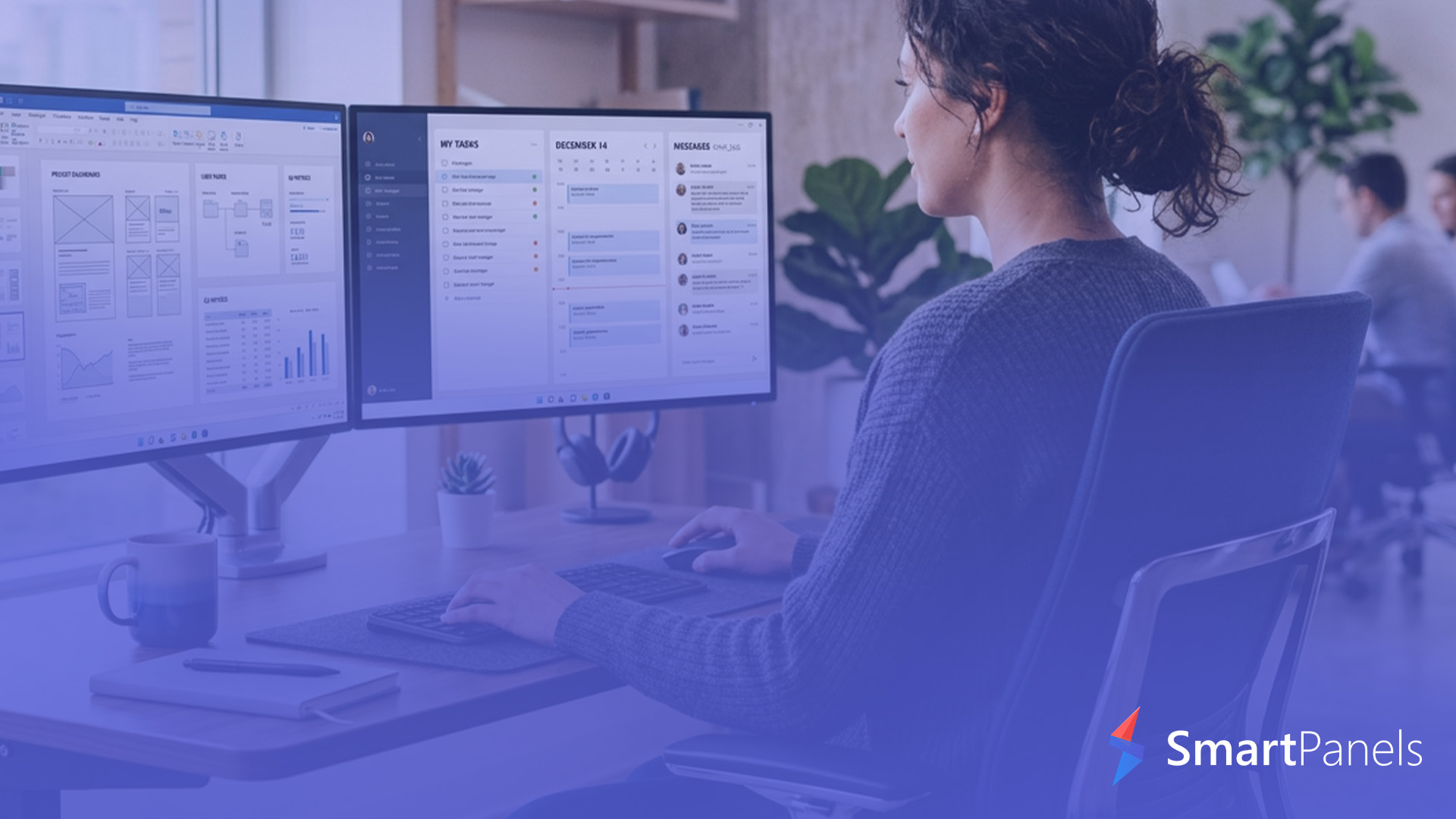
You don’t have to look hard to see how quickly one screen fills up. Open a browser here, a chat there, and your work document, and before you know it, you are juggling tabs and have no idea where the important stuff is. A second display is the answer to that kind of clutter.
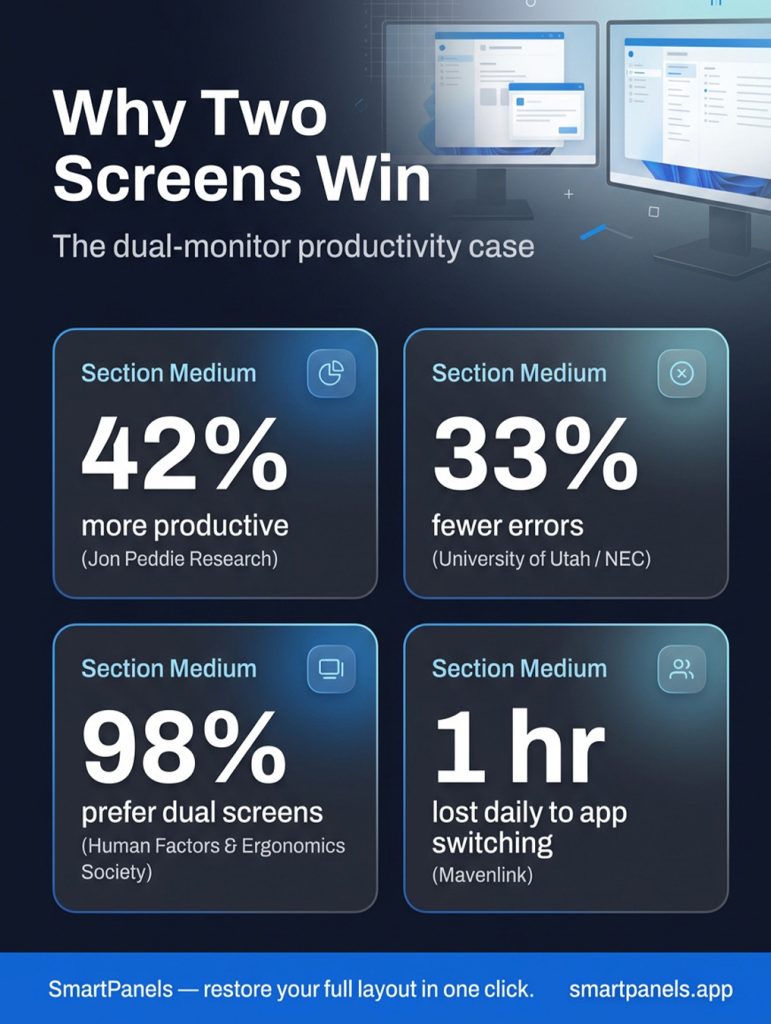
The numbers back it up: according to Jon Peddie Research, putting in a second monitor will put 42% more productivity in your day on average. And for all that, setting up a second monitor is easier than you might think.
Windows has what you need to set up dual monitors whether you are on a desktop tower or a laptop. Once your setup is how you like it, SmartPanels will remember your layout, so you don’t have to start over.
Why a Dual Monitor Setup Is Worth It (the Numbers)
Before getting into cables and settings, it helps to see what the data shows. Decades of independent and vendor-backed studies have well documented the productivity gains.
- 9% to 50% improvement. Microsoft Research found that moving to a multi-monitor configuration boosted productivity anywhere from 9% to 50%, depending on the task.
- 18% more efficient, 33% fewer errors. A Wichita State University study commissioned by Dell measured an 18% efficiency gain, while a University of Utah study sponsored by NEC recorded a 33% drop in error rates with dual screens.
- 98% preference. In one Human Factors and Ergonomics Society study, nearly all participants preferred a dual-monitor configuration over a single screen.
- The cost of switching. Workforce data from Mavenlink found that 73% of businesses lose more than an hour a day to app switching, and a 2020 Forrester report noted that 80% of workers believe a larger or multi-monitor display would improve their performance.
What You’ll Need Before You Start
With the right equipment, you can set up a dual monitor system quickly. But you must consider your hardware and the bandwidth the displays require, as these will dictate your resolution and refresh rate limits.
Start by looking at your video outputs. While most today’s desktops and laptops can run two or more screens, the constraint is in the GPU rather than the ports themselves. An integrated graphics chip on a laptop might have plenty of connectors but still put a hard stop at two or three external monitors. Should you want to go beyond that, a discrete card or a DisplayLink dock is called for (we’ll get to the latter in a moment).
Match the connection standard to your target resolution. Each interface carries a different amount of data, and that ceiling determines what you can run:
- HDMI 2.0 comfortably handles 4K at 60Hz; HDMI 2.1 pushes up to 4K at 120Hz or 8K at 60Hz.
- DisplayPort 1.4 supports 4K at 120Hz (and 8K at 60Hz with Display Stream Compression); DisplayPort 2.0/2.1 goes much higher.
- USB-C with DisplayPort Alt Mode carries a true DisplayPort signal over the USB-C connector, so it can drive a high-resolution display directly.
- Thunderbolt 3 and 4 natively support up to two 4K monitors at 60Hz from a single port, which makes them ideal for clean laptop setups.
How to Set Up Dual Monitors on Windows 11
This method uses the built-in Windows display settings, so you don’t need any extra software to get started. Follow these steps in order.
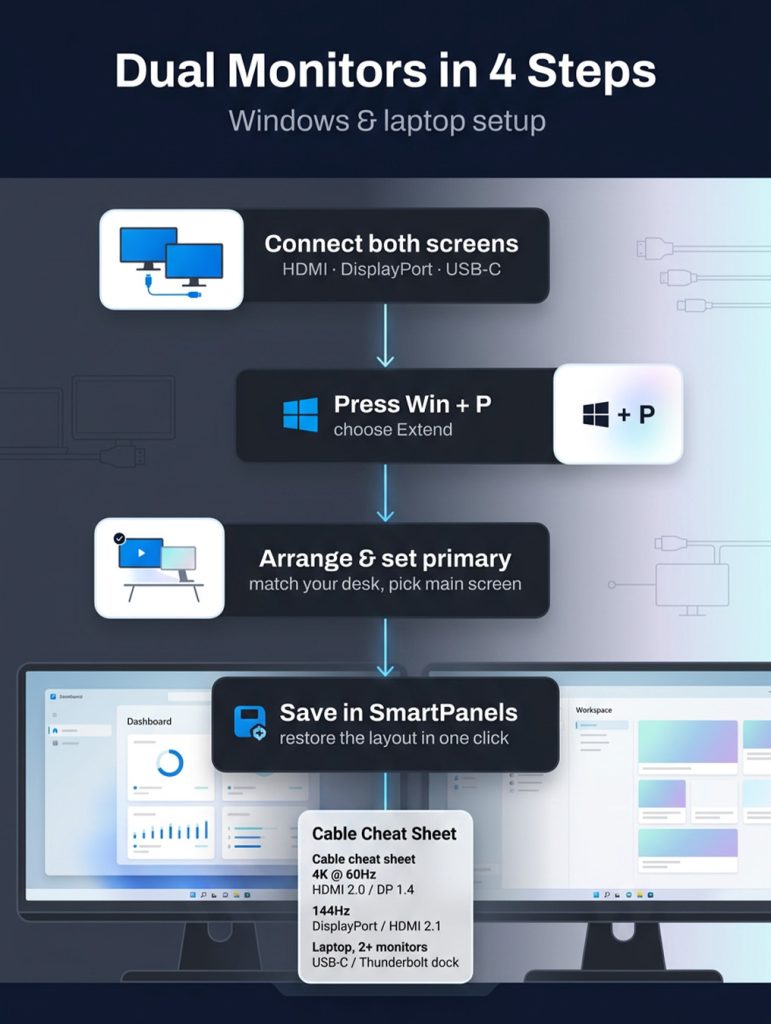
- Connect both monitors: Plug each one into your computer using HDMI, DisplayPort, or USB-C, ideally into the dedicated graphics card if your desktop has one rather than the motherboard outputs. Power on both screens and give Windows a moment to detect them.
- Open Display settings: Right-click the desktop and select “Display settings,” or press the Windows key + I and choose “System” > “Display.”
- Detect a missing screen: If only one monitor appears, scroll down and click Detect. When a screen still won’t show, swap the cable, change the input source on the monitor, or try a different port.
- Choose Extend: Press the Windows key + P and select Extend so both screens act as one continuous workspace.
- Arrange the layout: Drag the numbered monitor boxes so they match how your screens physically sit on your desk, including height if one is raised. This fixes the frustrating “mouse moves the wrong way” problem at the screen edge.
- Set your main screen, resolution, and refresh rate: Click the display you want as primary and check Make it my main display. Then set each monitor’s native resolution and open Advanced Display to raise the refresh rate to its maximum. Windows defaults new displays to 60Hz, so a 144Hz panel will run at 60Hz until you change it manually.
- Handle scaling and HDR: If text looks tiny on a high-resolution screen, adjust scale per monitor (125% or 150% is common for 4K). If you have a 4K and a 1080p panel, set scaling separately for each so that text remains the same physical size. Toggle HDR on only if both the monitor and your content support it, since forcing it on an SDR panel washes out color.
Dual Monitor Setup with Laptop
You will find that a dual-monitor arrangement on a laptop is not quite the same as with a desktop; for one thing, the hardware has to make do with an integrated GPU and doesn’t put out as many ports. But don’t let that discourage you; it’s just a matter of configuration once you know what you’re dealing with.
First, be clear on your output limit. One HDMI port is only going to power a single external screen at most. You might be tempted by an HDMI splitter, but that merely puts up a mirror image, not an extended desktop with two distinct screens. If you want to have two proper displays running, you are looking at needing a dock or else some form of multi-stream output in addition to your standard video connections.
Pick the right dock. Two approaches exist, and the difference matters:
- Native (DP Alt Mode / Thunderbolt) docks: Pass the signal straight through your GPU. They deliver full performance and are best for high refresh rates or gaming, but they’re bound by your laptop’s native display limit.
- DisplayLink docks: Compress and send video over USB, effectively bypassing the GPU’s built-in display cap. After installing the DisplayLink driver, even an older laptop with one output can run additional monitors. The trade-off is slightly higher CPU use and reduced suitability for fast-motion gaming.
Use MST where supported: Some monitors and docks support DisplayPort Multi-Stream Transport, which lets you daisy-chain one display into the next. Connect the laptop to monitor one’s DisplayPort In, then run a cable from monitor one’s DisplayPort Out to monitor two and enable MST in each monitor’s on-screen menu.
Connect and configure: Plug the laptop into the dock with USB-C or Thunderbolt, attach both monitors to the dock, and then
- Open System > Display and choose Extend just like on a desktop.
- To work with the lid shut, open Control Panel > Power Options > Choose what closing the lid does and set it to Do nothing.
- You can then close the laptop, slide it aside, and run both external screens as your main workspace, a setup often called clamshell mode.
Keep Your Layout Locked in with SmartPanels
You can put two monitors together, but that is only half of it. The real work is in making sure your windows, tabs, and apps stay put come the next driver update, restart, or when you must unplug a cable. SmartPanels makes that initial setup permanent rather than just a one-off.
Designed for Windows, the program will save your whole display, and you can restore displays back with a click. It will remember the exact size and placement of your applications and even pick up where you left off with tabs in Edge, Chrome, or Firefox, all on as many as six screens. Put a custom hotkey on a profile and you are done; moving from a “design” to a “meetings” configuration is a matter of one keystroke instead of dragging things around a dozen times.
Then there is sharing. An agency or remote team will appreciate being able to email a profile to a new hire so they can mirror your setup without you having to walk them through it.
Consider this your quick guide: set up your dual monitors, save the profile in SmartPanels, and let the app take care of the rest. When you think about how much time a business wastes on app switching over an hour daily, automating the process is what makes a dual-monitor arrangement truly efficient as opposed to just nice.
You can try it out for 14 days with no risk at SmartPanels.App.
Final Thoughts
You won’t find a better way to improve your day-to-day workflow than with a dual-screen arrangement; the numbers back it up, with some studies showing you can be 42% more productive or better.
Here’s what to do: check your ports and cable ratings, ensure your GPU can handle it, then connect the two monitors. Go into Windows and set the display to “Extend,” positioning them on screen the way they sit on your desk. If you are on a laptop, a USB-C or Thunderbolt dock is the best option for a clean look and for working in clamshell mode. A DisplayLink will get you around any native display restrictions.
Should you run into trouble, it is usually just a matter of verifying your drivers and refresh rates and that you have the right inputs and cables. But the key is not to have your whole setup disintegrate on a reboot. Arrange your windows and tabs in SmartPanels so they return with a click. Set up your workspace once and leave it that way.