
You would expect that when you plug in a second monitor, your GPU and the display will have a brief, unobtrusive handshake, and within a second, your desktop will spread across both.
You would think with the other monitor on and a good connection, you wouldn’t have an issue. And yet for some reason, you head to Display Settings and are greeted by nothing but a single screen. It is a thing that can befall anyone, whether you are on a new laptop or a docking station or even a desktop that was running fine as of last week. Then you have no room for spreadsheets and browser tabs when you need them, which is a real irritation.
The problem could be anything from a bad cable to a driver issue or some bandwidth limit you were not aware of. This is where SmartPanels can help you.
How Windows Detects a Second Monitor
You should have some idea of what goes on when you connect a display before you start troubleshooting.
EDID: How Your Monitor Introduces Itself
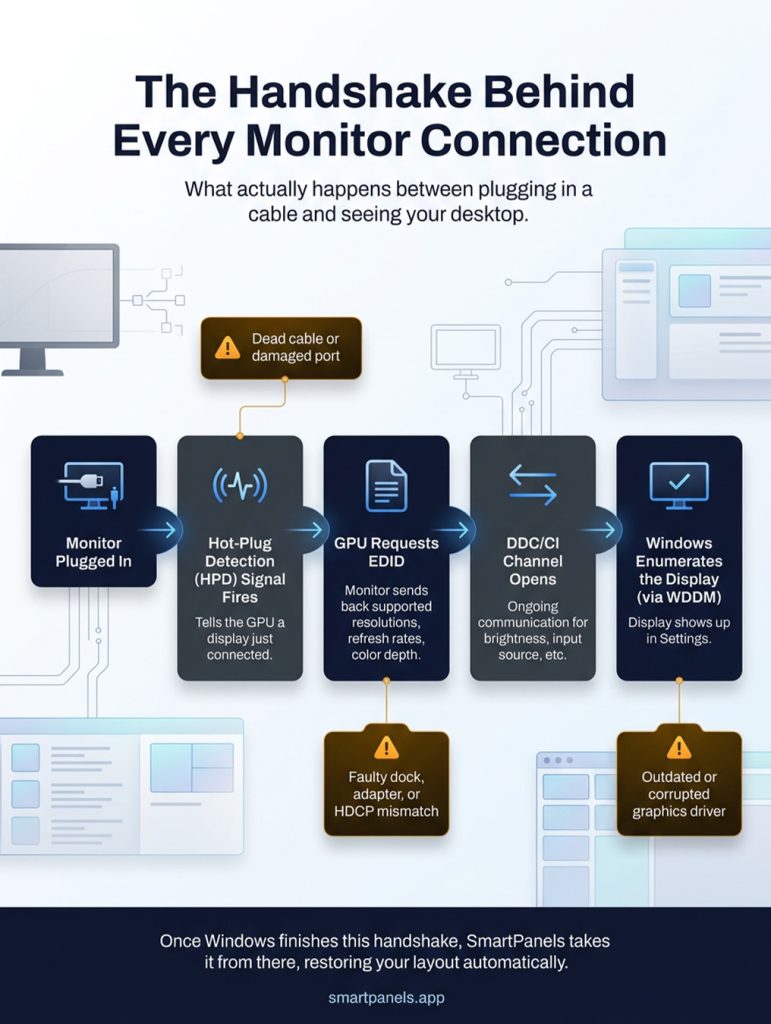
The monitor has a file on hand for this purpose, the EDID, or Extended Display Identification Data. Your graphics card will read from it to know the color depth, refresh rates, and which resolutions are available. But if your dock, adapter, or cable fails to get that information across, Windows will be none the wiser as to the monitor’s presence, despite the fact the screen is in working order.
Hot-Plug Detection and DDC/CI
To let the PC know a display has been hooked up, ports send out an HPD signal (Hot-Plug Detection). Then there is the Display Data Channel Command Interface, which gives Windows and the GPU a way to issue running commands to the monitor for things like changing the input or the brightness.
But a dodgy pin, underpowered adapter, or cheap cable can interrupt those signals. That is a very common technical explanation for why your 2nd monitor isn’t being detected, even though the connection looks good.
10 Main Reasons a 2nd Monitor Is Not Detected
- Loose, Damaged, or Wrong-Spec Cables
Often, the answer is straightforward: a cable that isn’t properly in place, has a pin out of true, or just doesn’t come up to spec. Take an HDMI 1.4, for instance; you won’t get a 4K signal at 60Hz from it with any reliability. Or if your DisplayPort is anything less than a 1.2, don’t be surprised if it can’t even handle the higher resolutions.
- Wrong Input Source
It is common for a monitor to have more than one input. But if you have the cable in the DisplayPort or USB-C and the monitor is put on HDMI, either by hand or on its own, you will be left with a black screen, and Windows will think it is not there.
- Outdated, Corrupted, or Mismatched Graphics Drivers
Then there is the matter of your graphics driver. The Windows Display Driver Model (WDDM) runs your graphics driver and manages communication between Windows and any connected devices. If that WDDM driver is old, damaged, or simply not right for the job, the OS may not enumerate any display other than the primary.
- Incorrect Display Mode Configuration
You can configure Windows to show a single screen or to extend and duplicate your display. But if you have the mode wrong, it will give you a “second monitor not detected” error despite the hardware being in good working order.
- Power Management, Fast Startup, and USB Selective Suspend
Then there is Fast Startup. Windows may reload an old display setup when you boot up because it takes a snapshot of your session instead of performing a complete shutdown. And please keep in mind USB Selective Suspend, another of Windows’ power features; it has a habit of putting USB hubs and docks to sleep, which will cut off any monitor that is running on a USB signal.
- Docking Station, Hub, and DisplayLink Chipset Limits
Capabilities can vary quite a bit from one dock or hub to the next. Some will run natively on DisplayPort Alt Mode over USB-C, for instance, while others rely on a DisplayLink chipset to handle things by compressing and streaming the video in software rather than with a hardwired link. With that kind of setup, you need to install its own driver in addition to your GPU’s. If your second monitor does not appear on the hub, you probably just forgot to install the DisplayLink driver.
- GPU Output and Display Pipe Limits
A GPU can only make use of a certain number of display pipes, which are the internal hardware paths responsible for rendering what you see on screen. With many integrated graphics chips you will come across, three is about as many active displays as they can handle, physical ports aside. So, if you’ve hit that limit, there’s no point in trying to connect another monitor; it won’t do anything.
- Mismatched Resolution, Refresh Rate, or Bandwidth Ceiling
A top-notch cable won’t save you if the resolution and refresh rate you are after exceed what its bandwidth can handle. Consider a 4K panel at 144Hz, for instance. You will need to be using an HDMI 2.1 or a DisplayPort 1.4 to make that run smoothly. Try to put in an older cable with those settings, and you won’t see anything on screen.
- HDCP Handshake Failures
Then there is the matter of “High-bandwidth Digital Content Protection.” You will run into this issue as a type of copy protection. Think of it as a handshake that some monitors, adapters, and dongles must make before they will show you any video; you see it most with streaming apps or when using particular docks. If you have a low-cost adapter that doesn’t support the correct HDCP version, you may run into problems.
- Third-Party Software and Driver Conflicts
There are a few things that can prevent Windows from properly recognizing your connected screens. You might have some display management utilities or remote desktop software running, or perhaps you have not purged old GPU drivers from a previous upgrade. The problem gets worse when two or more of these programs try to control the displays at the same time.
2nd Monitor Not Detected Windows 11: Step-by-Step Fixes
Once you have a sense of the likely cause, work through these steps in order.
Step 1: Inspect Cables, Ports, and Bandwidth Rating
Start by making sure the cable is firmly seated at either end; you might want to swap in another one for a good measure.
Step 2: Force Detection via Windows Key Plus P and Settings
On the software side, hit the Windows key and P to bring up the projection menu and put it on Extend. You can also navigate to Settings > System > Display and hit Detect in the Multiple Displays area.
Step 3: Update, or Reinstall the Graphics Driver
If you are still having trouble, open Device Manager and, under Display Adapters, right-click on your GPU to update the driver. If this problem started with a recent update, rolling back to the old driver should help. For anything more stubborn, do a clean uninstall and then install a fresh driver from the manufacturer’s site.
Step 4: Reset the Display Driver
You can give the graphics driver a restart without having to reboot the whole machine by holding down Windows, Ctrl, Shift, and B together. Don’t be alarmed if the screen flickers for a moment; this is normal.
Step 5: Check Device Manager for Error Codes
If you see a yellow warning by your display adapter, here is what it means: a code 43 is generally a sign of a driver crash. Code 12, on the other hand, indicates the system has exhausted its resources for the device, something you might run into with an elaborate multi-monitor configuration.
Step 6: Adjust Power Management and Fast Startup
To avoid problems, go to Power Options in Control Panel and disable Fast Startup. Also worth doing is checking the USB root hub in Device Manager and unchecking the box that lets the computer power down the device as a way of saving energy.
Step 7: Review GPU Control Panel Multi-Display Settings
You will find multi-display options in the NVIDIA Control Panel, AMD Software, or Intel Graphics Command Center that are independent of what you see in Windows Settings. Make sure your second monitor is turned on and set up as it should be in the one that corresponds to your GPU.
Step 8: Isolate Dock or Hub Issues
For those with a DisplayLink dock, ensure that the driver is current and properly installed. You can also rule out the dock as the problem by plugging the monitor straight into the PC and seeing if that makes a difference.
Step 9: Test the Monitor on Another Device
If you have a spare laptop or desktop, try the monitor with that. It is the only way to be certain where the fault lies: your computer, the cable, or the monitor.
Want to learn more about how you can resolve this issue? Read Now!
How SmartPanels Prevents Monitor Setup Headaches
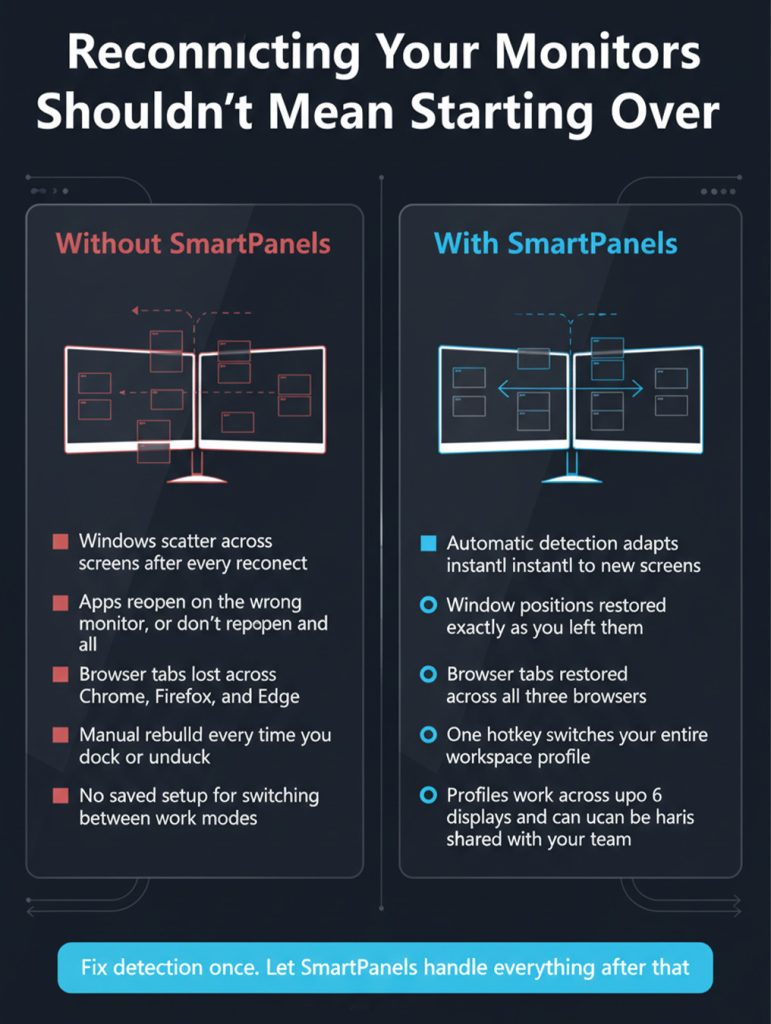
This is exactly the gap SmartPanels was built to close. Rather than replacing Windows display settings, SmartPanels works alongside them once it detects and runs your monitors.
Automatic Detection That Adapts to New Screens
SmartPanels supports up to six displays, and its automatic detection adapts to new screens as they connect, so a saved profile adjusts to your current setup instead of forcing you to rebuild your layout by hand every time your display configuration changes.
Saving Window Positions and Browser Tabs
SmartPanels saves the exact position of every open window, along with your browser tabs across Chrome, Firefox, and Edge, so your workspace returns looking the same way you left it, regardless of how Windows reordered your displays on reconnect.
Custom Hotkeys and Profile Sharing
With custom hotkeys, you can instantly change any of your full workspace profiles. If a colleague needs the same setup, you can share it with them. That is what makes SmartPanels so well suited to a home office or trading desk, as well as design studios and the like where team workstations are common.
Put simply, once you’ve fixed any detection problems and your monitor is back on speaking terms with Windows, SmartPanels will ensure that when you return to your workday, everything from your window placement to your open apps and browser tabs is just as you left it.
Final Thoughts
When your second monitor won’t show up, the culprit is often something you can put right. It could be a cable that is worn out, an old driver, a power setting that is not quite right, or even a dock that cannot handle your resolution. In most instances you will not need to buy new hardware; running through the EDID, driver, and power checks will do the trick.
And once the display is back in play, let SmartPanels handle the rest. It remembers where your windows, apps, and browser tabs were, so you don’t have to rebuild your workspace when you reconnect. Do some troubleshooting and then put in SmartPanels for a setup that is always in order.