
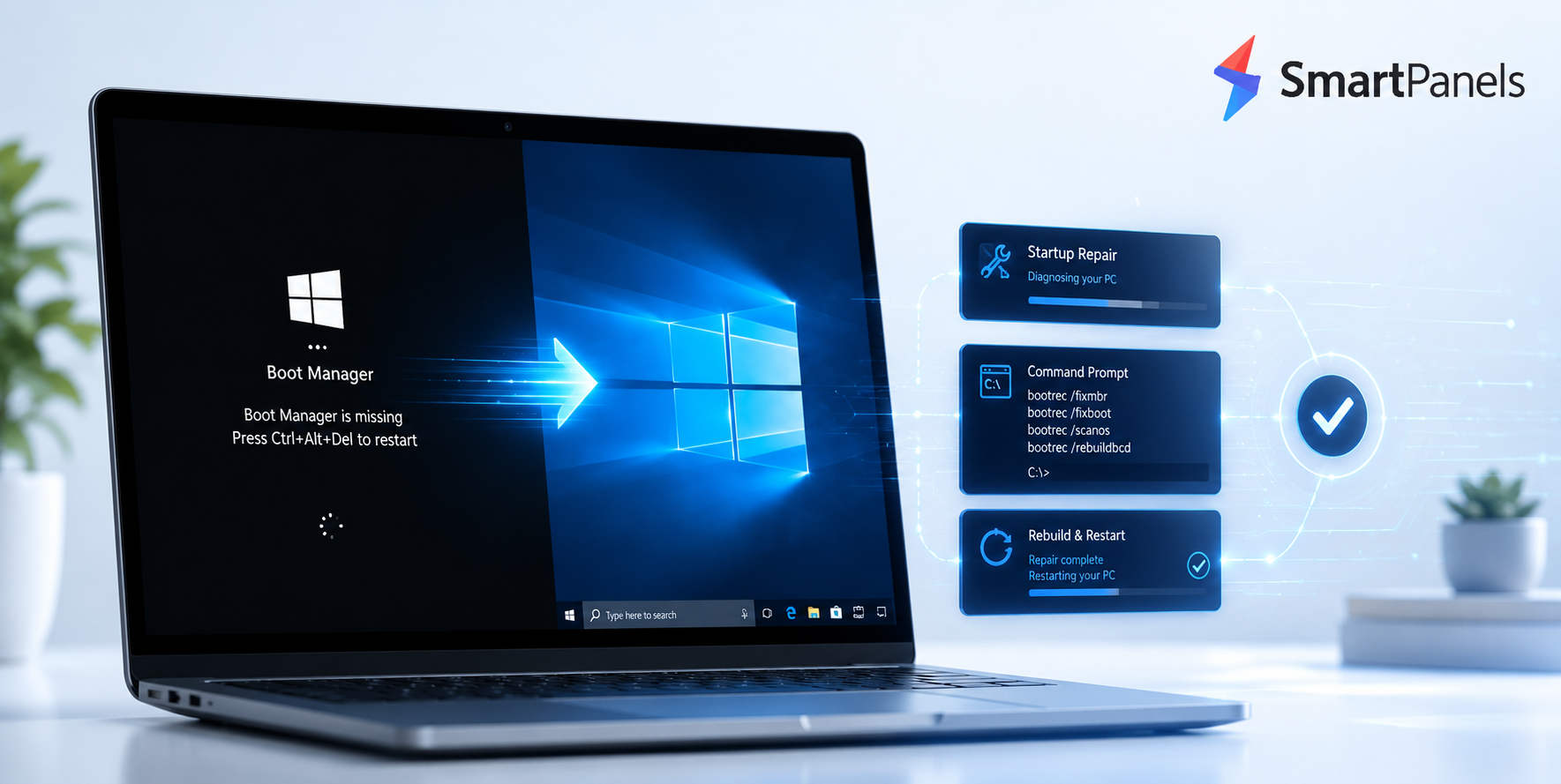
There is not much that can throw you off balance like a PC that won’t load Windows. Hit the power and, instead of your familiar desktop, you see some obscure error message. The culprit is usually the Windows Boot Manager, that unassuming program responsible for getting your operating system up and running. You don’t think about it when everything is working, but if it fails, the machine stops at startup.
The good news is that there is a straightforward remedy for most of these issues. This guide explains the role of the boot manager, the reasons for its failure, and how to fix it. We also cover how SmartPanels can be used to restore your working environment after the PC is back online. Let us begin with the fundamentals and work our way through to some hands-on repairs.
What Is the Windows Boot Manager?
There is a small utility in Windows known as the Windows Boot Manager, or BOOTMGR for short. Microsoft introduced it with Windows Vista, and it has been essential to the OS ever since, from 7 to 11.
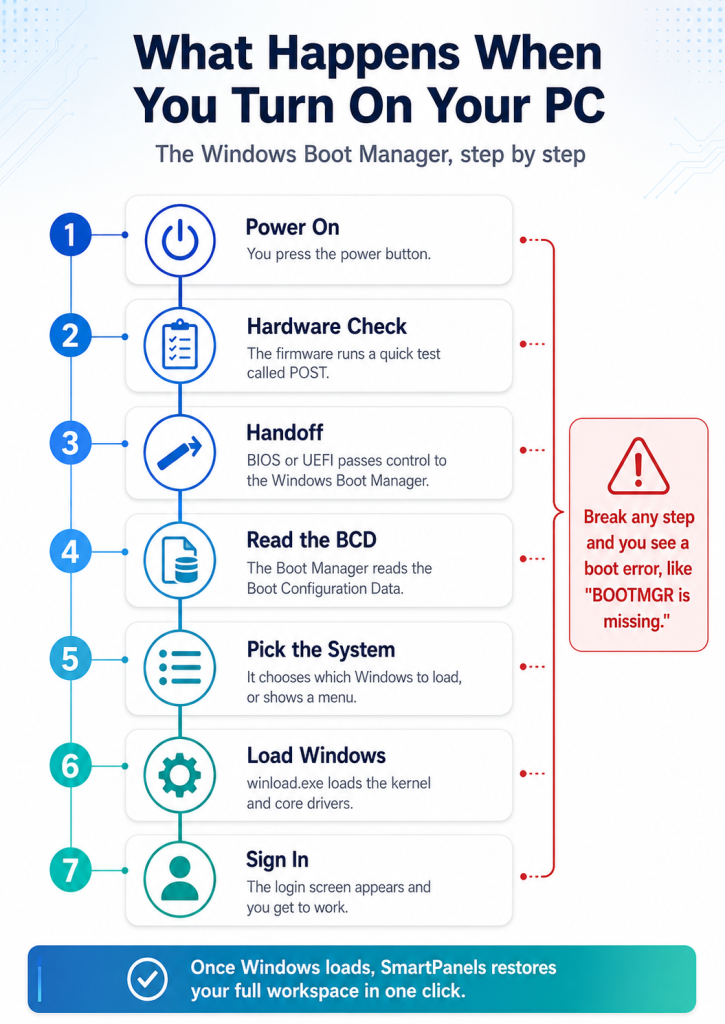
When you power up your PC, it is the first thing to run. The process begins with your firmware, be it BIOS or UEFI, which does an initial check of the hardware before ceding control to the Windows Boot Manager. You can view the latter as a kind of traffic director. It will read a file known as the Boot Configuration Data (BCD) to locate where your Windows files are kept. If there is more than one operating system on the machine, a menu is presented to choose which one to start.
It is worth distinguishing between the three separate functions at play here to avoid any confusion. The firmware is what rouses the hardware. The Windows boot manager decides which system to put in motion. And lastly, a bootloader called winload.exe is responsible for loading the Windows kernel. Each has its own part to play.
How the Windows Boot Manager Works
There is a definite order to the startup process. The startup process begins when you hit the power button, and the firmware then conducts its hardware check, or POST. From there, the Windows boot manager takes over and consults the BCD store to find the operating system. The boot manager then calls up the Windows loader, winload.exe, which in turn is responsible for starting the core drivers and the Windows kernel.
The whole thing is a matter of seconds, so the process is seldom seen. But if any part of that chain fails, the PC will come to a halt. For that reason, having a working knowledge of the Windows boot manager allows for quicker troubleshooting.
BIOS Boot vs UEFI Boot
There is a distinction in the process depending on the type of firmware. An older BIOS will have its firmware read the Master Boot Record (MBR) to find the active partition, where it will come across a file called BOOTMGR.
With UEFI you see a different approach. The firmware goes to the EFI System Partition, that small hidden volume, and loads bootmgfw.efi from there. From the Windows boot manager’s end, the BCD is read in the normal fashion before winload.efi is invoked (or winload.exe in the case of BIOS). Should the PC be coming out of hibernation, winresume is what gets called. It is useful to know which firmware one is dealing with for the time when a repair command is needed.
Common Windows Boot Manager Errors
Several error messages point back to the Windows boot manager. Each one sounds scary, but most are fixable. Here are the ones you will likely meet:
- BOOTMGR is missing: The boot record or system partition may be damaged.
- Operating system not found: The Windows boot manager cannot locate a working copy of Windows.
- No bootable device found: Your firmware is not pointing to the correct drive.
- Error code 0xc000000f: The Boot Configuration Data file is corrupted or incomplete.
- Error code 0xc0000098: The BCD holds no valid entry that points to Windows.
- Error code 0xc0000428: Windows cannot verify a boot file’s digital signature.
What Causes These Boot Errors?
There is no shortage of what can cause a system to fail at startup. A botched Windows update is one of the more common culprits, as are disk errors or damaged sectors. If you cut off power in the middle of a shutdown, it will corrupt the boot files. Then there is the matter of a cloned drive or an additional operating system thrown into the mix; these can disrupt the boot order. Malware can also damage the boot record. All of them have the potential to prevent the Windows boot manager from doing its job. It is useful to understand the root of the problem to apply the proper remedy.
How to Fix Windows Boot Manager Startup Errors
Now, let’s look at the practical steps. The three approaches set out below are effective for fixing the Windows boot manager; we recommend starting with the simplest one. Do make sure to back up any files of consequence while you have the chance and put in a Windows installation USB or recovery drive. Those will be necessary to get at the repair tools.
Method 1: Run Startup Repair
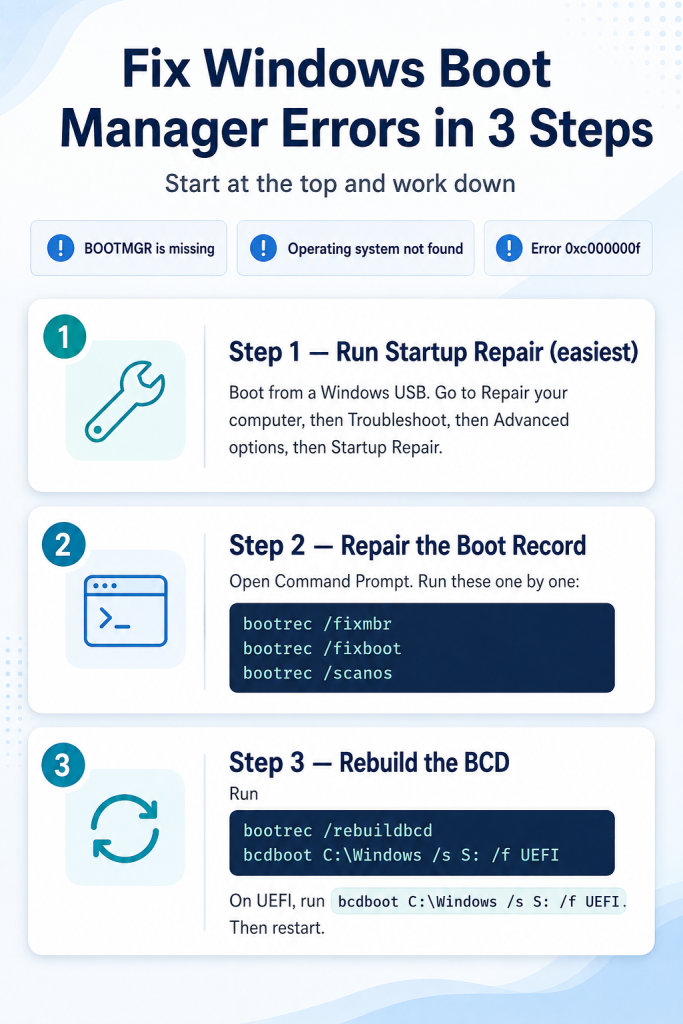
For a less invasive approach, one might opt for Startup Repair. The program can correct many boot faults by scanning the system. To put it to work, start your PC off the installation media and make your way to the “Repair your computer” selection. From there, you will want to go into Troubleshoot and select Advanced options, then choose Startup Repair. Windows will then have a look for any issues and attempt to remedy them; it also generates a log of its actions for your perusal. A restart is in order when the process is done.
Method 2: Repair the Boot Record With bootrec
Sometimes Startup Repair reports that it could not fix your PC. In that case, use the command line. From the advanced options screen, open the Command Prompt. Then type these commands, and press Enter after each one:
- bootrec /fixmbr writes a fresh master boot record.
- bootrec /fixboot writes a new boot sector.
- bootrec /scanos finds Windows installations on your drives.
These commands repair the core parts the Windows boot manager depends on.
Method 3: Rebuild the BCD Store
Should the errors persist, it is time to rebuild the boot configuration data. The boot manager will be unable to locate Windows if the BCD has been compromised. Open Command Prompt and issue the command bootrec /rebuildbcd; this will have the tool scan your disks and put in any copies of Windows it comes across. Please confirm the entry when prompted.
For UEFI machines, you might have to use bcdboot C:\Windows to rebuild the boot files. You can specify the firmware type with the /f switch (for either BIOS or UEFI) and set the system partition with /s. In other words, the complete command would be bcdboot C:\Windows /s S: /f UEFI, though you should substitute the drive letters with those that apply to your configuration. After that, do a restart on the PC.
If nothing else has worked, the drive may be failing. A chkdsk run will tell you if it finds any disk errors. If not, you would be better off having a technician look at it or putting in a fresh install.
Get Your Workspace Back Faster After a Boot Fix
A PC is running once more after you have put the windows boot manager to rights, but do not expect a tidy desktop when you log in. The monitors you had set up are bare, your browser tabs have vanished, and the apps are all shut down. To put things back in order by hand is a time-consuming exercise.
SmartPanels is designed to take that burden off. As an intelligent Windows manager for your day-to-day work, it will remember your app layout, window placement, and open tabs and put them back with one click. Even with as many as six screens, the restoration is quick.
It should be noted that SmartPanels has no part in mending the boot process or the boot manager. What it does is safeguard the layout on top of Windows, which the Windows desktop manager normally renders after the system has loaded. We work in concert with that component to return your workspace in a matter of seconds, a welcome change of pace after a taxing repair. For further reading, we have a guide on managing the AppData folder in Windows 10 and 11.
If a less arduous recovery is what you are after, try out SmartPanels for 14 days at no cost and make sure your workspace is saved.
Final Thoughts
There is no need to be unduly concerned over boot issues; while they can be alarming, they seldom mean the demise of a PC. The Windows boot manager’s job is to load Windows at startup and nothing more. Should it fail to do so, there are straightforward tools to put things right. For instance, Startup Repair will take care of most faults by itself, or one can turn to the bootrec commands for a more thorough fix. With some patience, a full reinstall is not usually necessary to get the system back up and running.
It is wise to have your installation media on hand and to make regular backups of files. Such precautions reduce what might seem like a frightening error to a mere inconvenience. And when the PC is finally booted, you want to return to work without fuss. SmartPanels does just that, putting your whole workspace back in order with a click.
We suggest repairing with confidence and leaving the rest to SmartPanels. Put your setup on the safe side and give the free 14-day trial a go.