

It is a Monday, and you have your laptop in front of you, but the desktop does not look right. Windows are open where they should not be; the second monitor is of no use. And you have a meeting to get to in five minutes. If that rings a bell, you are not alone; there are plenty who find themselves putting the same layout back together on a daily basis, an exercise in futility that eats up time.
Fortunately, you can fix this problem for good. Software to restore workspace windows remembers where each app belongs. This guide will put an end to that with a single click. We begin by looking at what causes these layouts to go awry. From there we move on to the mechanics of saving and restoring them and make a case for whether the native Windows features or a third-party application is better suited to the task.
You will see how SmartPanels does its work on Windows and pick up some useful tips in the process. Our aim is for you to come away with a clear sense of what works for your system. To start, let us examine the source of the disarray.
Why You Need Software to Restore Workspace Windows
Windows does not always remember your layout, so your apps drift out of place. Several everyday events cause the mess.
What Breaks Your Window Layout
- Unplugging a laptop from its dock or external monitor
- Waking your PC from sleep
- Restarting after an update
- Starting a remote desktop session with a different screen size
According to the open-source WindowMagic project, this is a Windows issue that has yet to be put to rest. Their tool is designed to hold window positions firm in the event of a change in resolution or number of monitors. The TAN Window Manager page makes a similar point, observing how windows have a way of drifting once a monitor is changed or the system comes out of sleep mode. You will find the same frustration on a Microsoft Q&A thread; one contributor there was forced to manually reposition every window on the external monitor with each reconnect.
The Real Cost of Rearranging by Hand
It is a matter of minutes to put a layout back together, yet the process is a daily occurrence. Over the course of a year, even five minutes here and there will amount to some 20 hours. Then there is the fact that every time you must do it, your focus is diverted from what you are working on.
For this reason, an effective tool needs to be capable of three things: recording where your windows are and restoring them in short order, as well as making the necessary adjustments should the monitor configuration be altered. Software to restore workspace windows handles all three, so you can start working right away.
Software to Restore Workspace Windows: How to Save Your Layout
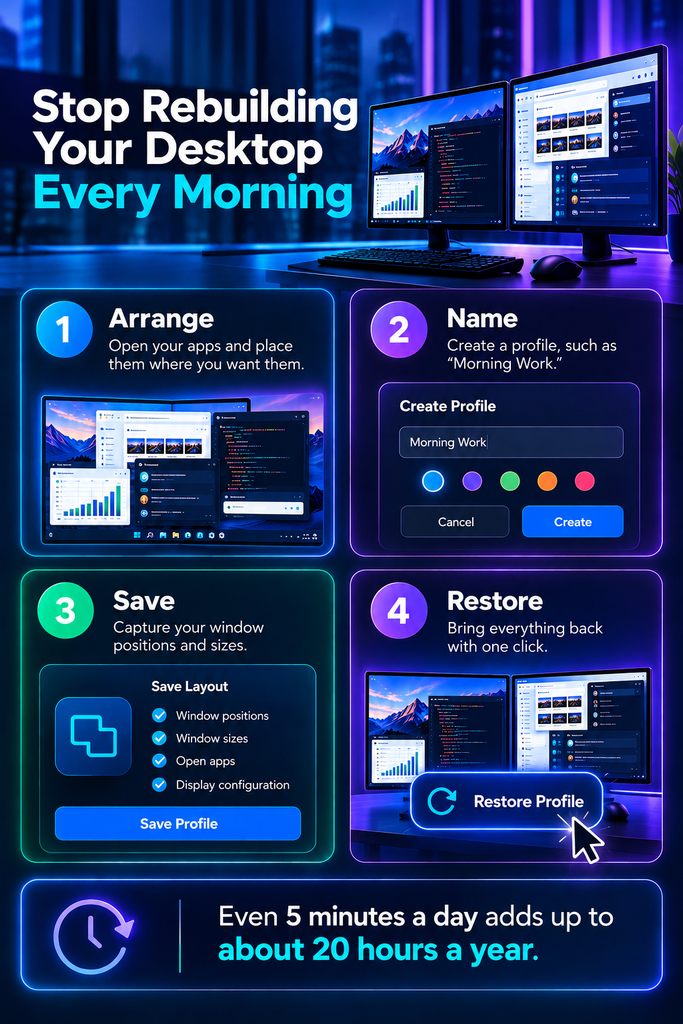
Saving a layout takes only a few steps. Fortunately, the process looks similar in most tools.
Step 1: Arrange Your Windows
Start by opening the applications needed for a particular job and put them in your preferred spot. You might want to organise them by function, be it for writing or research or a meeting; have your email on the left screen with the document over on the right, for instance.
Step 2: Name and Capture the Layout
After that, make a profile and call it something obvious like “Morning Work” before you capture the arrangement. Most tools will note down the size, position, and app of every window. When you save desktop layout windows this way, you skip the daily setup. For instance, the PowerToys Workspaces feature uses a Capture button for this step.
Step 3: Keep More Than One Layout
Most people work in more than one mode. Therefore, build a profile for each one. A developer might keep coding, testing, and review profiles. A student might keep study and entertainment profiles.
This habit lets you save multiple window layout profiles, one for each task. SmartPanels follows the same idea, and its guide suggests profiles for work, study, or entertainment.
Step 4: Update Layouts When Habits Change
There is no point in not saving your changes when you are repositioning or putting in new apps, given how fast layouts can become dated. The SmartPanels guide would concur; it recommends making a save so the app has a record of your most recent arrangement.
Software to Restore Workspace Windows Across Multiple Monitors
Multi-screen setups need extra care because each monitor has its own size and position. Good software to restore workspace windows ties each saved layout to the monitor setup it came from.
Match Layouts to Your Monitor Setup
Take Fenestrae as an illustration: it ties every profile to the fingerprint of your display layout, meaning the correct one will be put back in place once the same screens are reconnected. You will find the Windows Saver script does something of the same thing.
It keeps distinct layouts on hand for both single and dual monitor configurations will select the appropriate one according to what is currently connected.
Restore Your Layout in One Action
If a dock has been altered and one needs to get the multi monitor layout back in order, the way to do it is to start with your apps. WiLMA makes for an easy enough affair; simply open up your programs, choose a layout, and press Apply and the tool will put the profile in place. Then there are the more hands-on options. PositionPro is a case in point: it does not just ensure every window is where it should be; it will also launch any that are not already running.
Plan for Sleep, Docks, and Remote Sessions
For things like docking or coming out of sleep, an automatic restore is invaluable. Fenestrae will reestablish your layouts after a login or when displays are changed, while WindowMagic is of use for remote desktop sessions if executed on the target machine. It is well worth seeing if the software in question handles these restorations on its own or requires you to make a demand of it.
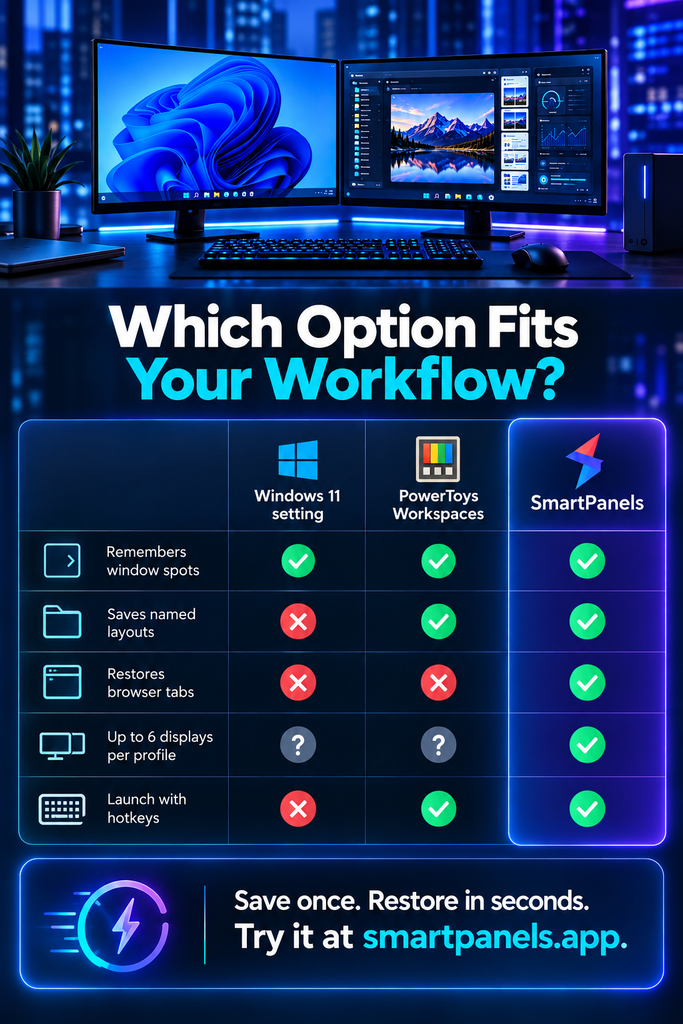
Built-In Windows Tools vs. Software to Restore Workspace Windows
Windows offers some free options. However, each one has limits you should know before you decide.
Windows 11 Display Settings
There is a “Remember window locations based on monitor connection” option in Windows 11, located in the Display section of System Settings. While it is of some use in straightforward situations, a Microsoft community post makes it clear that one should not expect it to launch programs or preserve an entire layout.
PowerToys Workspaces
For something more involved, there are Workspaces in the free PowerToys from Microsoft. The process is to put your apps in place and hit Capture, then you can call up the arrangement later.
TechSpot notes that this will handle apps on several monitors and allow for customizing window size and state. But be aware of a quirk: as Computerworld has pointed out, when it comes to opening Word or Chrome, it does so in a new window. If they were already running, you are left with duplicates.
Third-Party Tools
There are several dedicated tools on offer that bring with them named profiles, hotkeys and the ability to restore windows in a monitor-aware fashion. One will not find the pricing uniform: as things stand, PositionPro is available for a one-off $9.99, whereas Fenestrae runs you $25 a year. Then there are open-source programmes such as WindowMagic; they come at no cost but do not have as many frills.
The question is which way to go. For those whose requirements are limited to some basic position memory, the setting already in place should suffice. If you switch tasks often, software to restore workspace windows saves far more time.
How SmartPanels Works as Software to Restore Workspace Windows
With SmartPanels, the Windows app, there is no more need for a daily desktop routine. The program will save all your window placements, open files and browser tabs to a single profile, and in a matter of seconds have your whole workspace back up and running, spanning multiple monitors if you like.
One click is all it takes to toggle between the different profiles you can maintain for individual projects. It is compatible with both Windows 10 and 11 and has been used by over 2,000 users.
Set Up SmartPanels in Four Steps
- Download and install the app. Its icon then appears in your taskbar.
- Click “Create Profile” and name it. The app detects the apps on your screen.
- Arrange your windows, then click “Save to Profile.”
- Next morning, click “Restore Profile.” Your apps, tabs, and files return to their saved spots.
Features That Matter for Daily Work
- Multi-browser support: It restores tabs in Chrome, Firefox, and Edge.
- Office files: It also handles desktop apps like Word and Excel.
- Multiple displays: Each profile supports up to six displays.
- Custom hotkeys: You can launch a saved profile with a keyboard shortcut.
- Profile sharing: You can send a profile to a teammate by email.
- Cleanup control: Settings let you minimize or close apps outside your profile.
What to Know Before You Start
With the free version you are limited to only one profile, but that restriction is lifted in the paid edition. As for SmartPanels, it is a Windows exclusive, so Mac users will have to look elsewhere. For those on Windows with multiple projects on the go, however, it offers an easy one-click means of moving from one to the next.
Best Practices for Reliable Window Layouts
The right habits make any tool work better. Follow these tips to get steady results.
- Start small: Save one layout for your busiest task first. Then add more over time.
- Use clear names: Labels like “Client Calls” or “Research” beat “Layout 3.”
- Match each profile to a monitor setup: A dock layout and a laptop-only layout should stay separate.
- Test after big updates: Windows updates can change display settings, so restore a profile and check it.
- Exclude apps you rarely use: A short, focused layout loads faster and looks cleaner.
- Back up your profiles: Some tools, like PositionPro, offer import and export for easy migration.
FAQs
What is software to restore workspace windows?
Think of it as a utility for preserving your apps and the size and position of every window. With the press of a hotkey or a single click, it will restore them to exactly where they were.
Does Windows save my layout on its own?
To some extent Windows 11 is capable of this on its own; it will recall where windows are based on the monitor in use. But you will not get the kind of complete, named layouts that a purpose-built tool provides.
Can I use one profile for different monitor setups?
It works better to keep one profile per setup. Tools like Fenestrae and WindowSaver match layouts to your monitor configuration.
How many displays does SmartPanels support?
SmartPanels supports up to six displays per profile.
Is there a free trial?
Yes. The SmartPanels trial version allows only one profile.
Final Thoughts
Rebuilding your desktop every morning does not have to be part of your routine. A good layout tool saves your window positions once and brings them back on demand. Built-in Windows settings and PowerToys help in some cases. However, dedicated software to restore workspace windows gives you named profiles, multi-monitor support, and faster recovery.
Remember the key steps. First, arrange your apps. Next, save each task as its own profile. Then restore the layout whenever you need it. Finally, update the profile when your habits change.
If you use Windows 10 or 11, try SmartPanels. It restores apps, browser tabs, and files across up to six displays.
Visit SmartPanels to download the installer and start with the trial. Within minutes, you can stop rearranging and start working. Your future self will thank you. Start today.