
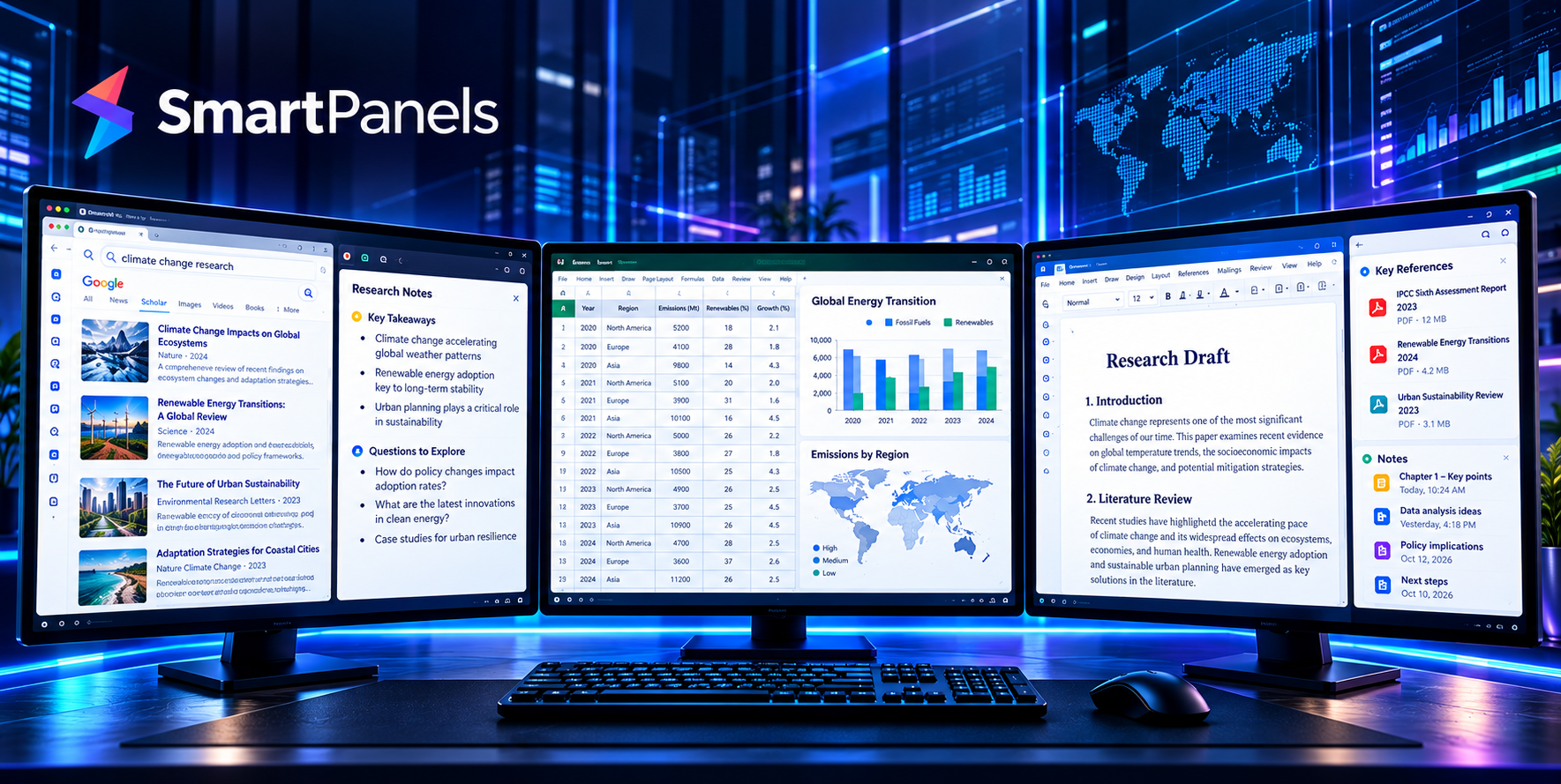
Consider the contrast between two typical mornings. A forex trader opens a broker platform, an economic calendar, and charts across a multi monitor setup. A researcher, meanwhile, keeps source tabs, PDFs, a draft, and a spreadsheet open. Yet both waste a few minutes dragging windows into place. Fortunately, both can save multiple windows layout profiles and restore them with a single click.
We built this guide to address each scenario. The trading section covers layouts for crypto, stocks, and forex. The research section covers writing, analysis, and sources.
From there we will walk you through how to save your profile on Windows before showing what SmartPanels can do to put it all on autopilot.
Why Both Workflows Need You to Save Multiple Windows Layout
The Cost of Constant Tab Switching
There is a common thread running through trading and research despite their outward differences: the need to have multiple windows in view at once. When those windows are scattered, it is hard to keep one’s focus, be you in either discipline.
Then there is the matter of interruption.
Gloria Mark of UC Irvine has done much work in this area as a professor. Her well-known studies put a number on it, showing that an individual will take some 23 minutes to get back to where he was after being sidetracked. So, when one must go looking for a tab that has been put out of sight, there is a price to be paid for it.
When you save multiple windows layout profiles, you remove that hunt. Each app returns to a familiar spot. As a result, you spend energy on decisions and ideas instead of arrangement.
What a Ready-to-Use Workspace Looks Like
A ready-to-use workspace has three traits:
- Consistent placement: Frequently used apps stay in familiar positions.
- Task-based organization: Each activity gets its own layout.
- Repeatable arrangements: You can save multiple windows layout profiles and restore them later.
Together, these traits turn a crowded desktop into a calm working environment.
Save Multiple Windows Layout for Your Trading Workspace
There is a need for quick access to an array of information when trading. Between the order screens, news and prices, not to mention the calendar, there is always a contest for room on the display.
A well thought out multi-monitor arrangement provides a place for it all. What follows is a guide to storing layout profiles for your various windows in forex, stocks or crypto.
Forex Layout: Save Multiple Windows Layout for Charts, Calendars, and Execution
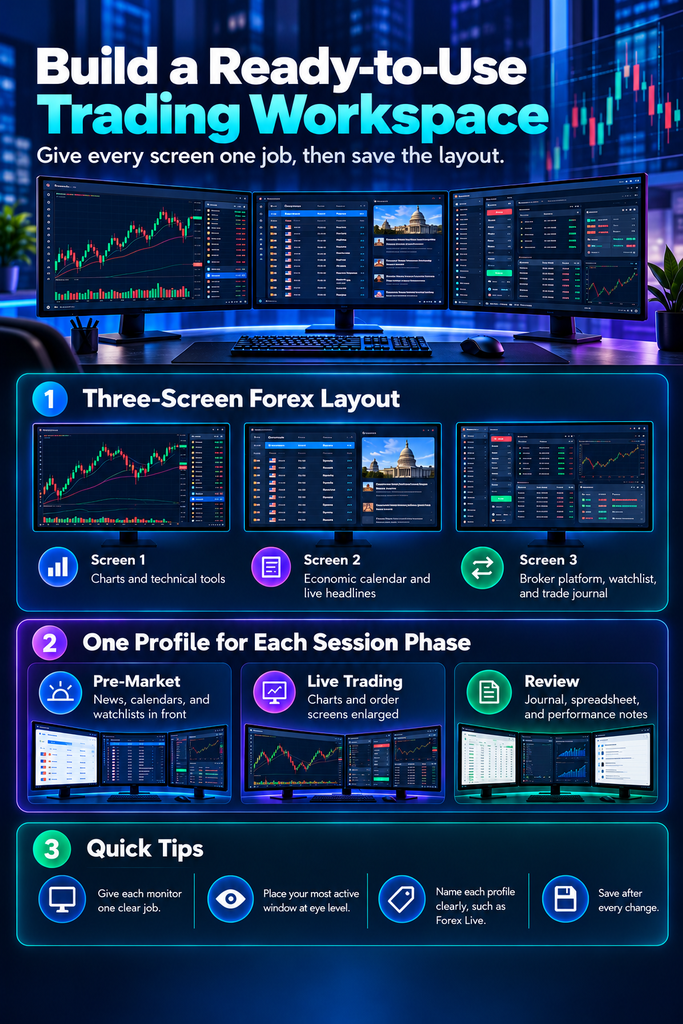
Forex traders watch currency pairs, central bank news, and economic releases at once. Therefore, assign each screen one job.
- Screen one: Place charts and technical tools on your primary display.
- Screen two: Show the economic calendar and live headlines.
- Screen three: Keep your broker platform, watchlist, and trade journal.
Two screens also work well. Put charts on one display and stack the calendar, news, and platform on the other. Then save multiple windows layout positions so the arrangement returns every time.
Stock Layout: Save Multiple Windows Layout for Watchlists and Earnings
Stock traders juggle news, charting, and screening. Place your watchlists and screeners on one side, and put the primary chart in the center. Use the remaining screen for your brokerage platform, company filings, and earnings calendars.
A workspace manager windows users trust restores this arrangement in one click. Come earnings season, save multiple windows layout profiles for each reporting day.
Crypto Layout: Save Multiple Windows Layout for Fast Markets
Crypto research spans exchanges, price charts, order books, blockchain explorers, and project pages. Because markets move quickly, a clear layout saves valuable seconds.
- Left screen: Show exchange screens and live price charts.
- Center screen: Open blockchain explorers and analytics dashboards.
- Right screen: Keep project documentation and your portfolio dashboard.
Next, save multiple windows layout profiles for each activity, such as market watching and project review.
Trading Profiles for Each Session Phase
Traders also work in phases. Create a profile for each one.
- Pre-Market: Put news, calendars, and watchlists in front.
- Live Trading: Enlarge charts and order screens.
- Review: Open your journal, spreadsheet, and performance notes.
Then assign a hotkey to each profile. Your desk now shifts between phases in seconds. Before each session, test the profile and save multiple windows layout updates right away.
A Sample Trading Morning
The day’s routine is set. By 8:30 the trader has pre-market up and is going over the news and calendars. Then at 9:30 a single hotkey puts the desk in Live Trading mode, and the displays are taken over by order screens and charts. Once the market closes, Review is opened to put in some notes. These transitions are a matter of seconds, allowing for undivided attention on the market. It is just such efficiency that explains why traders will have a window layout profile saved for each phase.
Trading Layout Tips
A simple screen is best. Let each monitor have a single, well-defined purpose and put the window you are working with most directly in your line of sight. Be sure to label all profiles without ambiguity, whether it is for Crypto Watch or Forex Live; having plain names will spare you any confusion in the event of a quick market move.
And when you have made an adjustment to your layout of multiple windows, save it so that your next session is set up accordingly. As trading carries its own risks, we limit this guide to the matter of desktop organization.
Save Multiple Windows Layout for Your Research Workspace
Research needs depth and order. Sources, notes, and drafts work best when they stay visible together. Moreover, research moves through stages, so each stage deserves its own layout. This section shows you how to save multiple windows layout profiles for analysts, students, and business researchers.
Source Gathering: Tabs Ready and Notes Close
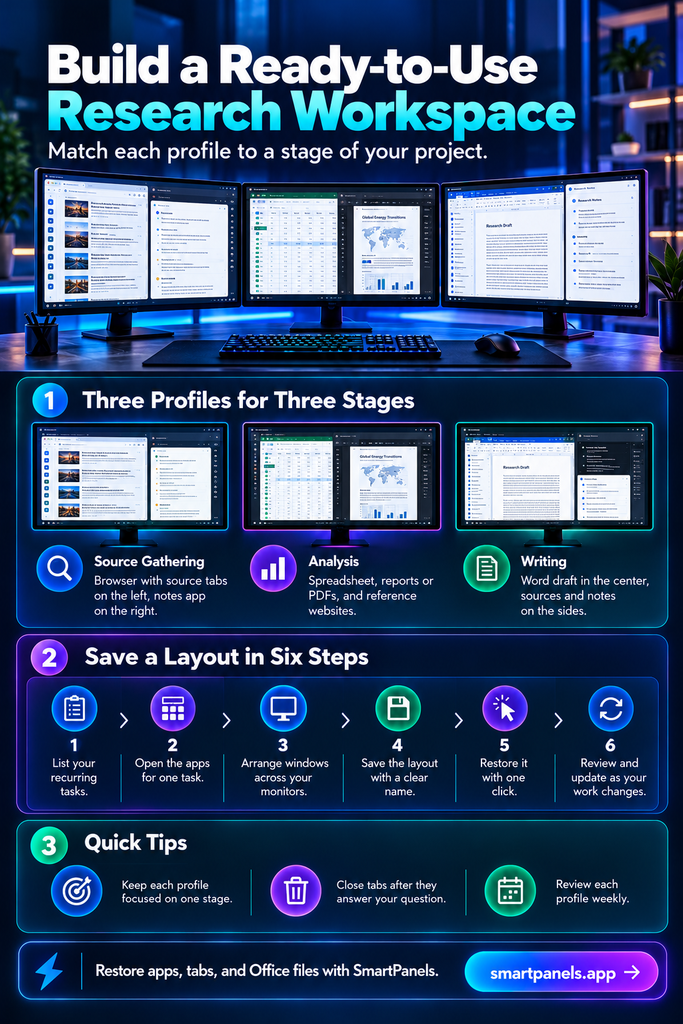
Early research means collecting and comparing sources. Open your browser on one side and your notes on the other.
- Left: Browser with your source tabs.
- Right: Notes app or research board.
- Extra screen: Databases, search tools, or a reading list.
Because SmartPanels restores browser tabs, you can save multiple windows layout setups with your sources already open.
Analysis Layout for Data, Documents, and References
Analysis means checking figures against reports. Financial analysts, students, and business researchers all follow this pattern.
- Screen one: Spreadsheet or data file.
- Screen two: Reports, filings, or PDFs.
- Screen three: Reference websites and dashboards.
Then save multiple windows layout profiles so the comparison view returns on demand.
Academic and Market Research Layouts
For the academic and market researcher, there is no shortage of papers and reports to be read. A good way to work is to have your PDF reader front and centre with notes at hand, while a second screen is used for your reference manager and search database.
In this manner, any citations or quotes are right where you need them as you go through your reading. One can also set up window layout profiles to be saved for the occasion of a particular paper or client project.
Writing Layout: Save Multiple Windows Layout for Draft and Evidence
A writer has to have the draft and the evidence at hand. Put the Word document in the middle of the screen with your notes and sources flanking it. It is well worth the effort to save a few window layout profiles for this; you will find that every time you sit down to write, you can pick up where you left off in your thinking rather than being preoccupied with the setup.
Research Profiles for Each Project Stage
There are three profiles at the disposal of a research project: Source Gathering, analysis, and Writing. One can make use of hotkeys to switch from one to the other as the work progresses. Take Paul Fraser for instance; he has found that his research is all the easier with browsers and Microsoft files being more straightforward to handle.
It is also good practice to do a weekly review of each profile, put in some time to clear out old tabs and preserve any changes made to the layout of multiple windows.
A Sample Research Session
The morning finds a researcher with a stack of reports in hand, tending to the Source Gathering. Come noon, the Analysis profile is put to work to align spreadsheets for side-by-side comparison. Later in the day, Writing is called on to assemble the draft and its supporting evidence.
With every transition requiring no more than a click, one’s train of thought is not broken. It is this kind of routine that explains the practice of having a window layout profile on hand for each phase of the research.
Research Layout Tips
A profile should be dedicated to a single stage. Once a tab has done its job in answering the question, close it out. Be sure to put your sources, notes and drafts where they belong. It is best to name the profiles for the project at hand; that way any old work is easy to come by.
In the end, having fewer tabs on screen will make for a quicker restore and a clearer head. Finally, save multiple windows layout changes whenever your sources change.
How to Save Multiple Windows Layout in Windows 11
Snap Layouts Versus Tools That Save Multiple Windows Layout
Windows 11 includes Snap Layouts, which tile windows into zones. However, arranging windows and restoring a full workspace are different jobs. People who search for a window 11 save desktop layout method usually want the second job.
Six Steps to Save Multiple Windows Layout Profiles
Follow these steps for either workflow.
- List your recurring tasks. Examples include live trading, source gathering, and writing.
- Open the apps for one task. Launch browsers, charts, spreadsheets, and platforms.
- Arrange windows across your monitors. Resize each app and keep key details readable.
- Save the layout. Name it clearly, such as Forex Live or Literature Review. This step delivers what people mean when they search to save window positions windows 11.
- Restore the layout. Click once, and your windows return to their saved spots.
- Review and update. Adjust layouts as your work changes, then save multiple windows layout profiles again.
What to Check Before You Save Multiple Windows Layout
Features That Matter
Tools differ, so choose carefully. Reliable software to restore workspace windows should match your daily habits. Check these points with any tool:
- Saved layouts for separate tasks.
- Support for all your monitors.
- Compatibility with your browsers and Office apps.
- Simple save and restore actions.
- Hotkeys for fast switching.
How to Match a Tool to Your Workflow
For a trader running two browser windows, the setup is straightforward. A researcher on the other hand, with an array of monitors and open documents and spreadsheets, will want more in the way of restoration. The top workspace manager for Windows does not discriminate; it makes both trading and research profiles just as accessible to install and use. There is no better way to put those workflows to good advantage than by having multiple window layout profiles on hand.
Save Multiple Windows Layout with SmartPanels
What SmartPanels Does for Trading and Research
FiveRivers Technologies has put out a Windows application called SmartPanels. The software is designed to keep track of your Office files, browser tabs and window placements within profiles. We make no secret of the fact that our team is behind the product’s development, and as the site will tell you, some 2,000 users or so are already using it.
The utility is useful for research in that it can bring back Word drafts, spreadsheets and source tabs. Traders will find it handy for having chart platforms, broker screens and news pages all restored at once. In terms of compatibility, SmartPanels is at home with Edge, Firefox and Chrome, and one can have as many as six displays to a profile.
Hotkeys, Sharing, and Plans
With a hotkey any profile can be put in place at once, and the email sharing function is there to send off a layout to your teammates. You have the option in the settings to dictate if SmartPanels should close or simply minimize apps that are not part of your profile. The trial is limited to three profiles but the paid tier is without limit, meaning one can store window layouts for each stage of research and trading as needed. In this way, SmartPanels handles the window management and leaves the data and analysis to your own platforms.
Visit smartpanels.app to try it.
FAQs About How to Save Multiple Window Layouts
Can I save multiple windows layout profiles on one monitor?
Yes. SmartPanels works on one display and scales up to six displays per profile.
Does SmartPanels restore browser tabs?
Yes. It restores tabs in Chrome, Firefox, and Edge, plus Office files.
How many profiles can I create?
The trial version allows up to three profiles. The paid version offers unlimited profiles.
Can I switch layouts with a hotkey?
Yes. Assign a custom hotkey to each profile, then launch it instantly.
Can I save multiple windows layout profiles on Windows 10?
Yes. SmartPanels runs on Windows 10 and Windows 11.
Start Today and Save Multiple Windows Layout
A well-ordered desktop serves researchers and traders alike. Researchers keep a steady hand on their sources, data, and drafts. Traders keep charts, order screens, and news at their fingertips. Both spend their time working instead of rebuilding their setup. A windows 11 save desktop layout routine makes that possible.
Start with one profile for research and one for trading. Add more as your routines develop. Consistency builds speed, and speed builds confidence in every decision. Remember that trading carries risk, so vet every move through careful research. Over a few weeks, small changes to your station show their value. As you fine-tune your profiles, share them with teammates to keep everyone on the same page.
If one is inclined to give it a go, SmartPanels makes it simple. Save your multiple window layouts and you will be up and running in seconds for each
Visit smartpanels.app, download SmartPanels, and save multiple windows layout profiles today. Start with one profile today. Your next focused session starts with a single click.