

There is nothing like the feeling of losing your tabs right before a deadline. It can be an update, a crash, or just one ill-advised click that has the browser shut down and all your work with it. But there is an easy remedy for it. In a matter of minutes, any Chrome user can learn how to put a previous session back in place.
We will start by looking at the built-in tools for getting your tabs back. From there, you will learn the startup option to safeguard what you have been doing, and we will address the issue of crashes and updates. We will also show how SmartPanels can be used to reinstate your windows and apps. The approach is straightforward, and the fundamental techniques are ones Google puts forward on its own help pages. All of this is applicable whether you are on mobile or desktop.
Follow along, and you’ll be able to bring back your Chrome tabs with confidence. Your next restart will feel much calmer. These tips suit beginners and experts. Let’s start with the basics.
Why You Need to Restore Your Previous Chrome Session
Most people keep many tabs open at once. Research, email, documents, and dashboards often share one window. Therefore, losing that set costs real time.
A good restore habit saves you from rebuilding everything by hand.
Common Reasons Tabs Disappear
There are many ways to lose your tabs. A heavy page load might cause Chrome to crash, or an overnight Windows update could be the culprit and force a restart. Then there is the matter of simply shutting the wrong window in error.
The remedy will vary from one instance to the next, but as you will see with the Chrome options for restoring a prior session below, they are designed to address each of these scenarios.
What Chrome Can and Cannot Bring Back
What Chrome will do is to reload your web addresses and reopen the pages, but it does not put back unsaved work. You might find a form that was only part way through being filled in has gone blank. Then there are Incognito windows which have a way of their own and for the most part remain shut. One should bear that in mind before putting faith in a method to restore an earlier session in Chrome.
Where This Guide Comes From
We have put together this guide with reference to Google’s Chrome Help, as well as tutorials by IONOS, freeCodeCamp and Dell. After a side-by-side review of the procedures they offer, we retained only those that were most straightforward.
You will find that every method for restoring a previous session in Chrome set out here is in keeping with what is documented by Chrome.
Turn On Chrome’s “Continue Where You Left Off” Setting
There is no better defense than a setting you can rely on. Google has one they refer to as “Continue where you left off.” With it turned on, Chrome will have your last pages ready for you at launch, so there is no need for any superfluous clicking to put tabs back in place after a restart.
Here is how to set it up on Windows, Mac or Linux:
- Start by opening Chrome and going to the three-dot menu in the upper right corner to access Settings.
- From the left-hand panel, select On startup and choose Continue where you left off.
- You can verify the work by closing and re-opening the browser; your previous session should be restored without delay. The setting will remain in effect until you see fit to change it.
Note for Chromebook Users
The menu on a Chromebook is of a different sort.
- One has to go into Settings and from there to the System preferences.
- In the Startup section, select what you like; “Ask every time” is an option that will put up a prompt once you have signed in.
- It is a way to have your say without being made to do a restore.
- The concept of restoring a previous session in Chrome is unchanged regardless.
Quick Ways to Reopen Closed Tabs from History
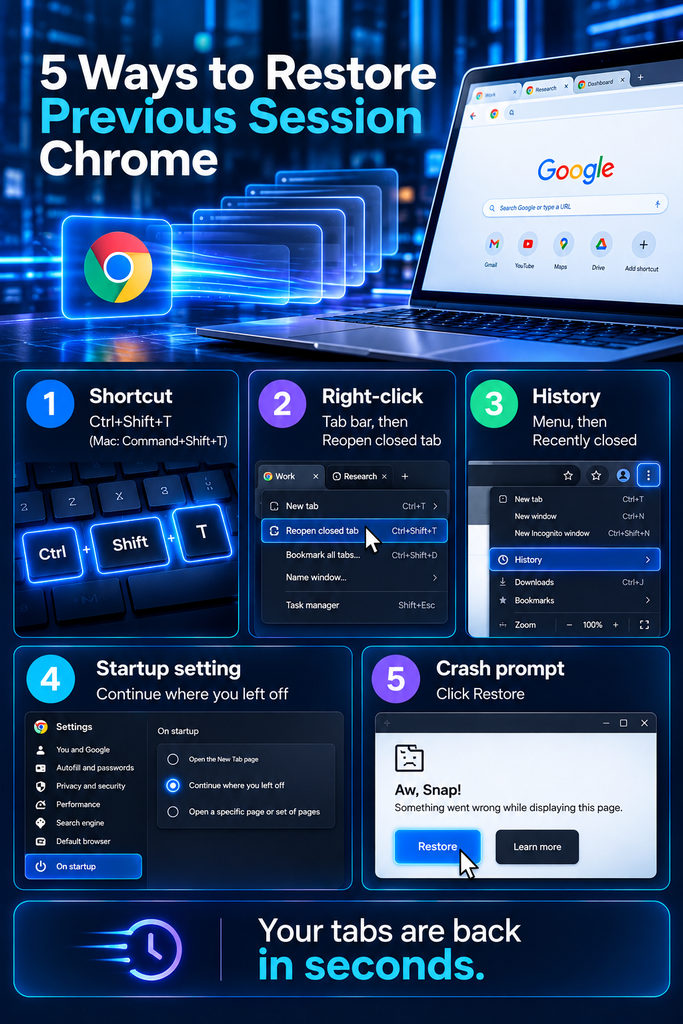
Sometimes you need only one page, not everything. Fortunately, Chrome offers several fast options. This section shows how to reopen closed tabs in seconds.
Use the Keyboard Shortcut
The quickest way to restore a previous session in Chrome is with a keyboard shortcut. Hit Ctrl+Shift+T if you are on Windows or Linux, or Command+Shift+T for the Mac and your last closed tab will be back in front of you.
Keep hitting the keys to go further back through older ones; it will even revive a closed window.
Right-Click the Tab Bar
For those who like to use the mouse, there is another fast option. Simply right-click any open space on the tab bar and select Reopen closed tab from the menu.
Browse the History Menu
To get at your history in Chrome, open the menu and put the cursor over History. You will be presented with a list of what has been closed of late. From there you can choose an individual page or an entire group; if you see an entry with a tab count next to it, that will put back an entire window in one go.
To bring back a whole window, look for that tab count.
Grab Tabs from Another Device
If you have signed in on both your devices, you can make use of the Recent Tabs on your phone. On the computer, a check of History will turn up tabs from elsewhere. In this way, a page off your work PC is just a tap away, so you can get your tabs back on any device.
Restoring Chrome After a Crash or Update
Crashes and updates feel different from accidental closes. Fortunately, Chrome often detects them and offers help.
Click Restore When Chrome Asks
The moment Chrome has crashed, go ahead and reopen it. You will likely see a small bubble at the top of the window with a Restore button; click on it to have the entire session put back in place.
It is an option that appears following an unanticipated exit and is by far the most straightforward way to restore your work in Chrome.
Reopen Chrome Quickly
Do not be slow to act and let the bubble go away. The reason for the haste is that as one browses, Chrome overwrites its session data, so a prompt reopening gives you the best chance at recovery.
That said, there are no guarantees. And until you have restored what you can, it is best to refrain from opening a host of new tabs.
Recover Tabs After a Normal Exit
If it was you who shut down Chrome, go to History and select the group entry. One can also hold Ctrl and click on the individual pages in question. This is a more time-consuming way of restoring a session, but it puts the reins in your hands.
Consider a Session Extension
For putting tabs in order and storing them over the long term, an extension like Session Buddy will do the job. Just be sure to stick with well-regarded publishers; after all, these tools have access to your browsing activity.
Quick Comparison of Restore Methods
| Method | Best for | Speed |
| Keyboard shortcut | One closed tab | Fastest |
| History menu | Several closed pages | Fast |
| Startup setting | Every restart | Automatic |
| Crash prompt | Unexpected exits | One click |
| SmartPanels | Windows, apps, and tabs | One click |
Use this table to pick the right option for your situation.
How to Restore Chrome Tabs on Android and iPhone
The phone is also a record of what has been closed. While the menus in Chrome can vary a touch depending on the version, the process is straightforward. It is a handy way to restore a previous session while you are out and about.
On Android
To do it, launch Chrome and make for the three-dot menu. Select Recent tabs and you will find your options under Recently closed. Tap on one and Chrome will have it open in a new tab.
On iPhone and iPad
To get at a recently closed tab in Chrome, simply open the app and hit the tab switcher. Hold down on the plus button, and you will be presented with a list of those tabs; tap one to have it reappear. The menu is another option, where one can select Recent Tabs.
There is also the matter of history being shared between your phone and computer, provided you are signed into the same Google account. That makes it possible to put back Chrome pages from an earlier session, no matter which device is in use.
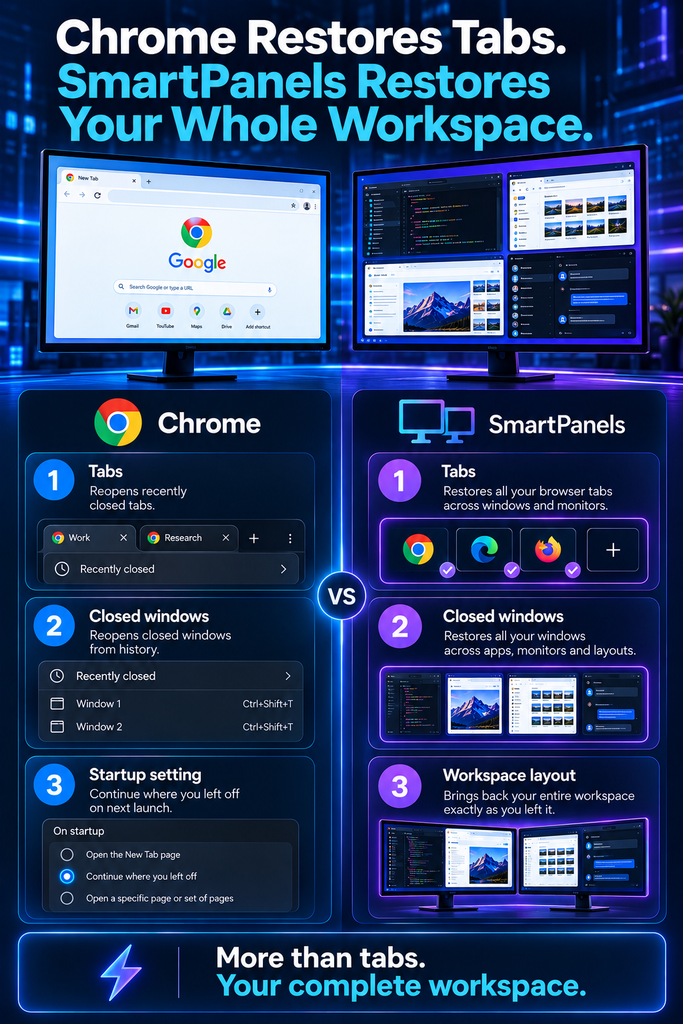
Go Beyond Chrome: Restore Your Whole Workspace with SmartPanels
Chrome restores tabs, yet your other windows need manual placement. Your editor, spreadsheet, and chat app still wait for you. That is where a workspace tool helps. If you want to save workspace windows and layouts together, try SmartPanels.
What a Workspace Manager Does
A Windows application, SmartPanels will remember the way you have your apps laid out, along with window and browser tab positions.
With a single click it puts everything back where it was. In that sense, one could consider its workspace manager to be something of a bookmark for the entire desktop rather than a solitary browser, which is why it goes beyond any standard Chrome routine for restoring a prior session.
Key Features
- Browser support for Chrome, Firefox, and Edge
- Multi-monitor layouts for up to six displays
- Custom hotkeys that launch a saved workspace
- Profile sharing by email
- Support for Windows Snap Layouts
A Simple Daily Workflow
- Arrange your apps and browser tabs the way you like.
- Save that arrangement as a profile.
- Restore it after a restart with a click or a hotkey.
Office files reopen too, so your documents return to their places. Your usual save habit still protects unsaved edits. SmartPanels also offers a free version, so you can test it on your own setup.
Which Tool Fits Your Needs
Use Chrome’s built-in setting for quick tab recovery. Choose SmartPanels when you juggle several apps, projects, or monitors. You can also use both together. As a result, Chrome’s restore options handle the browser, and SmartPanels handles the desktop.
What to Do When Chrome Won’t Restore Your Session
Sometimes Chrome doesn’t restore your session the way it should. Check these common causes first.
- The Startup Setting Changed
Updates, sync, or other software can switch your startup option. Open Settings and confirm that “Continue where you left off” is selected.
- You Opened a Different Profile
Chrome keeps separate tabs for each profile. Click your profile icon and check which one you opened. Your missing tabs may sit in another profile.
- The Window Was Incognito
Chrome usually cannot reopen closed Incognito windows. Bookmark important pages before you close them.
- Unwanted Software Changed Chrome
Google warns that malware can alter your startup page. If your startup settings look strange, run a malware scan. Then reset Chrome’s settings.
- Chrome Needs an Update
Old versions can behave oddly. Open the Chrome menu, choose Help, and then About Google Chrome. Chrome checks for updates and installs them automatically.
Habits That Make It Easier to Restore Your Chrome Session
There is no need to make a restore previous session in Chrome more difficult than it has to be; good habits will see you through. The following are some straightforward routines to adopt.
- For one, leave the startup setting for restoring your last session enabled.
- Make sure you are signed in with sync turned on as well, which allows your tabs to be with you on any device.
- When a major update is on the horizon, hit Ctrl+Shift+D (or Command+Shift+D if you are on a Mac) to put all open tabs in your bookmarks.
- Put related tabs in a group for easy access and shut down the ones that have outlived their usefulness.
- A lighter tab count translates to a quicker restore.
- If your work involves a number of different applications, pair Chrome with a workspace tool.
- And do not forget to give the browser a fresh restart once a week or so to stave off odd errors and lag.
All in All, these practices ensure a smoother experience when you go to restore a previous session.
Frequently Asked Questions
Does Chrome restore my tabs after I reboot?
Yes, when you turn on the “Continue where you left off” startup setting. Otherwise, use History to reopen them.
How many tabs can Chrome restore?
Chrome can reopen as many tabs as your last session held. History limits may apply.
Does the keyboard shortcut work after I close Chrome completely?
It works best within the same session. For older sessions, use the startup setting or History.
Can SmartPanels restore Chrome tabs?
Yes. SmartPanels restores tabs for Chrome, Firefox, and Edge on Windows. It also brings back app positions.
What is the safest way to restore a Chrome session?
Combine the startup setting with sync. Then add a workspace tool for your full desktop.
Final Thoughts
There is no need to let a few lost tabs put a damper on your day. With the methods at hand, restoring chrome content from an earlier session is straightforward. Make it a habit to enable Continue where you left off and commit Ctrl+Shift+T to memory for those times when you need a quick fix.
Should you face more significant losses, History and the crash prompt are there to help. And as your work setup outgrows the browser itself, consider a workspace tool; with SmartPanels you can have your windows, apps and tabs back on Windows in a single click. That way you are working rather than rebuilding. It is worth starting with the startup setting today since it will not take you a minute. Put the shortcut to the test after that until it becomes second nature.
Whenever trouble strikes, you’ll know how to get your Chrome tabs back. Ready for a calmer workflow? Try SmartPanels and keep your whole workspace one click away.