
There is no denying that a second monitor puts you in a better position to multitask and keeps your workspace orderly. But the moment that display goes dark, so does your productivity.
It is a familiar frustration for many: after an update to Windows, a driver hiccup or some other hardware tinker, you are left with a “second monitor not detected” error.
You might think it is a complex matter, but in most cases the culprit is easy enough to pin down and put right.
We have put together this guide to cover the usual suspects when a monitor fails to show up and walk you through some tried and true fixes. And once you have things in order, we will show you how SmartPanels can make the most of your setup.
Why Is Your Second Monitor Not Detected?
There are a few common reasons when Windows fails to pick up an external display. The problem is generally one of these:
- Cables that are loose or in bad shape, breaking the signal to the monitor.
- A display port that is damaged and won’t let data through.
- Display settings that have been applied to hide or turn off the second screen.
- Graphics drivers that are too old to talk to your hardware as they should.
- Conflicts from a Windows update can get in the way of detection.
- Some kind of hardware failure within the monitor itself.
- Or perhaps you have a configuration the system simply can’t support.
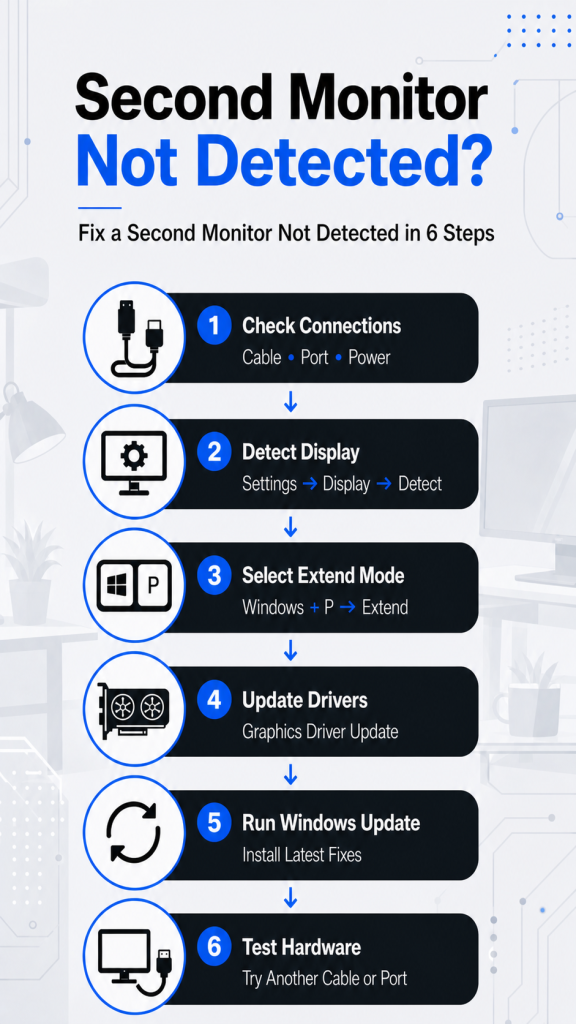
How to Fix a Second Monitor Not Detected
1. Check All Physical Connections
The first step is always to inspect your hardware connections.
Make sure:
- The monitor is powered on, and the power indicator light is functioning normally.
- The display cable is securely connected at both the computer and monitor ends.
- The correct input source is selected on the monitor menu.
- There are no visible signs of cable wear, bending, or connector damage.
- The monitor’s power cable is firmly attached and receiving power.
2. Force Windows to Detect the Display
An automatic recognition of a monitor by Windows is not always to be relied on. It can happen after an update, coming out of sleep mode or when you have reconnected some hardware.
If that is the case, you can force a manual detection of the display. Just head into Settings and go to System, then Display. From there, scroll until you see Multiple Displays and Hit Detect.
Windows will do a scan of what is connected and try to bring up any missing displays. In effect, it refreshes the link between the OS and the hardware. Should your monitor be in good working order but not show up on its own, this will put it back on screen right away.
3. Verify Display Projection Settings
Windows includes projection modes that control how displays are used.
Press:
Windows Key + P
You will see options such as:
- PC Screen Only
- Duplicate
- Extend
- Second Screen Only
For most productivity setups, choose:
Extend
With the Extend option, you can have your applications, windows, and workflows span out over more than one display for extra workspace, as opposed to just mirroring what is on screen.
Then there are times when Windows will put you in a different projection mode of its own accord, perhaps because of a keyboard shortcut or some change in the display settings. You might think your monitor has gone on the fritz, but it is only a matter of incorrect configuration. Even with the monitor properly connected, an ill-chosen mode can make it seem like Windows is having trouble detecting it.
4. Update Graphics Drivers
Graphics drivers play a major role in display communication. Outdated or corrupted drivers can prevent Windows from recognizing additional monitors or cause intermittent display issues.
To update drivers:
- Right-click Start.
- Open Device Manager.
- Expand Display Adapters.
- Right-click your graphics card.
- Select Update Driver.
- Choose Search Automatically.
Updated drivers often contain bug fixes, display compatibility improvements, and performance enhancements. Installing the latest version helps ensure that Windows can communicate properly with connected monitors and external displays.
5. Reinstall Display Drivers
If updating does not work, reinstalling the driver may help.
Steps:
- Open Device Manager.
- Expand Display Adapters.
- Right-click your graphics card.
- Select Uninstall Device.
- Restart your computer.
Let Windows handle the driver reinstallation on its own when you start up. It will put in place the right one and, in doing so, clear out any software conflicts, bad settings, or corrupted files that are keeping the OS from seeing your second display.
You will find this to be an effective fix if the monitor has given you trouble for no apparent reason and there have been no hardware changes to account for it.
6. Check for Windows Updates
Microsoft frequently releases updates that improve hardware compatibility and display performance.
To check:
- Open Settings.
- Select Windows Update.
- Click Check for Updates.
Go ahead and put in any updates that are available, then give your machine a restart.
You will find that Windows updates are a good source for compatibility patches and driver enhancements, not to mention the occasional fix for graphics problems of the sort that can cause display detection to fail.
On the other hand, should this trouble have cropped up right on the heels of an update, it would be worth looking through your history to see if something you installed is at odds with the system.
Advanced Troubleshooting for Dual Monitor Issues
- Test the Monitor Independently
Connect the monitor directly to another computer.
If it works:
- The monitor is functioning properly.
- The issue likely exists on the original computer.
- Your graphics settings or drivers may need attention.
If it does not work:
- The monitor itself may require repair or replacement.
- Internal hardware components could be failing.
- The display panel or input board may be damaged.
Independent testing helps eliminate guesswork and narrows down the actual source of the problem.
Unsupported resolutions can sometimes create detection problems.
To check:
- Open Display Settings.
- Select the monitor.
- Choose Recommended Resolution.
- Check Refresh Rate Settings
An incorrect refresh rate may cause display instability.
To verify:
- Open Advanced Display Settings.
- Select the monitor.
- Adjust the refresh rate.
Testing a lower refresh rate may help restore functionality.
Learn more: How to Restore Your Entire Workspace in One Click (SmartPanels Guide)
- Disable and Re-enable the Monitor
Device Manager allows users to refresh hardware communication.
Steps:
- Open Device Manager.
- Expand monitors.
- Right-click the monitor.
- Disable the device.
- Re-enable the device.
This process forces Windows to rebuild the connection between the operating system and the monitor.
Common Causes of a Dual Monitor Not Detected Error
Many users experiencing a dual monitor not detected issue are dealing with one of the following situations:
- Docking Station Conflicts
Docking stations simplify connectivity but can occasionally interfere with monitor detection.
Try:
- Updating docking station firmware.
- Disconnecting and reconnecting the dock.
- Testing monitors without the docking station.
- Checking manufacturer compatibility requirements.
Many display-related issues occur because the docking station firmware is outdated or incompatible with newer operating system updates.
- Graphics Card Limitations
Not all graphics cards support multiple displays.
Verify:
- Maximum supported monitor count.
- Supported resolutions.
- Available output connections.
- Graphics card specifications.
Entry-level systems may struggle to drive multiple high-resolution displays simultaneously. Reviewing hardware capabilities can prevent unnecessary troubleshooting.
- Adapter Compatibility Problems
HDMI, VGA, DisplayPort, and USB-C adapters vary significantly in quality.
Low-quality adapters may:
- Interrupt signal transmission.
- Cause intermittent display drops.
- Limit supported resolutions.
- Prevent proper monitor detection.
Using certified adapters from reputable manufacturers often resolves connection issues and improves long-term reliability.
How SmartPanels Improves Your Multi-Monitor Experience
Once your displays are working correctly, maximizing productivity becomes the next priority.
SmartPanels helps users create a cleaner and more efficient workspace by enhancing screen organization and workflow management.
- Faster Access to Information
With SmartPanels you have your most important tools, widgets and shortcuts at your fingertips, all without the clutter on your desktop. It is a way to get to the information you need from one tidy, central place rather than having to keep opening and closing applications. The result is less distraction and more efficiency as you go about your day.
- Improved Workflow Management
With SmartPanels, you can put your most important resources in order, making them easy to get at whether you are on a single screen or have a full dual-monitor arrangement. It is a way for teams and solo professionals alike to have their go-to tools right where they need them without cluttering up the desktop.
- Better Screen Utilization
With SmartPanels, you don’t have to keep switching apps; it lets you display your most important content where it’s easy to find and well ordered. For any professional who has to juggle dashboards, analytics, project management, or collaborative tools as part of their day, that kind of convenience is hard to come by.
- Enhanced Productivity
A workspace that is both efficient and makes good use of your screen space is worth a lot. SmartPanels can help with that for the likes of developers, designers, analysts, remote workers, and other professionals.
The idea is to put your most often used resources at your fingertips and cut down on superfluous clicking, which in turn leads to a more productive and fluid workflow. And if you have a solid multi-monitor setup, SmartPanels will tie it all together into a streamlined environment where you can stay focused and organized.
Frequently Asked Questions
1. Why is my second monitor not detected even though it is connected?
The most common causes include loose cables, outdated graphics drivers, incorrect display settings, adapter failures, or hardware compatibility issues. Start by checking physical connections and manually detecting the display through Windows settings.
2. Can a bad HDMI cable cause monitor detection issues?
Yes. Damaged, worn, or low-quality HDMI cables can interrupt signal transmission and prevent Windows from recognizing the monitor correctly.
3. Why does Windows suddenly stop recognizing my second monitor?
This can happen after a Windows update, graphics driver update, hardware modification, sleep mode issue, or accidental display setting change.
4. How do I fix a monitor that appears connected but shows no image?
Verify the monitor’s input source, test a different cable, check resolution settings, review refresh rate settings, and ensure the correct projection mode is selected in Windows.
5. Does SmartPanels work with multi-monitor environments?
Yes. SmartPanels is designed to improve organization, accessibility, and productivity across various workspace configurations, including single-screen and multi-monitor setups.
Conclusion
Nothing kills productivity like a “second monitor not detected” error, but you can usually fix it with some methodical troubleshooting. A quick check of the cables and display settings, an update to your drivers, or a test of the hardware will usually have things running again in no time.
And if you know what is causing the problem, you are less likely to encounter it again later.
If your work involves juggling multiple screens for data analysis, creative endeavors, or just the day-to-day demands of multitasking, you need a display environment that is in good order. When your monitors are behaving themselves, the next thing to do is make the most of your workspace.
That is where SmartPanels comes in. It is a sensible tool for getting rid of desktop clutter and putting your information in its place, which in turn makes for better visibility and a more streamlined workflow on any screen configuration. Paired with a sound monitor setup, it yields a workspace that is both efficient and productive. In short, whether you are ironing out the occasional glitch or fine-tuning your station for the long haul, SmartPanels will give you a more effective computing experience.