
Multi-monitor setups have become a staple for gamers, creators, and busy professionals alike. Yet if you hang around the forums or support boards long enough, you come across the same concern: is your graphics card being put through its paces by that second screen? A valid point to make, particularly when you have seen your frame rate take a hit with some video running in the background.
We decided to put an end to the speculation with some hands-on testing of our own to see what Windows does with additional displays. You might be surprised by what we found; it is not as simple as a yes or no answer. For the most part the effect is negligible in day-to-day use, but then again, there are circumstances where the equation changes entirely.
We’ll let you in on what is going on under the hood and why the desktop window manager is often made the scapegoat. And further down, we show how SmartPanels can be used to maintain an orderly and efficient workspace on all your screens.
When You Run Dual Monitors Does It Slow GPU Down? The Honest Answer
Let’s start with the short version. You can put a second monitor to work with hardly any impact on your graphics. Your GPU has enough in reserve to handle two displays without breaking a sweat, so for an ordinary productivity routine like having email up on one and a document on the other, you won’t see any performance hit.
But then again, it is what you are doing on those screens that counts. An idle second monitor won’t cause any issues. Have it churning out a Twitch stream or an animated dashboard, and the story changes. The card will have to put in the work to decode and render all that, and the shared load may well siphon off resources from your main concern, say a game you are playing. Put simply, the hardware is not the culprit; the demands you put on it are.
What Actually Uses Your GPU With Two Screens
To understand the impact, it helps to know which factors genuinely move the needle. Three stand out.
Resolution is one of them. A modern card will put out 1080p on two displays without breaking a sweat. But if you run both at 4K or even 1440p, your GPU has to work to render all that extra pixel data for every frame.
Then there is the refresh rate. You can overload Windows and your graphics card by pairing a 144Hz panel with a 60Hz one; matching the rates tends to eliminate any hiccups right away.
But the biggest variable is what you are actually putting on the screens. You won’t notice much from a music player or some static text and spreadsheets. Live video, streaming, or a big download are another story. They will be vying for the very same decoding resources that your game or design software is after.
Our Real Test: What We Saw in Task Manager
To see if the theory held up in practice, we ran some tests on a Windows 11 PC equipped with a mid-level GPU and a pair of displays.
We had both monitors hooked up but were just looking at the desktop; as you would expect from a single-screen configuration, the GPU was barely working. We then fired up a game on the main monitor and let the other one sit empty. You could not have told the difference in frame-rate from having only one screen, any loss being so minor as to be unnoticeable.
But change one variable and the result is different. Start playing a video on the second monitor while you are in the game, and the GPU will work harder, and you will see your frames drop. Put the video on pause, and the performance is back where it was. A bit of hasty scrolling through browser tabs on the side display does much the same, causing brief spikes.
It is all very consistent: having two screens is no impediment. It is the active content on that secondary monitor that is responsible for the dips.
Desktop Window Manager and Those GPU Spikes
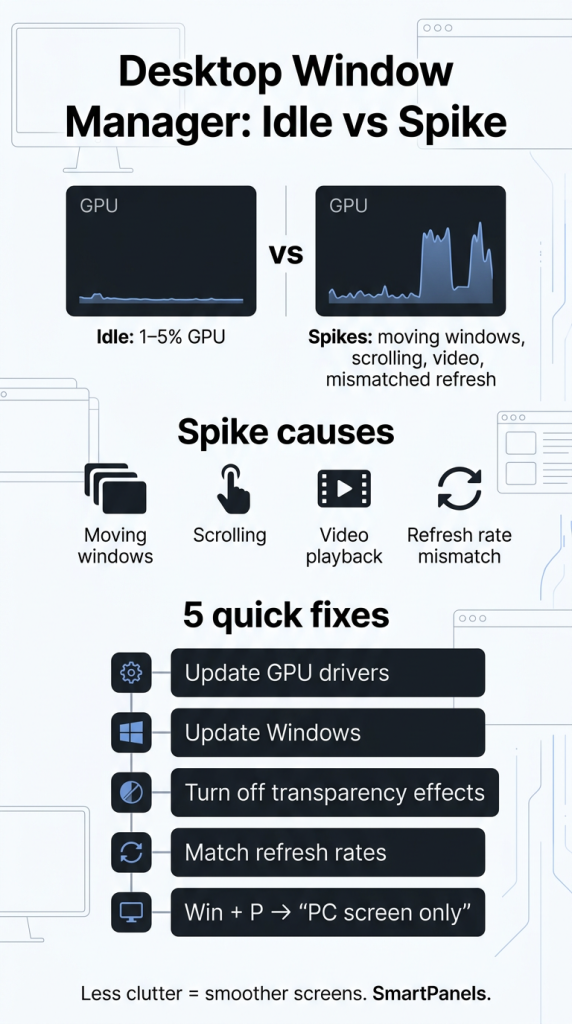
Chances are you have come across a dwm.exe process at the top of your Task Manager if you have been looking for fixes to high GPU usage with your desktop window manager. That is the Desktop Window Manager, the Windows component responsible for rendering what is on your screen: the windows and taskbar previews, any transparency or animations you have going on, and even multi-monitor setups. It puts it all together in one seamless picture.
When the system is doing nothing much, you can expect the process to be fairly light on your GPU, taking up 1% to 5%. But put some strain on it by scrolling, shuffling windows, or hooking up an extra display, and those numbers will jump. Usually you can blame it on something like old graphics drivers, a Windows update you haven’t installed, visual effects set too high, or some sort of misconfiguration in your NVIDIA or AMD control panel.
Do keep in mind that the real dwm.exe is to be found in C:\Windows\System32 or C:\Windows\System64. Should you see it running from a different location, run a malware scan right away; there are programs out there that like to put on the guise of this legitimate process.
How to Keep Dual Monitors Running Smoothly
You can put your mind at ease: most of these slowdowns are simple to head off. We have put our fixes to the test and these are the ones that proved most effective.
Start by updating your graphics drivers and any pending Windows updates; they will take care of the bugs that make your GPU run wild. Then go into Personalization and disable transparency effects, or opt for a plain background so you don’t put as much strain on the Desktop Window Manager.
Where you can, set the refresh rates on your pair of monitors to be in sync. If you are in the middle of a quick game, hit Windows + P to put you on “PC screen only” and free up all the graphics power you need. For normal use, just leave the heavy, moving content off the secondary display and use it for something static like reference material.
And one last thing: connect your monitors straight to the GPU port. Don’t be tempted by an inexpensive USB adapter; it will only make your CPU do the work.
Where SmartPanels Fits In
Most people miss this, but a good deal of the “slowdown” you experience has nothing to do with your monitors and everything to do with clutter. When you have a dozen windows open, some apps running twice and browser tabs you’ve long since forgotten, they are all sitting in memory and being redrawn on a constant basis, putting more work on your system than is called for.
That is where SmartPanels is helpful. With one click, you can save or restore an entire window setup across as many as six displays. Rather than spending your morning opening and positioning twenty different things by hand, you can put up a clean profile with just what is required for the job.
That kind of focus brings tangible efficiency. Make a gaming profile, and it will bring up your game and a few must-haves while the second screen stays uncluttered. You could also have one for research and another for when you need to concentrate at work. As for how the app performs, don’t worry: we have optimized SmartPanels so it is no burden on system resources.
By keeping each monitor focused on its purpose and closing unnecessary applications, you are giving your graphics card a little extra room to work. It is not a substitute for a driver update, of course, but a well-ordered desktop does make for better multi-monitor performance.
Learn More: How to Use SmartPanels: A Step-By-Step Guide
Frequently Asked Questions
1. Does a second monitor lower my FPS in games?
By itself, almost never. A blank or static second screen has a negligible effect on frame rates. FPS drops usually appear only when you run video, streaming, or other moving content on that second display while gaming, since both tasks share the same GPU resources.
2. Why is Desktop Window Manager using so much of my GPU?
Brief spikes while moving or resizing windows are normal. Sustained high usage often points to outdated drivers, a pending Windows update, heavy transparency effects, or mismatched monitor refresh rates. In most cases, updating your system and reducing visual effects will resolve the issue.
3. Do dual monitors need a more powerful graphics card?
For office work and browsing at 1080p, almost any modern GPU is fine. You’ll want more power only if you run two high-resolution or high-refresh screens, or if you regularly do gaming, video editing, or 3D work across both displays at once.
4. Will SmartPanels slow down my computer?
No. SmartPanels is built to stay lightweight and use minimal system resources. Its job is to save and restore your layouts quickly, and by reducing on-screen clutter, it can actually help your setup feel more responsive.
5. What’s the fastest way to free up GPU power for a single game?
Press Windows + P and choose “PC screen only” to temporarily disable the second monitor. This instantly returns all graphics resources to your main display; no need to unplug a single cable.
Final Thoughts
You may be wondering if putting in a dual monitor setup will put the brakes on your GPU. We’ve tested this and can tell you that, for the most part, the monitors aren’t to blame. There is little cost to running a second screen, and if it is just sitting there as a static display, you will see no impact on your gaming or creative output.
The drag you experience comes from what is being shown on the monitors. A live video feed, endless scrolling, or even a desktop window manager made to stumble over outdated drivers and too many visual effects will cause the kind of slowdowns folks complain about. But those are easy enough to remedy. Make sure your drivers are up-to-date, get your refresh rates in line, and use the extra screen for less demanding work.
Then there is the matter of an orderly workspace. With SmartPanels, you can set up clean profiles for all your displays and enjoy the productivity of multiple monitors without the clutter that can subtly sap performance. Give it a go and you will notice the difference.