
A second screen gives you room for spreadsheets, chat apps, and design tools side by side. So, it feels frustrating when you plug in a new display and nothing happens. The main screen keeps working, while the extra monitor stays dark. Fortunately, a second monitor not detected problem rarely means broken hardware. In most cases, the cause is a loose cable, a wrong setting, or an outdated graphics driver.
This guide will take you through every fix. You will start with how Windows locates a new display. From there it is a matter of checking the cables and ports as well as the settings. After that comes the driver and graphics card remedies, not to mention the steps particular to NVIDIA. When you are done, you will have an idea of where the problem lies. And in the process your dual-screen arrangement will be put back in working order at no cost for those expensive repairs.
How Display Detection Actually Works
Upon the connection of a monitor, the graphics card and screen will engage in a brief digital handshake. The monitor provides an EDID file in the process, a small data set that contains the resolutions and refresh rates it is capable of. Windows takes the information from there to put the display in order.
However, a weak cable or a glitchy driver can interrupt the handshake. As a result, Windows may show a “Generic PnP Monitor” or nothing at all. In other words, a computer not detecting second monitor usually points to a failed handshake rather than a dead screen.
Common Reasons a Second Monitor Not Detected Issue Happens
Lose or Faulty Cables
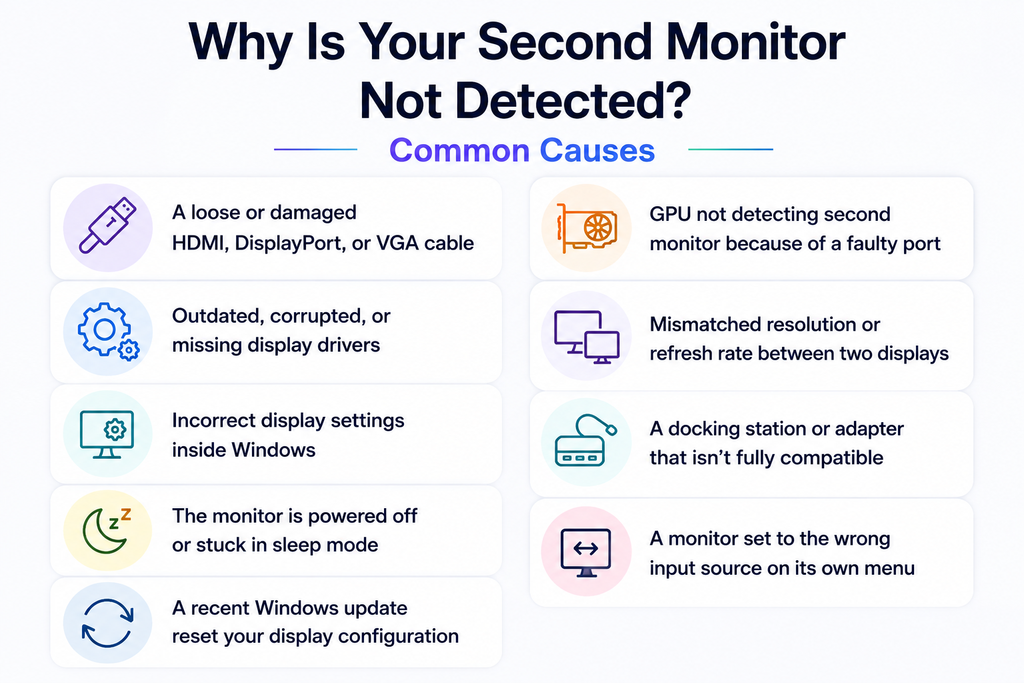
When a cable is not firmly in place, it will do more than ruin the picture. The handshake and bandwidth check between the graphics card and the screen are also broken. Such a worn cable is what causes the display to flicker.
Wrong Display Mode
Windows offers four projection modes. If your PC sits on “PC screen only,” Windows sends zero signal to the extra port. This single setting can make a second screen not detected problem look like a hardware fault.
Outdated or Corrupted Graphics Drivers
The graphics driver is in charge of all display output but can be thrown off by a bad update or some files left over from an older card. An inspection of Device Manager might turn up Code 43 or 12 errors on the adapter.
Bandwidth and Port Limits
A given port version has its own data capacity. HDMI 1.4 will do some 10.2 Gbps, for instance, as opposed to the 18 Gbps of an HDMI 2.0. With HDMI 2.1 the figure is 48 Gbps. Should the cable or port not have the bandwidth to support the resolution you have selected, the connection will simply fail without any fanfare.
Quick Fixes for Second Monitor Not Detected on Windows
Force Windows to Detect the Display
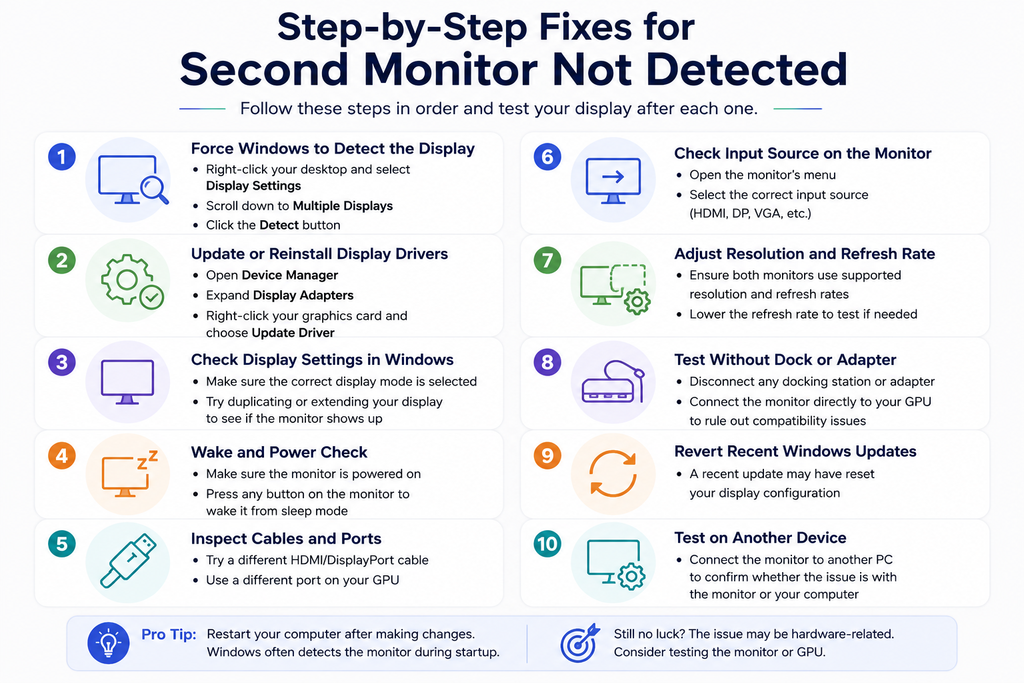
To have Windows re-scan all video output, open Settings and make your way to System > Display. From there put in an expansion on Multiple displays and select Detect.
Use the Extend Shortcut
Hit Windows key + P and select Extend to make sure the output is active and your desktop can be displayed.
Restart the Graphics Driver
Then do Windows key + Ctrl + Shift + B. The screen will give a momentary blink as Windows reboots the graphics driver. A full restart is not needed for this kind of quick reset to put an end to any short-term hiccups.
Windows Not Detecting Second Monitor After an Update
Windows Update has been known to replace a driver that is in good order with one that is not compatible, and it will at times reset display settings as well. Should any problems arise in the wake of an update, have a look at Settings > Windows Update > Update history.
After that, go into Device Manager and put Display adapters in view. Right-click on the graphics card and from Properties select Driver and then Roll Back Driver. A clean reinstall is called for if the button is grayed out; we go over how to do that in the GPU section further down.
How to Fix External Monitor Not Detected Issues
Check Power and Input Source
First, confirm the monitor has power and uses the correct input. Press the monitor’s Input or Source button. Then select the exact port you used, such as HDMI 2 or DisplayPort.
Troubleshoot HDMI and DisplayPort Connections
Most connection faults sit in the cable or port. Work through these checks in order:
- Reseat both ends: Push each plug in firmly. DisplayPort plugs should click as the latch locks.
- Swap in a certified cable: For 4K at 60 Hz over HDMI 2.0, use a Premium High-Speed cable. For HDMI 2.1, choose an Ultra High-Speed cable. For DisplayPort, pick a VESA-certified cable.
- Try another port: Move the cable to a different HDMI or DisplayPort slot. A single damaged port can block the signal.
- Lower the resolution or refresh rate: Test at 1080p and 60 Hz. If the screen appears, your cable lacks bandwidth for higher settings.
- Power-cycle the monitor: Unplug its power cord for 30 seconds, then reconnect. This step resets a stuck handshake.
- Turn off deep sleep: Some DisplayPort monitors sleep too deeply to wake up. Disable deep sleep in the monitor’s on-screen menu.
- Use the right adapter: An HDMI output feeding a DisplayPort monitor needs an active adapter. Passive adapters only work from DisplayPort to HDMI.
Isolate Docking Stations and Adapters
A dock will be running on a DisplayLink chip or do a direct video passthrough. In the case of DisplayLink, one must have the proper driver, so put that in order before anything else. Connect the monitor directly to the computer; should it function as it ought to, then the problem is with the dock.
Second Display Not Detected? Check Your GPU Settings
- Update Graphics Card Drivers Properly
To update the driver, go to Device Manager and under Display Adapters right-click on the GPU to choose Update Driver. One can get a more complete solution by forgoing Windows Update in favour of the full package from the manufacturer; it is better to download that directly, as the control panel utilities for handling multi-display setups tend to be more dependable.
- Perform a Clean Driver Reinstall
When an update is not the answer, there is always the option of a clean reinstall. Running Display Driver Uninstaller (DDU) from Safe Mode will get rid of the sort of driver and registry debris that a conventional uninstall leaves behind. It is a sure way to put an end to those stubborn ‘second display not detected’ issues that a routine driver update has failed to fix.
- Check Event Viewer for Driver Timeout Errors
To check for any Display or GPU warnings, one can go to the System log under Windows Logs in Event Viewer and apply a filter. Should a TDR (Timeout Detection and Recovery) event show up on a regular basis, it is a sign that the driver is crashing and having to reset when put under load. This will from time to time cause a connected display to be dropped, notwithstanding its initial detection.
Second Display Not Detected? Check Your GPU Settings
Update Graphics Card Drivers
As for the drivers, get the complete package from NVIDIA, AMD, or Intel. They come with control panels to handle multi-monitor configurations in a more dependable fashion than what Windows Update provides.
Perform a Clean Driver Reinstall
Put the system in Safe Mode and use Display Driver Uninstaller (DDU) to remove any old driver files and registry entries. After that, do a clean install of the newest driver. A regular update will not get rid of some of the more recalcitrant faults, so this is necessary.
Check Event Viewer for Driver Crashes
In Event Viewer, navigate to Windows Logs and then System. Any “Display” warnings that keep appearing are an indication of a driver crashing and rebooting; every time it does, a screen that is attached can be lost.
How to Fix NVIDIA Not Detecting a Second Monitor
If you use a GeForce or RTX card, a few NVIDIA-specific steps often solve an NVIDIA not detecting second monitor problem. Try them in this order:
- Use NVIDIA Control Panel detection: Right-click the desktop and open NVIDIA Control Panel. Go to Display > Set up multiple displays. Tick the box beside the missing monitor, then click Apply. Can’t find the app? Install the NVIDIA Control Panel free from the Microsoft Store.
- Update or roll back the driver: Use the NVIDIA app to install the latest Game Ready or Studio driver. During setup, choose Custom and tick Perform a clean installation. If trouble began after a new release, install an older driver from NVIDIA’s driver archive.
- Check the GPU output ports: On a desktop, plug every monitor into the graphics card’s ports. These sit lower on the back of the case. The motherboard’s video ports usually switch off once a dedicated card runs. This mix-up causes many GPUs not to detect second monitor reports.
- Test HDMI and DisplayPort separately: If DisplayPort fails, try HDMI, and vice versa. Next, open Display > Change resolution and pick a lower refresh rate. Older GTX cards with DisplayPort 1.4 monitors may also need NVIDIA’s DisplayPort firmware update tool.
If you still face a graphics card not detecting second monitor issue, test the card in another PC. That test confirms whether the hardware itself has failed.
Dual Monitors Not Detected: When Hardware Is the Limit
The number of display engines on a graphics card is set in stone, no matter how many ports it has. A card may have four ports and yet with only three engines be able to put out to three screens at most. Should you encounter errors upon adding a particular screen, the limit has been reached. The answer is an upgrade to the GPU or a dock that has its own chip. One can also make use of DisplayPort daisy-chaining (MST) to connect monitors, though this requires all of them in the chain to be MST compatible. That is something you will have to enable from the menu on each one.
Why Is My Second Monitor Not Detected on a Laptop or Dock?
A good number of laptops will put both video and power out over one USB-C port. The bandwidth is divided between the display output and charging, meaning a heavy load may not leave enough headroom for an additional screen.
It is best to look at the laptop’s specifications before anything else. A few USB-C and Thunderbolt ports are capable of driving only a single external display. Then run a test with the monitor on a different computer; in short order that will tell you if the problem lies with the laptop or the monitor.
A Quick Troubleshooting Checklist
- Confirm monitor power and the correct input source.
- Reseat or replace the cable with a certified, higher-bandwidth one.
- Press Windows key + P and select Extend.
- Open Settings > System > Display and click Detect.
- Restart the driver with Windows key + Ctrl + Shift + B.
- Check Device Manager for Code 43 or Code 12 errors.
- Enable the monitor in NVIDIA Control Panel or your GPU’s app.
- Perform a clean driver reinstall with DDU.
- Bypass docks and adapters to find the failing link.
Most pc not detecting second monitor cases resolve within this sequence, usually before the final steps.
Special Cases Worth Knowing
The 2nd monitor not detected error is one that can crop up in some circumstances. Windows might have the screen showing in Display settings but it will be blank. The handshake was fine, only Windows is not putting out an image. A way to remedy this is to hit the Windows key + P and select Extend.
Then there are cases where a monitor is fine on its own but will drop out with the addition of a third. Such behaviour is indicative of a bandwidth or display engine constraint as opposed to a detection bug.
FAQs: Second Monitor Not Detected
1. Why did Windows suddenly stop detecting my second monitor?
A recent Windows Update usually replaced your driver. Roll it back in Device Manager under Display adapters.
2. My second monitor shows in Display settings but stays black. Why?
Windows sees it but sends no signal yet. Press Windows key + P and select Extend.
3. Why does my NVIDIA card only show one monitor?
Open NVIDIA Control Panel, go to Set up multiple displays, and tick the missing screen. Also confirm both cables plug into the graphics card.
4. Can a dock cause a second monitor not detected error?
Yes. Outdated dock drivers or bandwidth limits can block detection. Connect the monitor directly to test.
5. How do I know if the monitor, cable, or PC is at fault?
Test the monitor on another computer first. If it works there, check your cable and PC next.
Final Thoughts
For the most part, a second monitor not detected can be put down to one of three things. The cable, port or bandwidth is inadequate; the graphics driver has either crashed or been poorly updated; or the card has hit its limit for displays. Do not resort to random guessing but follow the steps in sequence.
Begin with the cables and settings and from there go on to the drivers and NVIDIA options. As a last step, put the monitor to the test on a different machine to see if there is a hardware limitation before you part with any cash.
When you have both screens running as they should, make use of that additional space. With SmartPanels you can set up your apps over several monitors and store layouts for quick recall. The Windows application is free to download, no credit card required. It is a way to keep a dual-screen arrangement in order and primed for the day’s work.