
When the PC begins to run a little slow, you will likely fire up Task Manager to see what is going on. There you will spot an anomaly: dwm.exe, the desktop window manager, is hogging your resources. It is only natural to have some concerns at that point as to whether the process is safe or if it is hampering performance. In truth, there is no need for alarm. The desktop window manager is a fundamental part of Windows and not a threat. That said, it has been known to act up and put a strain on memory or the graphics card, which in turn makes for stuttering applications and lag in games.
This guide is here to put those questions to rest with some straightforward solutions, while also covering the reasons behind such spikes. Finally, it shows how a tidy workspace supports smoother desktop window manager performance. Best of all, every fix is safe and reversible. By the end, you will know exactly what to do next.
What Is the Desktop Window Manager?
If one were to look in Task Manager, the desktop window manager is listed as dwm.exe and can be seen doing its work unobtrusively in the background. In a sense it is the compositor for Windows; it is responsible for rendering what is on the display, from transparency and animations to taskbar thumbnails and live previews of open windows. The operating system will not have an application paint the screen directly but instead put visuals through the desktop window manager to be blended into a single, seamless picture.
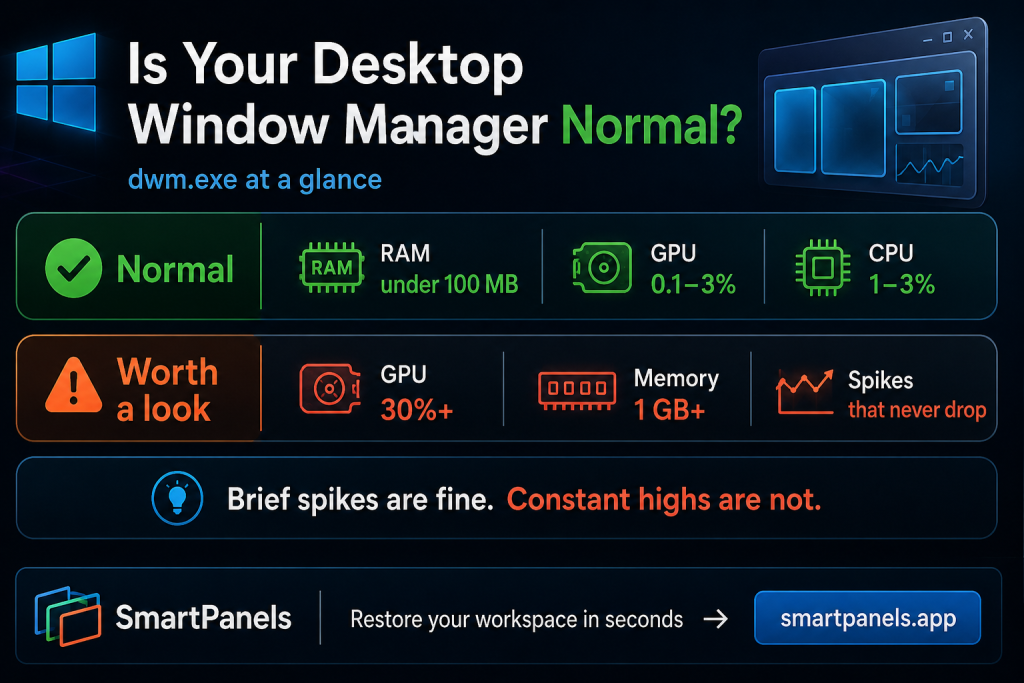
That is why the process makes use of the graphics card. For the most part its footprint is modest, typically consuming less than 100 MB of RAM and between 0.1% and 3% of GPU resources. One would not be surprised to see minor spikes when moving a window about. The whole arrangement is meant to allow for hardware acceleration so that the desktop remains responsive. But should those numbers remain elevated, there is an issue that needs to be addressed.
Why the Desktop Window Manager Shows High GPU and Memory Usage
Several factors push the desktop window manager past its normal range. Fortunately, most causes are easy to spot once you know the pattern.
Common Triggers
Outdated or faulty graphics drivers rank first. Indeed, driver bugs frequently spike desktop window manager high GPU activity. Then there is the burden of heavy visual effects. Animations and transparency, for instance, will demand that the system be in a state of constant redrawing. One can also run into trouble with HDR or Hardware-Accelerated GPU Scheduling if they are at odds with the drivers in question.
The configuration of multiple monitors is another factor; a greater number of displays combined with high resolution and quick refresh rates only serves to increase the workload.
Meanwhile, a known Intel driver memory leak once caused desktop window manager high memory problems on many machines. Then there is the matter of background applications. An overlay, an RGB lighting utility or a screen recorder will put in extra redraws for example. A user profile that has become corrupted can be the source of some strange conduct too. And one should not overlook the possibility of malware masquerading as dwm.exe; a quick check of the file location will dispel any doubt on that front.
The best way to isolate the cause is to shut down all your apps and see what the idle usage looks like. From there, go through Task Manager and start them up again in turn. It does not take long for the offending program or setting to show its hand.
Learn What is Windows Desktop Runtime?
How to Fix Desktop Window Manager High GPU Usage
Start with simple, safe steps. Then, move to deeper fixes only when the earlier ones fall short.
Update Windows and Graphics Drivers
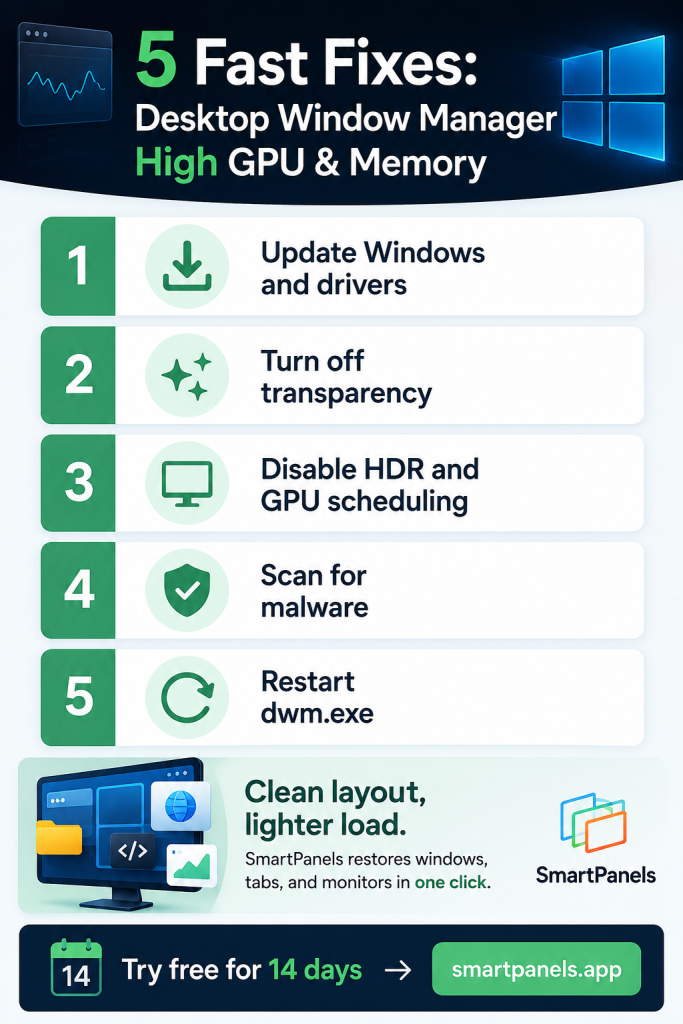
Begin by putting in any Windows updates that are outstanding. Microsoft is in the habit of patching up graphics bugs with these, and they can have an impact on the desktop window manager. Then head to the maker’s website for a fresh GPU driver; a WHQL-certified one is best if you want stability. Should the problem have cropped up in the wake of a recent driver update, it is better to do a rollback. To be sure of a clean slate, use a display driver uninstaller to get rid of the old one before you put the new in place. You will find that alone is enough to quiet things down in most instances.
Turn Off Transparency and Visual Effects
There is an appeal to transparency, but it is hard on the graphics card. To remedy that, go into Settings and under Personalization find the Colors option; from there you can turn off the Transparency effects. If one wants to be more thorough with the savings, hit Win + R to launch sysdm.cpl. In the Performance section, make the choice to Adjust for best performance. The desktop window manager will all but give up its hold at once. A look at Task Manager should confirm the numbers have come down; in most cases the effect is instant.
Adjust HDR and GPU Scheduling
In some cases, HDR will cause spikes by itself. To remedy this, go into Settings and navigate to System > Display to turn HDR off. You should also put Hardware-Accelerated GPU Scheduling to the test; find it in the Graphics settings, disable it and do a restart on your PC. Once you are back up, have a look at Task Manager to see if the desktop window manager is any more well behaved. Should you notice a decline in gaming performance, there is no harm in re-enabling scheduling later.
Scan for Malware and Restart the Process
A full scan with Microsoft Defender is to rule out any malware posing as dwm.exe. At the same time, one should verify that the legitimate file is where it belongs in C:\Windows\System32. Should usage remain elevated, put an end to the process yourself: go into Task Manager and terminate the desktop window manager task. Windows will take care of relaunching it on its own in short order. To be sure, use the SFC and DISM commands to see if any system files need repair.
How to Fix Desktop Window Manager High Memory Usage
Memory spikes call for a slightly different approach. Even so, the steps stay simple and safe. Notably, memory problems often build slowly across a long session. So, watch the trend rather than a single reading.
Update Drivers and Restart the Process
One should put driver updates at the top of the list. Intel has in the past put out a fix to stem the leak and the attendant memory bloat. In the interim, a quick way to free up that kind of memory is to restart dwm.exe; simply end the process from Task Manager and the desktop window manager will take care of itself. It is also worth looking through Windows Update for any optional drivers, as they are where one will find the most recent patches.
Disable Fast Startup and Trim Effects
Over the course of a long session, Fast Startup has been known to get in the way of the desktop window manager. Turning it off will on occasion put an end to that and stabilize memory consumption. To do so, go to Control Panel and select Power Options, from there choose what the power buttons do and uncheck the option for fast startup. One can also set the visual effects for optimal performance as a way to reduce the strain on the system. Should memory usage continue its upward trend, a clean boot is in order to track down the application at fault. Reintroduce the startup items individually until the problem resurfaces.
Keep Your Workspace Organized for Smoother Performance
You might think the process is fixed and that is half the battle, but a desktop window manager can still be put to work by a cluttered screen. The more monitors and open windows there are to render, the more it has to deal with. This is the sort of thing SmartPanels is made for.
With it, there is no need to go through the motions of reopening applications individually; one saves the layout and in seconds the windows, tabs and positions are back where they should be. It handles up to six displays and will work with Chrome, Firefox or Edge, so an intentional setup is rebuilt in short order. A custom hotkey is all it takes to change layouts, and for the sake of the team, a profile can be shared over email to get everyone set up.
The net effect is a calmer, faster screen with only the necessary windows left open. Good habits with SmartPanels go a long way in cutting down on superfluous on-screen clutter. Put simply, a tidy workspace is good for a lean desktop window manager. We invite you to take control with SmartPanels; the 14-day trial is free of charge.
Frequently Asked Questions
Is the desktop window manager a virus?
No, the desktop window manager is a legitimate Windows process. However, malware can imitate it. To confirm, right-click dwm.exe and open its file location. A genuine file lives in C:\Windows\System32.
Can I disable the desktop window manager?
On modern Windows, you cannot safely disable the desktop window manager. In fact, doing so breaks the desktop interface. Instead, reduce its workload by trimming effects, HDR, and overlays.
How much GPU and memory should dwm.exe use?
Typically, the desktop window manager uses under 100 MB of RAM. Likewise, GPU usage stays near 0.1 to 3 percent. Brief spikes during window movement are normal.
Why does multi-monitor use raise dwm.exe usage?
More displays mean more pixels to composite. Consequently, resolution, refresh rate, and monitor count all increase the desktop window manager load. Organized layouts help keep it manageable.
Does SmartPanels reduce GPU usage directly?
Not directly. Still, SmartPanels helps you manage windows and monitors efficiently. In turn, a tidier workspace can ease the rendering burden on the desktop window manager.
Final Thoughts
In the end, a desktop window manager that is running hot is seldom cause for alarm. More often than not, it is a sign of something as simple as a driver issue, an odd setting or a screen in need of tidying. The remedies outlined here are meant to address those underlying problems directly. Start by putting Windows and your graphics drivers up to date. From there, you can dial back on transparency and HDR along with any scheduling functions. A malware scan and a process restart will also do the trick. Put them all together and GPU and memory consumption should return to what they ought to be.
Of course, good habits are what make such improvements stick. An orderly workspace goes a long way in easing the rendering burden on the desktop window manager, which is where SmartPanels has its place. It allows you to put your windows, tabs, and layouts back in order on every monitor with a single click, so you are not left spending time rebuilding what was there before. The result is a PC that is both quicker and more composed.
If you are looking to work smarter under Windows, there is no better time to begin a free trial of SmartPanels.