
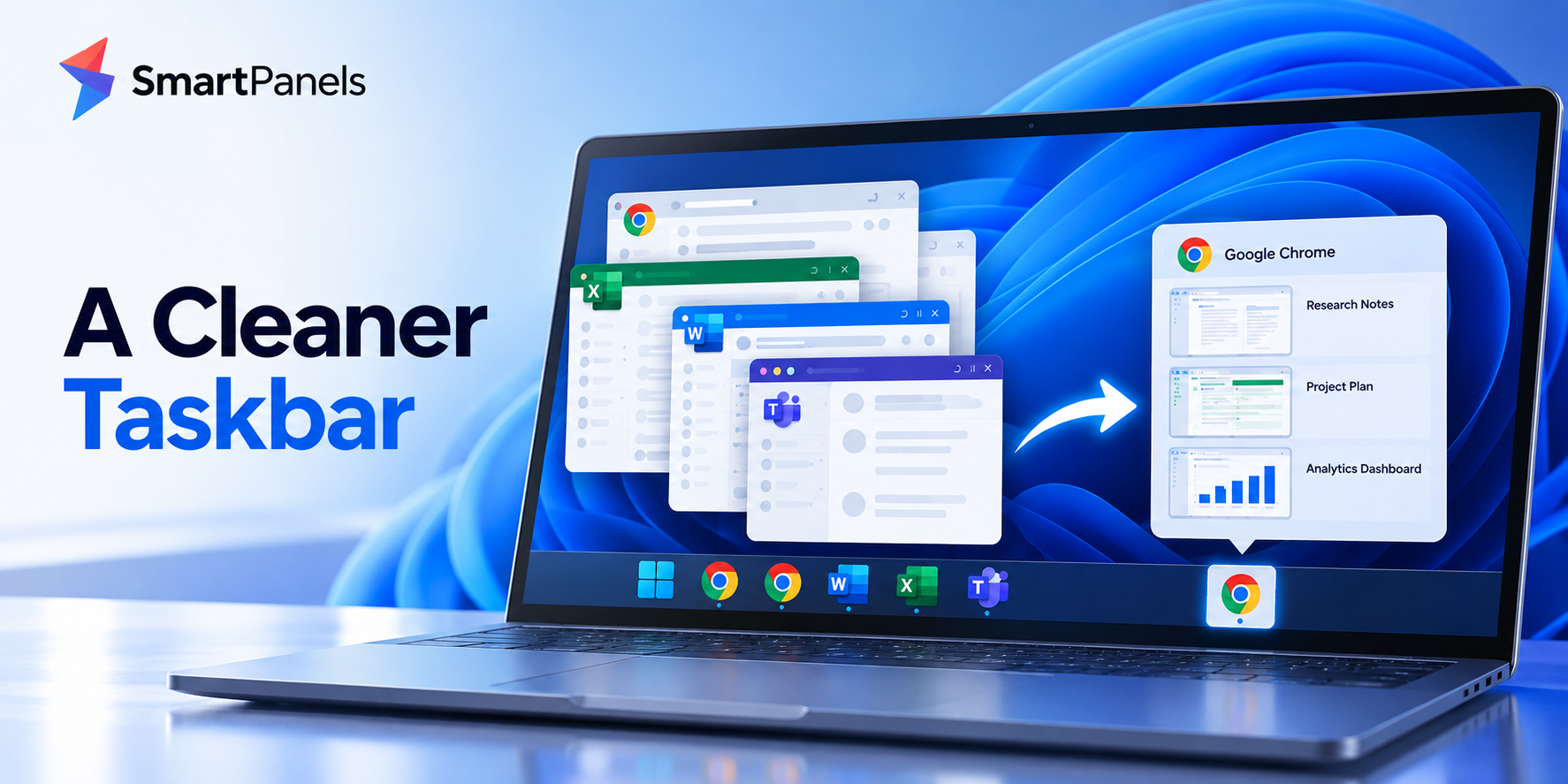
Most people do not appreciate how much a cluttered taskbar can impede their pace. Each superfluous icon is an invitation to waste a split second in the hunt for it, and over the course of a hectic day those seconds mount up. Put a couple of browser windows on top of some Office work and a chat application and the taskbar becomes an impenetrable wall of indistinguishable icons.
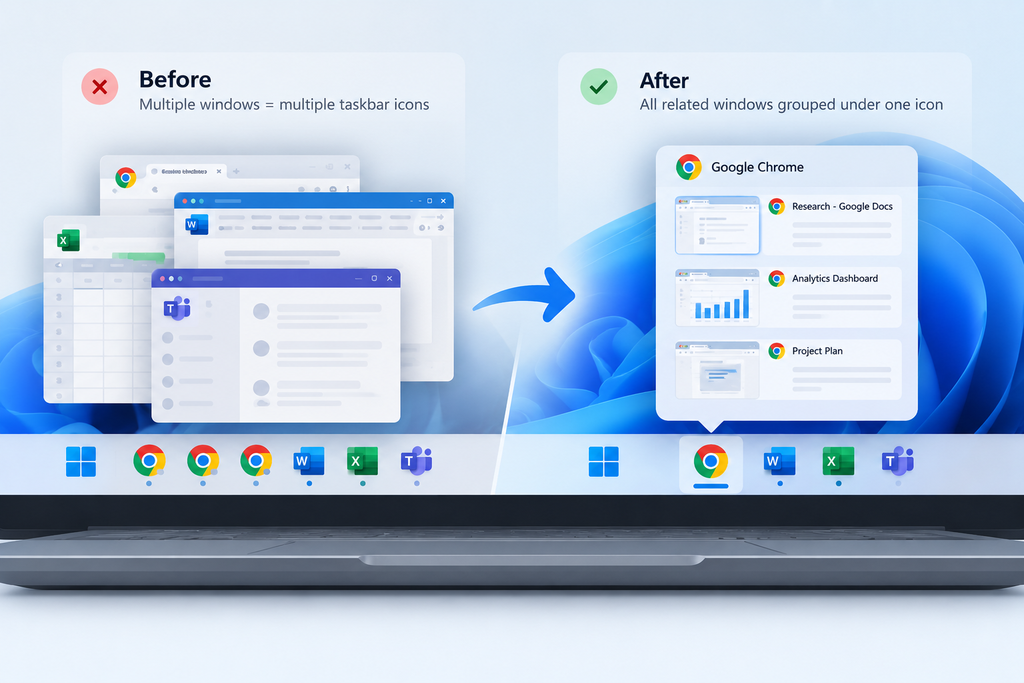
A best taskbar organizer app for windows can pull every open window under one clean icon. You always know exactly where to click. There is no need to put up with such disarray.
We have put together this guide to walk you through the built-in settings that are worth a look before anything else. It also puts the best third-party offerings like SmartPanels to the test. You will come away with a clear idea of what serves your workflow.
What Makes a Windows Taskbar Feel Cluttered
It is seldom a single large issue that creates clutter; more often it is the result of small habits that accumulate over the course of a day. One puts in a report, opens a reference tab and then a window on the second monitor, and before long there are ten icons in a tight row.
There is a technical explanation for the disorder. Windows will give every open window an HWND handle and put an AppUserModelID on most applications, so the taskbar knows which icon is in charge. If the ID is consistent from one window to the next, Windows will do the work of grouping them. Should the IDs not align, or if a program has several processes running, the user is left with superfluous icons rather than a single group.
The situation is compounded using multiple monitors. With enough multitasking, what starts as a minor inconvenience becomes a nuisance. Sifting through a dozen windows take time and increases the likelihood of a misclick during a call. Then there is the matter of screen sharing; a disordered taskbar can be a source of stress when everyone on the line can see the odd window you neglected to shut. Many people start searching for best taskbar apps that promise a tidier layout. They want a cleaner setup without losing any real functionality.
There is also a mental cost that is easy to overlook. A busy taskbar keeps your brain scanning instead of focusing. Over a full week, that low-level searching adds up. You end up with real fatigue, even if you never notice it happening.
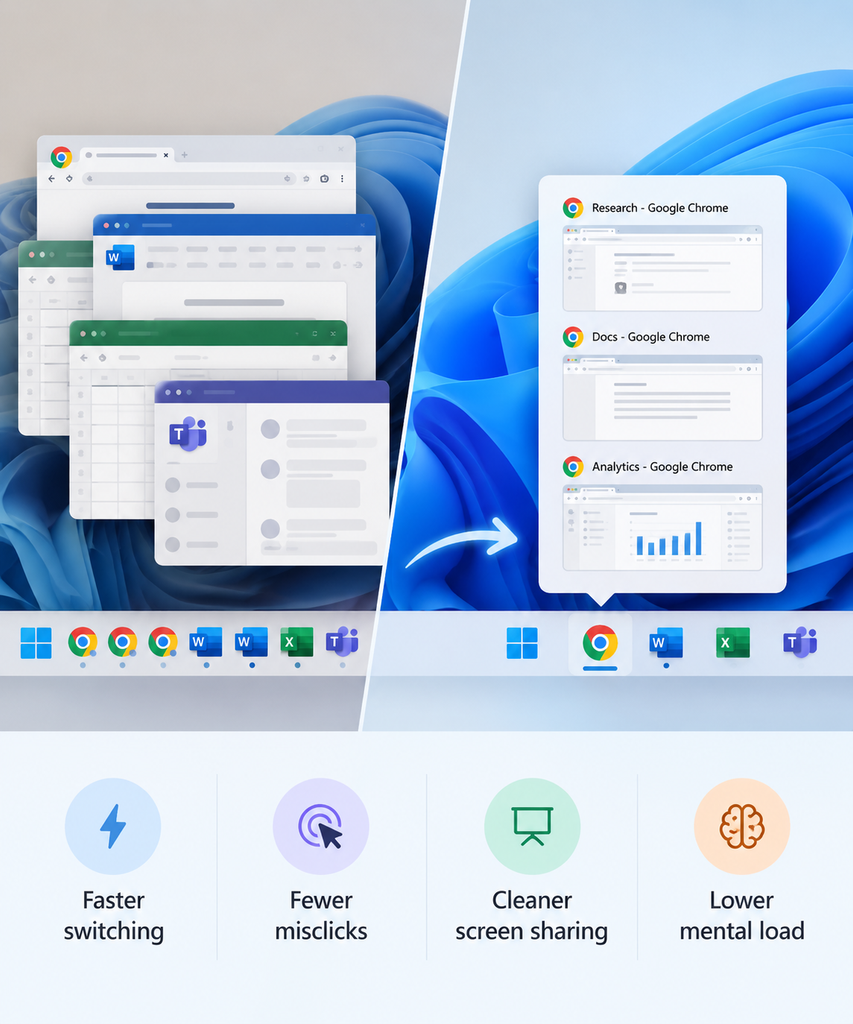
Why a Best Taskbar Organizer App for Windows Matters for Productivity
There is more to consolidating windows under a single icon than mere tidiness. It is a matter of efficiency, allowing for faster transitions from one task to the next and reducing the chance of an error that can be expensive to put right.
- Faster switching: Fewer icons mean less scanning before every click.
- Fewer misclicks: Grouped icons lower the chance of opening the wrong window.
- Cleaner screen shares: A tidy taskbar looks more professional during meetings.
- Lower mental load: Your brain spends less energy hunting and more energy working.
Once you notice these benefits, the value becomes obvious. A solid best taskbar organizer app for windows earns a permanent spot on a busy machine. It stops being a one-time trial and becomes daily infrastructure.
How Windows Groups Taskbar Icons Under the Hood
For a matter of clarity, a brief technical primer is in order. Take Windows Explorer, the process responsible for your taskbar: it will read two items from any given window. The first is the AppUserModelID we have been talking about, and the second is the process ID of what opened the window.
You will see that native applications such as Edge or File Explorer put down a consistent ID on each occasion, which is the reason their windows are neatly grouped out of the box. With some custom or older software, however, this step may be ignored altogether and you are left with a haphazard assortment of taskbar slots.
Third-party utilities have their own means of dealing with the shortfall. A few will step in to intercept the Windows messages before Explorer has a chance to act on them. Then there are those that make use of standard APIs like SetWindowPos to record and later reapply the window coordinates. It is the distinction between these approaches that accounts for why one program might simply put the icons in order while another can put an entire layout back in place.
Built-In Windows Settings Worth Trying First
It is worth looking at what Windows has to give you for free before going in with any new installations. For the casual user, the built in settings are often enough to address the issue.
Turn On Combine Taskbar Buttons
To make use of them, right click on some open space on the taskbar and select Taskbar settings. From there you will come across the combine option; simply go to the dropdown and set it to “Always, hide labels”. The effect is that Explorer will be more insistent about grouping by AppUserModelID, so all the windows belonging to an app are put under one icon. A fine solution for those who do not multitask heavily, though one should note that it does not remember how you have things arranged after a restart.
Use Snap Layouts for Faster Switching
Go to System and from there to Multitasking to enable Snap windows. With this in place, a simple drag of the window to the edge of the screen will have it tile up next to another in one of the preset zones. While the function does not group icons for you, it is a handy way to cut down on your use of the taskbar.
Master Alt+Tab and Task View
One might be surprised how quick Alt+Tab can be. Just hold down the Alt key and keep hitting Tab to get from one open app to the next. For a more visual approach there is Task View; press Windows and Tab together for a grid of all your windows, which comes in handy when the icons are hard to distinguish. They are useful workarounds, yet they do not go so far as to recall your particular setup. That gap is exactly where dedicated windows taskbar apps step in.
Signs You Need a Best Taskbar Organizer App for Windows
There are telltale signs of a taskbar in disarray. For one, you find yourself hovering over icons in an effort to figure out what window is what. Or perhaps you have put the wrong screen on display for a video call by mistake. Then there is the matter of spending a few minutes every morning putting your layout back together, or running three monitors with no saved configuration to speak of. When such things become all too familiar, it is a good indication that something should be done about it. A best taskbar organizer app for windows can fix every one of these issues at once.
Best Taskbar Organizer App for Windows: Top Third-Party Picks
Once built-in settings hit their limit, dedicated tools take over. Below are the taskbar apps worth testing this year. Each pick earned its spot through features, reliability, and everyday practicality, not just marketing claims.
1. SmartPanels: Best for Remembering Your Whole Workspace
There is more to SmartPanels than just putting icons in a group. The application will record an entire workspace layout down to the details of window size, position and where they sit on the monitor. These are kept as saved profiles and can be put back in place with a single click via standard window-positioning calls.
- Profile-based organization: Save separate setups for client calls, design work, or reporting.
- Multi-monitor memory: Every window returns to its exact spot, even across three screens.
- One-click restore: Reopen your full morning setup instead of rebuilding it manually.
- Reduced clicking: Fewer drags and resizes mean a calmer start to every session.
When one looks at the field of taskbar apps, SmartPanels is hard to miss. It gets at a technical issue that Windows has a habit of overlooking: the tendency to lose your layout each time you restart. Smart Panels makes a permanent record of that state. Whether for a hot-desker, someone who works in a hybrid capacity or anyone prone to switching tasks often, it is the right tool.
Visit SmartPanels.App to get it.
2. 7+ Taskbar Tweaker: Best for Deep Customization
By way of a small helper file or DLL, this no-cost utility makes an injection into Explorer. The result is the ability to alter taskbar conduct at a very basic system level. With it one can dictate what a middle-click is for and how windows are grouped or put in some personal preference on the hover previews. For those who like to have their finger on every detail, it is well suited. Do not expect it to work with the Windows 11 taskbar out of the box though; support is not there directly, and you would be better off using something like ExplorerPatcher beforehand.
3. WindowTabs: Best for Tabbed Browsing Across Any App
With WindowTabs, you can put a browser-like tab bar on nearly any application. The program uses a reparenting method to nest windows visually, so where you might have had five distinct Word windows, there are now just five tabs in a common frame. It is a way of reducing the number of icons on hand without the need to tuck windows away behind a menu.
4. United Sets: Best Free, Open-Source Option
With United Sets, any Windows application can be put into tabbed groups in the manner of the old Microsoft Sets feature that was tried and then abandoned. The program is open source, which means developers have the freedom to do their own auditing and make enhancements. There is no charge for it and the community sees to its regular updating. For a tidy arrangement at zero cost, one will find it makes an excellent companion to Snap Layouts.
5. Groupy by Stardock: Best for Office and Browser Combos
With Groupy, you can drag windows into one another to form tabbed groups in much the same way you might put browser tabs side by side. It is particularly well suited for those who are switching back and forth between a browser, Word and Excel; the program puts all three in a single, uncluttered frame.
6. Actual Window Manager: Best for Power Users
For the more ardent multitasker, there is an array of advanced functionality on offer. The suite includes snapping, window rules, virtual desktops and grouping controls. One can even impose custom rules to dictate how a given program behaves, from its startup position to the size of the window. While it is not as immediately intuitive as some alternatives and requires a bit of time to get used to, it affords a degree of control that dedicated users will find hard to beat with other tools.
How to Choose the Right Task Bar Apps for Your Workflow
The right option is a matter of what tends to impede you in the course of an ordinary day. Should icon clutter be your only concern, there is no need for anything more than a free tool; United Sets or the combine setting that comes with it will take care of it. But if one has to put in the work of reconstructing the layout every morning, then there is something more at play. Under those circumstances, a memory-based solution is preferable to basic tabbing.
Ask yourself these questions before choosing any task bar apps:
- Do you work across multiple monitors on a regular basis?
- Do you switch between a few fixed setups, like calls versus focus work?
- Do you want tabs inside Windows or just fewer taskbar icons?
- Do you need something free, or is a small cost worth it?
Answering honestly narrows the list quickly. Not every tool solves the same underlying problem.
Common Mistakes to Avoid
A few habits can undercut even the best setup.
- Running two taskbar tools together: Many apps hook into the same Explorer processes. Conflicts are common, so stick to one at a time.
- Skipping updates: Windows updates change taskbar behavior often, sometimes at the API level. Outdated tools can break after a major release.
- Ignoring built-in options first: Some users install extra software too quickly. Snap Layouts or the combine setting sometimes solve the issue for free.
- Choosing looks over function: A tool that only changes taskbar color will not fix a disorganized workflow underneath it.
- Forgetting to back up settings: Exporting your profiles saves time if you switch computers or reinstall Windows.
Quick Comparison at a Glance
- SmartPanels: Best overall pick for saved layouts and multi-monitor memory.
- 7+ Taskbar Tweaker: Best for advanced, free customization on Windows 10.
- WindowTabs: Best for turning multiple windows into simple tabs.
- United Sets: Best free, open-source tabbing tool available today.
- Groupy: Best for Office and browser-style tabbed grouping.
- Actual Window Manager: Best for full, granular window-management control.
Frequently Asked Questions
Is there a genuinely free best taskbar organizer app for windows?
Yes. There is no charge for 7+ Taskbar Tweaker or United Sets, and the same goes for Windows built in combine setting.
Does grouping windows under one icon slow down my computer?
No, not usually. The better taskbar utilities are designed to be unobtrusive. They operate as background processes that put minimal demand on the CPU or memory, their work being limited for the most part to relaying a few system messages.
Can I use more than one taskbar tool at once?
It is best to steer clear of that kind of setup. When two tools are run in tandem, they will each attempt to hook Explorer, which can lead to the odd icon glitch.
Which option works best across multiple monitors?
As for multi-monitor memory, SmartPanels is the superior choice here; it will put windows back in their precise spot on any connected display.
Do these tools work on both Windows 10 and Windows 11?
You will find support with most of them, but it is a matter of the tool and its version. The likes of SmartPanels and United Sets work fine with the latest Windows 11 builds, whereas an older program such as 7+ Taskbar Tweaker requires some coaxing to get along with it.
Final Thoughts
A clean taskbar is not a luxury; it is a habit. It saves real, measurable time across every single workday. Windows’ built-in settings solve part of the puzzle for free. Try those first before spending money on anything extra. Once you outgrow them, dedicated windows taskbar app options fill the gaps. Some add tabs, others add deep tweaks and controls. For most people juggling monitors and daily routines, one factor matters most: memory. A best taskbar solution built around saving and restoring layouts, like SmartPanels, delivers the biggest time savings. Start with one small change today. Flip a Windows setting, or try a new app. Either way, let your taskbar finally work for you, not against you.