
Many people ask when you run dual monitors does it slow GPU down, and the honest answer is: it depends. A second screen adds real value for work and gaming. Then there is the matter of what this put on your graphics card.
A modern GPU usually handles two displays without difficulty. Some configurations demand more from the hardware than others. High resolutions and mismatched refresh rates add strain. So do heavy applications running in the background.
This guide explains the reasons a multi monitor arrangement can be hard on your system and to offer some practical remedies for smooth performance.
When You Run Dual Monitors Does It Slow GPU Down in Practice?
The GPU renders every pixel across all the screens you use, so a second monitor gives it more work.
Routine work like checking email or browsing the web puts a negligible load on the card. It will hardly register. But put on something more taxing and you see a different story. Applications like video editors or streaming software, not to mention gaming, are another matter entirely.
The question is what kind of hit the additional display takes out of your system. As a rule, it is only in certain circumstances. To judge performance accurately, consider the refresh rate, resolution, and any background processes.
Core Reasons Your GPU Slows Down with a Multi Monitor Setup
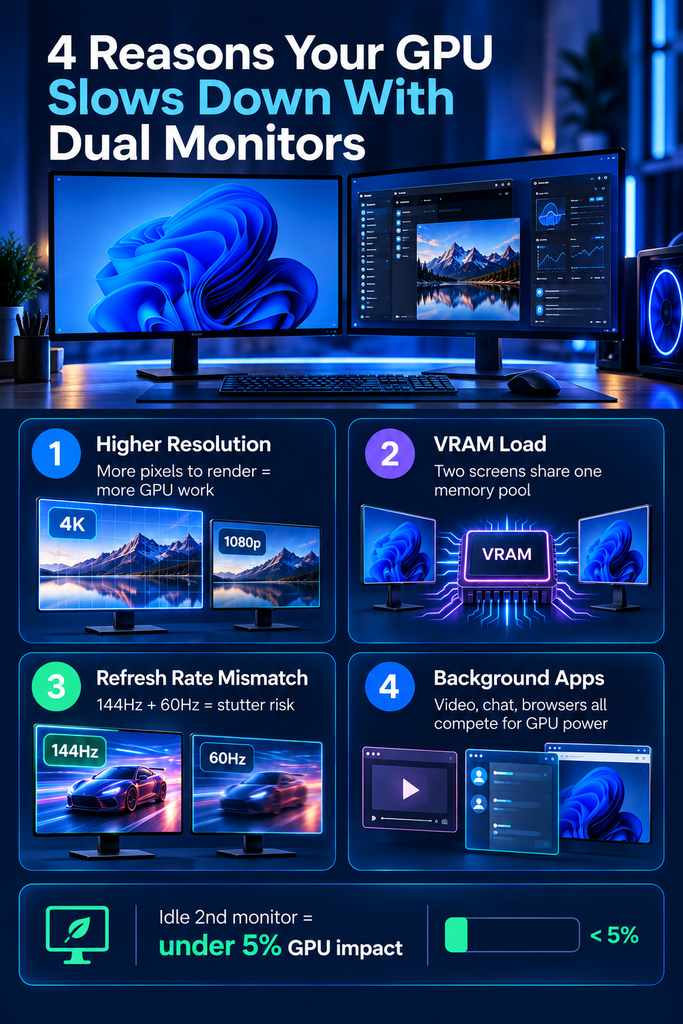
Several distinct factors combine to create GPU slowdown. Each one adds a small amount of overhead. Together, though, they can produce a noticeable dip in performance.
Higher Resolution Rendering Load
The GPU is put to work drawing pixels for every monitor in use. Put in a second 4K or 1440p display and the workload will multiply in short order, requiring the card to devote more of its processing power to hold its own. You see this more acutely with higher resolutions; a pair of 4K monitors will demand much more from a GPU than two 1080p units. It is a matter of capability: while a high-end card will not be phased by the additional strain, an older or budget model is the first to show signs of struggle.
VRAM and Memory Allocation
Each active display has its own frame buffer on the GPU. Put more monitors in play, and those buffers will be vying for the same pool of VRAM, leaving less to spare for your games or creative applications. You will see the impact of that on a card with 4GB of VRAM or under, whereas an 8GB model or better is unlikely to be put under such strain. That said, there is no denying that multiple high-resolution screens can add up fast.
Refresh Rate Mismatches
It is not uncommon to see dual monitor arrangements that pair a 144 Hz gaming panel with a more workaday 60 Hz office display. The problem with such a mismatch is that it puts the GPU to work reconciling two disparate timing cycles, which on some systems will manifest as stutter or micro-lag. Then there are the games that insist on capping your main screen at the lower refresh rate; you do not need any additional strain for that to be felt as a distinct loss in performance.
Background Apps and Video Decoding
By themselves, idle monitors are not much of an issue. Put an active window on a second screen and the dynamic changes in short order. Whether one is streaming video, putting camera effects to work in Discord or editing some photos, these are all GPU tasks. The card has to divide its resources to handle the extra processes. In many cases that is what is behind a slowdown, yet users will point the finger at the second monitor when it is really the workload being put on it.
Does a Multi Monitor Slow Down Computer Performance Overall?
It helps to separate GPU load from overall system slowdown. People often ask, does multi monitor slow down computer performance across the board? Do not put all the emphasis on the GPU; it is only half the equation.
The CPU and RAM are of equal importance in this regard. With a second monitor, one is apt to have more browser tabs and applications open, and that is what puts the strain on the CPU and RAM, not the screen per se.
In fact, you will find that an upgrade to the RAM resolves more problems than a new GPU would. Casual users will see little difference in their day-to-day office or browsing work, but those who do a lot of heavy multitasking will be much more aware of the change.
How to Fix GPU Slowdowns in a Multi Monitor Setup
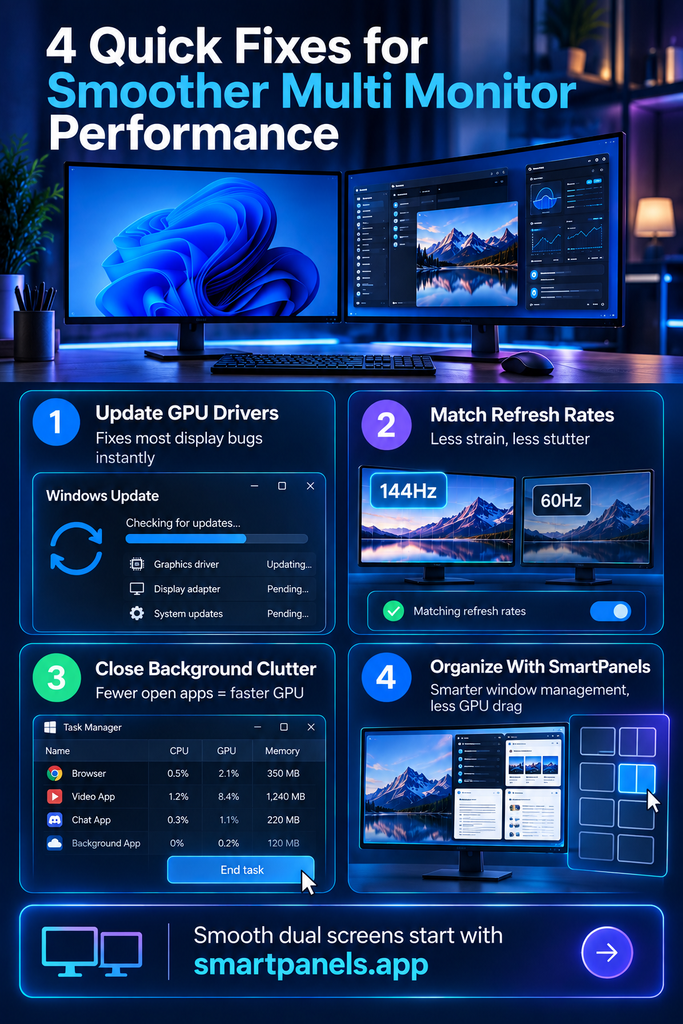
Once you understand the causes, fixing them becomes straightforward. Most solutions require no new hardware at all.
Update Your Graphics Drivers
There is no denying that old drivers are at a loss when it comes to multi-display output. To put an end to the stutter and lag one so often complains of, it is well worth looking into the regular updates from manufacturers for better multi-monitor efficiency. A few months should be the interval between checks. It is a matter of minutes and will address the issue in most cases.
Match Refresh Rates Across Displays
It is best to opt for monitors that have the same refresh rate, where you can. Your GPU will have less in the way of timing conflicts to contend with as a result. Should one be forced to make do with mismatched hardware, a manual cap on the frame rate is called for to ensure a uniform output from screen to screen. The display settings of most game launchers will have an option for this.
Manage Background Load Carefully
It is good practice to get in the habit of closing any idle applications or browser tabs that are not in use. Where you can, confine resource heavy software to a single monitor and do not put on a video on a second display while gaming. Such minor measures will spare the GPU from undue stress and go a long way toward preserving older hardware.
Organize Your Workflow with Smarter Tools
A cluttered multi monitor setup often causes more slowdown than the hardware itself. Having an excess of open windows is a recipe for confusion and puts an avoidable strain on the GPU with superfluous draws. For that reason, one can put dedicated organization software to good use.
With SmartPanels, for instance, it is possible to put orders in your apps, windows, and workflows on several screens at once. The program does away with clutter by leaving only what is required in play, which means the GPU is not expending energy to render the rest. Most professionals would say this is a more sensible way to work than making manual adjustments on the fly.
When You Run Dual Monitors Does It Slow the GPU Down for Gaming?
There is no one who feels the strain on a GPU quite like a gamer. Put it to the test and frame rate losses will show themselves in short order. Try to stream as you play and the effect is magnified, since the video encoding for the broadcast is in direct competition with what the game is rendering.
For that reason, you will find most streamers keep their second monitor for unobtrusive work. A chat window or an overlay here and there does not put much of a dent in performance; heavy editing or full video playback would be another matter. Is a second display going to cost you frames? Not if it is left idle or put to light use. It is only when that screen has some actual work to do that it becomes an issue.
Real-World Testing: What Actually Happens
There is no substitute for the clarity of a benchmark test over mere guesswork. When independent testers put single and dual monitor configurations to the test, they found that in most cases frame rates would be down by under five percent. This figure is what one sees with an idle second screen while gaming. Put some streaming software into the equation though and the decline is more pronounced; every trial showed the strain of having to encode video for a live stream. The same holds true for memory pressure if one has a browser open with a dozen tabs or so.
Such findings are in keeping with what engineers have known all along about display rendering. A GPU will consider each screen a distinct target for rendering, which in turn means more draw calls, even for the most basic of desktop work.
Yet for the typical user the performance hit is negligible. It takes a GPU intensive task on the secondary display to make any real difference.
Why Expertise and Testing Matter Here
One will find a wide disparity in what is said about GPU performance on the internet, with forum and blog posts often at odds. A few will overstate the effect of running a second display, while some go to the other extreme and write it off altogether; neither position is right. The only way to get a straight answer is through controlled testing as opposed to idle opinion. There is no mistaking the data put forward by reviewers who have done their due diligence in benchmarking with and without an extra monitor.
You can count on the more established hardware sites to make these kinds of comparisons available for every tier of GPU. When it comes time to make an upgrade, whether one is a gamer or looking to alter a workflow, it is wiser to be guided by hard numbers from those tests than by anecdote.
Common Myths About Multi Monitor Performance
Several myths persist about dual and multi monitor setup choices. Clearing them up helps you make smarter hardware decisions.
Myth: More Monitors Always Mean Slower Gaming
This is only true when the extra screens carry heavy tasks. An idle monitor barely registers on modern GPUs. The real culprit is usually what runs on that second screen.
Myth: You Need a High-End GPU for Any Dual Setup
Most current GPUs, even mid-range models, handle two monitors comfortably. High-end cards only become necessary for demanding combinations. Think 4K resolution, high refresh rates, and heavy multitasking together.
Myth: Turning Off the Second Monitor Always Helps
Sometimes this makes no measurable difference at all. If the second screen sits idle already, disabling it changes little. The bigger gains come from closing demanding background applications instead.
Frequently Asked Questions
- Does a Multi-Monitor Setup Use More Power?
Yes, slightly. Extra screens draw more power from your GPU and PSU. However, the increase is usually modest for typical office or gaming use.
- Can RAM Upgrades Help with Multi-Monitor Slowdown?
Often, yes. More RAM supports the extra browser tabs and apps people open. This indirectly reduces strain that would otherwise reach your GPU and CPU.
- Should I Buy a New GPU Just for Dual Monitors?
Usually not necessary. Most slowdown comes from workload choices, not the monitors themselves. Try driver updates and workflow adjustments before considering new hardware.
- Does a Higher Resolution Second Monitor Cause More Lag?
Yes, somewhat. Higher resolution screens ask your GPU to render more pixels. This raises VRAM use and adds a small rendering load overall.
- Can SmartPanels Reduce GPU Strain Across Multiple Screens?
Yes, indirectly. SmartPanels keeps window layouts organized and closes clutter automatically. Fewer active windows mean less unnecessary GPU rendering work.
Matching Your Hardware to Your Setup
There is a difference in how GPUs cope with multiple monitors. An entry-level card will put in some effort to drive two high-resolution screens and can be pushed hard by them. You will find that mid-range and higher-end hardware has no trouble with a dual configuration for the most part.
It is worth an honest assessment of your GPU tier before one puts the onus on the monitor setup. A card in the class of a GTX 1660 or an RX 5600 XT will see you through most dual arrangements without issue, whereas anything below that might require a less demanding display arrangement. And do not overlook VRAM; an upgrade there can be as effective at putting an end to problems as raw power alone.
Best GPU Settings for a Smooth Multi Monitor Setup
For most users, a handful of adjustments to one’s settings can have a marked effect. The first step is to go into the GPU control panel; both NVIDIA and AMD have their own tools for managing multiple displays. From there, put in your desired refresh rate on each monitor on its own terms so as not to make the GPU work in some superfluous compatibility mode.
While you are in the panel, look at the power management side of things. It is common for cards to be in a power-saving state when idle, but for the sake of a more taxing multi-screen session, it is better to put them in performance mode. You should also turn off any visual flourishes such as transparency or animations that are not needed. They may only be a minor thing, but they do put a steady load on the GPU across all your screens.
And do not neglect to see that your cables and ports are in order with the GPU. An incorrect port will at times dictate a lower refresh rate on its own. It is worth the few minutes to get this right and spare yourself the trouble down the line.
Laptop Considerations for Multi Monitor Setups
There is a distinction in the challenges a laptop will encounter versus a desktop tower. Take integrated graphics for instance; they have a harder time coping with several high-resolution displays at once. For those with a machine that has both an integrated and a dedicated GPU, it is worth looking into the settings. The system will often assign a resource-heavy application to the more modest integrated chip by default. A manual switch over to the dedicated unit is usually all it takes to put an end to any lag.
Then there are the external monitors. Some of the adapters used to hook them up can introduce processing overhead. In most cases one will find that USB-C or Thunderbolt connections are superior to older varieties. And do not overlook the heat during a long session with multiple screens on. Thermal throttling can be mistaken for monitor-induced slowdowns. Make sure the vents are unobstructed and a cooling pad is in use; it makes a world of difference.
Final Thoughts
So, when you run dual monitors does it slow GPU down? There are only a few predictable scenarios where one might run into trouble.
The usual culprits are background workloads, a mismatch in refresh rates or resolution. By and large, an idle display is no burden to modern hardware at all. Put the system to work with some gaming, streaming or heavy multitasking and the equation is altered in short order.
Most of the time, however, there is no need for new hardware to put right any issues. A driver update will do much to help, as will ensuring your refresh rates are in line and lightening the workload.
Those with a laptop would be wise to keep an eye on their thermal settings and GPU switching; desktop owners can gain something from a check of their power modes and cabling. Such routine maintenance is key to good multi-screen performance.
And then there are tools like SmartPanels to provide some relief by putting your screens in order. A matter of a few adjustments is all it takes for most to have a trouble-free dual monitor experience.