
On the surface, using a pair of monitors is no trouble at all. But try undocking or rebooting, and your windows will scatter to the four winds. Repositioning the same applications every morning is a frustrating waste of time and concentration. The good news is that with proper dual-monitor software, you can put an end to such friction. These programs do the work of preserving your layout and putting every window back where it belongs.
In this guide, we examine the top dual-monitor tools for Windows in 2026 and compare them directly.
Why Dual Monitor Tools Matter for Daily Productivity
A second screen clearly speeds up most people’s work. The numbers back it up: according to Jon Peddie Research, having multiple displays can boost productivity by an average of 42%. But they do present their set of issues. Windows often forget their positions. Before long, one spends minutes after a restart or dock change putting the apps back in order, and over the course of a week those little delays mount up.
That is where a quality dual monitor tool comes in to bridge the divide. It will take care of window placement, tab recovery, and layout changes without any input. In effect, it makes for a workflow that is as reliable as it is repeatable. The top tools are unobtrusive; you configure them and let them run in the background while you work. For those who divide their time between a laptop and two externals, the manual side of things can be quite a chore. A well-made tool will manage that daily shuffle for you.
What to Look for in Dual Monitor Tools
Not every utility suits every desk. Therefore, focus on a handful of core features first. Your ideal choice depends on how you work each day.
- Saved workspaces that restore apps and positions in one click.
- Cross-monitor window movement through simple keyboard shortcuts.
- Multi-display support, ideally for four or more screens.
- Browser tab recovery across Chrome, Firefox, and Edge.
- Custom hotkeys that switch layouts in a single tap.
- A clean interface that stays out of your way.
Reliable window management tools should reduce clicks, not add them. Speed matters just as much as a long feature list. Keep that simple test in mind as you compare the picks below.
The Best Dual Monitor Tools Compared
Below, we review five popular dual monitor tools for Windows users. Each one targets a slightly different type of person. So, match the tool to your habits, not just its specs.
SmartPanels
With SmartPanels, you get an app that concentrates on its task and executes it properly. It is a matter of seconds to have your window positions, app layout, and browser tabs put back exactly where they were after the program has saved them. Whether at the office or in the home, it will handle as many as six displays. Custom hotkeys let you fire off a saved profile on the spot, and for quick team configuration, a profile can be shared via email. Those who use multiple browsers will appreciate the tab recovery function for Edge, Firefox, and Chrome. The app takes care of the daily tedium of putting your workspace back together. Beginners will find the interface uncluttered and easy to work with. You can run it on Windows 10 or 11 without any trouble, and regular updates keep it stable even as the system evolves. And since a 14-day trial is free, there is not much risk in giving it a try.
DisplayFusion
For the power user in need of granular control, DisplayFusion is a fine choice. The software provides multi-monitor taskbars and title bar buttons along with hotkeys to one’s liking. There are Window Position Profiles for putting window arrangements back where they were on a whim and monitor splitting to break up a large display into virtual pieces. One can even dim an idle monitor to keep things focused. The free edition covers the basics, but the more you want, the more you’ll need the Pro tier. Scripted functions for repetitive work are supported as well. Those who live on multiple screens will be comfortable with it, though a newcomer might be put off by how dense the settings menu appears at first.
Microsoft PowerToys (FancyZones)
There is a certain trust in using PowerToys, not least because it is a free offering from Microsoft. The FancyZones component of the utility is what makes it stand out for tiling on a dual screen setup; it is one of the more unobtrusive layout tools available. With it you can put together your own snap grids and simply drag windows where they belong. It is even possible to have different grids on each of your connected monitors, a degree of flexibility that will appeal to an analyst or coder as much as a writer. That said, do not expect it to be a full workspace recovery solution. It will not restore browser tabs or save entire sessions, but for window snapping it does the job well enough.
Dual Monitor Tools (Open Source)
As a free and open-source offering for Windows, Dual Monitor Tools has its appeal. The application provides the likes of a wallpaper changer, hotkey window repositioning, and cursor locking, with a screen capture module on hand for good measure. There is no cost to be had, which will suit those watching their budget, and the open nature of the code means anyone inclined can have a look under the hood. A shortcut to confine the cursor to a single display is a handy feature that makes for more efficient work when one needs to put in some long hours. On the other hand, the interface does not hold up to today’s standards and comes across as somewhat old-fashioned. Nor does it give you the ability to restore a session with a click of a button across all your monitors.
UltraMon
With UltraMon, you can use the Windows taskbar on every screen you have connected. The program is at home with per-monitor wallpapers and distinct screensavers as well. Need to span a window over two displays? A single click of the maximize button will do it in short order. For those giving live presentations, the mirroring tool is of considerable assistance, while the smart taskbars ensure each monitor remains in order.
It is a workhorse that has been putting in reliable service for dual-screen setups year after year. Some aficionados prefer that stability over a more contemporary appearance, even if the design shows it is not exactly new. There is a 30-day trial available should one wish to put it through its paces before making a purchase.
Second Monitor Not Detected? Learn how to fix it.
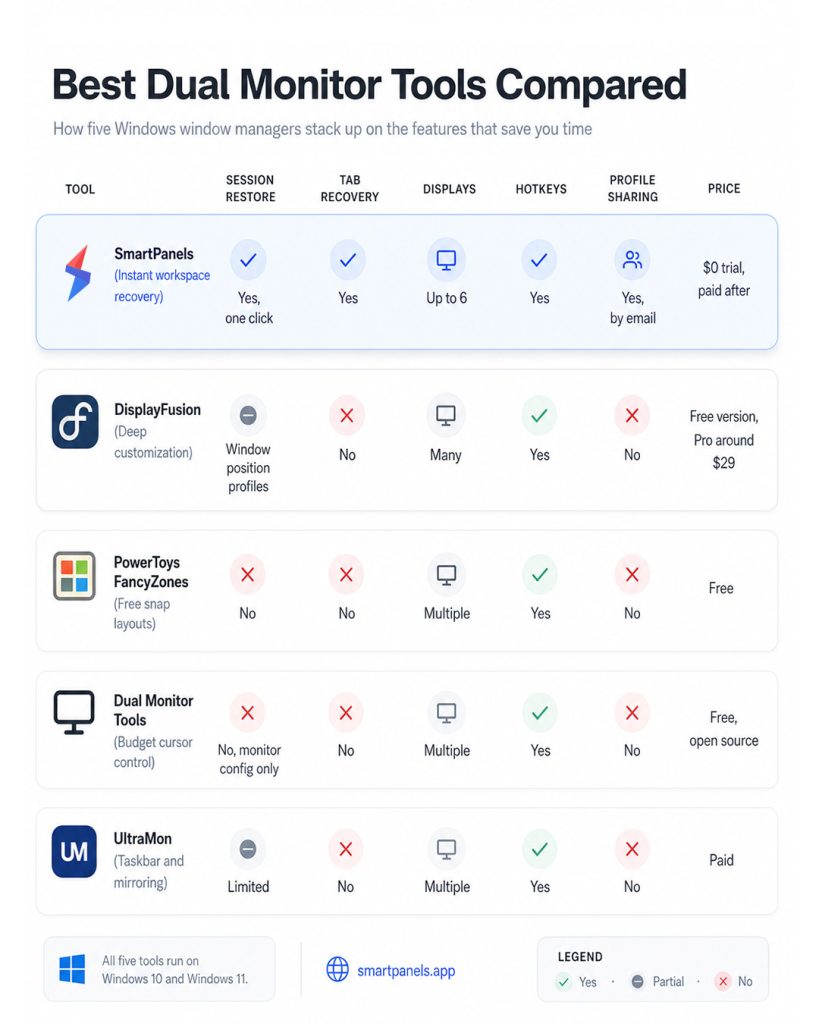
Dual Monitor Tools Comparison Table
You can see how the various dual monitor tools compare in the table below. It is meant to be a handy reference when making a choice and will tell you all five are compatible with Windows 10 and 11.
For the most part, these applications do a good job of positioning windows. What you will not find in as many of them is the ability to restore an entire working session, complete with tabs. A distinction that is of some consequence to those who go through the motions of resetting their setup every day.
Why SmartPanels Ranks Among the Best Dual Monitor Tools
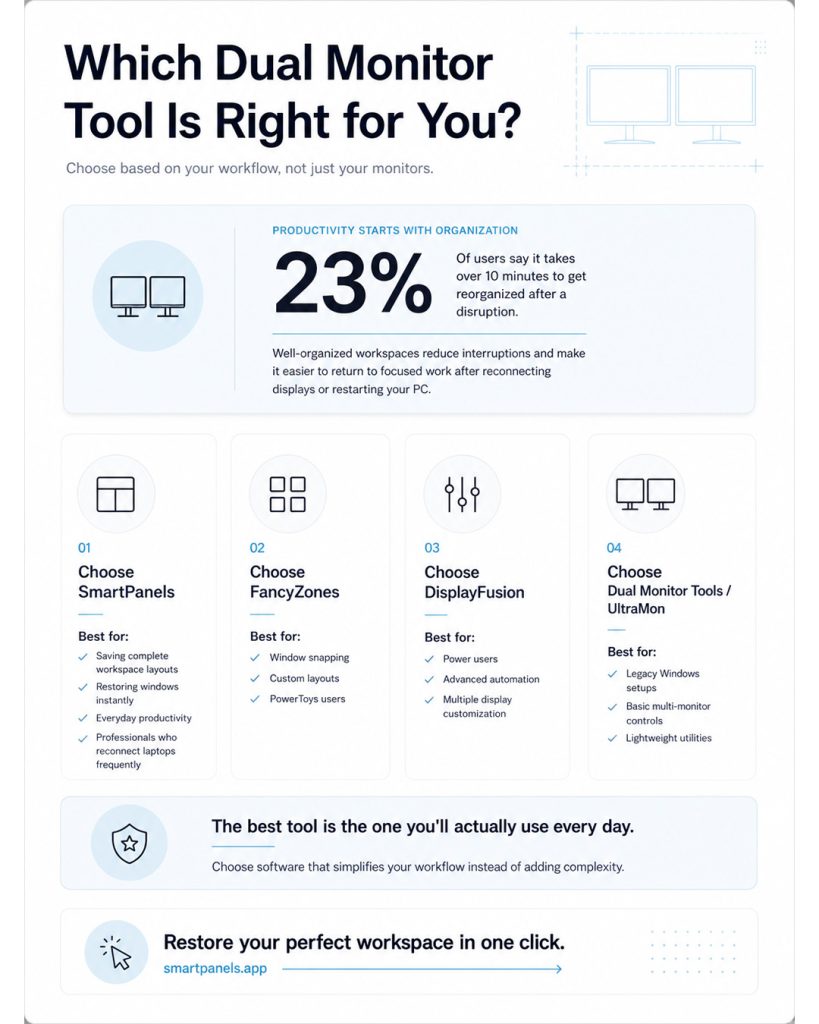
You will find that the bulk of dual monitor utilities on this list are content with handling taskbars, cursors, and the like. There is not many that will put together an entire working session for you. The SmartPanels app makes its mark by filling that void. With a single click, it has your apps, browser tabs, and window placements back where they belong. It handles six monitors without breaking a sweat and lets you share profiles with your team in short order.
In contrast to the competition, which tends to be fixated on a single feature, SmartPanels is for those who want consistency and simplicity. For anyone who works in the same layout day in and day out, it adds back some minutes to the day. We hear from teachers, project managers, developers, and researchers that their work goes more smoothly because of it.
Take a typical morning at work: dock the laptop and get to a client file. SmartPanels will have the necessary screens and tabs up and running. With a hotkey, you can access your reporting profile, completing the entire process in seconds instead of minutes. Other tools do not come close to reestablishing that context with such alacrity.
That kind of dependable restore is what keeps users coming back. See for yourself on the pricing page with a $0 trial. And if you also need to look after your app settings, there is a guide on managing the AppData folder in Windows.
Dual Monitor Tools FAQs
Which dual monitor tools work best for saving and restoring layouts?
SmartPanels leads here for most users. It saves window positions, apps, and browser tabs, then restores them in seconds.
Are free dual monitor tools good enough for daily work?
Free options like PowerToys and Dual Monitor Tools handle basic snapping well. However, they rarely restore full sessions or browser tabs automatically.
Do dual monitor tools support more than two screens?
Many of them do. SmartPanels supports up to six displays, which suits busy home offices and larger professional workstations.
Can these dual monitor tools restore browser tabs?
Some can. SmartPanels recovers tabs across Chrome, Firefox, and Edge, while several rivals focus only on window placement.
Are dual monitor tools hard to set up?
Most install quickly. SmartPanels offers instant setup, custom hotkeys, and a $0 trial, so beginners can start with ease.
Final Thoughts
There is no strict rule for choosing one of these dual monitor utilities over another; it depends on how you work. The likes of DisplayFusion and UltraMon are well suited to the power user with an appetite for fine tuning, while PowerToys or the open-source Dual Monitor Tools will appeal to those who like to tinker on a budget. Then there are the professionals who have little patience for fuss and just want their workspace as they left it. In that regard, SmartPanels has a strong claim to being at the top of the list. With a single click, it can put your apps, windows, and browser tabs right back where they belong. It also supports up to six monitors and allows the entire team to share profiles. You end up putting in less effort to set up screens and more time on actual work. For anyone rebuilding the same configuration every morning, the return is immediate.
Overall, consider what will cause the least amount of friction and go with that. If the idea of getting back some of the minutes lost each day is appealing, put SmartPanels to the test with its free trial and have your workspace restored in no time.