

You press Print Screen, expect a saved file, and find nothing. Screenshots not saving in Windows 11 frustrates plenty of users, and the causes range from a broken OneDrive link to a corrupted registry path.
This guide walks through why captures vanish and how to bring them back, step by step. You will check the clipboard, repair folder paths in the registry, fix permissions, and reset save locations correctly.
Each fix below uses plain, direct steps, so you do not need advanced IT skills to follow along. Grab ten minutes, work through the sections in order, and get your screen captures saving reliably again. By the end, you will know exactly where your images go, plus how to control and troubleshoot that destination for good.
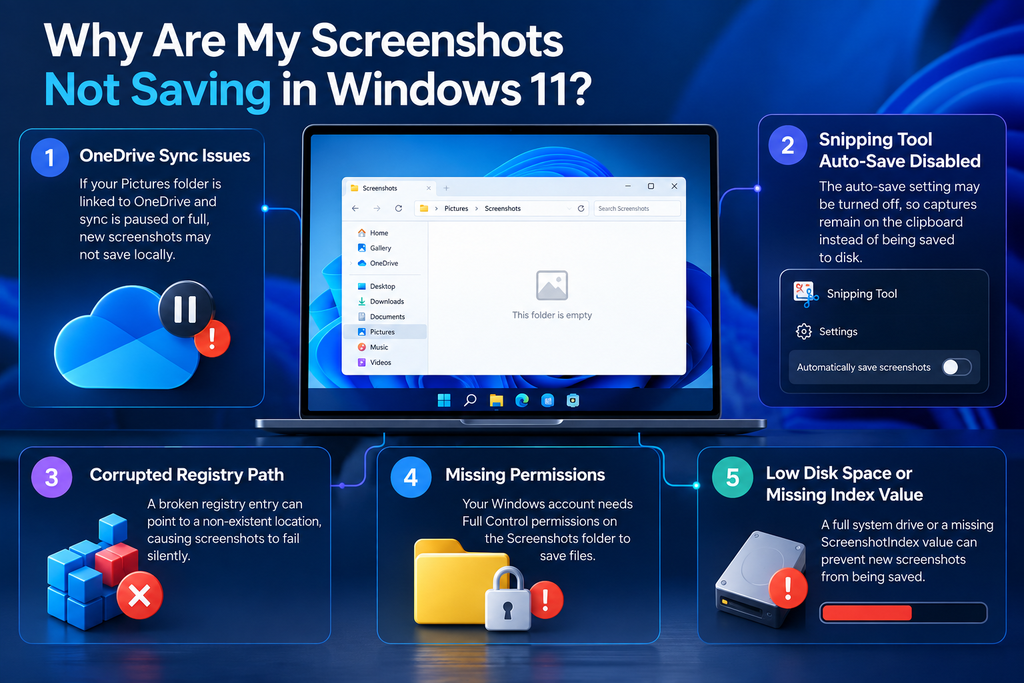
Why Are My Screenshots Not Saving in Windows 11?
Before jumping to fixes, it helps to understand the root causes. Most of the time, the cause is one of five issues. Knowing which one applies saves real troubleshooting time.
Broken OneDrive Sync for the Pictures Folder
If Known Folder Move is on, Windows usually ties your Pictures folder to OneDrive. If OneDrive is paused, hits its storage limit, or loses its connection, new screenshots may not reach local storage.
The result is a folder with only old files and new captures that seem to have vanished.
Snipping Tool Auto-Save Setting Disabled
The Snipping Tool has a setting that saves every snip automatically, but you can’t count on it staying on. Windows 11 feature updates have been known to switch it off on their own. When that happens, your snips stay on the clipboard and never get written to disk.
Corrupted Registry Path for the Screenshots Folder
Windows records where to save your screenshots in a registry value. The entry {B7BEDE81-DF94-4682-A7D8-57A52620B86F} only appears if you have moved the Screenshots folder yourself. If that entry points to a drive or folder that no longer exists, saving can fail with no clear error.
Missing Full Control Permissions
To write a screenshot to disk, your Windows account needs Full Control of the Screenshots folder in its NTFS security properties. Without it, the capture works but the file is not saved.
Low Disk Space or a Corrupted ScreenshotIndex Value
A system drive that is nearly full can’t take new files, and screenshots are no exception. Another possible cause is the ScreenshotIndex value at HKEY_CURRENT_USER\Software\Microsoft\Windows\CurrentVersion\Explorer. Windows uses it to number new screenshots, so a corrupted or stuck value can cause naming conflicts that stop new captures from saving.
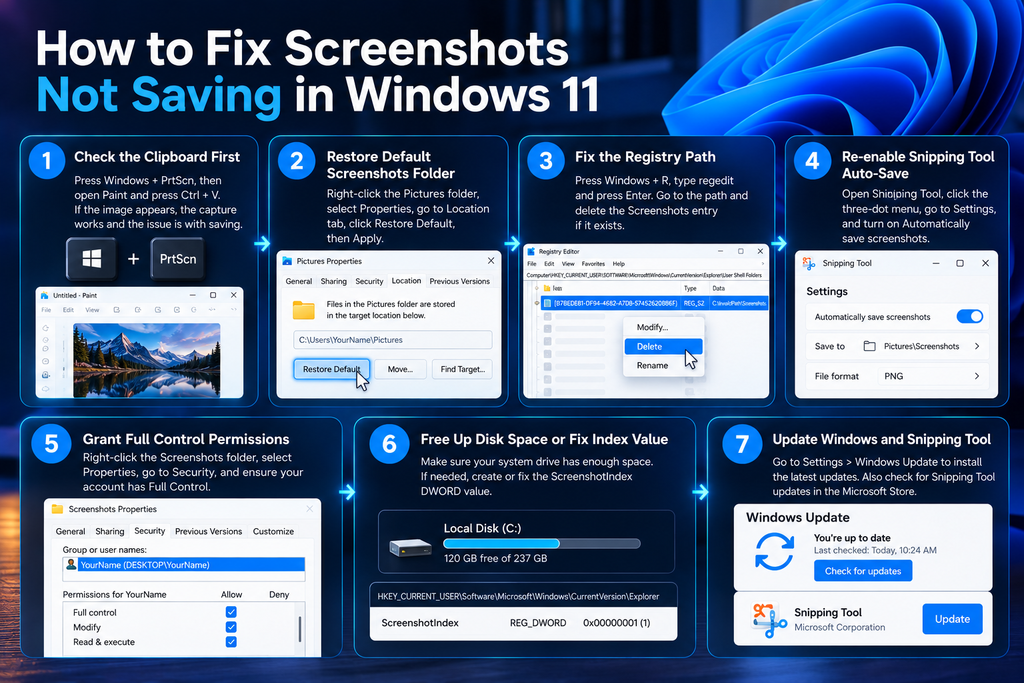
How to Fix Screenshots Not Saving in Windows 11
Once you know the likely cause, work through these steps in order.
Step 1: Check the Clipboard First
To rule out a problem with the capture itself, press Windows + PrtScn. Then open Paint and press Ctrl + V. If the image appears, the problem is limited to saving.
Step 2: Restore the Default Screenshots Folder Location
Open File Explorer, go to Pictures, and right-click the Screenshots folder. Choose Properties and open the Location tab. Select Restore Default and click Apply. Restart your PC and try again.
Step 3: Reset the Screenshots Folder Path in the Registry
If the problem persists, a bad Screenshots path in the registry may be the cause. Press Windows + R, type regedit, and press Enter. In Registry Editor, click File > Export to save a backup first. Then go to:
HKEY_CURRENT_USER\SOFTWARE\Microsoft\Windows\CurrentVersion\Explorer\User Shell Folders
Find the entry {B7BEDE81-DF94-4682-A7D8-57A52620B86F}, if it exists. Delete it to reset the path to the default %USERPROFILE%\Pictures\Screenshots. Sign out and back in to apply the change.
Step 4: Re-enable Snipping Tool Auto-Save
Open the Snipping Tool from the Start menu. Click the three-dot menu and go to Settings. If the auto-save option is off, turn it on. Then take a new capture to test it.
Step 5: Grant Full Control Permissions
Check the permissions on the Screenshots folder. Right-click it and choose Properties, then open the Security tab. If your account doesn’t have Full Control, click Edit, select your account, and allow Full Control. Then click Apply.
Step 6: Update Windows and Repair Snipping Tool
Install any pending Windows updates by opening Settings > Windows Update. Then check the Microsoft Store for a Snipping Tool update, because the app updates separately from Windows.
Screenshot Not Saving to Photos? Try This
Sometimes a screenshot is in the folder but doesn’t show up in Photos. This usually happens because Photos hasn’t indexed the folder where your screenshots are stored.
Open Photos, go to Settings, and look under folder sources. If your Screenshots folder isn’t listed, add its path manually. New captures should appear within a few minutes.
If they don’t, close Photos completely in Task Manager and reopen it. This forces a reindex of all linked folders.
How to Change Screenshot Save Location in Windows 11
Sometimes moving the folder is smarter than repairing it. Here is how to move your screenshot folder safely.
- Right-click your Screenshots folder and choose Properties.
- Open the Location tab and click Move to choose a new home for it.
- A separate folder on a secondary drive works well, for example
D:\Screenshots. - When Windows asks to move your existing files, click Yes to keep your library in order.
Avoid using a removable USB drive or a network drive as your default. They can disconnect at the wrong moment, and you would be back to the same saving problems. An internal local drive is far more dependable for regular use.
If you use OneDrive, consider whether syncing every screenshot is worth it. An unstable connection can make saving sluggish. You will likely get better speed and consistency by going to OneDrive Settings > Backup and turning off backup for the Screenshots folder only.
Windows 11 Screenshots Not Working? Check These Settings
If captures fail entirely, not just the save step, check these settings one at a time.
- Open Settings > Accessibility > Keyboard.
- Turn on “Use the Print screen key to open screen capture.” A Windows update can switch this off, and then pressing Print Screen does nothing.
Also look for keyboard software that might conflict. Manufacturers like Dell, HP, and Lenovo install utilities on their laptops that remap function keys, including Print Screen. Close these from the tray icon temporarily and try the shortcut again.
Antivirus can also be an issue. Some security suites block screen capture. Check your activity log, and if you see a block, add Snipping Tool and Screen Sketch to the allowed list.
Finally, run the Windows Store Apps troubleshooter. In Settings, go to System > Troubleshoot > Other troubleshooters. It can fix app-level faults automatically, so you don’t have to edit the registry by hand.
Does This Happen on Windows 10 Too?
Yes. Windows 10 has nearly the same causes as Windows 11. The same is true for both systems when it comes to OneDrive conflicts, permission issues, or a broken registry path. The remedies outlined above are just as applicable here; after all, the two versions share an identical shell folder structure and much of the Snipping Tool’s code.
There is one distinction to be made, however. Windows 10 does not have access to some of the more recent Snipping Tool capabilities, like the auto-save improvements that came with Windows 11.
Should you find that saving will not work, it is worth checking your build number in Settings > Windows Update to make sure it is up to date. An unpatched version of Windows 10 may be without this option altogether.
FAQs
- Why do my Windows 11 screenshots disappear after a restart?
In most cases, the files have been put in a temporary or network spot rather than your local Screenshots folder. One can verify this by looking at the folder path in Properties and making sure it is set to a permanent local drive.
- Does Windows 11 have a screenshot limit per session?
As for the ScreenshotIndex value, there is no hard limit on it, yet it is what governs the sequential naming of files. Should that value be lost or become stuck, any new captures may not save under a fresh file name without so much as an error message.
- Can a Windows update cause this problem on its own?
Yes. A feature update can reset settings without warning. For example, it can switch off Snipping Tool’s auto-save toggle or the Print Screen key setting under Accessibility > Keyboard.
- Is it safe to edit the registry to fix this?
You are free to do so provided you confine your edits to the keys we have listed. It would be prudent to make a registry backup via File > Export first, in case one needs to put things back as they were.
- Will changing my screenshot folder location affect old screenshots?
Not at all. Windows will put forward the option of moving over any existing files when you relocate them. If one chooses not to take that up, the old files are left where they are in the original folder.
Wrapping Up
You don’t need to be a technical expert to fix misplaced screenshots. Start with the clipboard test, then check folder paths, permissions, and registry values.
Most of the time, the cause is a broken OneDrive link, a disabled auto-save setting, or a bad Screenshots path in the registry. Fix those, and Windows should save your captures reliably.
If the problem continues, run System File Checker or create a new local user profile. Deeper corruption can’t be fixed by settings alone. Keep Windows updated to stop it from happening again. If you take screenshots every day, a little maintenance now saves headaches later.
Once your screenshots are saving again, SmartPanels can save the rest of your setup, restoring your apps, window layouts, and browser tabs in one click.