
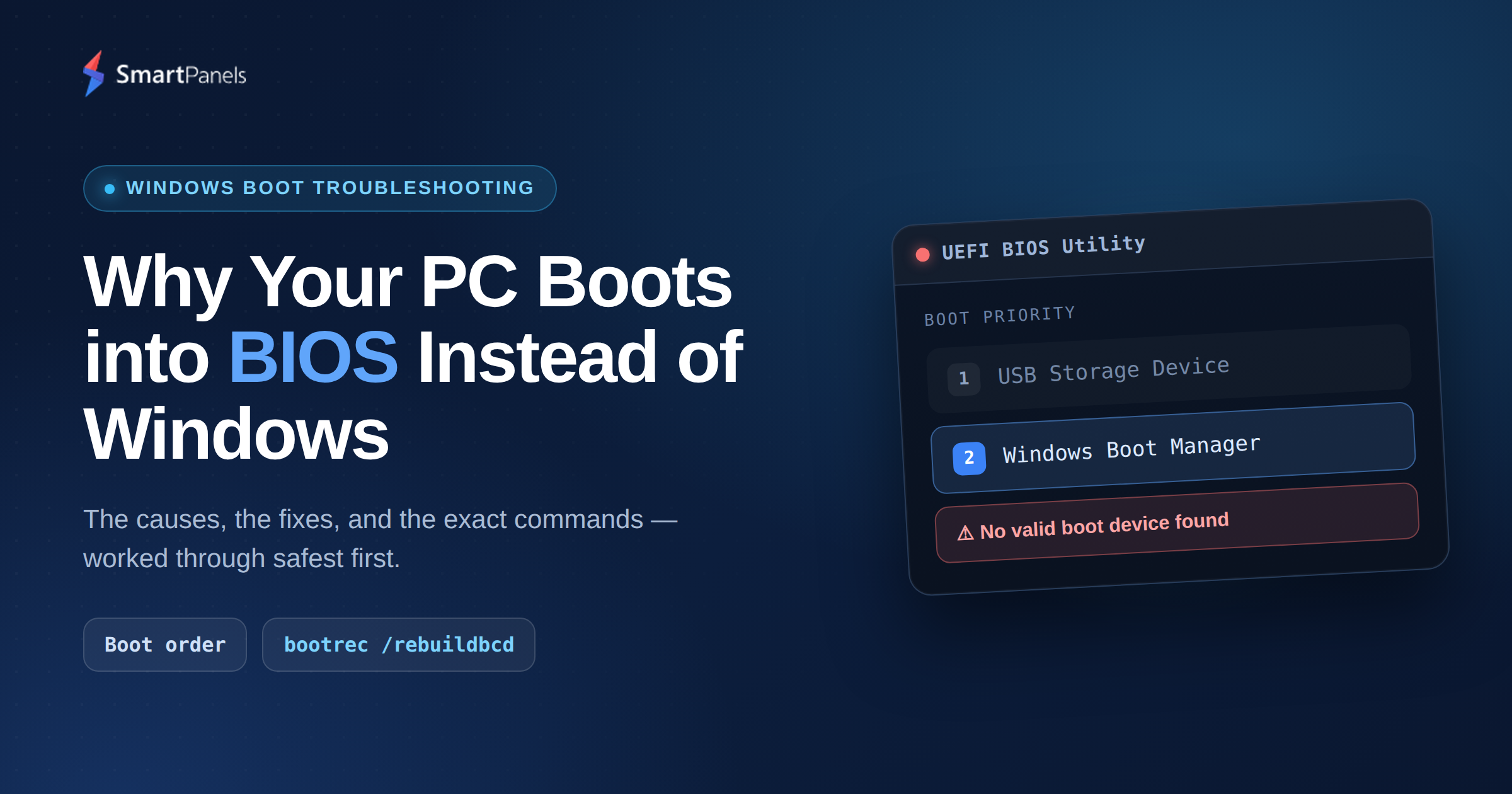
It does not take much for a routine morning to become trying. One moment you are at the power button, anticipating your desktop to appear, the next you are faced with a stark firmware screen. If that is the case, know that you are in good company; plenty of Windows users have been there. When your PC boots into BIOS instead of Windows, the computer is warning you.
What has happened is the firmware has run its self-test but failed to make the transition to a bootloader. In some instances, it is something as minor as a SATA cable out of place, in others it is a sign of a drive on its last legs or boot records that have been compromised. But for the most part the solution is not hard to come by.
We have put in our time troubleshooting these kinds of startup problems with Windows and the culprits tend to be the same ones repeatedly. This blog is meant to cut through any guesswork and set out how to remedy the situation in a straightforward manner, including the specific commands and settings that are of consequence.
What it means when your PC boots into BIOS instead of Windows
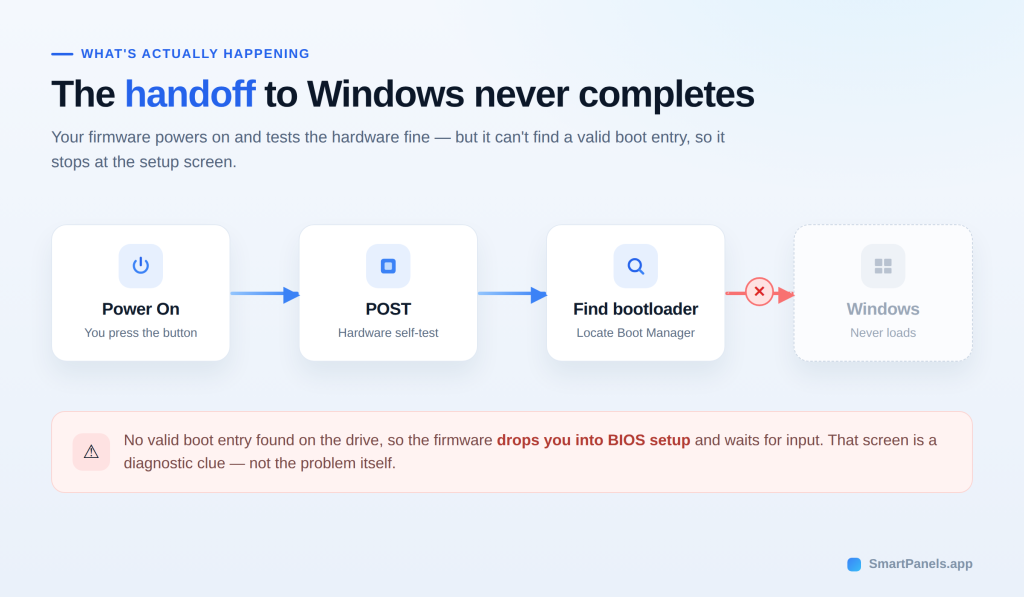
When you switch on a computer, the BIOS is the initial firmware to come to life. These days one will find UEFI on most contemporary systems, but it serves the same purpose. The job of this firmware is to carry out the power on self-test and get the hardware initialized before it can seek out a bootloader.
Under normal circumstances a system will have no trouble launching the Windows Boot Manager and ceding control to Windows. However, when your PC boots into BIOS instead of Windows, that final handoff fails. What we are seeing here is that the firmware has been unable to locate a proper boot entry on the drive.
So, it halts at the setup screen and puts in for some input. So, if your computer keeps booting to bios, treat it as a diagnostic clue. Something broke the chain between the firmware and your operating system.
Common reasons your PC boots into BIOS instead of Windows
Several distinct faults can trigger this behavior. Below are the most common ones we see in the field.
- Wrong device in the boot priority list
At startup the firmware will run through a prescribed sequence of devices; what is known as the bios boot order. Should an empty slot or a USB stick be given priority, it is not uncommon for the system to revert to setup. For that reason, one would want the Windows Boot Manager to remain at the top of the list.
- Your drive is not detected
Sometimes the pc goes to bios instead of windows because the drive vanished from the list. There are other culprits as well. A poor connection on the M.2 or SATA can be the cause, as can an incorrect storage mode like VMD or RAID in place of AHCI. When that happens, the disk with Windows on it is invisible to the recovery tools and the firmware.
- Recent hardware changes
Any chance you have put in a new GPU, some extra memory or a second drive of late? Adding fresh hardware can alter the way the firmware enumerates devices on boot and cause an entry to move or vanish. Put the part back and run a test to be sure.
- A dead or loose CMOS battery
Then there is the matter of the CR2032 battery that maintains the clock and your settings. Once it gives out, the system will revert to factory defaults with each restart. The storage mode and boot order are reset, and you find yourself in setup again.
- A stuck boot menu key
Manufacturers assign a key like F2, Del, Esc or F12 to get into setup. But if the key is uncooperative the firmware will interpret it as a call for the BIOS. A bit of dust or debris from a spill under the key is often enough to do that.
- Fast Startup and hybrid shutdown conflicts
There is the matter of Fast Startup, which caches a partial system state in hiberfil.sys to speed up the boot process. The problem is that such a hybrid state is prone to conflict with certain drivers or firmware and can bring startup to a halt. One way to sidestep this is to turn it off and have the machine do a proper cold boot.
- Corrupted or missing boot files
Then there is the BCD, or Boot Configuration Data, which Windows relies on. In the case of UEFI systems, this is found on the EFI System Partition. Should an update go awry, or the system be forced to shut down, the BCD can become corrupted, resulting in errors such as 0xc000000f or 0xc0000098 and sending you back to setup. If the Windows Boot Manager fails to locate or load the operating system, understanding Windows Boot Manager startup errors can help you identify the underlying problem before rebuilding the boot records.
- An outdated or failed BIOS or storage mode mismatch
Firmware can be another source of trouble. An older version might not be compatible with an NVMe drive or the CPU at hand, while a flash that is left unfinished will render the firmware unstable. A UEFI drive configured for Legacy or CSM mode will simply not boot. Make sure Secure Boot and the GPT partition scheme are in line with the installation.
How to fix pc booting to bios
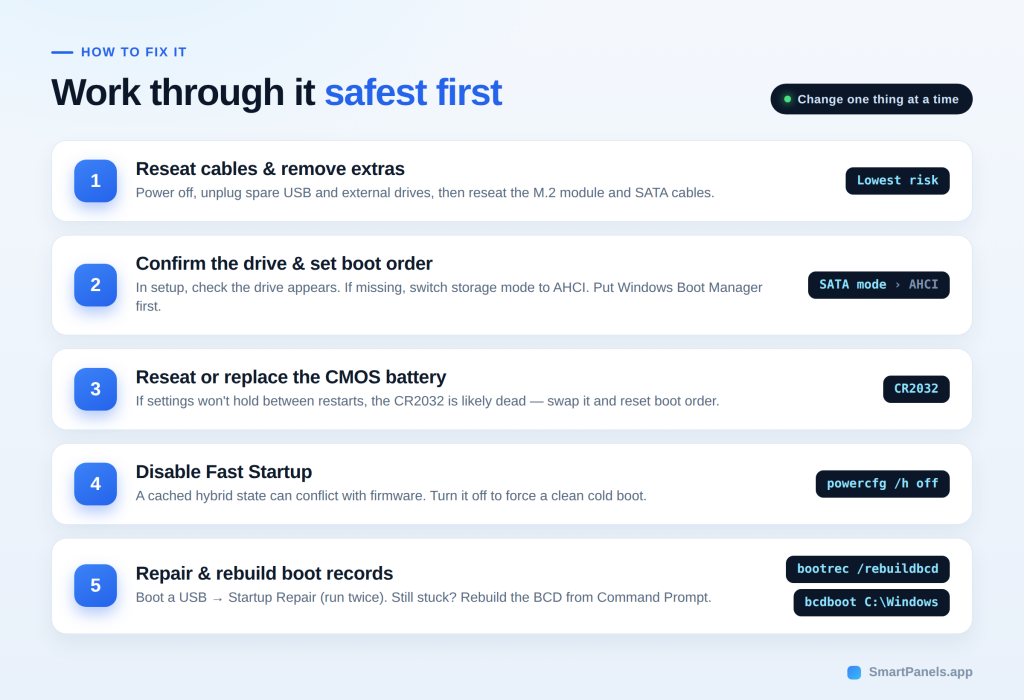
Now that you know the causes, work through the fixes below. Try them in order, since the early steps carry the least risk.
1. Reseat cables and remove extra devices
To begin, power down the computer and disconnect it from the wall outlet. Take this opportunity to unplug any external disks or spare USB drives as well. Once that is done, reseat the M.2 module and its screw, along with the SATA data and power cables. Go ahead and turn the machine on to see if Windows comes up without issue.
2. Confirm the drive and set the boot order
Proceed to open the setup and verify the drive is listed in storage. Should you not find it there, change the SATA mode over to AHCI and look again. Put the Windows Boot Manager at the head of the priority list, save your work and restart.
3. Reseat or replace the CMOS battery
In the event the settings are not holding, have a look at the CR2032 battery. After reseating it, restart and get back into setup. You will need to reset the boot order and SATA mode since the defaults may have been altered. If the problem of the settings resetting persists, the battery should be replaced.
4. Disable Fast Startup
In the Control Panel of Windows, go to Power Options and disable Fast Startup in the power button settings. One can also do this by way of an elevated prompt with the command powercfg /h off. After a restart, put the boot to the test.
5. Run Startup Repair from WinRE
Should Windows refuse to load, it is necessary to make a bootable USB from a different machine. Boot off that drive and select Repair your computer. From there, head into Troubleshoot and run the Startup Repair. It is best to let it run two times over, as a single pass may not be enough to complete the job. If Startup Repair and boot-record recovery fail, you may need to consider more extensive recovery options, including how to reinstall Windows 10, after safeguarding your important files.
6. Rebuild the boot records
When Startup Repair fails, open Command Prompt in the recovery menu. Advanced users can rebuild the boot data with these commands:
- bootrec /fixmbr
- bootrec /fixboot
- bootrec /scanos
- bootrec /rebuildbcd
On UEFI systems, recreate the store with bcdboot C:\Windows. Also run chkdsk /f and sfc /scannow to catch file damage. If you feel unsure, stop and get help. If less disruptive repair options fail and Windows can still be accessed, a factory reset of Windows 10 may be another option, but review its impact on files and applications first.
7. Update the BIOS or load defaults
The last step is to get the proper firmware off your maker’s website and put it on a FAT32 USB for flashing; be sure not to break the power connection in the process. One might also opt for Load Optimized Defaults as a way of wiping out any poor settings. Do check that Secure Boot and UEFI mode are in line with your install.
When to call a professional
For the most part, the remedies outlined here are straightforward and harmless. Yet they can sometimes mask a more serious problem like a drive on its last legs. Should the SMART data turn up errors or the flash seem like a risk, it is best to hold off. A qualified technician will have the means to do a more thorough test of the drive than is possible at home and can safeguard your data from an expensive error.
If Windows eventually starts but continues to freeze or becomes unresponsive, investigate possible Windows 11 freezing issues to determine whether the problem extends beyond startup.
Get back to your setup faster with SmartPanels
A PC that boots into BIOS instead of Windows interrupts your whole day. And then there is the matter of time spent putting your workspace back together once the fix is in place. SmartPanels is designed to handle that. A single click will have it reconstitute your window layouts as soon as Windows has finished loading. It puts your browser tabs and screen positions right where they should be, whether you are using a single monitor or several. Once Windows is running again, you can restore your entire workspace in one click instead of manually reopening applications and arranging every window. In short, when the system has booted up properly, you can be at work again in a matter of seconds.
Final thoughts
Fixing a PC that boots into BIOS instead of Windows rarely needs an expert. The trouble is usually to be found in a loose cable, an incorrect boot order or a CMOS battery that has run its course. The best approach is to begin with the straightforward hardware checks before you get into firmware and boot record remedies. Be patient about it; alter one thing at a time to know for certain what did the trick. To reduce the effort involved in rebuilding your desktop after a restart, learn how to save your workspace layout in Windows 11 and return to a familiar working environment.
Once your PC is working again, it is worth reviewing how to manage the AppData folder and protect important application settings during routine maintenance.
When the system is finally booting without issue, the aim is to be up and running in no time. SmartPanels is of help there. With a click, it will put your browser tabs and window layouts back where they were, sparing you the chore of doing it by hand. A clean boot should put you right back in a workspace you are accustomed to. If the idea of not having to set things up from scratch on every startup appeals, give SmartPanels a try. Download it and have your workspace reassembled in a matter of minutes.
Frequently asked questions
Why does my pc boot into BIOS every time I start it?
In most cases, you are looking at firmware that is unable to locate a proper boot entry. The cause is typically an incorrect boot order, a cable that has come loose, or the storage mode having been reset. Start by making sure the drive is present in setup and put the boot priority right.
Can a dead CMOS battery cause boot problems?
Then there is the matter of a flat CR2032 battery. When it is no good, the firmware will revert to its defaults on every restart, which can have the effect of changing the SATA mode and boot order until it is stuck in setup. A new battery will normally take care of that.
Is it safe to update my BIOS myself?
As for flashing, it is perfectly safe so long as one adheres to the manufacturer’s instructions. But should the process be interrupted, the firmware becomes useless. It is best to have a steady power supply and consult with a technician if any doubt arises.
What do boot errors like 0xc000000f mean?
Should these codes appear, it is because the Boot Configuration Data is either gone or corrupt; the Windows Boot Manager simply cannot access its store. Running Startup Repair or a bootrec /rebuildbcd will do the trick.
How do I know if my drive is failing?
Run a free utility to check the SMART status of the drive. Be on the lookout for anything amiss in setup, unusual sounds or crashes. If the diagnostics turn up read errors or bad sectors, the drive needs to be replaced.