
There is a legitimate question to be asked when one purchases a Windows 10 product key: will it be of any use down the road? Be it a new PC build or a Windows reinstallation, you should have a straight answer.
But the truth of the matter is dictated by your license. While certain keys are portable from one machine to another, some are permanently tied to a single computer. That is why the type of license you hold is of consequence before you do any upgrading or reinstalling.
We have put together this guide to lay out the rules in no uncertain terms. It starts with an explanation of how the different licenses operate and what is required to transfer a key properly. We also take the time to dispel the usual myths and seller talk, run through some quick checks and touch on the latest changes to Windows 10 support.
How Many Times Can You Use a Windows 10 Key? The Short Answer
There is a straightforward answer to the question of how often one can make use of a Windows 10 key: it is all a matter of the license. With the several types of licenses in play for Windows 10, the rules for reuse are dictated by which one you have.
A retail key affords the greatest latitude; it may be transferred from one computer to another on an ongoing basis, provided only a single PC is running it at any given moment. The OEM variety is quite another story. Once activated on a machine, that key is bound to it and there is no legal way to put it on a new system. Then there are volume keys, which are the province of businesses rather than the home user.
In short, your answer to how many times you can use a Windows 10 key depends on your key. Below, we explain each type clearly. That way, you can check your own key with confidence.
Windows 10 OEM vs Retail License Explained
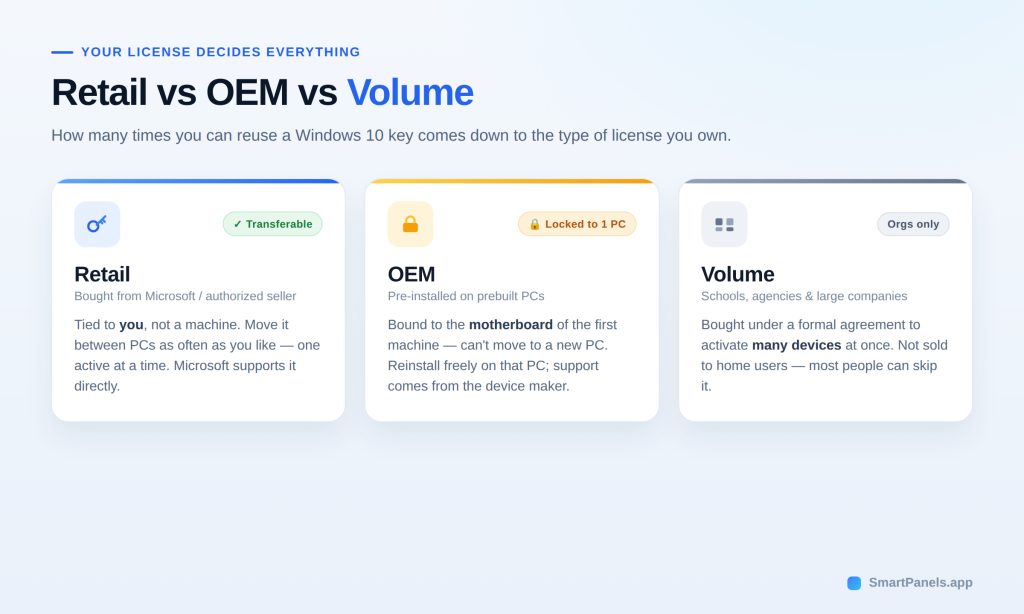
Your license type decides everything about reuse. So let us compare the Windows 10 OEM vs retail license options side by side. Each one comes from a different source. Each one carries different rights. Understanding both helps you avoid costly mistakes.
OEM License
You will find an OEM key on any prebuilt computer, having been put in place by the manufacturer prior to purchase. In some cases, those putting together a custom PC might procure one on their own. It is a more economical proposition than retail, but there is a caveat to that savings. The license is tied to the motherboard of the initial system and will not be moved to another machine. While you are free to do as many reinstalls of Windows on that PC as you want, do not expect Microsoft to offer you direct support with an OEM key; that is left to the maker of the device.
Retail License
You will find a retail key at an authorized seller or the Microsoft Store. It is the version with the most to offer in terms of flexibility. The key is tied to you rather than a machine, so you are free to activate it and then take it over to another PC after deactivating it on the first one. Of course, it is limited to a single computer at any given time. Then there is the matter of support; Microsoft handles retail keys directly and for that reason many opt for them. If one is in the habit of upgrading often, the retail option is plainly the way to go.
Volume License
Volume keys serve schools, agencies, and large companies. Organizations buy them under a formal agreement with Microsoft. These keys can activate many devices at once. However, they are not sold to individual home users. So most readers can skip this option entirely.
Can I Use a Windows 10 Key on Multiple Computers?
Many people ask, can I use Windows 10 key on multiple computers at the same time? The answer is no. The license is for one active installation and that is the end of the story. It holds true for retail as well as OEM keys.
While you can take a retail key off one PC and put it on another, it is only good for a single machine at any given time. An OEM key will not transfer once it has been activated for the first time. You may come across sellers who say their key is good for ten devices simultaneously; do not be taken in by such talk, it is nothing but a myth.
Microsoft links activation to your hardware and account, so to have the same key on two running PCs is to violate the terms of the license. The proper course is to purchase an individual key for every additional machine. In this way each device remains genuine and there are no issues with updates.
Transfer Windows 10 License to a New PC
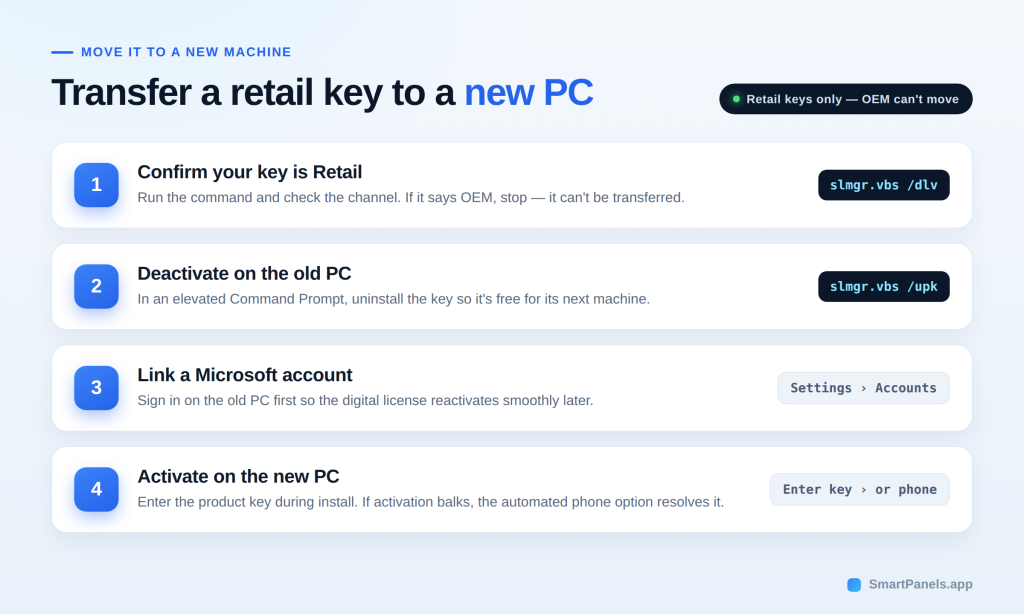
You can transfer Windows 10 license rights only when you hold a retail key. The process stays simple once you know the steps. Follow them carefully to avoid activation errors.
Step 1: Confirm Your Key Is Retail
Before getting started, take a moment to see what kind of license you have. It is a time saver to do this up front since OEM keys are not transferable.
Step 2: Remove the Key From the Old PC
To put the license at ease for its next host, you will need to deactivate Windows on the present computer. Launch an elevated Command Prompt and type in slmgr.vbs /upk; that will uninstall the key.
Step 3: Link a Microsoft Account
It is also advisable to log into your Microsoft account on the old PC first so that the activation process goes without a hitch down the line.
Step 4: Activate on the New PC
When you are ready to put Windows on the new hardware, simply input the product key as part of the installation. Should you run into any trouble with activation, the phone option is available. An automated call of it should be enough to resolve the matter.
How to Reuse a Windows 10 Product Key Safely
You can reuse Windows 10 product key licenses many times on the same hardware. A Windows reinstallation on a single PC is rarely an issue. One might run into trouble after a string of quick reactivations, at which point Microsoft could put in a request for phone verification to make sure the key is not being shared. It is prudent to have your product key on file in a secure location like a password manager. If you can, tie it to your Microsoft account as well; the digital license will handle reactivation on its own once you have done a clean install.
Then there is the matter of where you get the key. Stick with Microsoft or other reputable sources. You do not want to end up with a gray-market bargain that gets blocked out of nowhere. An authentic key will stand up to repeated reinstalls. Having an account linked means Windows has no trouble identifying the device and takes care of the manual activation work, so you are spared any uncomfortable calls for verification down the road.
How to Check Which License You Own
Determining the type of license you have is a matter of seconds.
- Simply go to the Start menu and put in “command prompt.”
- From there, right-click on it and select the option to run as administrator.
- Enter slmgr.vbs /dlv and hit the Enter key.
- There will be a brief pause before a window comes up; check the channel listed within.
- If it says “Retail,” the key is transferable to a different PC, whereas an “OEM” designation indicates it is bound to the device at hand.
What About Windows 10 End of Support?
As of October 14, 2025, Microsoft has put an end to free support for Windows 10 and with it the routine security updates. The key itself will still do its job and activate the OS as usual, but for those wanting an added measure of protection there is the Extended Security Updates program from Microsoft. That will see consumers get their essential patches until October of 2027.
One can also take the free route by making a backup of one’s settings and moving on to Windows 11, which is an option for most licensed Windows 10 machines. In any event, the reuse rights attached to your current key remain in effect.
Keep Your Workspace Safe with SmartPanels
A Windows reinstall or a new PC will do more than put your mind at ease; it has a way of erasing the open tabs and window arrangements you have put in place. To put things back the way they were is a daily time sink.
SmartPanels for Microsoft Windows takes care of that. The application memorises your app layout and the precise position of every window, then with one click it is all restored. Tabs in Chrome, Firefox and Edge are no exception. Those who work with multiple monitors will find it accommodating, as it handles up to six displays. There are custom hotkeys for an immediate profile change, and should the need arise to get a team up and running, a profile can be shared over email.
In short, your workspace is back in seconds following any kind of reinstallation.
Final Thoughts
So, how many times can you use a Windows 10 key? It all comes down to the type of license you have. A retail key will go with you from one computer to another over the years, though it is limited to a single active PC. An OEM key is a different matter; it is bound to that first machine for good. Then there are volume keys which are for the organization, not the home user.
Make it a practice to run a quick command and check your channel prior to an upgrade or reinstall. It is the best way to avoid wasting time on setup and dealing with activation issues. And do not forget to source your keys from Microsoft or a seller you can trust so the license remains in good standing.
Your key is an asset worth protecting, as is the work that a new install can put in jeopardy. With SmartPanels, one click is enough to save and then restore your whole workspace.
If you want to get back some of the time lost to configuration, put the free trial to use at SmartPanels.
Frequently Asked Questions
1. Can I use one Windows 10 key on two computers at once?
The answer is no. A single license is good for one active installation only. While a retail key can be transferred from one PC to another, you are limited to running it on a single machine at any given time.
2. Does reinstalling Windows use up my product key?
As for reinstallation, that is not an issue. You are free to do so on the same PC as many times as you see fit; the system will re-activate of its own accord following a clean install.
3. Can I move an OEM key to a new PC?
An OEM key is a different matter. It remains bound to the computer on which it was first used, so a retail key would be required to put it on another machine in good standing.
4. Will my Windows 10 key still work after end of support?
It will work fine and the key will activate Windows as expected. Do note though that Microsoft has stopped issuing free security updates unless you sign up for their Extended Security Updates program.
5. How do I keep my apps and layout when I reinstall Windows?
For your workspace, I would recommend SmartPanels. With a single click after a reinstall it puts everything back in order, from browser tabs to window layouts.