
You boot into recovery, pick your backup, and hit a wall: Windows cannot find a system image. The files are secure on the drive, but the restore tool will have you believe they were never there. That discrepancy can put in hours of wasted time when a PC is down and needs fixing. But there is no need to worry, nothing is amiss.
The tool is just being rigid with its rules on folder nomenclature, location and access to the drive. Violate one and the scan comes up empty. It is not hard to put your finger on the offending rule. What follows are the actual causes and the means to rectify them, along with the commands of the trade. A Windows 11 path or some good habits will see to it that your next backup is safe. For the most part, a technician will be at the same spots first and have it resolved in under ten minutes once he knows where to look.
We will begin with the error and what it signifies.
What It Means When Windows Cannot Find a System Image
A system image is in effect a complete replica of the drive, containing Windows as well as all files, settings and applications. Windows puts it away as virtual disk files, most often in VHDX form. The backups are kept in subfolders with the date on them. Knowing this structure explains why Windows cannot find a system image after small changes.
How Windows Looks for a Backup
To do a recovery one uses the Windows Recovery Environment or WinRE for short. This is a stripped-down version of Windows that comes up ahead of the main system. It will go through every attached drive-in search of a WindowsImageBackup folder.
Inside, it expects a subfolder with your computer name. If any piece looks wrong, Windows cannot find a system image and the scan ends.
The Error Message You See
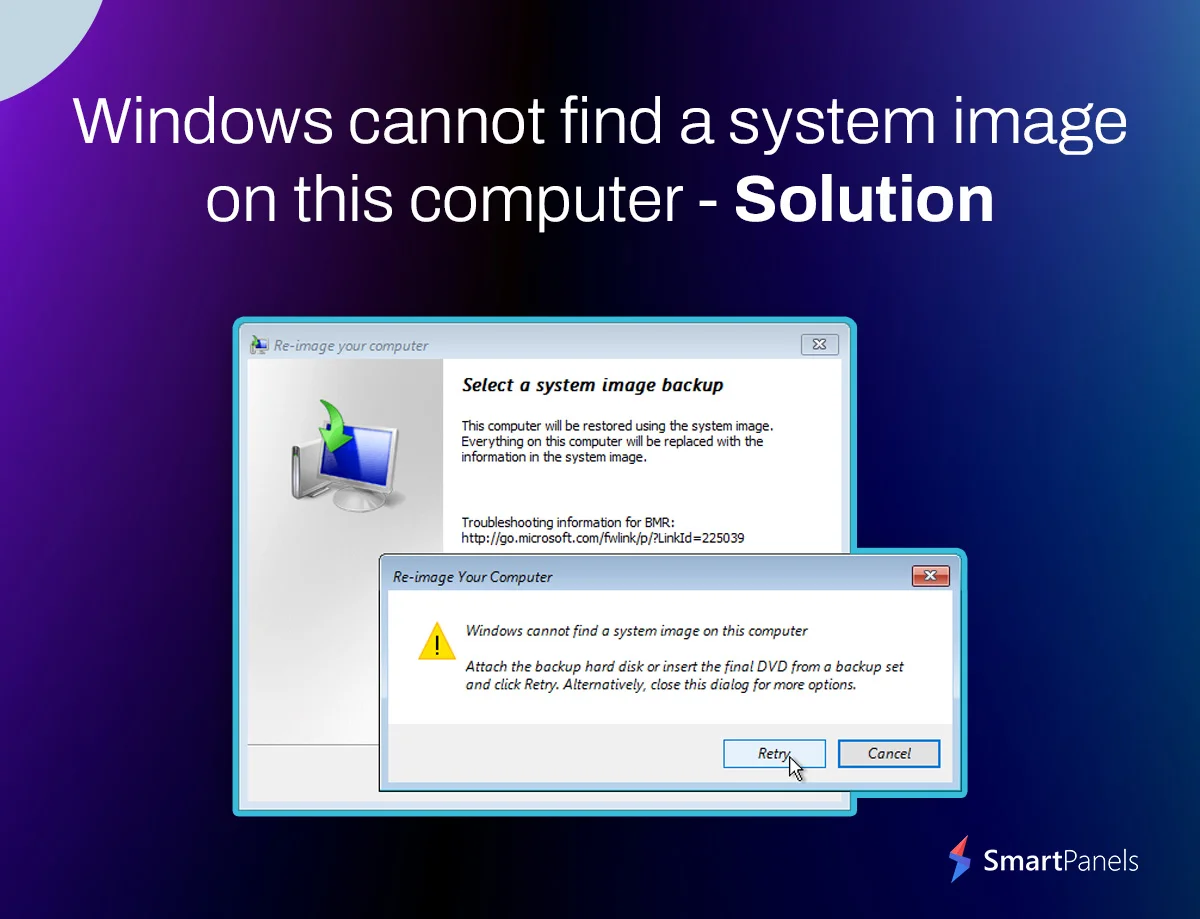
Windows asks you to attach the backup disk or insert the last DVD from a backup set. The DVD wording is old, but it applies to every drive type. Clicking Retry rarely helps. Some users see a shorter version where Windows cannot find image, yet the cause stays the same.
Why Windows Cannot Find a System Image on Your Backup Drive
Several small problems can hide a healthy backup. Review each cause below, because Windows cannot find a system image for different reasons.
Renamed or Edited Backup Folder
Windows searches for the exact name WindowsImageBackup. A single rename makes Windows cannot find a system image appear at once. Extra files or folders inside it also confuse the tool. Likewise, the computer name subfolder must match the name used during backup.
Wrong Folder Location
The WindowsImageBackup folder belongs at the top level of the drive. A deeply nested folder often causes the message Windows cannot find a system image.
Missing mediaID.bin File
Some copies lose the mediaID.bin file during a move. Windows may then skip the backup, and Windows cannot find a system image again. Therefore, copy this file along with the image files.
Several Images on One USB Drive
Storing more than one image on a single USB drive can confuse WinRE. As a result, Windows cannot find a system image among the crowded copies.
Version or Tool Mismatch
The images have to be compatible with the version of Windows you are running. An image for Windows 7, to take an example, is not going to restore on Windows 10. WinRE is limited to native Windows backups, so any images put together by other tools will be left unseen.
Boot Mode and Disk Style Mismatch
With modern PCs being UEFI and GPT disk based, while older ones run on Legacy BIOS and MBR, an image of one type will frequently not work on the other. It is best to verify your firmware mode prior to commencing recovery. This mismatch can also make Windows cannot find a system image.
Missing Drivers in WinRE
WinRE carries only basic drivers. Some USB 3.0 ports, RAID setups, and NVMe drives need extra ones. Without the driver, the drive stays hidden, and Windows cannot find a system image on it.
Quick Checks Before You Fix Windows Cannot Find a System Image
Start with simple checks when Windows cannot find a system image. They solve many cases within minutes.
Hardware Checks
- Use a different USB port, one on the back of a desktop would be best if it is a 2.0.
- Put the drive back in and allow 30 seconds to elapse before hitting Retry.
- If that does not work, put in a new cable or see how the drive performs on a separate PC.
Compatibility Checks
- Make sure the image is in line with the version of Windows you are running.
- The target disk should be at least as big as the original.
- And when you do your boot recovery, ensure it is done in the same mode, UEFI or Legacy, as was used to begin with.
Fix Windows Cannot Find a System Image: Step-by-Step Methods
Work through these fixes in order when Windows cannot find a system image. Each one targets a different cause.
Fix 1: Correct the Folder Structure
This fix solves the most common reason Windows cannot find a system image. First, compare your drive with this layout:
D:\
└─ WindowsImageBackup
└─ YOUR-PC-NAME
├─ Backup 2026-10-01 120000
│ └─ (VHDX image files)
└─ MediaId
Then follow these steps:
- In File Explorer, choose the backup drive.
- The main folder should be renamed to WindowsImageBackup and put at the top level of the drive.
- Do not alter the subfolder bearing the original computer name.
- Any superfluous files or folders within the main one are to be deleted.
- Place a copy of the mediaID.bin file by the image files.
- Then restart the recovery and press Retry.
Fix 2: Point WinRE to the Image Manually
When the retry loop continues, close the error window. Windows then shows more options. Select “Select a system image,” and click Next. After that, click Advanced.
Here you can specify the location of the system image by loading a driver. Pick “Install a driver” if the external drive stays hidden. Then load the driver from the manufacturer’s disc or USB.
Alternatively, search for a system image on the network when the backup sits on a shared folder. Enter the network path, such as \SERVER\Backups, and sign in. Subsequently, Windows lists every image it finds there. Both options help when Windows cannot find a system image on external storage.
Fix 3: Move the Image to an Internal Drive
USB drives sometimes fail inside WinRE. As an alternative, copy the WindowsImageBackup folder to an internal drive or second partition. Then restart the recovery. Furthermore, keep one image per USB drive in the future. This move often ends the case where Windows cannot find a system image.
Fix 4: Use Command Prompt and wbadmin
The command line shows exactly what Windows sees when Windows cannot find a system image. First, open Troubleshoot, then Advanced options, then Command Prompt. WinRE assigns its own drive letters, so your backup drive may not use its usual letter. Type these commands to find it:
diskpart
list volume
exit
Next, check the drive contents with dir E:\ and swap in each letter until you see WindowsImageBackup. Then list the saved backups:
wbadmin get versions -backupTarget:E:
The output shows each version identifier and machine name. Finally, start the recovery:
wbadmin start sysrecovery -version:MM/DD/YYYY-HH:MM -backupTarget:E: -machineName:PCNAME
Use the exact version and name from the list. This method gives you precise control when Windows cannot find a system image in the menu.
How to Fix Windows Cannot Find a System Image on This Computer Windows 11
Windows 11 uses a slightly different menu path. Connect your backup drive first. Then proceed if Windows cannot find a system image on your newer PC.
Start From Settings
- Go to Settings and under System make the selection for Recovery.
- Next to Advanced startup, hit Restart now.
- From there pick Troubleshoot and go to the Advanced options.
- Choose to See more recovery options and then System Image Recovery.
- When you come to “Select a system image,” do so and let the prompts guide you.
Start From a USB Installer
Should the PC not boot, put in a Windows 11 USB installer and go from there. Select Repair your computer and retrace the same steps before turning back to the fixes detailed above.
Backup Plans When Windows Cannot Find a System Image
Sometimes the image itself is damaged, so Windows cannot find a system image however you search. In that case, try another route.
System Restore and Reset
One can also attempt a System Restore using an older point. Or make use of Reset this PC, being sure to pick the option that will preserve the files.
Third-Party Recovery Tools
Tools such as AOMEI Backupper build their own recovery disks. These disks read their own files, so they avoid the folder rules behind Windows cannot find a system image. Once you recover, create a fresh image right away.
How SmartPanels Eases the Recovery Process
Once the problem of Windows not being able to find a system image is put right, there is still one thing to do. A restore will have Windows back in place but it can leave your desktop in disarray. The OS has no recollection of where your apps and browser tabs should be. Putting that layout back together is time consuming.
With SmartPanels you are spared the effort. It is a Windows application with a free version available for download, no card required.
Rebuild Your Workspace in Seconds
With SmartPanels your window positions are put aside as a workspace. One action is all it takes to reinstate the entire layout and have every app back in its spot for a quicker resumption of work.
Handle Browsers and Multiple Monitors
The program will also put browser tabs, display positions, and window sizes back the way they were. Whether you are on a single screen or several, a multi-monitor arrangement is restored to precisely how you had it.
Save Setups with Hotkeys and Profiles
With custom hotkeys one can put any workspace to work in an instant. A profile may be shared with your teammates as well. In this way a new or mended PC is up and running in no time. Do not mistake SmartPanels for a fix of the image error; it merely expedites the cleanup after the fact.
Habits That Stop Windows Cannot Find a System Image Errors
A few habits prevent most cases where Windows cannot find a system image:
- Leave the WindowsImageBackup folder with the name Windows gave it.
- Put a single image on each external drive and make sure to have a second copy on a separate one.
- The image should be updated on a monthly basis and a restore tested annually.
- A recovery drive can be made in the Control Panel.
These habits keep the message Windows cannot find image on this computer far away from your desk.
FAQs About Windows Cannot Find a System Image
Will system image recovery delete my files?
Recovery returns the drive to its saved state. Files created after the backup disappear. Copy newer files elsewhere first.
Can I restore a system image from a USB drive?
Yes. Keep the correct folder structure, try another port, and load drivers if needed. This often resolves Windows cannot find a system image on USB.
Why does Windows ask for a DVD?
The wording comes from older DVD backups. It simply means you should attach your backup drive when Windows cannot find a system image.
Can I rename the WindowsImageBackup folder?
Keep the name exactly as Windows created it. A new name hides the backup from the scan.
Does SmartPanels fix this error?
No. SmartPanels restores your window layouts after recovery, so you get back to work faster.
Final Thoughts on When Windows Cannot Find a System Image
Seeing Windows cannot find a system image feels like a dead end, yet the solution stays simple. Start by looking at the folder name and location as well as the mediaID.bin file. Should that not do it, try a different USB port or an internal drive. The advanced options can be used to get Windows pointed in the right direction. For exact control one can also run the wbadmin commands. Do keep in mind that WinRE will only read native Windows backups. As for future contingencies, have some fresh images on hand and make sure the restore has been tested; good habits of this sort will spare hours of aggravation down the line, so put your next backup on the calendar for this week.
If a particular fix does not work, go on to the next rather than rehashing the same step. Each method is aimed at a different cause, and patience is its own reward. You will know where to turn the next time Windows cannot locate a system image. There is a reason for every error and a way to put it right.