
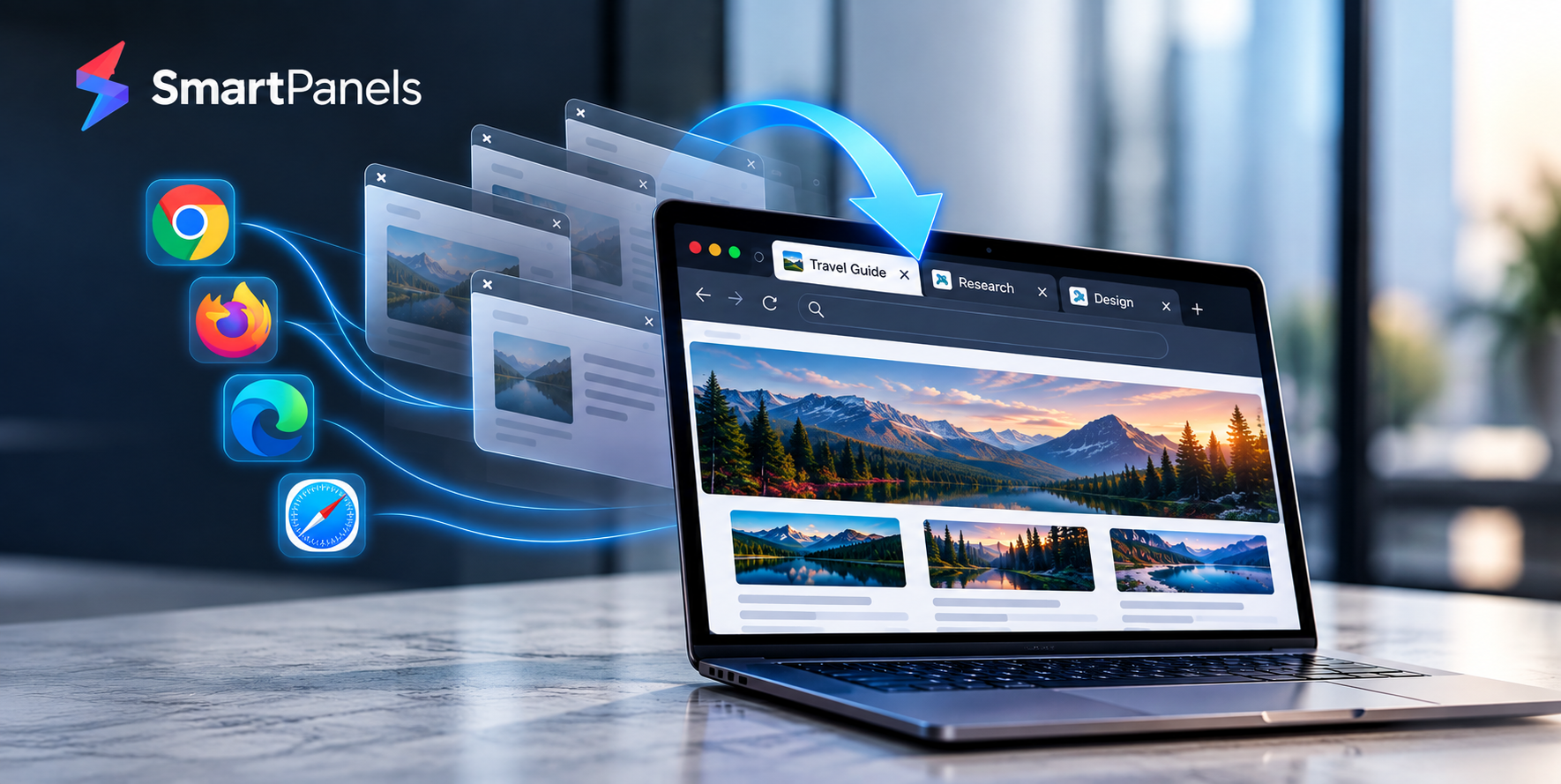
It is an all-too-common occurrence to shut a tab in error. A hasty click, an errant swipe or an unannounced browser crash will do it, and before you know it the work has vanished. Fortunately, your browser is equipped to handle such moments with a session, giving you just enough time to fix things.
Learning how to open closed tabs takes less than a minute once you understand how that history stack works. This guide to take you through the process for Chrome, Firefox, Edge and Safari, whether on a desktop or mobile device.
How to Open Closed Tabs in Google Chrome
Chrome is the most widely used browser, so most people start here. Fortunately, Chrome makes how to open closed tabs a quick and painless task.
You have three reliable options, and each one works in seconds.
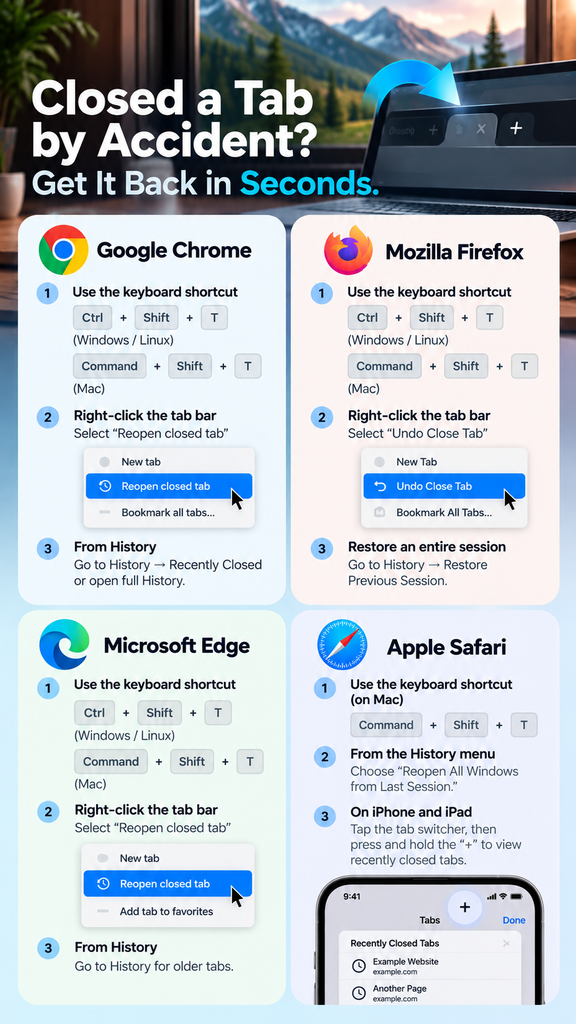
- Use the Keyboard Shortcut
For the quickest way to do it, use a key combination. Windows and Linux users should hit Ctrl + Shift + T; on the Mac it is Command + Shift + T. That will have Chrome take the top item from its closed-tab stack and put it back in front of you, complete with any form data or scroll position intact. If you press the shortcut once more, the next tab comes up from the stack.
- Use the Right-Click Menu
For those who do not care for typing shortcuts, there is an alternative. Simply right-click in any open area of the tab bar to bring up a small menu. From there, select “Reopen closed tab” and it will be back in front of you at once. It is the same result as using the keyboard, only with the mouse.
- Restore Tabs from Chrome History
There are occasions when one requires a tab that is more than ten closures in the past. When an item has been pushed off the in-memory stack of closed tabs, Chrome will not let you restore it with a single click. To get at it, go to the three dots at the upper right of the browser and put the cursor over “History.” What comes up is a list of your recent pages, sourced from the persistent history database as opposed to the session’s temporary records. You can then choose “Recently Closed” for individual tabs or hit “History” once more for the complete record. A search by keyword or a scroll through the timestamps should turn up whatever page is needed.
How to Open Closed Tabs in Google Chrome on Android
It is not uncommon for a mobile user to misplace a tab; in fact, they do it as much or more than those on a desktop. To remedy this on an Android with Chrome, one can tap the three dots at the top right of the screen to bring up the menu and choose “Recent tabs”. A look under “Recently closed” will show all the tabs put to rest during the last session; a simple tap on one of them and Chrome has it open again in no time. This process covers most cases of reopen closed tabs in chrome on a phone or tablet.
How to Reopen Closed Tabs in Chrome on iPhone and iPad
iOS has the feature as well, albeit in a different location. To make use of it, launch Chrome and hit the tab switcher, the icon with a number in a box. A long press on the “+” will bring up your recently closed pages; simply tap the desired entry and the tab is back where you left off. One should note that Incognito tabs are not to be found here.
Since an Incognito window is an isolated session that does not persist, its metadata is purged from memory upon closing without anything being committed to disk.
How to Open Closed Tabs in Mozilla Firefox
Those using Firefox will find the procedure no more complicated. In fact, the keyboard shortcut is a near replica of what one would use in Chrome, so moving from one browser to the other is not an issue.
- Keyboard Shortcut and Right-Click Menu
On Windows or Linux, hit Ctrl + Shift + T; for Mac users it is Command + Shift + T and the last tab you had open will be back. If one prefers the mouse, a right-click on the tab bar brings up a menu with an “Undo Close Tab” option.
- Restore an Entire Session
Should the Firefox window have shut down entirely, one can recover by going to the menu button at the top right and picking “History.” Opt for “Restore Previous Session” and all the tabs from the last browsing window will be back in a single action. This is possible because Firefox keeps session data on disk in a compressed file, “sessionstore.jsonlz4”, within the profile folder; it is what allows for a restore even following an unexpected restart or crash. For those who wish to peruse old pages by the time they were viewed while remaining in the present tab, there is the History Sidebar as well.
How to Open Closed Tabs in Microsoft Edge
There is a certain familiarity to the way Microsoft Edge is put together, given how much of its structure is taken from Chrome. If you need to restore the last tab you had open, a quick Ctrl + Shift + T will do it. Alternatively, right-click on an active tab and choose “Reopen closed tab” in the menu that appears.
To get at something from further back, use the History icon on the toolbar or head over to the Activity Center for a time-based view of your recent pages. Do bear in mind that if you are in InPrivate mode, there is no way to get a tab back after it has been shut; make sure to put anything of value aside before you go private.
How to Open Closed Tabs in Safari
Safari behaves a bit differently than Chrome-based browsers, but the process stays simple once you know the pattern.
On a Mac
To bring back the tab you last closed, hit Command + Shift + T. If you need to go back through your recent tabs in sequence, simply use the shortcut again. Should you wish to recover an entire session, the “History” menu has an option for “Reopen All Windows from Last Session.”
Safari can be made to do this on its own as well. In Safari Preferences under “General,” put “All windows from last session” for the “Safari opens with” setting and it will always restore your previous work.
On iPhone and iPad
To get at your recently closed tabs, press and hold the “+” button; a list will come up for you to select from. The tab view button is also an option, identifiable by its two overlapping squares. iPad users can do this right from the toolbar as the “+” is always on hand.
Note that if you were in Private Browsing, Safari will not have kept those tabs and they are beyond recovery, much like with Chrome.
How to Open Closed Tabs in Opera, Brave, and Vivaldi
Since Opera, Brave and Vivaldi are built on the same Chromium foundation as Chrome, you will find the recovery procedure to be much the same in any of them.
- To put back a tab you have just closed, hit Ctrl + Shift + T (or Command + Shift + T for Mac users).
- A right-click on the tab bar will also do the trick; simply select “Reopen closed tab” from the menu.
- There is a record of your most recent pages in the main menu under “History” or “Recently Closed” should you need it.
For those who make use of several different Chromium browsers over a day, that kind of uniformity is convenient and easy to get used to.
How Browsers Actually Store Closed Tab Data
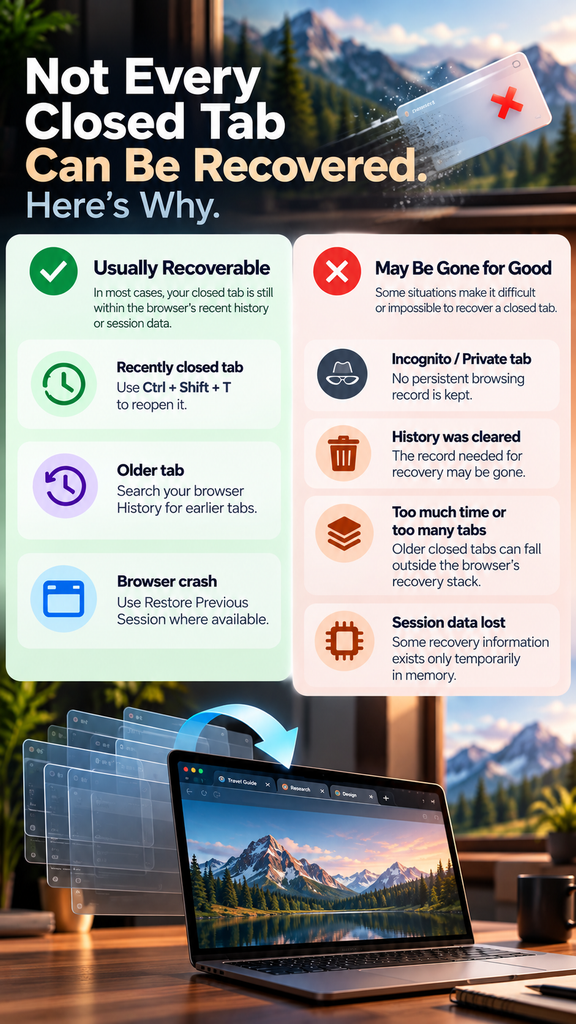
One can better anticipate the limitations of tab recovery once the underlying mechanics are clear. In Chrome, Edge, Opera and other Chromium variants, closing a tab will cause the browser to place a lean record on an in-memory LIFO stack.
The information is there – the URL, session ID and navigation history. But it is confined to the current process and resides in RAM. Should that process end before a session file is put down, the record is gone; the same holds for the stack’s finite size.
Firefox is more dependable in the event of a crash because it has a habit of writing its session state to disk from time to time. Then there are Private or Incognito sessions: those modes do away with the persistence layer altogether, meaning no trace of the tab is ever committed to disk.
Common Mistakes That Make Tab Recovery Harder
It does not take much to make a simple matter of restoring a tab into something of a headache. For instance, if one is in the habit of using Incognito or Private mode, there is no way to recover anything once the tab is shut; it leaves no trail.
Then there is the matter of your browsing history. Clearing that out will have the browser discard the very record it would need to put an old tab back in place.
Chrome and its ilk have a ten-tab memory limit, so let too much time pass after a crash and you may find a tab has been lost. And should the entire window be closed as opposed to an individual tab, you might have to resort to a different kind of shortcut, like Ctrl + Shift + N for Firefox. It is best to be aware of such constraints from the start to avoid any confusion down the line.
Frequently Asked Questions
How many closed tabs can Chrome restore at once?
Chrome typically remembers the last ten tabs you closed. Anything beyond that requires a manual search through your browsing history.
Can I recover a tab closed in Incognito or Private mode?
No. Private and Incognito modes are designed to leave no history, so those tabs cannot be restored once closed.
Does the keyboard shortcut work the same way on every browser?
Mostly, yes. Ctrl + Shift + T on Windows, or Command + Shift + T on a Mac, works across Chrome, Firefox, Edge, Safari, Opera, and Brave.
What happens if my browser crashes instead of closing normally?
Most browsers offer a “Restore Previous Session” option in their History menu, which brings back every tab that was open before the crash.
Is there a faster way to manage tabs across multiple browsers?
Yes. Tools like SmartPanels save your entire browser layout, including tabs across Chrome, Firefox, and Edge, and restore everything with a single click.
Why You Keep Losing Tabs In the First Place
You will find that the bulk of tab loss is traceable to a few routine habits. An errant click in the vicinity of the close button happens all too often with trackpads, for instance. Then there are browser crashes and the like; without session restore enabled, a forced restart will put an end to any open tabs.
It is also simple to shut down the wrong window when one has several browser windows open at once. Having to work on more than one monitor only complicates matters, as it is not so easy to keep tabs on what is running on each screen.
These are hardly uncommon occurrences, and they are the reason every leading browser has a means of recovery built in.
Restoring Tabs Across Multiple Browsers at Once
The methods above work well for one browser at a time. However, many people run Chrome, Firefox, and Edge together, often across several monitors. In that case, checking each browser’s history separately takes longer.
Tools built for reopen closed tabs in web browsers situations, such as SmartPanels, address this by saving your entire window layout, including open tabs across multiple browsers, and restoring it in one step. This kind of workspace-level recovery works alongside the built-in browser methods covered above, rather than replacing them.
Simple Habits That Prevent Tab Loss
There are recovery methods for when things go wrong, but it is better to have some habits in place that make them less of a necessity.
- For instance, with browser sync on, your tabs will be at hand on any device should a session end in an unanticipated way.
- Make a practice of pinning the ones you cannot do without so they are not lost while tidying up.
- You can also let the “Continue where you left off” option in your settings do its work and put your whole session back in order upon restart.
- And if you know you will want to come back to a page, bookmarking it is a simple way to avoid having to depend on tab memory.
Together, these small adjustments cut down on how often you need to search for how to open closed tabs in the first place.
Final Thoughts
There is no denying the frustration of a lost tab, yet it seldom takes more than a couple of clicks to put things right. You will find that all the big names in browsers have a way of handling it; Chrome, Firefox, Edge and Safari are no exception, each offering a menu option or shortcut for the occasion. The remedy is at hand, be it via the keyboard or a right-click.
For those who do a lot of multitasking, an application such as SmartPanels makes matters even simpler. Rather than going through the motions of restoring tabs one browser at a time, your whole workspace can be back in order in seconds. With a little familiarity with these approaches, an errant closed tab ceases to be any kind of concern.
Make sure to bookmark this guide so you have a ready solution on hand should a tab vanish without warning.