
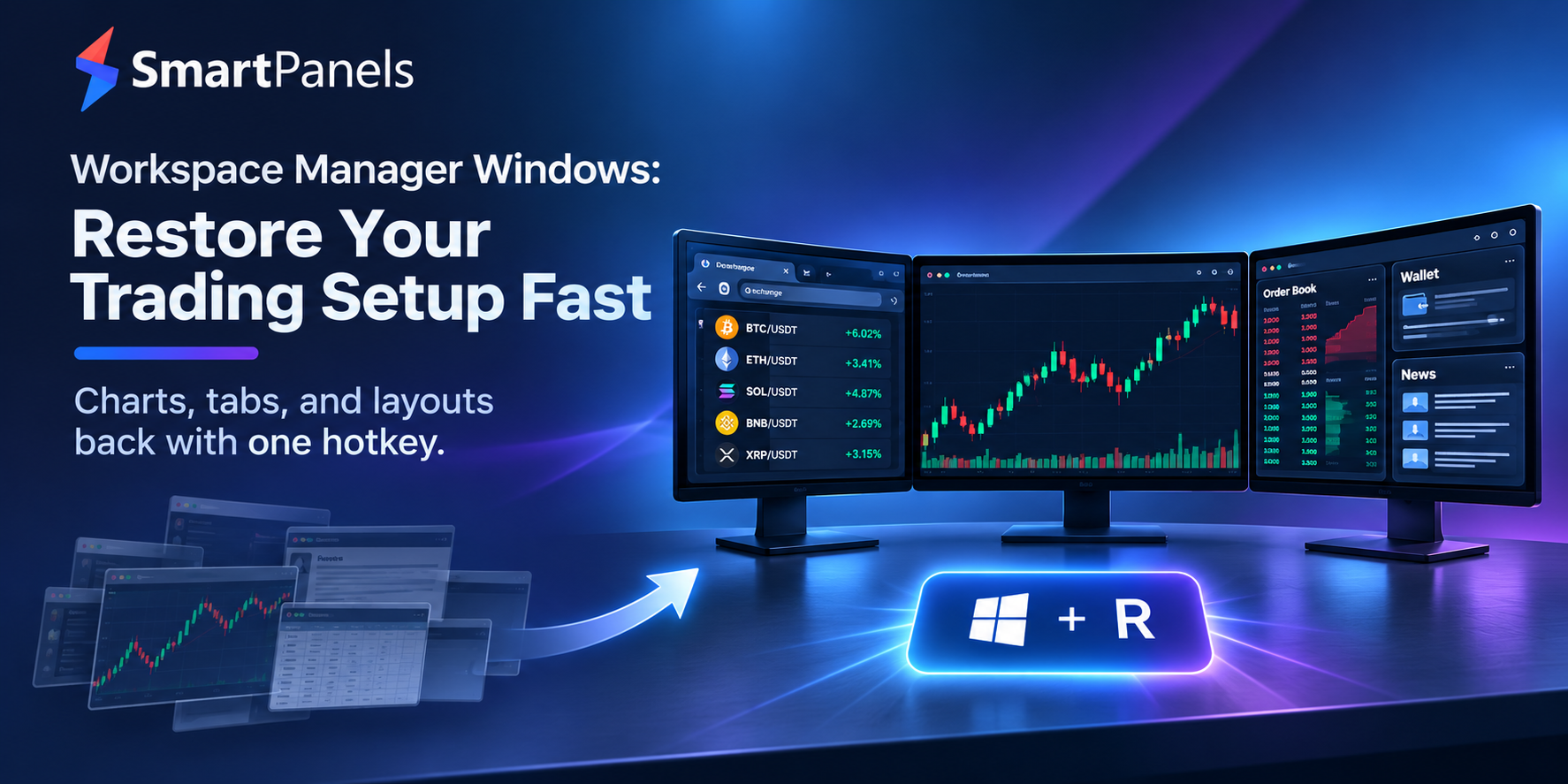
It is 3:07 a.m. Bitcoin jumps six percent in four minutes. You grab your laptop, but Windows just restarted for an update. Your charts, order book, and news feed have all disappeared. Meanwhile, the candle keeps running. Every trader knows this pain. However, you can avoid it.
A smart workspace manager windows tool brings back every chart, tab, and panel in seconds. Therefore, you trade the move instead of rebuilding your screen. In this guide, you will follow a simple story. First, we show what a messy screen really costs. Next, we compare free Windows tools with dedicated apps. Then we build three profiles that match your trading day. Finally, you get quick answers to common questions.
Read on to discover how a saved layout can protect your focus and help you execute trades more efficiently. To understand why this matters, let’s rewind to that 3 a.m. moment.
Chapter 1: What a Broken Screen Costs Without a Workspace Manager Windows Tool
In many trades, speed is the deciding factor. Even a second spent putting your windows in order can cost you some of your focus. Sometimes, it can lead to an expensive mistake. Fortunately, a workspace manager Windows tool can fix that.
Seconds Turn into Slippage
The crypto markets do not stand still. A sluggish restart can have you missing an entry or being too late on an exit as a result. A good workspace manager windows setup removes that delay.
The Rebuild Ritual Nobody Talks About
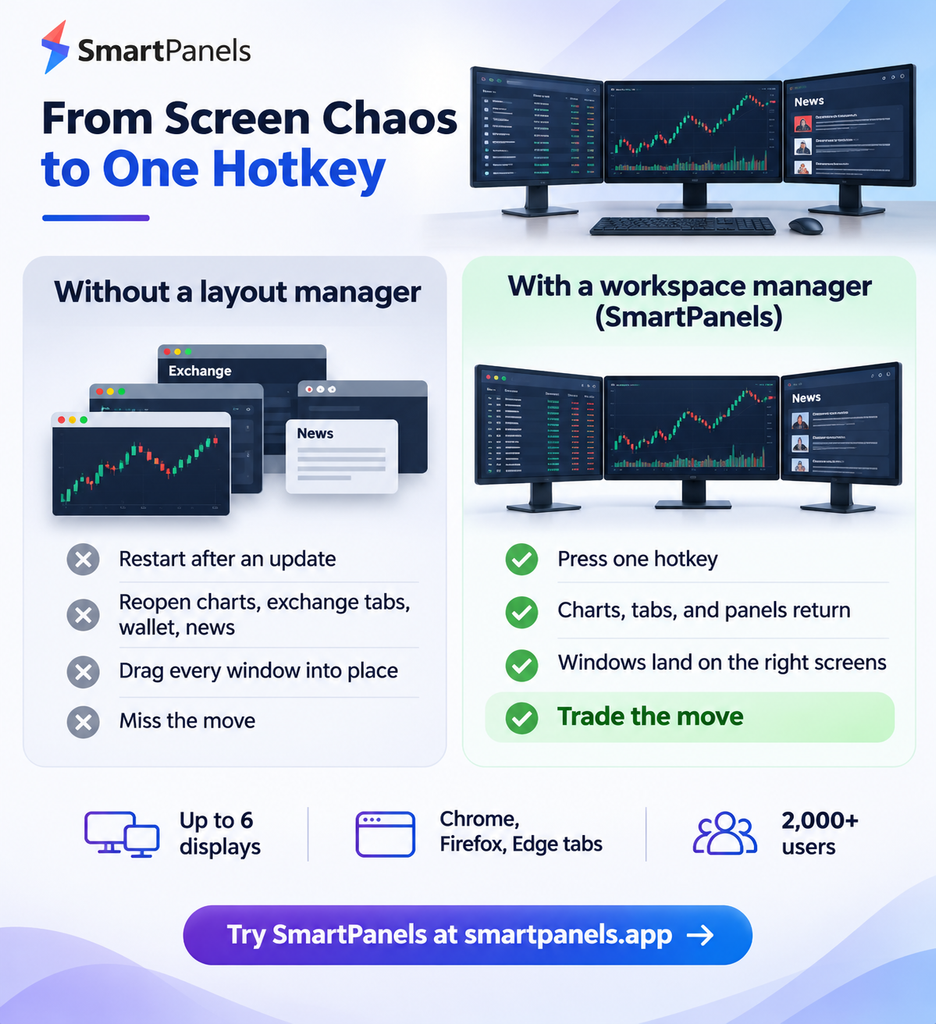
Consider an ordinary morning. After the update has been applied and you have restarted, the charting platform is opened along with your exchange tabs, wallet, news feed and notes. Then each window is put in its proper position. It is a minutes long routine that is done repeatedly.
Small errors can also get in the way; one may put a chart on the wrong screen or overlook the order book. A good windows workspace manager puts every window where it should be. Such a habit is a genuine time saver.
Five Zones Every Trading Screen Needs
Most trading screen guides will have you divide a layout into some well-defined zones. One must make room for charts, order entry, watchlists and news as well as open positions. When confined to a single screen the space is at a premium; with multiple screens each zone can have its headroom.
A profile in the workspace manager windows will hold all five. But the zones are unchanged either way. It is not about having more screens so much as an arrangement that is repeatable and can be put in place when needed.
Chapter 2: How Serious Traders Build Screens That Stay Fast
The guiding principle for professional traders is to assign a single task to every screen. For example, a scalper using two monitors will typically keep charts on one side and depth and execution on the other. Meanwhile, day traders with three monitors can dedicate the additional screen to a market overview. As the setup expands to four monitors, each instrument can have its own dedicated display.
Trading platforms are of some assistance. TradingView Desktop has support for multiple monitors and symbol syncing, while Kraken Desktop provides shareable board layouts. But they only save their own panels; your browser, wallet, spreadsheet, and chat app are left out.
For that reason, a desktop workspace manager is called for, one that can recall the entire screen. Put simply, any multi-screen trader is better off with a saved windows profile from a workspace manager.
Chapter 3: Three Moments When a Saved Workspace Manager Windows Profile Wins the Trade
The Crash Reboot
Your laptop freezes during a spike. After a reboot, one hotkey restores ten windows. A workspace manager windows profile turns panic into routine.
The Desk Switch
When you move between a home desk and a laptop, the monitor count often changes, causing windows to land in unexpected places. As a result, maintaining a consistent workspace can become challenging. Fortunately, a saved Windows workspace manager profile can quickly restore your preferred window arrangement and keep everything organized.
The Team Handoff
A lead trader shares a profile with a new analyst. Consequently, the analyst starts with a proven layout on day one. This workspace manager windows habit builds consistency across a whole team.
Chapter 4: Free Tools Come First When You Search for a Workspace Manager Windows Option
Windows already includes helpful features. Still, each one covers only part of the job.
FancyZones: Great for Snapping
With Snap Layouts, you can quickly arrange and tile multiple windows. Alternatively, Microsoft PowerToys offers greater flexibility through its FancyZones feature, which lets you create custom grid or canvas zones to organize your windows. As a result, you can maintain a consistent layout that better suits your workflow.
For a window layout manager that is as close to what windows provides natively as you will get, FancyZones is it. Being free, it is an excellent place to start. That said, do not mistake it for a complete workspace manager from windows.
PowerToys Workspaces: Great for Simple Launches
With version 0.84, Microsoft introduced Workspaces to PowerToys. To use it, simply arrange your apps and windows the way you want, then save the layout. Afterward, you can launch the saved workspace using a desktop shortcut or directly from the editor. It also supports multiple monitors.
Where Free Tools Fall Short
Traders often need more. For example, you may want browser tabs restored across Chrome, Firefox, and Edge. You may also want hotkeys, many profiles, and easy sharing. In those cases, a dedicated workspace manager windows app saves more time.
Chapter 5: Meet SmartPanels, the Workspace Manager Windows Built for Speed
Being the ones at FiveRivers Technologies who put together SmartPanels, we are no strangers to this problem. The software is a Microsoft Windows application that will record your app layout, browser tabs, and window positions and have it all back in seconds, multiple monitors or not.
It has over 2,000 users putting their trust in it. For the busy trader, it is a sound choice for managing one’s workspace on windows.
What You Get
- Up to six displays: It supports large trading desks.
- Multi-browser tabs: It restores tabs in Chrome, Firefox, and Edge.
- Custom hotkeys: You launch any saved profile with one key combination.
- Profile sharing: You can email a profile to a teammate.
- Snap Layout support: It also works with Windows Snap Layouts.
Together, these features form a complete workspace manager windows toolkit.
Three Profiles That Match Your Trading Day
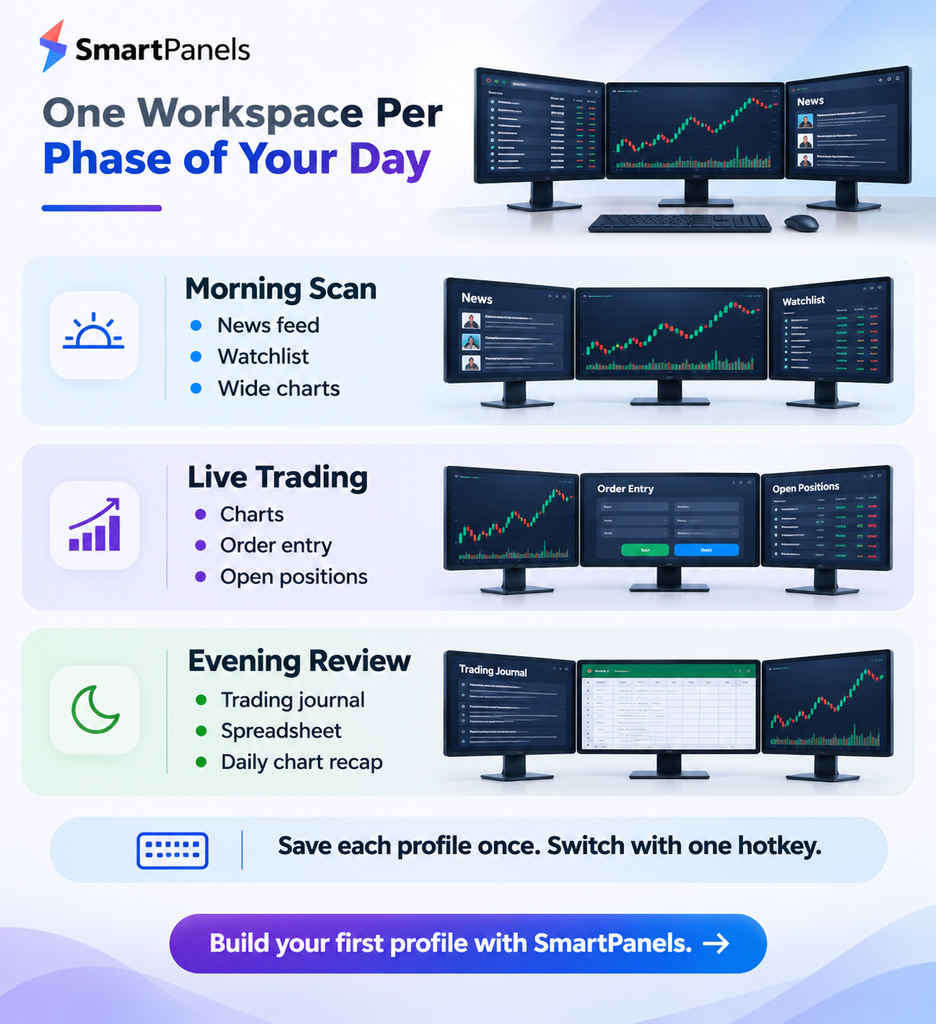
With SmartPanels, you can save multiple window layout profiles, each designed for a different phase of your day. To get started, create a Morning Scan profile featuring news, a watchlist, and wide charts. Next, set up a Live Trading profile that includes charts, order entry, and positions. Finally, build an Evening Review profile with your journal and spreadsheet. This way, you can switch between your daily trading activities without manually rearranging windows each time.
Then switch between them with one hotkey. In effect, SmartPanels acts as software to restore workspace windows after restarts, crashes, or docking changes.
What Users Say
A reviewer will put every project on its own display. Another is fond of the way the apps are in the same spot each time. We put in our support for the product day in and day out and have been witness to such workflows. The feedback tells you why a workspace manager window becomes a habit.
Chapter 6: Your Five-Minute Plan to Build a Workspace Manager Windows Routine
Follow these five steps to set up your first profile. Each step takes about a minute with any workspace manager windows app:
- Plan your zones: Sketch which screen holds charts, orders, news, and positions.
- Open your apps: Launch every trading tool, including the browser tabs you need.
- Arrange the windows: Place each one where you want it.
- Save the profile: Use SmartPanels to save desktop layout windows under a clear name.
- Test it: Assign a hotkey, close everything, and restore the profile.
Once the test works, repeat the process for your other profiles. Soon, your workspace manager Windows routine becomes automatic.
Avoid These Common Mistakes
Even a great workspace manager Windows profile fails when habits slip. Avoid these errors:
- Keep your monitor order the same. Changes can shift windows to the wrong screen.
- Update a profile whenever you add a new tool.
- Review your workspace manager windows profiles every week.
- Avoid clutter. Too many windows hide the data that matters.
- Protect your accounts. Never leave seed phrases in notes on screen.
FAQs About a Workspace Manager Windows Tool for Traders
1. What does a workspace manager do on Windows?
It saves where your windows sit and restores them later. A workspace manager windows app can also reopen browser tabs.
2. How many monitors does SmartPanels support?
A strong workspace manager windows app should handle several screens. SmartPanels supports up to six displays and restores windows across all of them.
3. Can it restore my exchange and chart tabs?
Yes. SmartPanels restores tabs in Chrome, Firefox, and Edge. Your exchange and chart pages return with your workspace manager windows profile.
4. How is it different from PowerToys?
PowerToys is free and handles simple layouts. SmartPanels adds multi-browser restore, hotkeys, and profile sharing.
5. Can I share a layout with my team?
Yes. You can email a SmartPanels profile to a teammate in a few clicks. A shared workspace manager windows profile keeps everyone on the same layout.
The Final Candle: Make Your Workspace Manager Windows Choice Today
In crypto markets, speed is often rewarded, while a disorganized desktop can slow you down. Fortunately, you only need an afternoon to get everything in order. To begin with, define your workspace zones and organize your apps according to your trading needs. Once that’s done, a Windows workspace manager can handle the rest. Additionally, if your requirements are relatively simple, built-in tools such as FancyZones or PowerToys Workspaces can do the job effectively.
Traders with several monitors, browsers, and profiles to contend with would do better with something more purpose-made. SmartPanels has hotkeys, multi-browser restore, and can accommodate as many as six displays. In short, it puts your screens back in their accustomed place in a matter of seconds.
Ready to try it?
Visit SmartPanels, download the installer, and build your first profile today. Meanwhile, keep your layouts tidy and your focus on the charts. Your workspace should never be the reason you miss a move. Start small, test often, and refine your workspace manager windows layout every single week.