
Do you keep ten tabs, three apps, and a spreadsheet open at once? Many professionals do. Yet most still wonder how to multitask without losing focus. The answer is not to work faster. Instead, you should arrange your screen so every tool sits where you expect it.
This guide explains how to multitask in a clear, practical way. First, you will learn why the brain struggles with juggling. Next, you will see simple habits that lower the strain. Finally, you will learn how a layout tool moves you from market research to action on one screen.
A Monday Morning Story About How to Multitask
Consider Sara, a marketing manager who has to have a major report in by noon. At 9:00 she is on her laptop with fourteen tabs in the browser, a spreadsheet obscured by her email and notes tucked under a chat window. Something gets lost every few minutes.
At 10:00 she has been switching windows dozens of times and while she feels like she is being productive, two paragraphs is all she has put down. The truth is Sara never was taught to multitask properly; she just clicked with more speed.
Come Monday she puts a different approach to the test. She has a layout for research, one for writing and another for review. A single hotkey at 9:00 brings up her browser, notes and spreadsheet where they should be. She is done with the report before time runs out.
Sara is an example, not an actual customer. But it is a case in point for how to go about multitasking in an orderly fashion rather than a stressful one.
Why Learning How to Multitask Starts with Your Brain
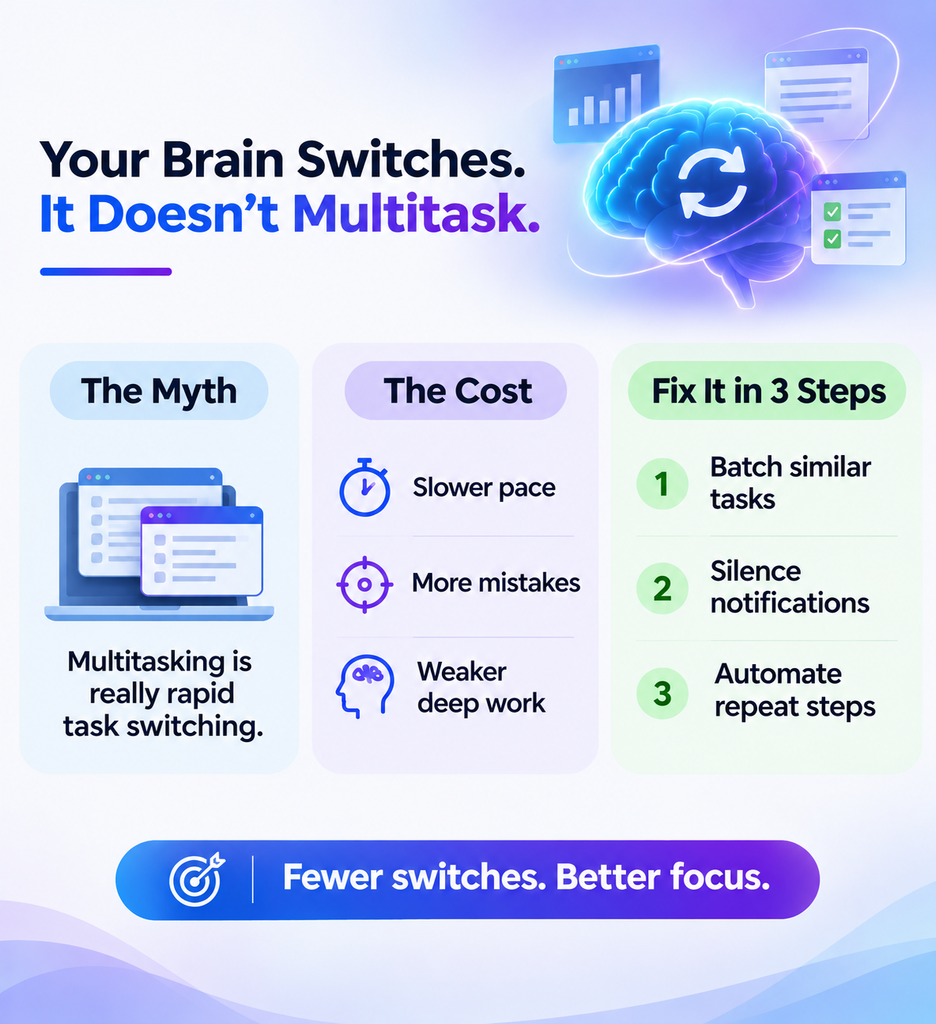
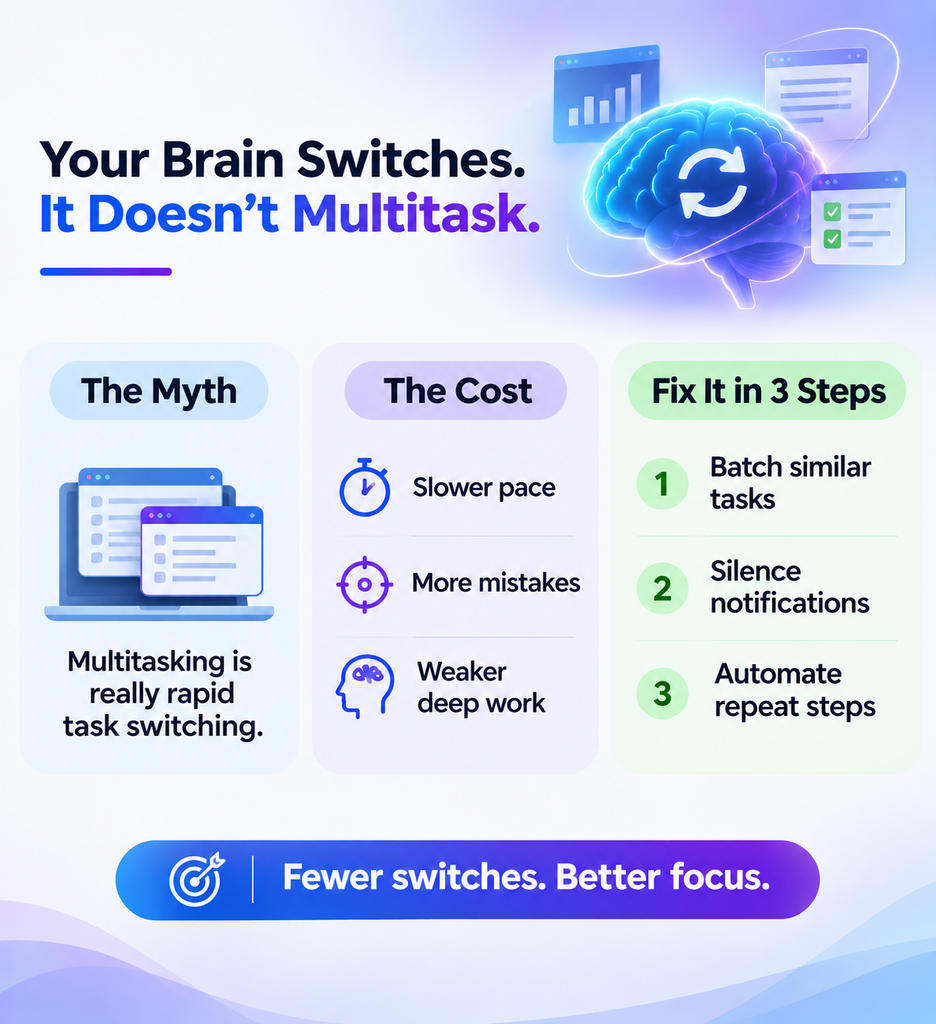
The common view is that multitasking is a matter of doing two things at the same time. The research does not bear this out. In fact, what passes for multitasking is simply a quick change from one task to another and each such switch has a cost in terms of time and mental resources.
According to the American Psychological Association, one’s productivity is diminished when several tasks are being dealt with at once.
Gloria Mark of UC Irvine has made the case that interruptions are what take people out of their deep work and getting back to it is no instant affair. So, if the question is how to go about multitasking, the sensible approach is to make fewer switches rather than put on more speed.
What Task Switching Really Costs
Every switch forces your brain to reload context. As a result, you face three common problems:
- Your pace slows because you must reorient after each switch.
- Your error rate rises when your attention splits.
- Your complex work suffers most, since deep thinking needs steady focus.
These costs explain why a messy desktop hurts. Each hunt for a lost window is another small switch.
When Multitasking Still Works
However, not every task needs full attention. Simple, routine jobs pair well. For example, you can listen to a podcast while you sort email. Save single task focus for writing, analysis, and planning. In short, the skill behind how to multitask is choosing the right moments.
How to Multitask with a Simple Daily System
Good habits matter before any software does. Career experts at Michael Page share several tips that hold up well. We have seen the same ideas work in marketing and support roles.
Group Similar Tasks Together
Put your work in batches according to type. Go through all the reports before you turn to any of the creative side of things. Since like tasks require like thinking, it is less of an expense to make the switch. A written list will do the job of keeping your priorities in view. Plan for the week on a day-by-day basis as well. It is a straightforward way to see how one can multitask and not have a mess of it.
Protect Your Focus Time
Mute your notifications during a focus block. If the office is noisy, don’t hesitate to put on some headphones. Make a habit of reading email at designated times rather than every few minutes and be sure to have a short break or two. A fresh pair of eyes will pick up on mistakes you have overlooked. In the end, such minor measures are a better lesson in multitasking than any app.
Automate Repeat Steps
Repeat steps waste time. Opening the same five apps every morning is a clear example. Basic workflow automation desktop tools can launch them for you. In addition, you can delegate low-value chores. Automation frees your attention for work that matters.
How to Multitask on One Screen: From Market Research to Action
The importance of layout is borne out by market research. On a normal project one will have to make use of a browser, a spreadsheet, some notes and a chat application.
When the windows for this overlap, it is minutes in an hour that are squandered. It is better to put every tool in its own spot. In this way you can multitask on a research project.
Build a Layout for Each Work Stage
Begin with a research layout. Have the browser take up the left side of the screen and put your notes on the right. Then set up an analysis layout, one in which the spreadsheet is big and the browser small. An action layout comes last; that is where you have your email, project board and draft document.
Every layout is for a particular stage so there is no need to be looking for windows. Give it a week and you will find a way to multitask without all the clicking.
Try a Practice Run to See How to Multitask in Action
Choose an actual project and put a 30-minute timer on it. Have at hand the tools required for that work alone. Put every window where it belongs and shut the rest. Do not check your messages until you are done. Then tally up how many times a window has been lost. In this way one can put some hard numbers to multitasking rather than make an estimate.
Set Up Two Screens the Smart Way
A multi-monitor setup gives you even more room. Use the main screen for your active task. Then use the second screen for reference tools like email, chat, and to-do lists. Keep related apps together. Also, align both screens at the same height to reduce neck strain. This approach to how to multitask feels natural because your eyes know where to look.
Control Windows Across Screens
Windows alone can feel clumsy on two screens. Therefore, many people add dual monitor tools. One free, open-source option offers hotkeys that move windows quickly. It can also limit cursor movement between screens. Other choices include DisplayFusion on Windows and Magnet or Rectangle on macOS. Each one speeds up how to multitask across displays.
How to Multitask by Saving and Restoring Your Layout
Putting your desktop back in order every morning is a time waster. Windows 11 has Snap Layouts to let you put up windows in a hurry, but for a complete workspace one might want more. With version 0.84 Microsoft PowerToys has introduced the Workspaces tool which will not only open apps but set them out in a layout of your choosing. There are other options as well, such as TaskLayout and Mosaico, that keep track of window placement.
Why One Saved Setup Is Not Enough
Different jobs need different setups. So, learn to save multiple windows layout profiles for each kind of work. Research needs a wide browser. Writing needs a quiet, single window. Reporting needs a spreadsheet and a chart side by side. With saved profiles, you switch in seconds. That speed is the heart of how to multitask well.
What to Look For in a Layout Tool
A desktop workspace manager remembers where each window belongs. Look for fast restore, multi-monitor support, hotkeys, and browser handling. Any workspace manager windows users pick should also feel simple. If setup takes hours, you will stop using it. Therefore, test a tool on one real project before you commit. A tool that fits your routine makes how to multitask feel easy.
How SmartPanels Fits In
SmartPanels is a Windows app that saves and restores your window layouts. You arrange your apps once. Then you restore the full setup in seconds. It also manages browser windows, supports custom hotkeys, and lets you share profiles with teammates.
For example, you can store a research layout, an analysis layout, and an action layout. One hotkey switches between them. If Chrome feels sluggish during this work, read our guide on why Chrome is slow on Windows 11. That is how to multitask without the clutter.
Common Mistakes When Learning How to Multitask
Even good plans fail when habits get in the way. Avoid these mistakes:
- You open too many windows without a plan.
- You leave notifications on all day.
- You rebuild your layout by hand every day.
Each mistake adds friction. Fix one at a time and track the difference. Small wins show how to multitask more clearly than big resolutions.
FAQs About How to Multitask
Is multitasking possible?
For simple tasks, yes. For complex work, your brain switches instead of splitting attention, so plan focus blocks.
How long does it take to learn how to multitask?
Most people see gains within a week. Start with one layout and one focus block. Then add more as the habit grows.
Does a second monitor help?
Usually it does, when each screen has a clear job. Otherwise, you only add more windows to lose. That is a core part of how to multitask.
Does saving a layout really help?
Yes. It removes setup time and cuts the small switches that drain focus. Overall, it makes how to multitask far easier.
Which tools can save my window layouts?
SmartPanels, PowerToys Workspaces, and TaskLayout all can. Pick the one that feels simplest to you.
Final Thoughts on How to Multitask
Multitasking is a matter of structure rather than speed. Begin with the science: since switching is a time sink, do what you can to curtail it. Put like tasks in a batch, put the distractions to rest and automate the steps that are done repeatedly.
Make sure every tool has its own spot on the screen. And save the layouts so there is no need to put them back together again. With something like SmartPanels one can have the entire setup back in a matter of moments. This week try at a research layout and see how much more at ease the day is. An analysis or action layout can be added after that. These are small things, but they add up. In short order your screen will be of service to you on any given workday as opposed to working against you.
Now you know how to multitask with less stress and more control. Download SmartPanels and see how simple your desktop can become.