
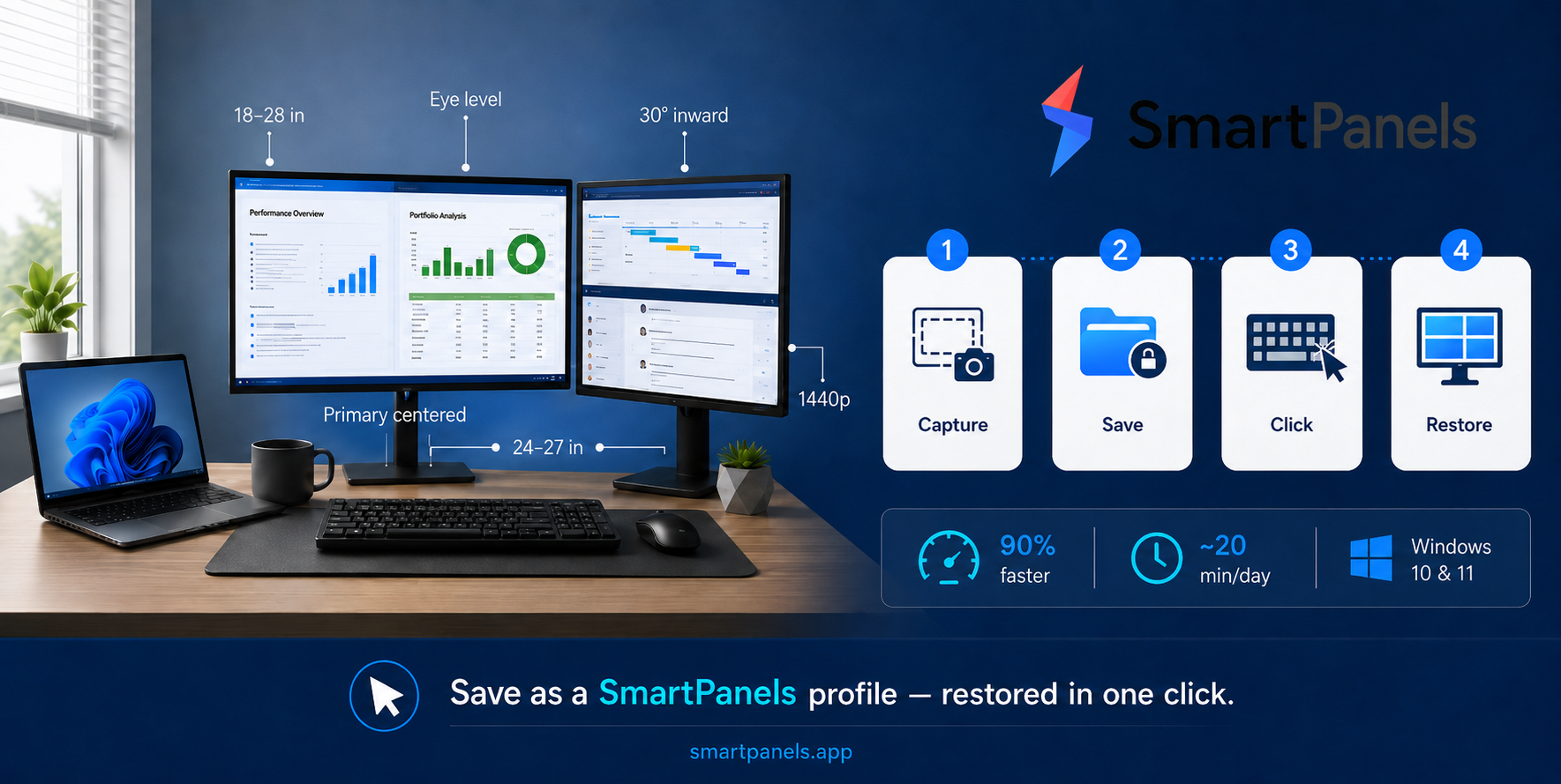
You can be sifting through your browser tabs in a cramped space for hours and not even realize how much of your focus you are losing in the process. It is a silent time-waster for most. Put up a second screen, and you’ll solve the problem before you know it. The Jon Peddie Group has put out studies to back it up: tacking on an extra display will put 42% more productivity in your day since you no longer have to chase down windows; you can just take in your work.
But the hardware is only part of the equation. If you don’t think about where you place and restore your apps each day, you’re just creating more clutter on a larger screen. We get into that with this guide. What follows is a look at putting together a dual monitor setup that is suited to actual work and easy on the body. You’ll also see how SmartPanels can help by saving your layout as a profile so both displays are exactly how you want them when you get to your desk.
Why the Best Dual Monitor Setup Beats a Single Screen
A single display forces a constant rhythm of minimizing, maximizing, and alt-tabbing. The individual motions are minor, but they add up. In fact, Harvard Business Review looked at some big firms and put a figure on it; the time spent toggling apps and getting your head back into each one runs to about four hours a week for the typical employee.
Add a second monitor, and you eliminate that. You don’t have to layer windows anymore; you can just lay them out so you can see everything.
- A writer has his research on one side and the draft on the other.
- A developer will have the code editor on one screen and the debugger or live app on the next.
- For a project manager, the main screen is for the hard work while email and chat are left to the secondary display.
But speed isn’t the only factor. There is a certain ease when your tasks have their place, and you do not waste energy figuring out where to direct your attention.
Choosing the Right Hardware
You can get great results from sensible gear without having to put your hand in your pocket for the priciest panels. In the end, a handful of practical decisions will serve you better than any spec sheet.
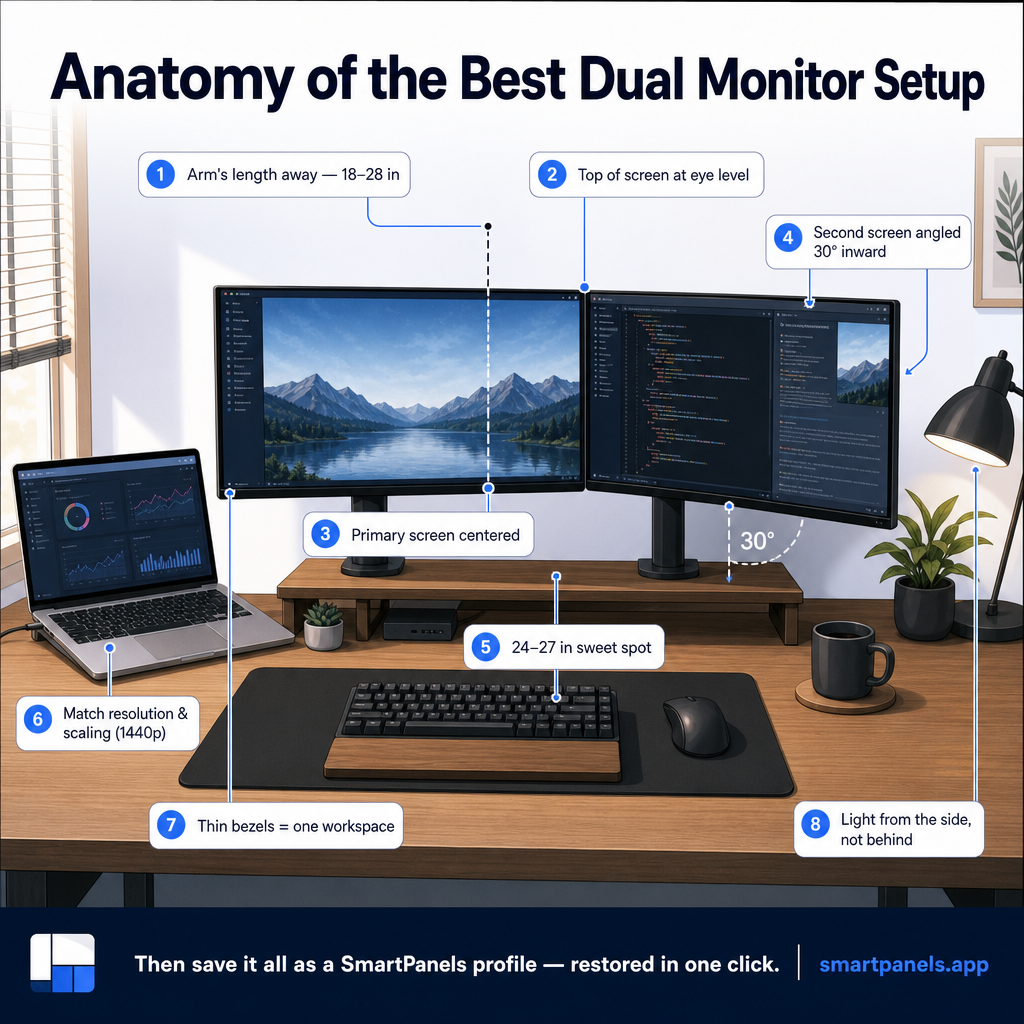
Match your screen sizes: For everyday office work, two displays in the 24-inch to 27-inch range hit the sweet spot. They give you room to spread out without forcing your head to swing too far. Larger 32-inch panels work well too, though at that size a separate keyboard and mouse become more comfortable.
Aim for matching resolution and scaling: Pairing two screens at the same native resolution, ideally 1440p (QHD), keeps text and images consistent as you drag windows across the gap. Mismatched resolutions also force Windows to apply different DPI scaling factors per monitor, which can resize a window the instant it crosses the bezel. Keeping both panels on the same resolution and scaling percentage avoids that jump.
Favor thin bezels and IPS panels: Slim borders shrink the visual seam between your two monitors, so the pair reads more like one continuous workspace. IPS panels hold color and contrast steady across wide viewing angles, which matters when one screen sits at an angle.
Setting Up a Dual Monitor Setup with a Laptop
A multi-monitor setup with laptop hardware is one of the most common configurations in home offices, and it is simpler than the technical terms suggest.
There are three ways a modern laptop will put an image on an external display.
- You can go with a docking station off a USB-C or Thunderbolt port to pick up some extra peripheral connections and video outputs, leaving one cable to work your entire desk.
- Or use a video adapter to translate the output from your laptop to HDMI or DisplayPort for the monitor’s input. Then again, most laptops have a native HDMI or DisplayPort you can plug into directly.
- If your hardware allows, you might even daisy-chain two monitors from a single port using DisplayPort Multi-Stream Transport.
Thereafter, the software takes over.
- Go to Settings > System > Display in Windows and let the computer find the new screens.
- Set it to “Extend” so you don’t just see a mirror of what’s on the other side.
- Reposition the on-screen boxes to match your monitors’ actual placement on the desk; this controls how windows move between panels.
One detail that confuses many laptop users is deciding what the laptop screen itself should do. Treat it as a genuine third zone for chat or notes, or close the lid and rely on your two external displays. Either way, decide on a purpose so the laptop dual-monitor arrangement stays consistent instead of becoming an afterthought and so the layout you save in SmartPanels maps cleanly onto the same displays every time.
Positioning Screens for Comfort and Health
The uncomfortable truth about dual setups that look so put together is that they are often ergonomic traps. It is all too simple to put a second monitor in beside the first, flush with the wall, and not realize you are setting yourself up for neck and shoulder trouble. But some simple changes can help prevent that.
For one thing, mind your distance. Put the screens in at an arm’s length, say 18 or 28 inches from where you are sitting. And for height, the top of the display should be level with your eyes or just below, so your neck stays neutral and relaxed.
Placement depends on how you work, so think about your usage split first:
- If one screen is primary, center it directly in front of you and angle the second screen inward at about 30 degrees. This suits most office workers.
- If you use both screens equally, position them side by side with their inner edges meeting right in front of your nose, then angle each slightly inward to cut down on head rotation.
How SmartPanels Builds a Smart Panels Workspace
You may have the right hardware and posture for a solid setup, but there is still the daily annoyance of having to put your layout back together come morning. Before you can get to any actual work, you are reopening the usual apps, shoving them back onto the monitors where they belong, sizing them up, and sorting through your browser tabs. Do that for a week and you’ll find it costs you more time than you think.
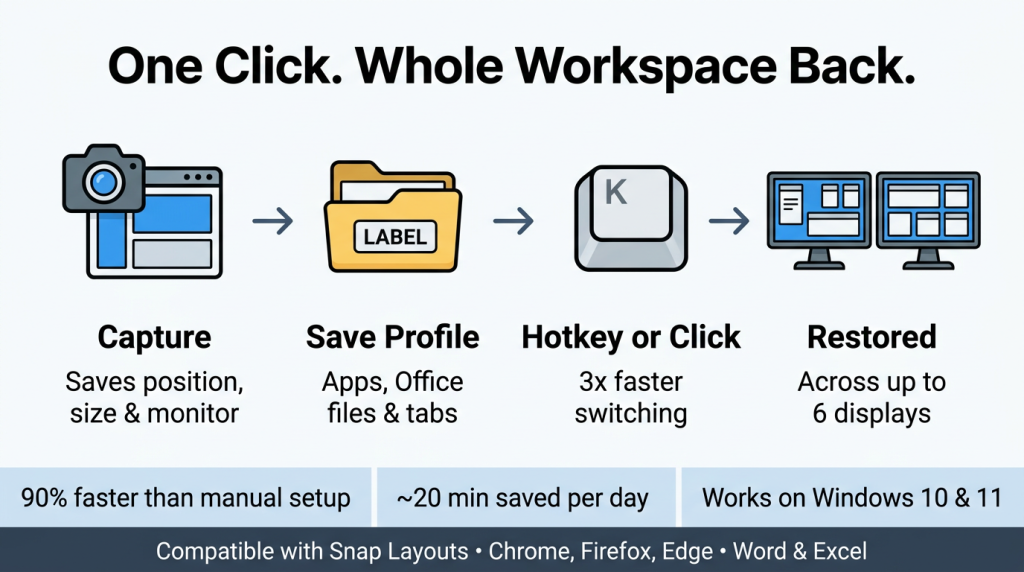
SmartPanels was designed to put an end to that. The utility is unobtrusive on Windows 10 or 11 and sits in your taskbar. It will take a snapshot of your entire desktop and save it as a profile you can pull up with a single click. We don’t just mean it knows what was open; it logs the X and Y coordinates, the dimensions, the stacking order, and even which monitor a window was on, so nothing is left to chance when you want to restore things.
Under the hood, the workflow is straightforward but technical where it counts:
- Profile capture: When you click “Create Profile,” SmartPanels auto-detects the apps currently on screen and snapshots their window geometry across every connected display. You arrange your apps the way you want, then click “Save to Profile” to commit that configuration.
- Display topology awareness: Because it maps each window to a specific monitor, SmartPanels respects your actual display arrangement. Its automatic detection adapts when monitor configurations change, so a profile built for two screens reflows sensibly rather than dumping every window onto the primary panel.
- Snap Layouts integration: SmartPanels works with, not against, native Windows 11 Snap Layouts, so it preserves the snap zones you already use when a profile restores. The company reports full compatibility with Snap Layouts on Windows 11.
- Session-level app handling: Restoration reopens not just desktop apps but documents. It brings back MS Office files such as Word and Excel along with their windows and reloads tabs across Chrome, Firefox, and Edge so your reference pages return exactly where you left them.
- Profile hygiene: In Settings, you can tell SmartPanels whether to minimize or close apps that are not part of the profile being restored, which keeps a freshly recalled workspace clean instead of cluttered with leftovers.
Frequently Asked Questions
1. Do I really need two identical monitors for a good setup?
No, but matching matters more than people expect. Two screens with the same resolution and DPI scaling keep text and color consistent and prevent windows from resizing as they cross the bezel. If your current monitors differ, you can still build a productive setup and save it in SmartPanels; just assign the sharper or larger screen as your primary display.
2. Will a dual monitor setup work with my laptop?
Yes. Most laptops connect to two external screens through a docking station, a USB-C or Thunderbolt video adapter, or built-in HDMI and DisplayPort outputs. After connecting, open Windows display settings, choose “Extend,” arrange the screens to match your physical layout, then capture that arrangement as a SmartPanels profile.
3. How do I avoid neck and eye strain with two monitors?
Keep each screen about an arm’s length away with the top edge at or slightly below eye level. Center your primary screen, angle the second inward around 30 degrees, and position your desk so bright light falls to the side rather than directly on the screens.
4. What does SmartPanels do that Windows cannot do alone?
Windows lets you snap and extend displays, but it does not save your full session. SmartPanels records each window’s monitor, position, and size, plus your open MS Office files and browser tabs, then restores the entire profile across up to six monitors in one click or with a custom hotkey, so you never rebuild your workspace by hand.
5. Can I use different layouts for different types of work?
Absolutely. SmartPanels lets you save multiple profiles (up to three on the trial, unlimited on the paid plan), so you can keep one for writing, one for development, and one for meetings. A bound hotkey switches between them instantly, reflowing every window to the correct screen.
Final Thoughts
You don’t need the most ostentatious screens to put together a top-notch dual monitor arrangement. The key is to remove the small daily frictions. With the proper monitors, you have space to think, and if you position them well, you will be comfortable even after a long session. A workflow that is unambiguous from one screen to the next means your focus stays on task.
But then there is the matter of repeatability, which goes by the wayside for most. A layout is pointless if you have to rebuild it from scratch each morning; it should be ready when you arrive.
SmartPanels is where you find an unobtrusive edge. It can take a perfectly fine setup and make it dependable with the push of a button or hotkey. The software remembers the size and placement of every window as well as your browser tabs and Office files and puts the whole profile back in order across your two displays. So, you can have your hardware and ergonomics in place but let SmartPanels handle the heavy lifting of organization so you can focus on the work at hand.