
A screen zoomed in Windows 11 can turn a simple task into a struggle. When icons are oversized, text is running off the page, and scroll bars have a way of disappearing, it can be disconcerting. In most cases there is no need to suspect faulty hardware; often the issue is with a driver, an accessibility option, or your display scaling in Windows 11. One might see it crop up in the wake of a Windows update, or perhaps a pet has been at the keyboard, or you have hit an errant shortcut.
If you keep asking, “Why is my screen zoomed in Windows 11?” start by knowing where to look. We have listed the various issues and how to address them below.
Why Is Your Screen Zoomed in Windows 11?
There are several minor issues with a screen that has zoomed in on Windows 11, and the good news is that most can be resolved in a matter of minutes. You might find that the system’s own Magnifier is working without you realizing it. Or your display scaling could be set to something over 100%, making things appear larger than they should. Then there is the possibility of an improper screen resolution cropping or stretching the view.
Do not discount the drivers either; if the graphics driver is old or has become corrupt, it will tend to distort what Windows puts on the screen. In a multi-monitor environment, one unit may also decide to zoom on its own while the rest are unaffected.
It is best to eliminate any guesswork by identifying the root of the problem. Identify which of the following sections aligns with what you are seeing and implement that remedy first.
How to Tell Which Issue You Have
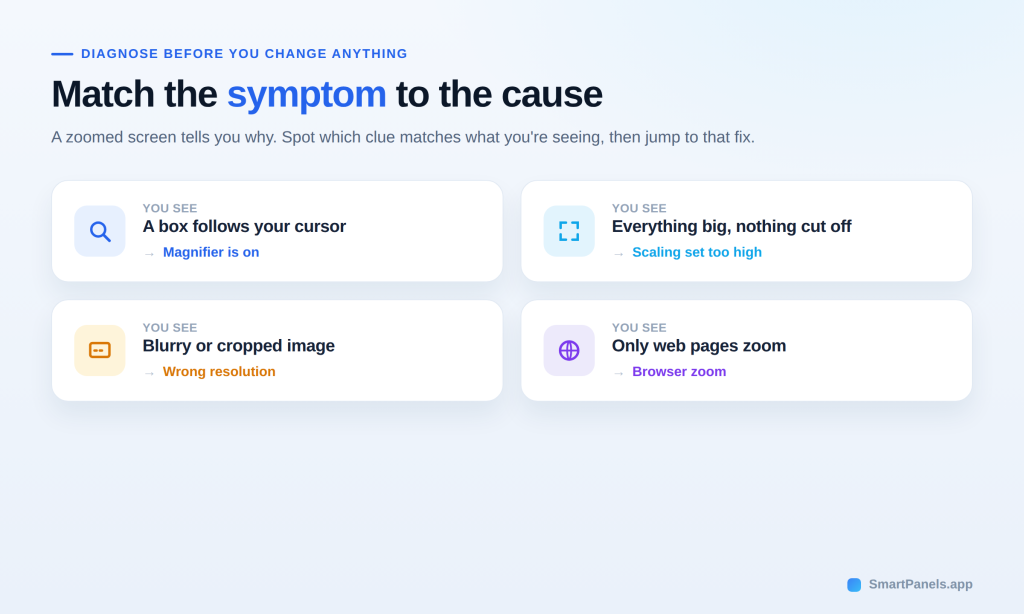
Take the time to examine your symptoms in detail before making any alterations. In Windows 11, a zoomed screen will give you some indication of why. You can tell the Magnifier is at work if a box tracks with your cursor. Should the text and icons appear oversized, yet nothing is cut off, then the scaling is set too high.
A resolution problem will leave the image looking either blurry or cropped. And when it is just the web pages that are zooming in, look to the browser for the answer. It is worth a moment to make the right diagnosis and put an end to the issue without wasting time.
How to fix zoomed in screen windows 11?
Quick Fix First: Turn Off the Windows 11 Magnifier
It is easy to dismiss the Magnifier, but it is the cause of most abrupt zooming. The tool is designed for accessibility to make a portion or the entirety of the screen larger, and all too often it is turned on without meaning to. For example, trying to use Windows + = while in a chat program will turn it on, as will a child or pet touching the keyboard.
The quickest remedy is as follows.
Steps to turn off magnifier windows 11
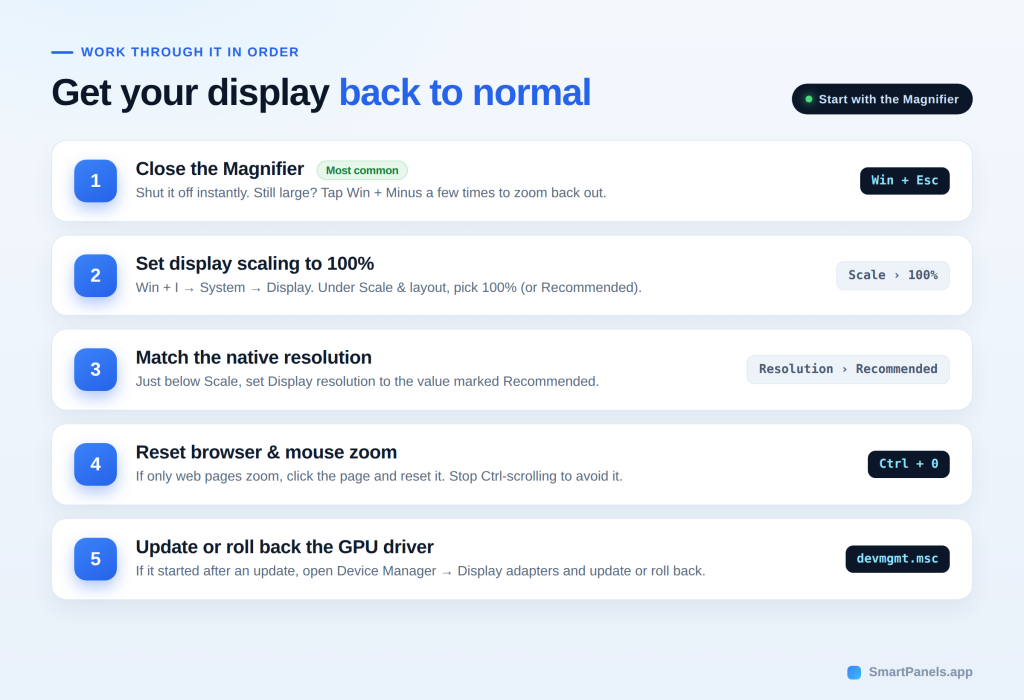
- Press Windows key + Esc together to close the Magnifier instantly.
- If the view still looks large, press Windows key + Minus a few times to reduce the zoom.
- When the shortcut fails, open Task Manager with Ctrl + Shift + Esc.
- Select the Microsoft Screen Magnifier process, then click End task.
- Finally, restart the app or your PC to confirm the fix.
If this solves your screen zoomed in Windows 11 issue, you can stop here. Otherwise, continue to the display settings below.
Fix Display Scaling for a Screen Zoomed in Windows 11
Are you also looking to know about how to reset display settings windows 11? Display scaling is to blame when the screen is full of content, yet everything appears larger than it should. Windows has a feature for making text and icons more legible but set too high and the display will have a zoomed in feel. If adjusting the scale does not resolve the issue, follow our guide on how to reset display settings in Windows 11 for more troubleshooting steps.
To put things right, reset display settings by doing the following:
- Open your display settings with a quick press of the Windows key + I.
- From there, go to System on the left side and select Display.
- You will find a Scale dropdown under the Scale and layout heading; open it and pick 100% or whatever is flagged as Recommended.
- Should Windows require it, sign out and return. Once you have done so, look at the screen. If it has returned to normal, then the matter is resolved.
Set the Correct Screen Resolution
Occasionally the picture looks cropped, stretched, or blurry. In that case, the wrong screen resolution is usually to blame. The right value matches your monitor’s native resolution.
Here is how to correct it.
- Open Display settings again using Windows key + I.
- Scroll to Display resolution, which is just below the Scale option.
- Pick the value labeled Recommended for your monitor.
- Please confirm the change when Windows prompts you.
A matching resolution keeps text sharp and edges clean. So, choose the native value whenever possible.
Reset Browser and Mouse Zoom
In Windows 11, you may notice that the screen zoom is limited to web pages and does not extend to the rest of the desktop. It is a sign of browser zoom at work, not something in the system settings. There is an easy way to put it right with a simple shortcut.
All one must do is click within the browser window and hit Ctrl + 0 to bring the page back to 100%.
Then there is the matter of mouse zooming on the desktop. Scrolling while holding down Ctrl will alter icon size or page zoom, so the best course of action is to let go of the key and scroll as usual. A minor habit like that will spare you from any unintended zooming.
Update or Roll Back Your Graphics Driver
A faulty graphics driver often distorts scaling after an update. You have two clear options here. You can update the driver, or you can roll it back to an earlier version.
Update the Driver
- Press Windows key + R, type devmgmt.msc, then press Enter.
- Expand Display adapters by clicking the small arrow.
- Right-click your adapter, then choose Update driver.
- Select Search automatically for drivers.
- Restart your PC once Windows finishes the update.
Roll Back the Driver
- Open Device Manager again, as shown above.
- Right-click your display adapter, then open Properties.
- Go to the Driver tab and click Roll Back Driver.
- Follow the prompts, then reboot to test the result.
Fix One Zoomed Monitor in a Multi-Monitor Setup
A tricky case appears with two or more screens. Here, a screen zoomed in Windows 11 hits one monitor while the others look fine. This issue usually reflects a per-display scaling mismatch. If you need more help configuring your screens, see our guide on how to manage multiple displays in Windows and troubleshoot common multi-monitor issues.
Try these quick moves first.
- Drag any window from a good monitor onto the affected one.
- Watch whether the zoom corrects itself during the drag.
- Unplug the zoomed monitor, wait a few seconds, then reconnect it.
- Set that monitor’s scaling to Recommended in Display settings.
These steps often reset the display without bigger changes. Still, save your layout before you unplug anything.
If Windows is also displaying apps on the wrong screen, learn how to change your primary monitor in Windows 11 to configure your preferred main display.
How SmartPanels Keeps Your Workspace Intact
Fixing a screen zoomed in Windows 11 is only half the battle. A change in resolution or scale has a way of scattering the windows you have open. Before long, your applications are in the wrong place on every monitor, and putting things back by hand is a drain on time.
SmartPanels puts an end to that. With one click it will put everything back where it was, having saved your browser tabs, app layout, and precise window positions. For those with multi-monitor rigs, the utility is even greater since it can handle as many as six displays. If you want to get started with workspace recovery, follow our guide on how to use SmartPanels to learn how to restore your preferred arrangement.
There is no need to fiddle with zoom or resolution; SmartPanels is not about that. It restores the lost arrangement, so you do not have to set it up again. If you want to be done with it after a display fix, just set up a custom hotkey, and the entire workspace is rebuilt in a keystroke. To make it easier to manage misplaced applications after display changes, see how to remember window size and position in Windows 11.
Conclusion
Many users first ask, “Why is my screen zoomed in Windows 11?” then panic at the sight of it. Still, the fix is usually simple. The magnifier is the usual culprit for any abrupt zooming, so make that your first point of call. Then check your display scaling to make sure it is set to 100%. You should also ensure the screen resolution is in line with what is native to your monitor.
Should an update bring the issue back, have a look at the graphics driver; either an update or a rollback will put an end to most recalcitrant cases. Those running multiple monitors can often fix a wayward screen with a simple reconnect or by dragging it around.
When things are looking as they should, take a moment to save your layout. You can also learn how to save your workspace layout in Windows 11 so your applications are easier to restore after future display changes. This is a good way to safeguard your configuration, so you do not have to start from scratch later and can be back up and running in seconds instead of minutes. Go through these in sequence, and the Windows 11 screen zoom will be no more. One of them should work.
Want to restore your Windows profile settings?
Frequently Asked Questions
How do I get my screen back to normal size on Windows 11?
First, press the Windows key + Esc to close the magnifier. Next, open your display settings with Windows key + I. Then set the scale to 100% and pick the recommended resolution. Your screen should return to normal immediately.
How do I zoom out on Windows 11 fast?
For a quick answer to how to zoom out on Windows 11, use keyboard shortcuts. Press the Windows key + Esc to stop the magnifier. Inside a browser, press Ctrl + 0 to reset the page to 100%.
Why did my screen zoom in after a Windows update?
Updates sometimes replace or reset your graphics driver. This is a common reason for a screen being zoomed in on Windows 11. As a result, your scaling or resolution can shift. Roll back or update the driver, then reset the scale to fix it.
Why is only one of my monitors zoomed in?
The issue usually reflects a scaling mismatch on that one display. Drag a window onto it or unplug and reconnect the monitor. Then set its scaling to Recommended.
Will fixing the zoom move my open windows around?
Often, yes. Scaling and resolution changes can shuffle your windows. Save your layout with a tool like SmartPanels, so you restore everything in one click.