
Has your screen put on a show of being stretched, blurry or the wrong color? It is an all-too-common issue for some after running a driver update, playing a game or fiddling with the settings. But there is no need to worry; it can be put right in a matter of minutes.
We have put together this guide to walk you through a straightforward method to reset display settings windows 11. You will start by understanding what causes these changes before moving on to correct the scale, resolution, refresh rate and so on. For any recalcitrant problems we also cover some additional tools. The instructions here are drawn from the official Windows 11 Settings menus and written in plain terms, so even if one has never done it before there should be no trouble following along.
To get a clear and comfortable view once again, keep reading.
Why Screens Change Before You Reset Display Settings Windows 11
There are many circumstances in which Windows 11 will make an adjustment to your display.
- Put a new monitor on the system, and it may call for a different resolution.
- An update to the graphics driver is enough to alter the color profile or refresh rate.
- Then you have video apps and games that will change the mode and not always put it back.
- Even the accessibility features, like contrast themes or color filters, will impose their changes on every window.
The problem is that Windows 11 does not offer a single master switch for these things; the options are scattered about in various menus.
And since the system has no recollection of what was there before, the way to put things right is to simply go with whatever is denoted as Recommended. Therefore, learning how to reset display settings in each menu saves you time and guesswork.
Additionally, small fixes often solve the whole problem. Start with the quick checks below and then move to the detailed steps. In short, these habits help you reset display settings windows 11 with less stress.
Quick Checks Before You Reset Display Settings Windows 11
A good way to put an end to certain display issues is with a straightforward approach. Start by:
- Restarting the Graphics Driver
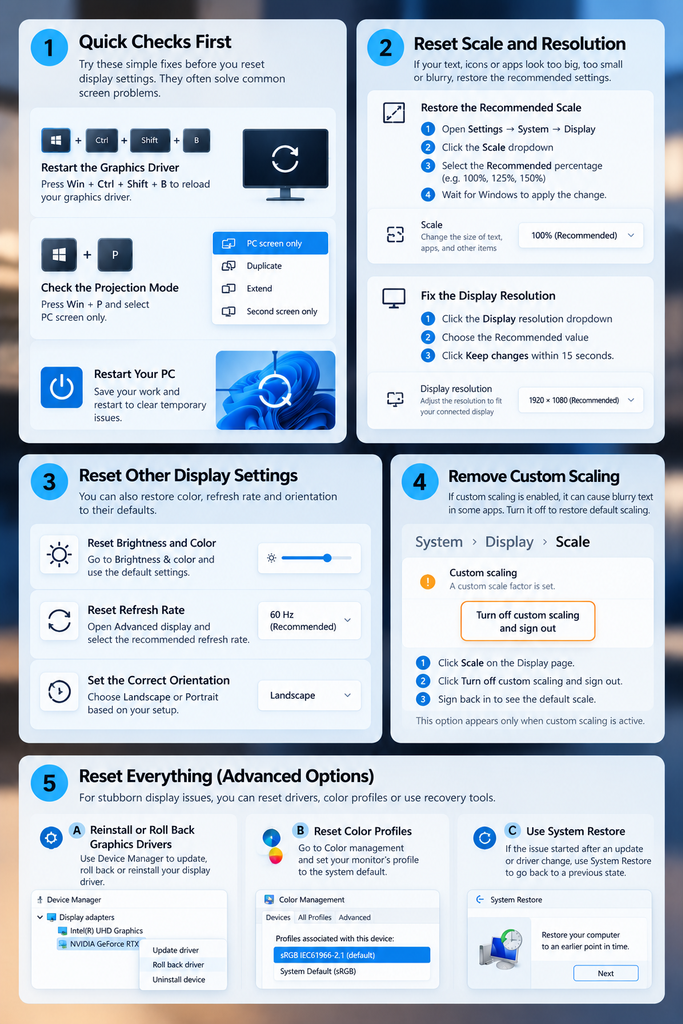
For instance, hit Windows logo key + Ctrl + Shift + B. The screen will give a brief flicker as Windows goes about reloading its graphics driver. This shortcut often clears black screens and frozen images before you reset display settings windows 11 in Settings.
- Checking the Projection Mode
Hit the Windows logo key in combination with P. Should you find your display is blank or being duplicated, opt for PC screen only to have Windows put you back on a single-screen layout. It is a good move to make before you go about resetting your display settings in Windows 11 for external monitors.
- Restarting Your PC
If there are any temporary hiccups, a restart will put right. Make sure to save what you are working on and then use the Start menu to reboot; more than a few have found this an easy way to get their Windows 11 display settings reset.
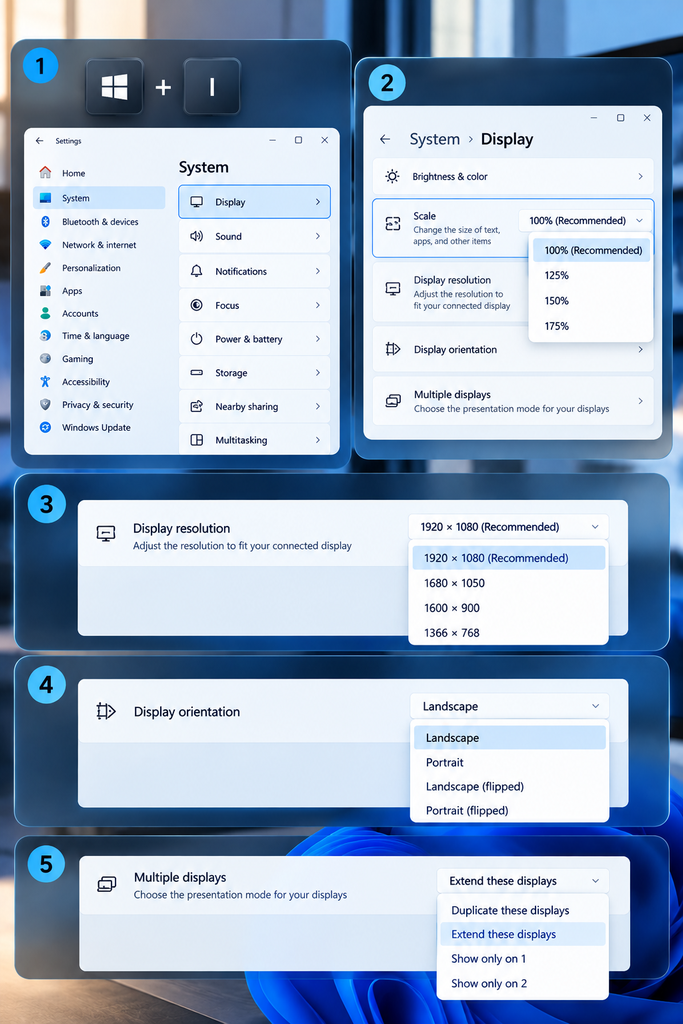
We will now look at some of the more involved ways to do that. They all begin from the same point: press Windows + I, go to System and from there click on Display.
Steps to Reset Display Settings Windows 11 for Size and Sharpness
Should you find that your icons, text or apps are fuzzy or the wrong size, begin with the following.
- Restore the Recommended Scale
Scale is what determines the dimensions of on-screen items. Windows handles this via DPI scaling, a process that makes things appear larger without altering the pixel count. At 100 per cent, you are seeing them in their true pixel form. With an understanding of how that works, reset your display settings in Windows 11 is straightforward. For scale adjustments, proceed as outlined:
- Click the dropdown menu next to Scale.
- Choose the percentage marked Recommended.
- Wait a moment while Windows applies the change.
- Turn Off Custom Scaling
Custom scaling sometimes causes blurry text in certain apps. Fortunately, you can remove it quickly:
- Return to the Display page and click Scale.
- Find the Turn off custom scaling and sign out button.
- Click it, and Windows signs you out.
- Sign back in to see the default scale.
The button appears only when custom scaling is active.
- Fix the Display Resolution
The wrong resolution makes the screen look stretched or fuzzy. To reset display settings windows 11 for resolution, try this:
- Open the Display resolution dropdown.
- Pick the value labeled Recommended.
- Click Keep changes within 15 seconds.
In the absence of a different choice, Windows will put the old setting back in place on its own.
- Set the Refresh Rate
The refresh rate is what dictates the smoothness of your screen’s updates, and it is quantified in hertz (Hz). With a 60 Hz display, for instance, the image is redrawn 60 times per second. You will find gaming monitors that can put in 144 Hz or higher. An understanding of these figures is useful when you are looking to reset your display settings on Windows 11 to get better motion.
Follow these steps to reset display settings windows 11 for refresh rate:
- Scroll down on the Display page and click Advanced display.
- Find the Choose a refresh rate option.
- Select the rate your monitor maker recommends. Many monitors run best at their highest listed rate.
- Click Keep changes.
- Straighten the Display Orientation
A sideways or upside-down screen comes from the wrong orientation. Use this method to reset display settings windows 11 for orientation:
- In Scale & layout, find Display orientation.
- Choose Landscape.
- Click Keep changes within 15 seconds.
Some PCs also support the Ctrl + Alt + Up Arrow hotkey. However, newer graphics drivers may disable it.
Reset Display Settings Windows 11 for Color and Brightness
Color problems look different, yet they follow a similar path. Therefore, work through these settings one at a time.
- Switch Back to Light Mode
Dark mode looks great, but the default Windows 11 mode is Light. To reset display settings windows 11 for color mode, do this:
- Open Settings and select Personalization.
- Click Colors.
- Choose Light next to Choose your mode.
- Turn on Transparency effects for the default look.
- Turn Off Night Light
Night light warms your screen colors. Consequently, it can make everything look yellow or orange. To reset display settings windows 11 for night light, follow these steps:
- Go to System and then Display.
- Click Night light.
- Switch it off.
- Recalibrate HDR Video
With HDR one can get a wider range of color and brightness than is possible with standard video. To access it, go to System and then Display and open up HDR. From there, put the on-screen tool to work by expanding the Display calibration for HDR video and following its prompts to bring the values back into balance. This is an option Windows will present only if the display is HDR-capable.
- Return to the Default Color Profile
Windows stores color profiles as ICC files. These files tell the system how your monitor shows red, green, and blue. Custom profiles can tint your whole screen.
Here is how to restore default display settings windows 11 for color profiles:
- Press Windows + R, type control, and press Enter.
- Set View by to Large icons.
- Open Color Management.
- Select your monitor on the Devices tab.
- Uncheck Use my settings for this device.
- Open the Advanced tab and click Change system defaults.
- Under Display Calibration, check Use Windows display calibration.
- Click Close.
- Turn Off Color Filters
Color filters change how every color appears. To reset display settings windows 11 for filters, go to Settings, Accessibility, and Color filters. Then switch the toggle off. Your colors return to normal right away.
Reset Display Settings Windows 11 for Themes, Text, and Icons
Themes and accessibility tools change the look of your whole desktop. Luckily, each one has a quick reset.
- Apply the Default Theme
A theme bundles wallpaper, colors, and sounds. To reset display settings windows 11 for themes, follow these steps:
- Open Settings and select Personalization.
- Click Themes.
- Choose Windows (light) under Current theme.
- Disable Contrast Themes
High-contrast themes, such as Aquatic, change every window. Use this method to reset display settings windows 11 for contrast:
- Open Settings and select Accessibility.
- Click Contrast themes.
- Choose None from the dropdown menu.
- Click Apply.
- Return Text Size to 100%
Large text helps many readers, but small screens fill up fast. To reset display settings windows 11 for text size, do this:
- Go to Settings, Accessibility, and Text size.
- Drag the slider to the far left.
- Click Apply.
- Restore Default Desktop Icons
Custom icons look fun, yet the originals are easy to bring back. Follow these steps to reset display settings windows 11 for icons:
- Go to Settings, Personalization, and Themes.
- Click Desktop icon settings.
- Select the icon you want to change.
- Click Restore Default, and then click OK.
- Reset the Mouse Pointer
Pointers can grow large or change color. To reset display settings windows 11 for the pointer, try this:
- Go to Settings, Accessibility, and Mouse pointer and touch.
- Open Mouse pointer style.
- Choose the White pointer.
- Adjust the size slider to a comfortable level.
Fix Stubborn Problems After You Reset Display Settings Windows 11
Sometimes the steps above leave a few issues behind. Fortunately, four more options can help.
- Update or Roll Back the Graphics Driver
A driver is software that lets Windows talk to your graphics card, also called the GPU. When a driver misbehaves, every setting suffers. Use these steps to reset display settings windows 11 through the driver:
- Press Windows + X and select Device Manager.
- Expand Display adapters.
- Right-click your graphics card and select Update driver.
- Choose Search automatically for drivers.
If the trouble began after an update, choose Properties instead. Next, open the Driver tab and click Roll Back Driver. Windows offers this button only when an older driver exists. Either path helps you reset display settings windows 11 at the deepest level.
- Check Cables and Ports
Older or a cable that is not properly seated can be the cause of restricted resolution and refresh rate, as higher specifications demand greater bandwidth. For 4K displays one should opt for a DisplayPort or an HDMI 2.0 (or later) to accommodate this. If the image does not look right after making the change, reseat the connections at both ends and do another reset of your display settings in Windows 11.
- Handle Multiple Monitors
Since every monitor comes with a scale and native resolution of its own, the procedure is to pick one from the top of the Display page and put in place the Recommended settings for both. Do this for each screen in turn; it is the way to reset your Windows 11 display settings on any given monitor. In this manner you can make changes to one without affecting the rest.
- Use Reset This PC as a Last Resort
If the issues persist no matter what you have done to put them right, it is time to reset Windows display settings by way of a full system reset. But do not get to that point until you have given all the previous fixes a go.
To proceed, open Settings and go to System, then on to Recovery. From there select Reset this PC and make sure to choose Keep my files. Be aware that this will reinstall Windows, so your data should be backed up in advance.
Common Questions About How You Reset Display Settings Windows 11
Does Windows 11 Have a One-Click Reset Button?
With Windows 11, every display option has its own set of controls. As a result, the process for resetting your display settings is done one menu at a time, though it is hardly an ordeal since each takes under a minute.
Will a Display Reset Change My Files or Apps?
In making these changes to your display settings, you need not worry about your files or applications; they are left untouched and only the visual side of things is altered. The Reset this PC function is another matter entirely as it has system wide implications, so it is prudent to put in a data backup before you proceed with that.
How Often Should I Check My Display Settings?
It is wise to give them a look after any significant Windows or driver update. A quick review will allow you to reset your display settings in Windows 11 and nix minor glitches before they become an issue. Do the same when a new monitor is hooked up.
Why Does My Screen Look Blurry After the Reset?
In the event of some blurring, there is likely a resolution or scale mismatch at play. The fix is to put both on Recommended and do a PC restart. An update to the graphics driver is also in order. These are effective ways to get to the root of any display setting trouble in Windows 11.
How Can I Find Out Which Graphics Card My PC Uses?
To find out what GPU you are running, be it an Intel, NVIDIA or AMD, go to the Device Manager by hitting Windows + X and then expand the Display adapters section. The name will be in plain view. This is useful for getting the proper driver and resetting your display settings on windows 11 with more favourable results.
Keep Your Layout Steady After You Reset Display Settings Windows 11
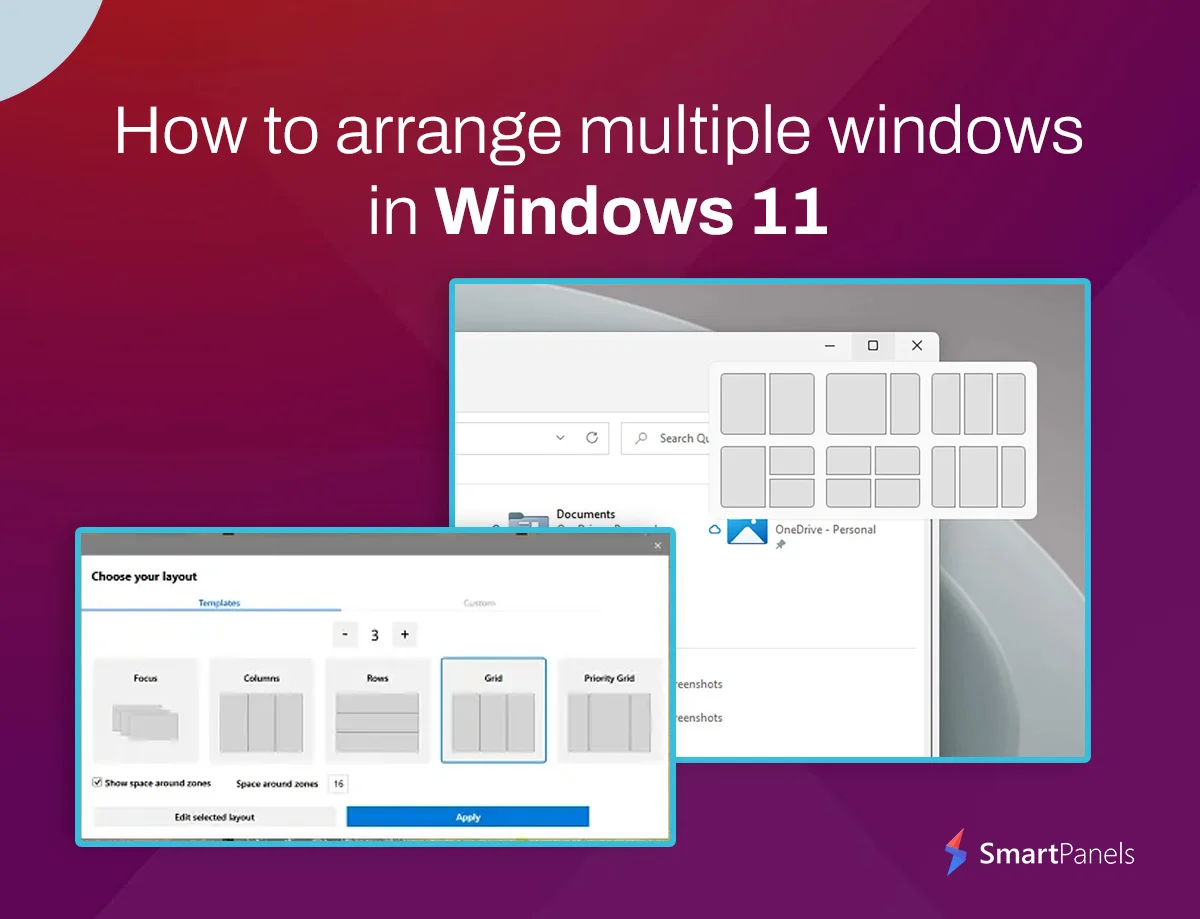
You may still have trouble with open windows being put about after a resolution change, even if you have reset the display settings in windows 11 as they should be.
SmartPanels is the answer to that. It is a handy way to preserve your window layouts and the size of your browser across one or several screens. Once you have done your reset, the tool will let you have every app where it belongs in short order.
Final Thoughts
With an understanding of how to put the finishing touches on scale, resolution, colors and themes, you are in good shape.
Windows 11 may have its options scattered about the menus, but getting to any given setting is a matter of just a few clicks. Go ahead and run through the quick checks first, then make your way through the menus one by one. When in doubt, opt for what is flagged as Recommended; it will be in keeping with your hardware. Should you still have trouble, a graphics driver update or rollback is in order. And before you tinker further, be sure to take note of the values you like.
These are the steps to follow when the screen does not look right, and you need to reset your display settings in Windows 11.
Give them a try and you will have a display that is sharp and easy on the eyes. Feel free to pass this guide along to friends dealing with the same sort of thing or simply bookmark it for future reference. Every adjustment made with care makes for a screen that is clear and to your liking.
Happy tweaking!