Windows 11 comes up with a slew of updates and features. It may be known better for the UI improvements but the new Snap Layouts and Snap Groups feature is in full swing to provide you with better productivity. It is a major UI innovation that allows Windows users to organize their desktop screen and multitask in a very efficient manner.
After tiresome steps of manually arranging each app on the desktop to multitask in Windows 10, now this upgraded OS takes multitasking to a whole next level with Snap Layouts.
What are Snap Layouts?
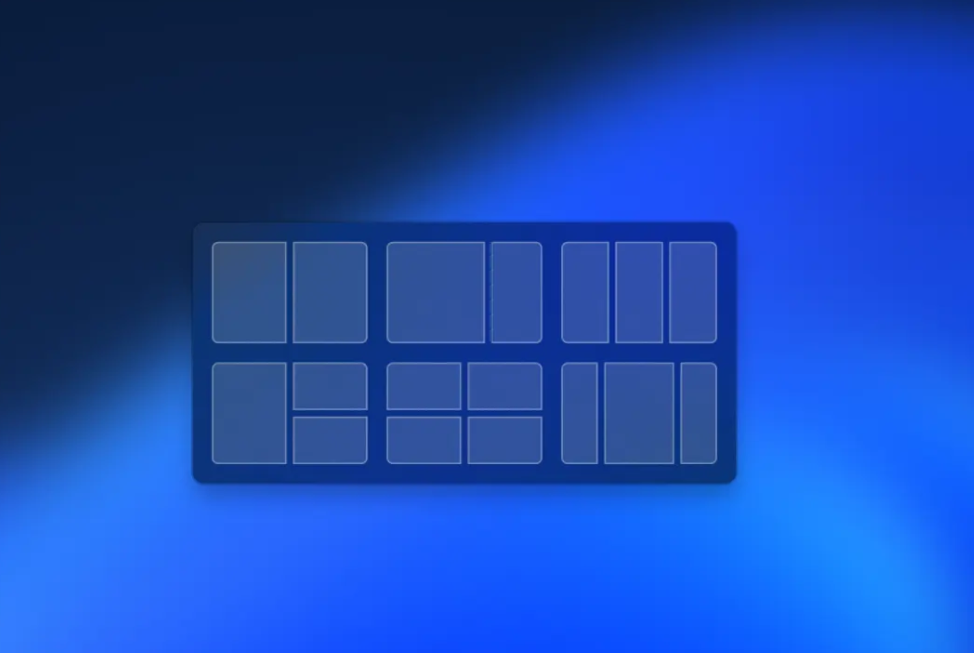
Snap Layouts is a new feature introduced in Windows 11 that allows you to organize the apps and windows in a better way by grouping them. The available options of layouts depending on the screen dimensions. On a standard screen display, you will get 4 layout options to choose from whereas, on an ultra-wide display screen, you get 6 layout options. Selecting one and adjusting apps into each section, Snap Layouts split screen into partitions based on the layout you have chosen.
Say you are working on some research, and have a group of browser windows or apps opened all related to your work. You can group windows by applications using Snap Layouts to cleanly organize all the apps on your screen to keep all information in one place. A visually clean interface would help you seamlessly grasp the information and collect chunks from each window to complete your research work.
Snap Layouts help you create your customized work zones. Similar to the research example, a project managercould organize all apps to make lookup easy and eliminate the excessive switching between the apps. A student can read, watch, and write at the same time. You can also create a preset of all entertainment apps and activities when in the mood for gaming. In short, Snap Layouts have made multitasking easy for Windows users.
How do Snap Layouts Work?
To get started with Snap Layouts, all you need to do is hover the mouse over the Maximize icon of the app’s window at the upper-right corner. Doing this, you will find options of layouts available to you based on your screen size and dimension. Now select the one that you find more suitable according to work needs. You can also tap on the slot where you want to adjust your current program window. On tapping, you will see a complete layout on your desktop screen with all other spots that you can fill with other apps you have opened.
You will see all the opened apps to fill the placeholders. Now select and put apps in each vacant space. Note that in Windows 10, snapping windows allows you to resize the window size of the app according to work preferences. Whereas in Windows 11, you are supposed to adjust the apps in a given layout and cannot change the size or overlap them.
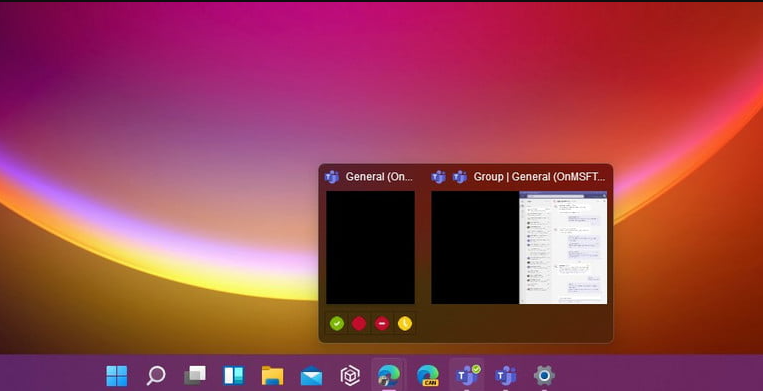
This layout app for PC is built-in that eliminates the need of manually sizing the apps. With layouts available, you can just select and fit the apps in space for efficient multitasking. The Windows Snap feature populates the apps to make it easy for you to access information from multiple apps easily. You can view each app in the taskbar, and the whole windows groups in layout form as well in the taskbar.
Keep it Tidy with Snap Layouts!
A handful of new features in Windows 11 have productivity and multitasking as a major focus. Snap Layout keeps Windows tidy. You can open and organize the apps according to your taste. Easy access to all the information makes it easy for you to grasp it and get the job done earlier. Multiple layouts for Windows help you arrange apps in slots based on the ease of access, reading, or writing. Windows snapping groups all the apps and keep your desktop screen tidy enough to multitask in an easy manner. In this way, you can create multiple work zones, gaming zones, study zones, entertainment zones, and another desktop presets.
Smart Layouts & Snap Layouts
Smart Layouts by SmartPanels empower the use of Snap Layouts by giving them the capability to auto-restore in Windows 10 and 11.
Smart Layouts save the screen configuration and auto-arranges the apps on one or many screens. It fully supports all desktop apps, MS Office files, and browsers. Smart Layouts keep the display position, window size of each app, browser tabs and URLs saved. With one click you can auto-arrange the apps and windows on multiple displays. Enhance the use of Snap Layouts by giving them the ability to auto-arrange apps effortlessly when you start up your PC. It saves time opening and arranging apps every time before getting started to work. Be more productive at work with SmartPanels!
SmartPanels
Restore Browser Tabs with SmartPanels. It maintains an active tab history and restores browser size as well as display position on one screen or many.
Fire Up your Work-From-Home (WFH) & Workplace Arrangements with Dual Monitors!
We all want to be productive at work but due to constant interruptions and inefficient setup, we face delays. The need of the hour is to employ smart means to study, work, game, and whatnot and boost multitasking. A dual monitor setup is one solution for organized and simple work-from-home and workplace arrangements. A dual monitor increases productivity as you don’t have to switch between the desktop apps or click back and forth to access multiple apps simultaneously.
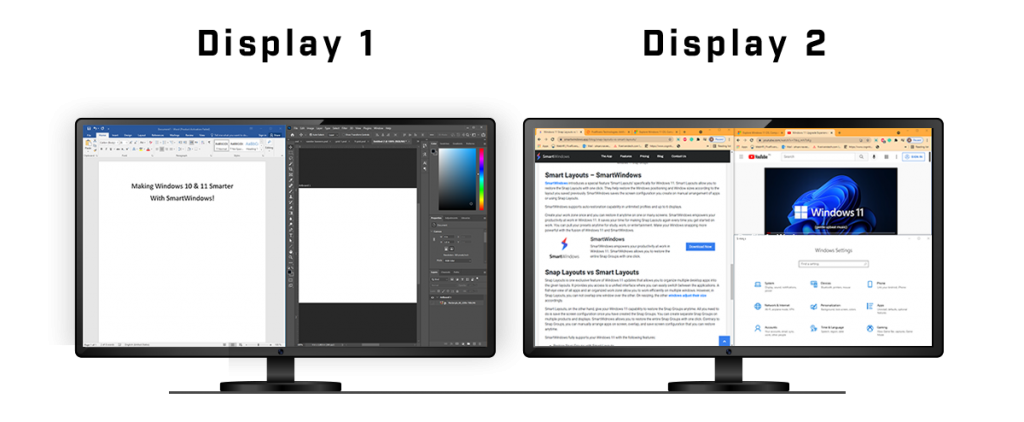
A dual monitor setup instead gives a fish-eye view of all apps you are working on. You can open multiple apps on dual screens, arrange display positions and adjust the window size of each app according to your work preferences. Once you have made customized work zones, it becomes easy for you to work on multiple apps at the same time. This not only increases productivity but also contributes to an organized work environment.
Why use Dual Monitors?
Arranging a dual monitor setup depends on the number and types of desktop apps you work on. For instance, if you are a project manager, you might use different project management tools for each project, data analytics tools, browsers, etc. It becomes quite inefficient to open, scroll, and switch between so many apps all the time that ultimately affects work productivity and you start feeling tired. Similarly, researchers, SAS programmers, and writers use a lot of apps on a regular basis that they can arrange and spread across dual monitors for easy access. On one monitor, you can open MS Office files or your primary app, whereas you can open multiple browser windows and trivial apps on the second monitor.
According to a research survey in the New York Times, considering dual monitors vs single monitor productivity, dual monitors increase productivity by 20-30%. With a source document always open in front of you, you do not need to open or close apps every time to get any sort of information. Dual monitors help you view all apps on enough visual display space and help get the job done in a fraction of time.
Benefits of Dual Monitor Setup
Advantages of dual monitors in the workplaceare:
Dual monitor setup ideashelp maximize work productivity.
It allows you to view large data files at a glance without extreme switching between multiple apps.
It helps data analysts determine various performance parameters and graphical representations all at once to get meaningful insights from complex data patterns.
You can easily multitask and work in separate work zones at the same time.
A dual monitor setup allows you to work in a highly organized manner where all apps are arranged at a particular display position and a window size.
Boost Up your Dual Monitor Setup with SmartPanels
SmartPanels empowers the use of dual monitors with its capability of auto-arranging desktop apps anytime. One of the dual monitor productivity tips is to use SmartPanels on Windows 10 and 11 that saves your screen configuration on one or many screens. SmartPanels is a productivity app that allows you to auto-arrange all the desktop apps with one click.
You can create unlimited profiles and up to 6 displays in Windows 10 and 11 using SmartPanels. Dedicate each profile to study, work, or entertainment-related activities, make screen presets and save them. You can auto-restore each work zone with one click and all your apps will be arranged automatically at the exact display position and with the same window size on the screen as you saved. SmartPanels eliminates the overhead of manually arranging apps on your dual monitors. You are all set to continue work with one click.
SmartPanels improves work productivity and saves your precious time of opening and arranging apps every time before getting started to work. The following are some other capabilities of SmartPanels that can help you boost up your dual monitor setup at home or at the workplace:
Multi-tab and multi-browser support saves the URLs and maintains an active tab history. It restores the tabs and browsers on one or many windows with one click.
Support for multiple displays allows you to create multiple work zones and restore them anytime.
SmartPanels’ support for MS Office files reopens Word, Excel, PowerPoint, and Project files.
It saves the display position and window size of each app.
Create unlimited profiles based on your work needs and organize tasks in separate displays.
SmartPanels saves your time arranging apps on dual monitors every day. With just one click, you can auto-arrange apps on dual monitors. This is how you can improve dual-monitor productivity at home and in the workplace. Work smart and power up your pace of work with SmartPanels!
SmartPanels is a feature-rich productivity app for Windows 10 and 11. It allows you to auto-restore and auto-arrange the desktop apps, browsers, and MS office files on multiple displays and profiles. It eliminates the headache of manually arranging apps every time before getting started on work and ultimately increases productivity at work. With one click, you are all set to get the job done!
This article is a quick guide to use SmartPanels on Windows 10 and 11.
Download
You can download the SmartPanels app from the website, or you can also download the app directly by clicking here.
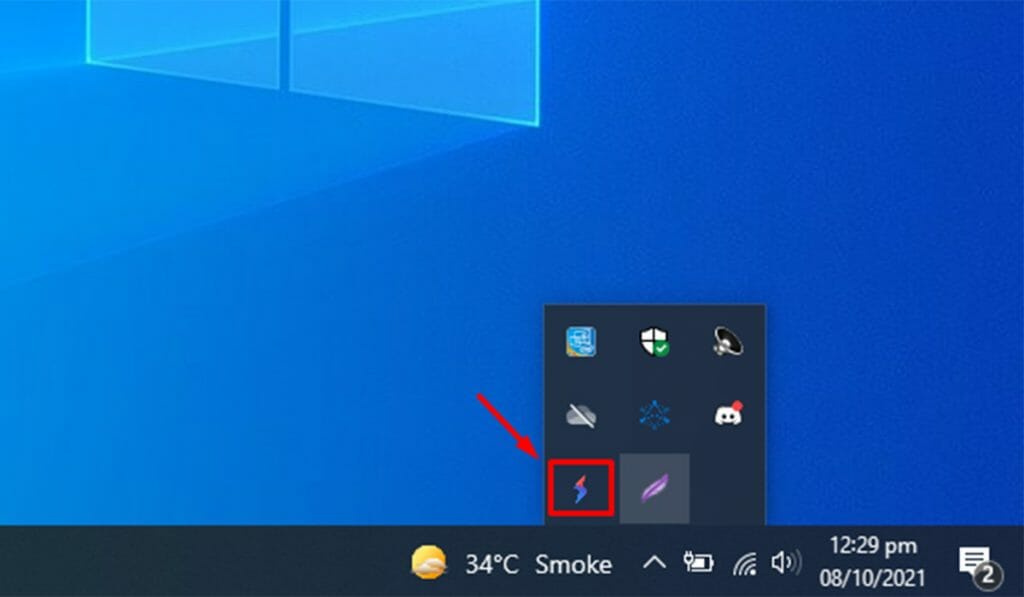
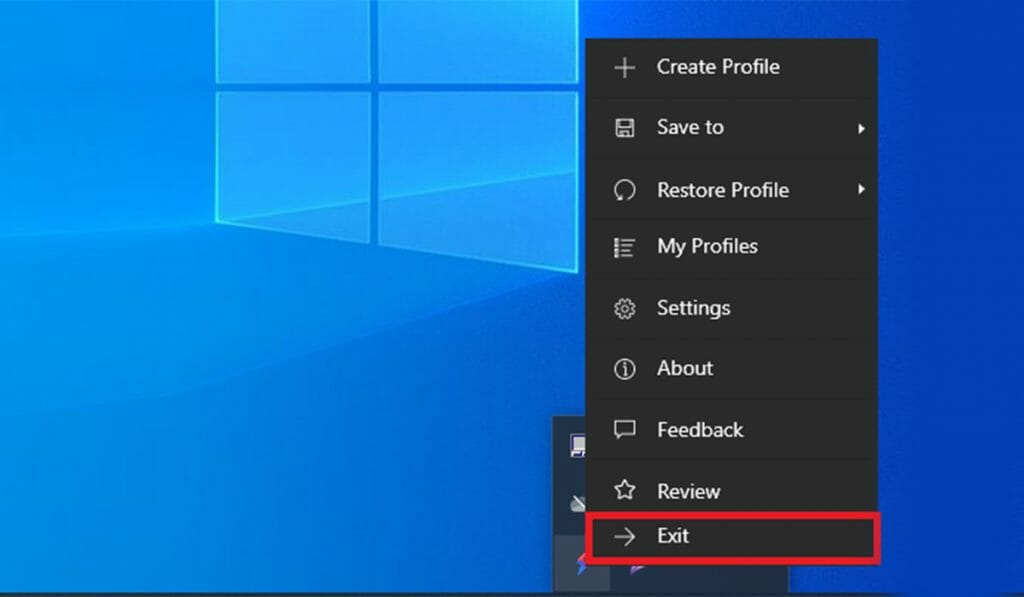
After finishing the installation process, you will be able to see the SmartPanels icon in the taskbar icon tray.
Inside SmartPanels
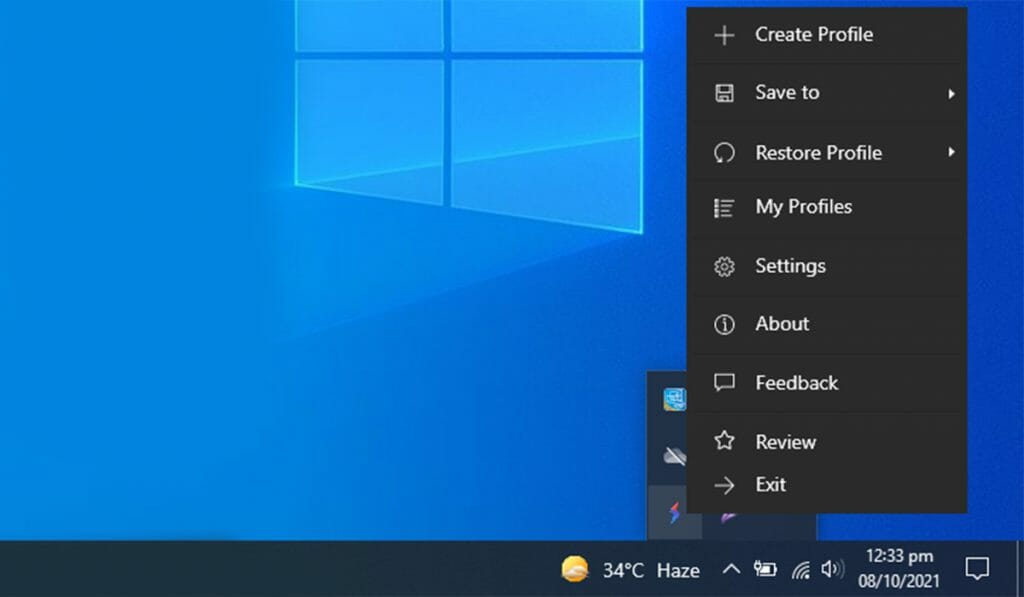
Following are some options in SmartPanels.
Create Profile
Save to
Restore Profile
My Profiles
Settings
About
Feedback
Review
Exit
Getting Started
Arrange the Apps
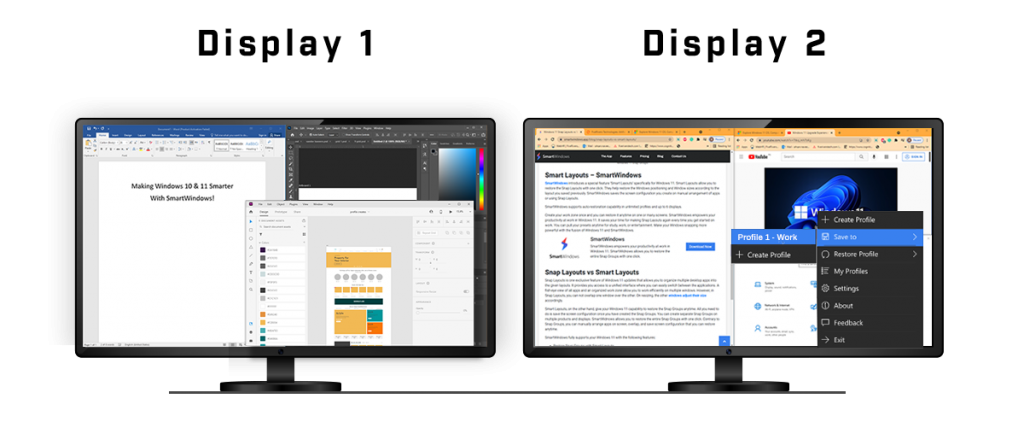
Arrange your desktop screens with the apps you are working on. If you are on your work profile, open and arrange the apps, adjust their window size and position on the screen as shown below.
Let’s go through each one by one
1. Create Profile
This is the first step you need to do in order to save your screen configurations. Click on “Create Profile”.
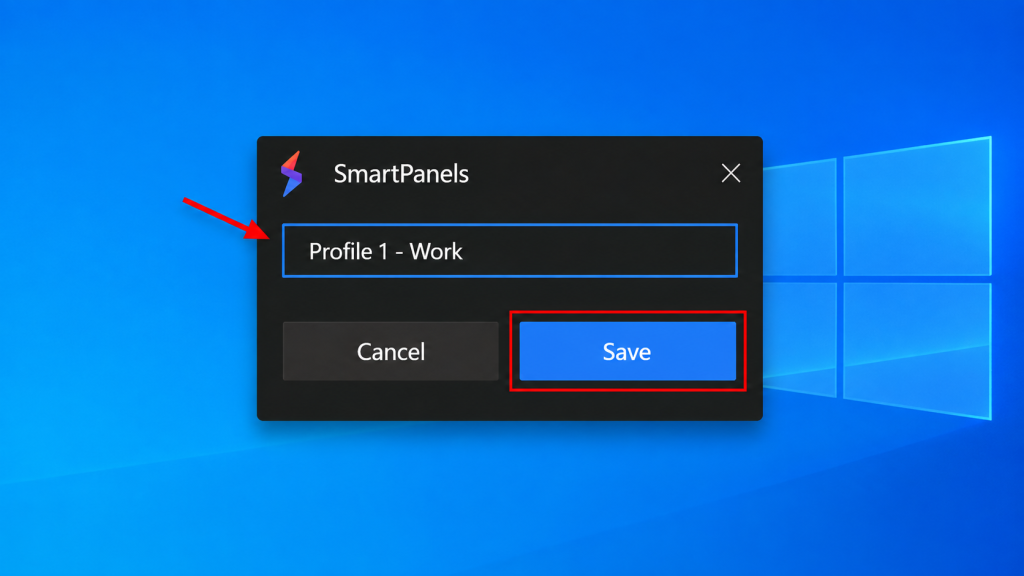
1.1. Name your SmartPanels profile and click “Save”. SmartPanels will automatically take a tour of your screen to identify the apps you are working on. Every time you will create a new profile, SmartPanels will automatically save the screen arrangement. So, in this step, SmartPanels is creating as well as saving your profile.
You can create unlimited profiles in SmartPanels paid version and dedicate each to work, study, or entertainment, etc. accordingly. Up to 3 profiles are allowed in the free version.
2. Save to Profile
The second step is to save to your profile. Once you have arranged the screen according to your work preferences or needs and you want to open more apps or re-arrange the previous ones, click on the SmartPanels icon and select “Save to”. Select the profile in which you want to save your screen configuration. Whenever you open, re-size, or re-position any app, you would have to save the profile again so that SmartPanels restore the latest saved screen. After this step, SmartPanels will remember the browser and apps you were working on. The apps, tabs and URLs, and app positioning will be saved in your SmartPanels profile. So whether it is about arranging the apps or reopening closed tabs, you are just a click away!
Now if you shut down your PC or close all the apps or you might accidentally click ‘X’ and your browser closes, you can restore them all with one click.
3. Restore Profile
You do not need to manually arrange apps every time you get started on work. You can restore your profile with a single click to get your apps auto-arranged on one or many screens.
SmartPanels does not only restore browser windows, tabs, and other desktop apps but also restores their screen size in Windows 10 and 11.
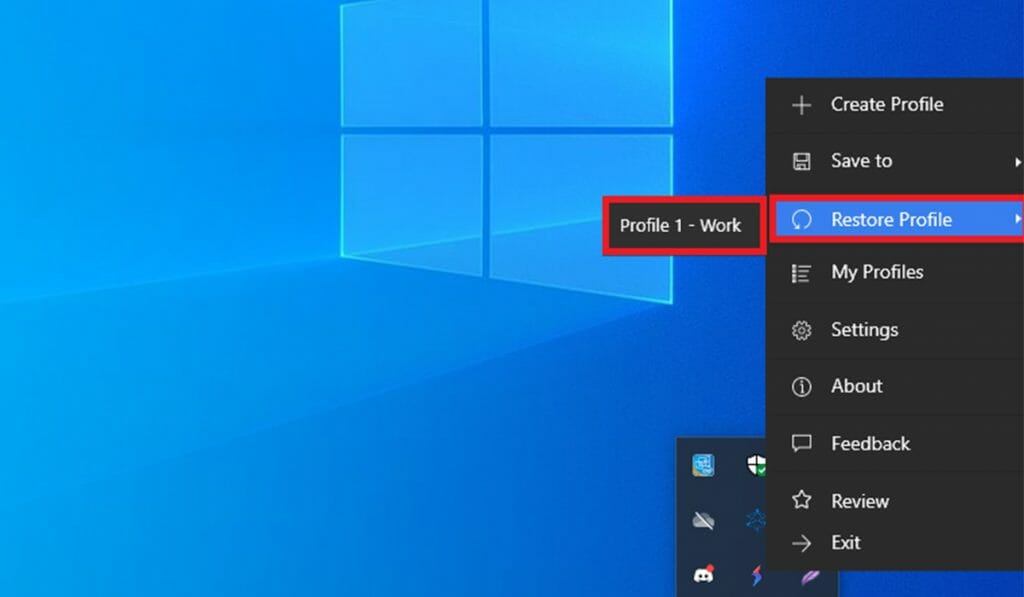
Click on “Restore Profile” and select the name of the profile you want to restore.
3.1. SmartPanels will restore the screen arrangement that you saved previously. It supports multiple browsers such as Google Chrome, Firefox, and Microsoft Edge. Also, it supports desktop apps and MS Office files such as Word, PowerPoint, Excel, and Project files saved on your desktop or cloud.
4.My Profiles
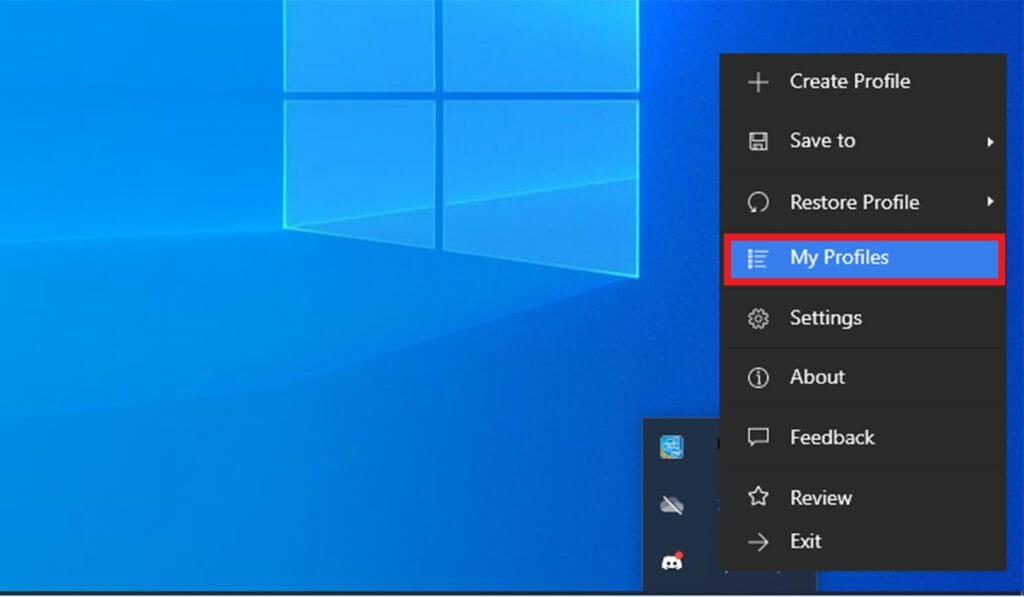
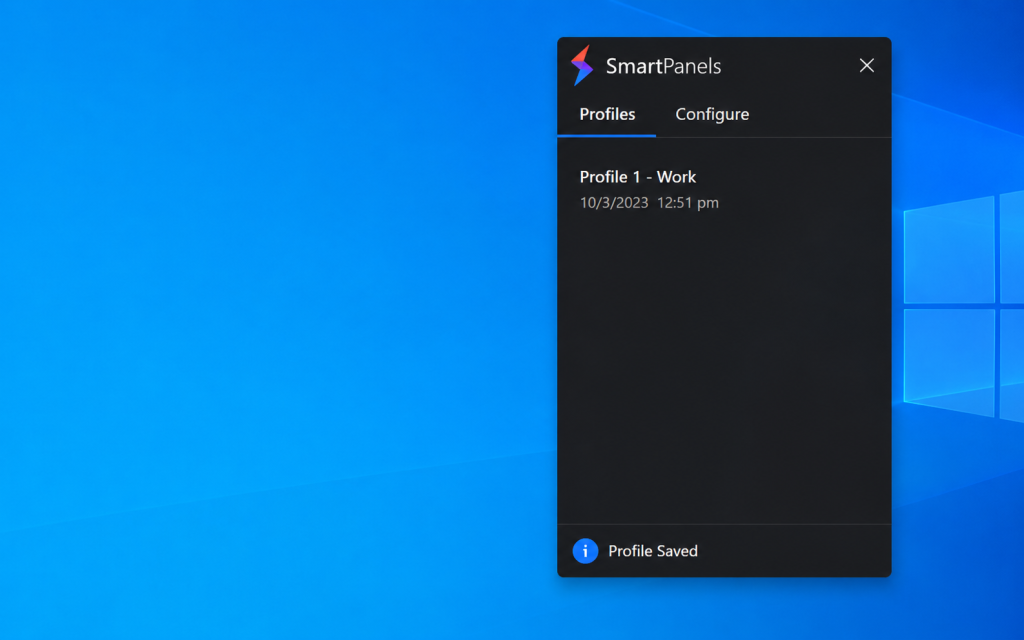
You can view all your SmartPanels profiles by clicking “My Profiles”.
4.1. SmartPanels allows you to create unlimited profiles and in each profile, you can work on up to 6 displays. Its support for dual monitors allows you to multitask efficiently.
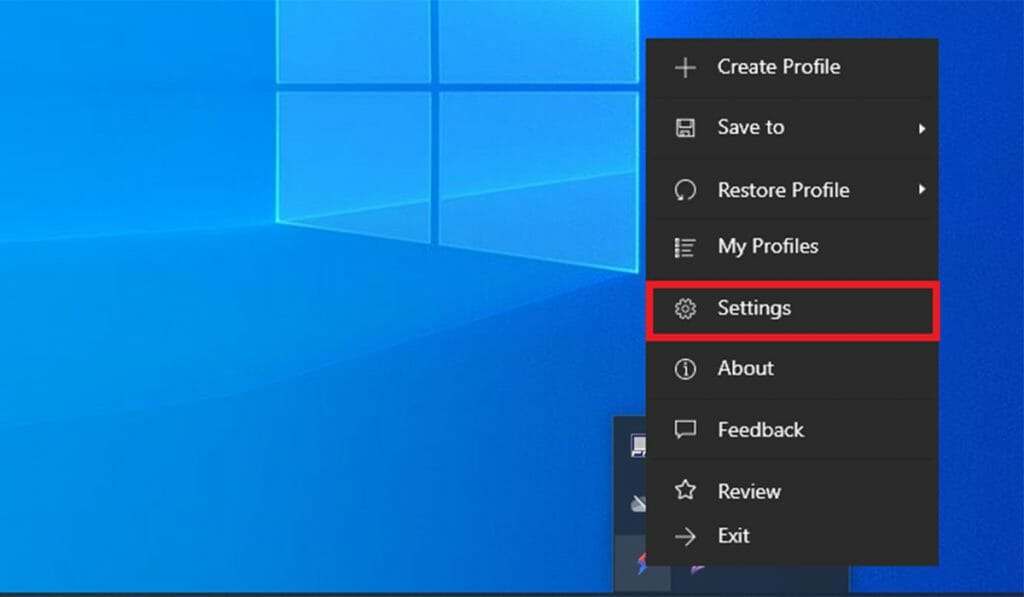
5.Settings
Select “Settings” to configure SmartPanels.
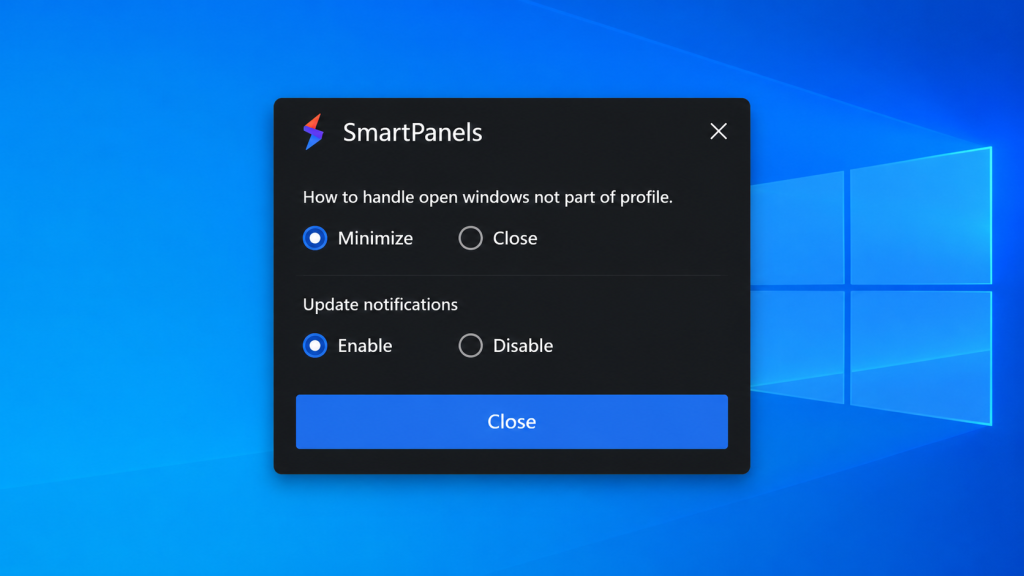
5.1. Choose whether you want to minimize or close the apps that are not part of your SmartPanels profile. Also, you can enable or disable the update notifications of SmartPanels.
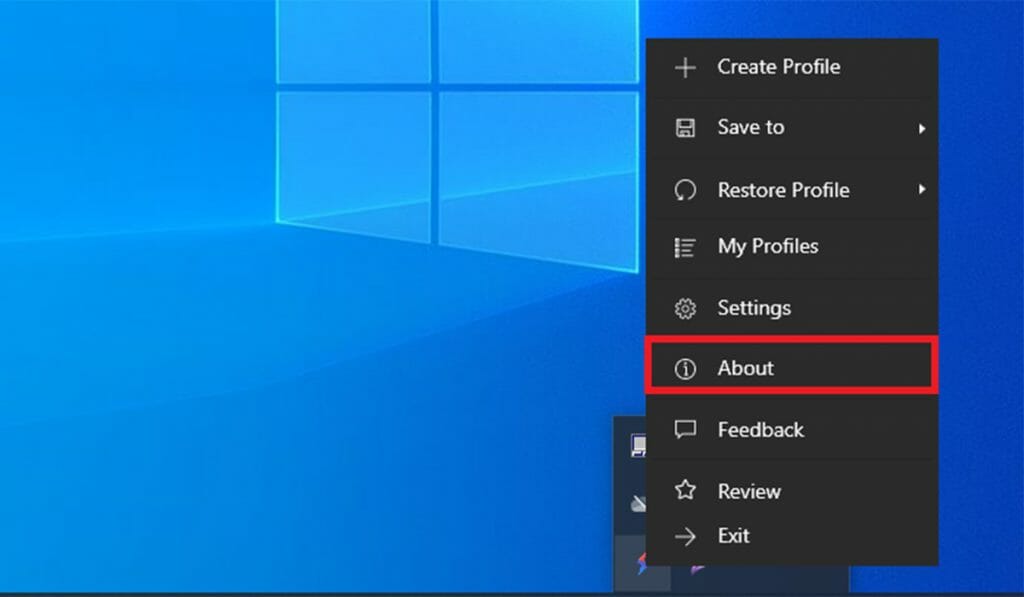
6.About
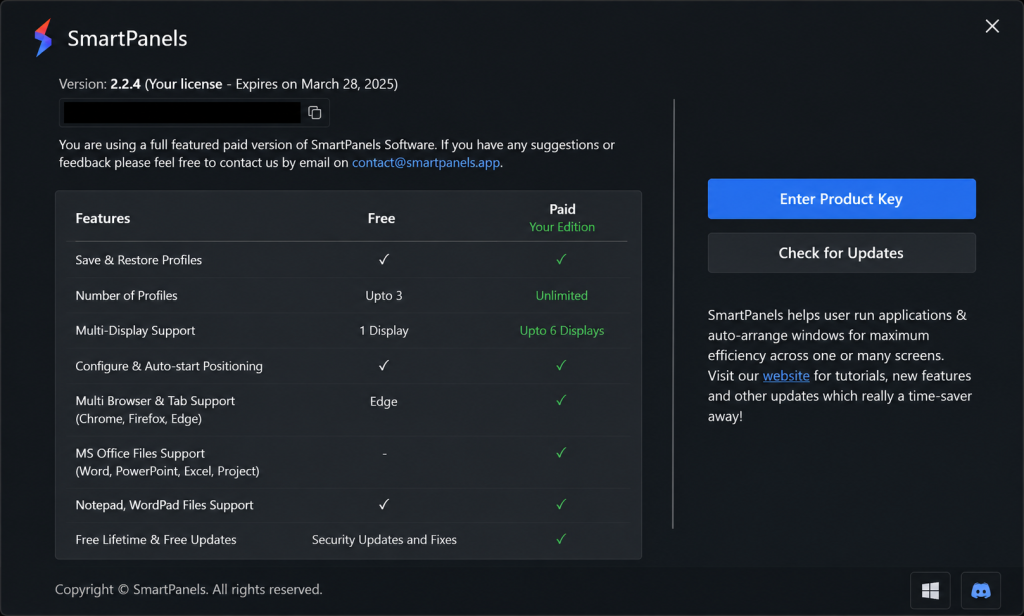
Select “About” to know the features and version of SmartPanels.
6.1. Here you can see detailed information on all the free and paid features of SmartPanels.
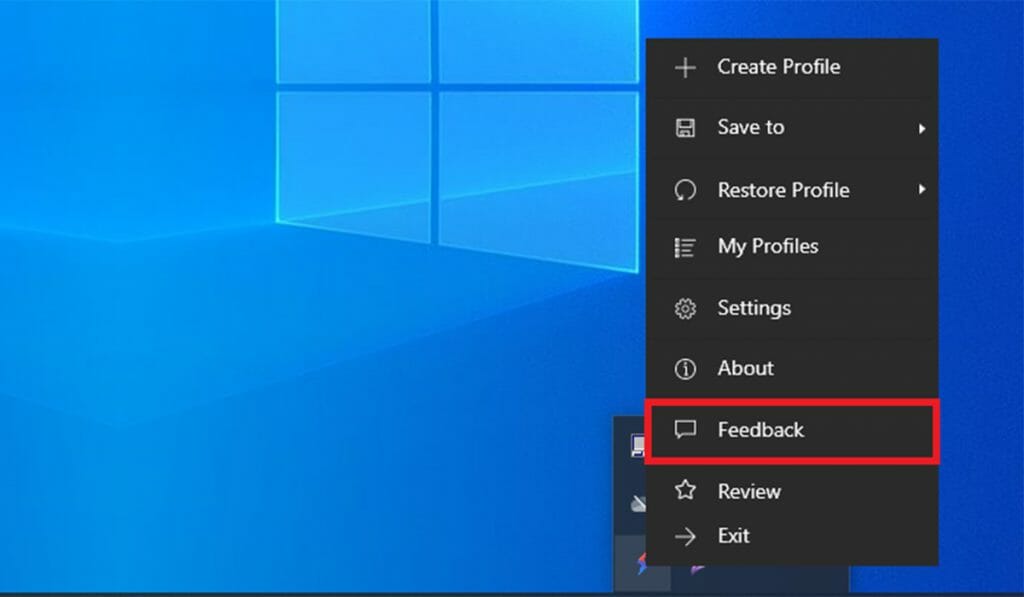
7.Feedback
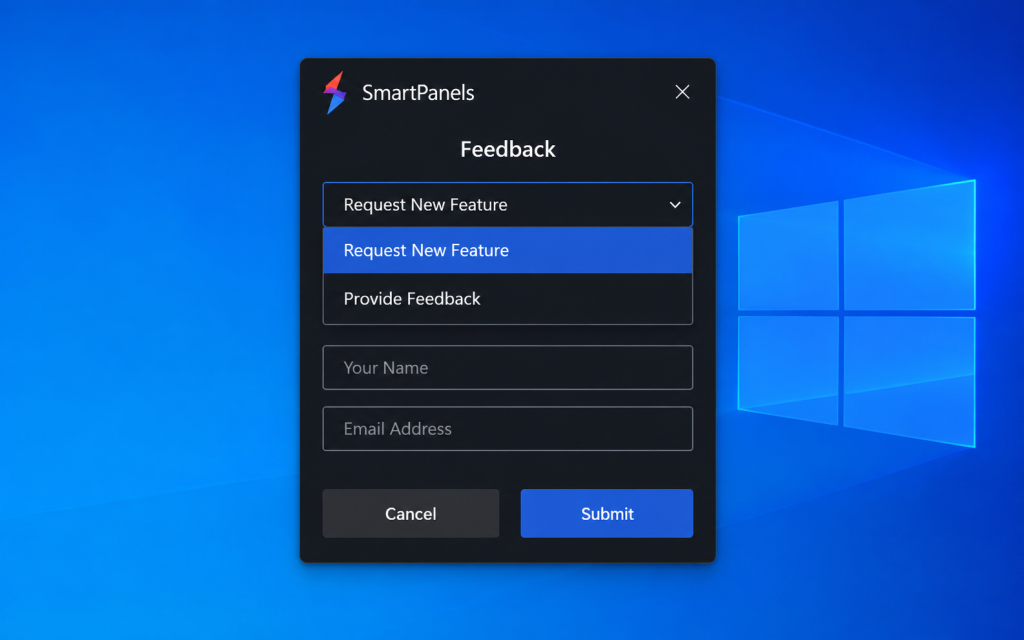
Here you can give feedback or request new features in SmartPanels.
7.1. Select from the drop-down whether you want to request a new feature or provide feedback. Enter your request/feedback, give your name and address, and submit.
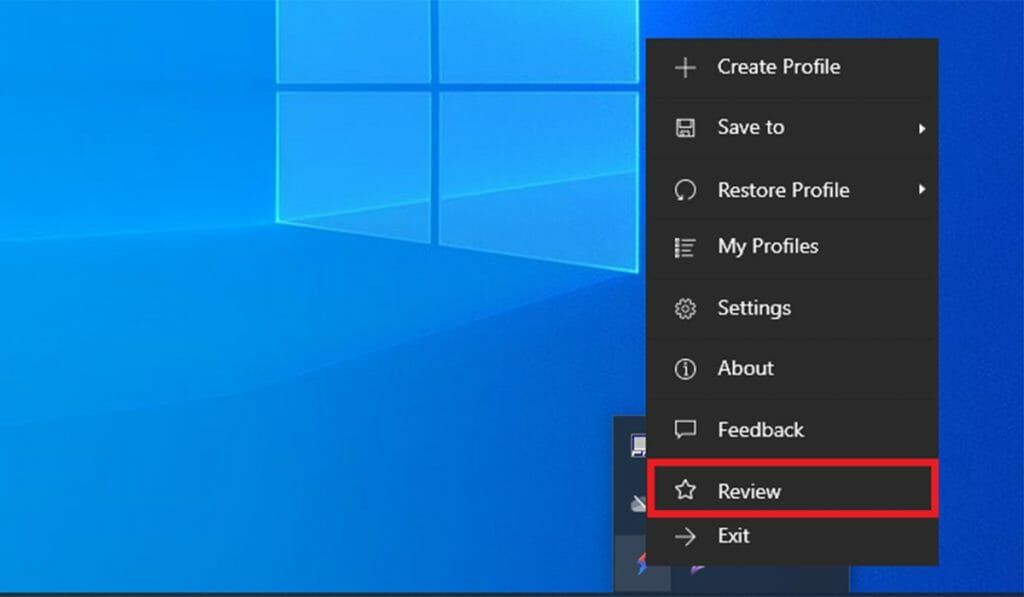
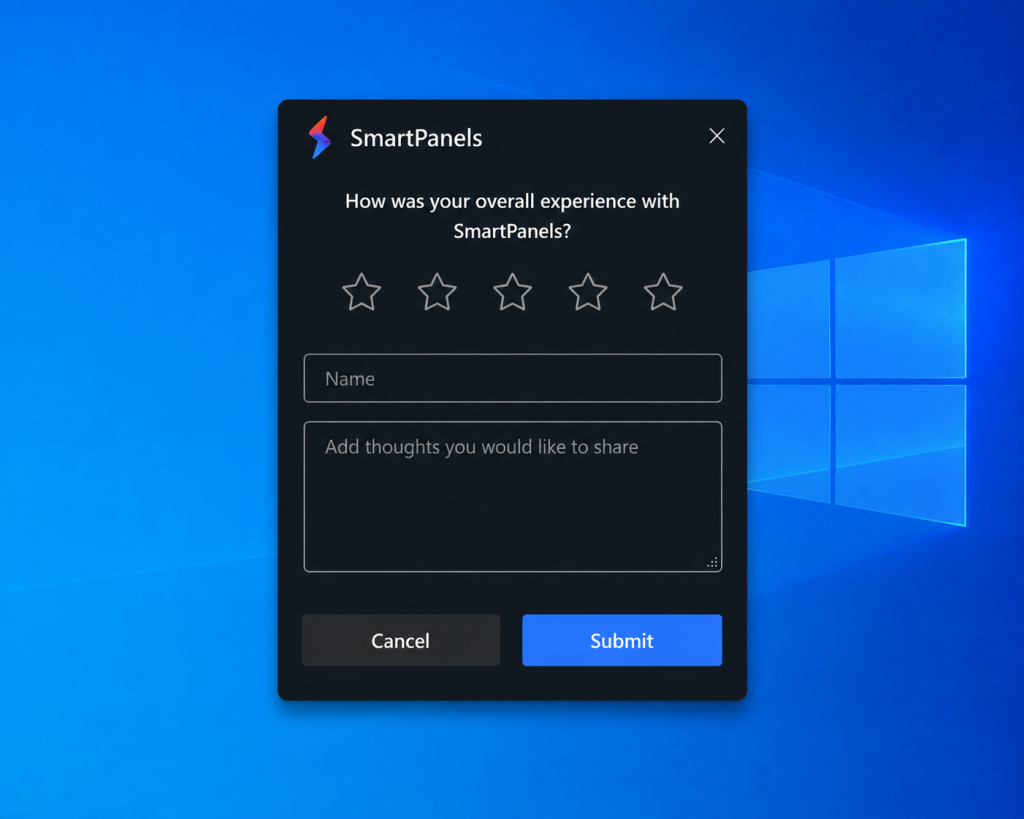
8.Review
To share your thoughts about SmartPanels, select the option “Review”.
8.1. Rate SmartPanels, mention your name, and share your thoughts about the app. Your valuable feedback can help us make the app better!
9.Exit
SmartPanels is a lightweight productivity app that does not consume much memory or affect the performance of your PC. Still, if you want to close SmartPanels, click “Exit”. SmartPanels will remember the apps, their display positions, and window sizes anyway.
Windows 11 – the latest operating system by Microsoft will become available from 5 October 2021. Windows 11 is coming up with a number of features with a fresh new design and layout, multitasking capabilities, improvements in Microsoft Teams, and support for gaming and Android apps. One of the phenomenalfeatures of Windows 11 is ‘Snap Layouts and Groups’. Snap Groups would help users multitask and organize multiple window apps on the screen. Now on one monitor, you can easily access the apps without excessive switching.
Snap Layouts
With virtual desktops in Windows 11, Snap Layouts allow you to maximize productivity by structuring the screen. Snap Layouts are the flyout that displays a number of Snap layouts options when you hover your mouse on the ‘Maximize’ window button of the apps’ window. According to leaked information of the Windows 11 beta version, the options of different snap layouts available vary based on the display’s physical properties.
Ultra-wide displays have more layout options as compared to traditional/standard displays. You would need to create a Snap Layout before a Snap Group. Choose the apps in each box of the layout to adjust it according to your liking and work requirements.
How do Snap Layouts work?
Snap Layouts work as follows:
Open all the programs you want to work on.
Pull one window to the front of the screen and hover your mouse on the Maximize button (on the top-right and second from the left).
You will see six layout options to snap your open windows from which you can choose one. These snap layouts are:
Two windows at an even length
Two windows with one bigger side
Three vertical windows at even length
Four windows in a grid
Three windows with one side bigger
Windows 11 Snap Layouts
After choosing one Snap Layout, you can tile the opened programs in each section available in the layout according to your choice.
After this, your screen will be organized and you can get easy access to multiple apps.
Snap Groups
Windows 11 new feature, Snap Groups are the set of open programs that you adjusted and saved in the Snap Layouts. You can see the app individually and in layout as well in the taskbar. Snap Groups make access to all multiple programs easy. A visually clean interface allows you to multitask and increase productivity at work.
Windows 11 Snap Groups
Smart Layouts – SmartPanels
SmartPanels introduces a special feature ‘Smart Layouts’ specifically for Windows 11. Smart Layouts allow you to restore the Snap Layouts with one click. They help restore the Windows positioningand Window sizes according to the layout you saved previously. SmartPanels saves the screen configuration you create on manual arrangement of apps or using Snap Layouts.
SmartPanels supports auto-restoration capability in unlimited profiles and up to 6 displays.
Create your work zone once and you can restore it anytime on one or many screens. SmartPanels empowers your productivity at work in Windows 11. It saves your time for making Snap Layouts again every time you get started on work. You can pull your presets anytime for study, work, or entertainment. Make your Windows snapping more powerful with the fusion of Windows 11 and SmartPanels.
SmartPanels
Restore Browser Tabs with SmartPanels. It maintains an active tab history and restores browser size as well as display position on one screen or many.
Snap Layouts vs Smart Layouts
Snap Layouts is one exclusive feature of Windows 11 updates that allows you to organize multiple desktop apps into the given layouts. It provides you access to a unified interface where you can easily switch between the applications. A fish-eye view of all apps and an organized work zone allow you to work efficiently on multiple windows. However, in Snap Layouts, you can not overlap one window over the other. On resizing, the other windows adjust their size accordingly.
Smart Layouts, on the other hand, give your Windows 11 capability to restore the Snap Groups anytime. All you need to do is save the screen configuration once you have created the Snap Groups. You can create separate Snap Groups on multiple products and displays. SmartWidnows allows you to restore the entire Snap Groups with one click. Contrary to Snap Groups, you can manually arrange apps on screen, overlap, and save screen configuration that you can restore anytime.
SmartPanels fully supports your Windows 11 with the following features:
Restore Snap Groups with Smart Layouts.
Arrange and adjust multiple apps on a screen, save, and restore anytime.
Remember the size and position of the window of each app.
Restore multiple browsers and tabs with respective URLs.
Restore MS Office files such as Word, Excel, PowerPoint, and Project, etc.
Intelligent app positioning and restoration.
Create and save Snap Groups on multiple displays and profiles.
So get Smart Layouts by SmartPanels to boost your productivity along with Windows 11 Snap Layouts!
It is an all-too-common occurrence to shut a tab in error. A hasty click, an errant swipe or an unannounced browser crash will do it, and before you know it the work has vanished. Fortunately, your browser is equipped to handle such moments with a session, giving you just enough time to fix things.
Learning how to open closed tabs takes less than a minute once you understand how that history stack works. This guide to take you through the process for Chrome, Firefox, Edge and Safari, whether on a desktop or mobile device.
How to Open Closed Tabs in Google Chrome
Chrome is the most widely used browser, so most people start here. Fortunately, Chrome makes how to open closed tabs a quick and painless task.
You have three reliable options, and each one works in seconds.
Use the Keyboard Shortcut
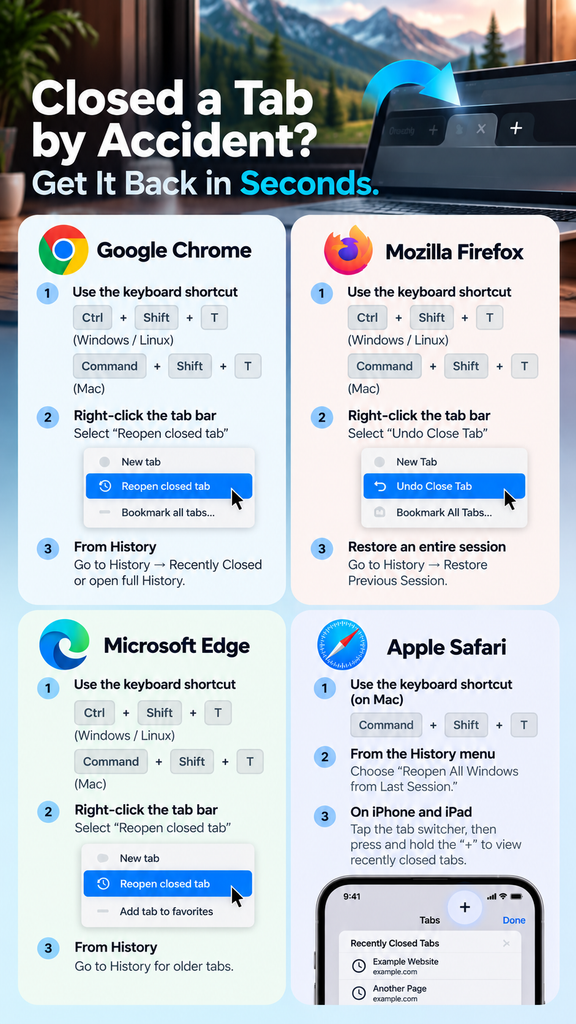
For the quickest way to do it, use a key combination. Windows and Linux users should hit Ctrl + Shift + T; on the Mac it is Command + Shift + T. That will have Chrome take the top item from its closed-tab stack and put it back in front of you, complete with any form data or scroll position intact. If you press the shortcut once more, the next tab comes up from the stack.
Use the Right-Click Menu
For those who do not care for typing shortcuts, there is an alternative. Simply right-click in any open area of the tab bar to bring up a small menu. From there, select “Reopen closed tab” and it will be back in front of you at once. It is the same result as using the keyboard, only with the mouse.
Restore Tabs from Chrome History
There are occasions when one requires a tab that is more than ten closures in the past. When an item has been pushed off the in-memory stack of closed tabs, Chrome will not let you restore it with a single click. To get at it, go to the three dots at the upper right of the browser and put the cursor over “History.” What comes up is a list of your recent pages, sourced from the persistent history database as opposed to the session’s temporary records. You can then choose “Recently Closed” for individual tabs or hit “History” once more for the complete record. A search by keyword or a scroll through the timestamps should turn up whatever page is needed.
How to Open Closed Tabs in Google Chrome on Android
It is not uncommon for a mobile user to misplace a tab; in fact, they do it as much or more than those on a desktop. To remedy this on an Android with Chrome, one can tap the three dots at the top right of the screen to bring up the menu and choose “Recent tabs”. A look under “Recently closed” will show all the tabs put to rest during the last session; a simple tap on one of them and Chrome has it open again in no time. This process covers most cases of reopen closed tabs in chrome on a phone or tablet.
How to Reopen Closed Tabs in Chrome on iPhone and iPad
iOS has the feature as well, albeit in a different location. To make use of it, launch Chrome and hit the tab switcher, the icon with a number in a box. A long press on the “+” will bring up your recently closed pages; simply tap the desired entry and the tab is back where you left off. One should note that Incognito tabs are not to be found here.
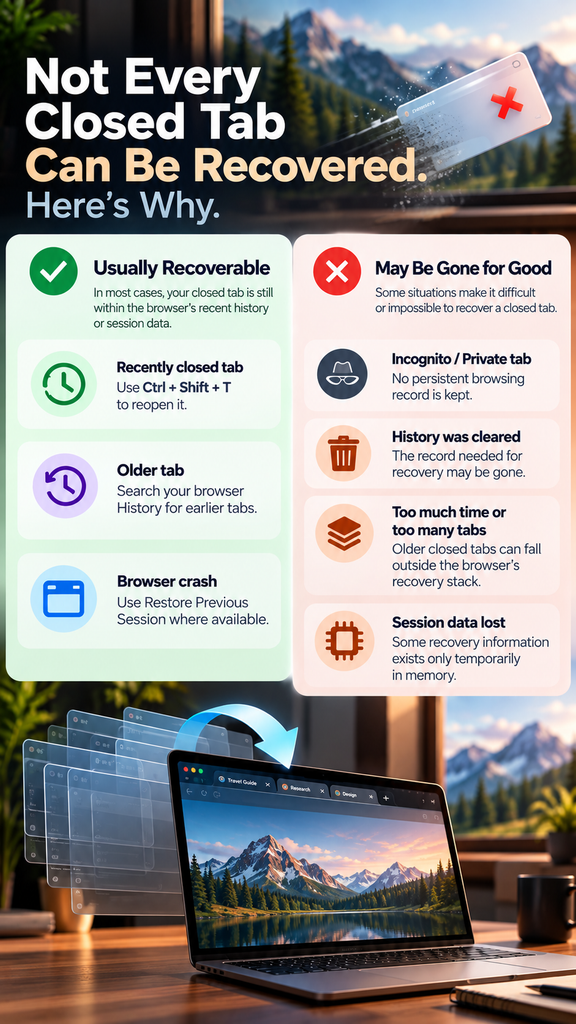
Since an Incognito window is an isolated session that does not persist, its metadata is purged from memory upon closing without anything being committed to disk.
How to Open Closed Tabs in Mozilla Firefox
Those using Firefox will find the procedure no more complicated. In fact, the keyboard shortcut is a near replica of what one would use in Chrome, so moving from one browser to the other is not an issue.
Keyboard Shortcut and Right-Click Menu
On Windows or Linux, hit Ctrl + Shift + T; for Mac users it is Command + Shift + T and the last tab you had open will be back. If one prefers the mouse, a right-click on the tab bar brings up a menu with an “Undo Close Tab” option.
Restore an Entire Session
Should the Firefox window have shut down entirely, one can recover by going to the menu button at the top right and picking “History.” Opt for “Restore Previous Session” and all the tabs from the last browsing window will be back in a single action. This is possible because Firefox keeps session data on disk in a compressed file, “sessionstore.jsonlz4”, within the profile folder; it is what allows for a restore even following an unexpected restart or crash. For those who wish to peruse old pages by the time they were viewed while remaining in the present tab, there is the History Sidebar as well.
How to Open Closed Tabs in Microsoft Edge
There is a certain familiarity to the way Microsoft Edge is put together, given how much of its structure is taken from Chrome. If you need to restore the last tab you had open, a quick Ctrl + Shift + T will do it. Alternatively, right-click on an active tab and choose “Reopen closed tab” in the menu that appears.
To get at something from further back, use the History icon on the toolbar or head over to the Activity Center for a time-based view of your recent pages. Do bear in mind that if you are in InPrivate mode, there is no way to get a tab back after it has been shut; make sure to put anything of value aside before you go private.
How to Open Closed Tabs in Safari
Safari behaves a bit differently than Chrome-based browsers, but the process stays simple once you know the pattern.
On a Mac
To bring back the tab you last closed, hit Command + Shift + T. If you need to go back through your recent tabs in sequence, simply use the shortcut again. Should you wish to recover an entire session, the “History” menu has an option for “Reopen All Windows from Last Session.”
Safari can be made to do this on its own as well. In Safari Preferences under “General,” put “All windows from last session” for the “Safari opens with” setting and it will always restore your previous work.
On iPhone and iPad
To get at your recently closed tabs, press and hold the “+” button; a list will come up for you to select from. The tab view button is also an option, identifiable by its two overlapping squares. iPad users can do this right from the toolbar as the “+” is always on hand.
Note that if you were in Private Browsing, Safari will not have kept those tabs and they are beyond recovery, much like with Chrome.
How to Open Closed Tabs in Opera, Brave, and Vivaldi
Since Opera, Brave and Vivaldi are built on the same Chromium foundation as Chrome, you will find the recovery procedure to be much the same in any of them.
To put back a tab you have just closed, hit Ctrl + Shift + T (or Command + Shift + T for Mac users).
A right-click on the tab bar will also do the trick; simply select “Reopen closed tab” from the menu.
There is a record of your most recent pages in the main menu under “History” or “Recently Closed” should you need it.
For those who make use of several different Chromium browsers over a day, that kind of uniformity is convenient and easy to get used to.
How Browsers Actually Store Closed Tab Data
One can better anticipate the limitations of tab recovery once the underlying mechanics are clear. In Chrome, Edge, Opera and other Chromium variants, closing a tab will cause the browser to place a lean record on an in-memory LIFO stack.
The information is there – the URL, session ID and navigation history. But it is confined to the current process and resides in RAM. Should that process end before a session file is put down, the record is gone; the same holds for the stack’s finite size.
Firefox is more dependable in the event of a crash because it has a habit of writing its session state to disk from time to time. Then there are Private or Incognito sessions: those modes do away with the persistence layer altogether, meaning no trace of the tab is ever committed to disk.
Common Mistakes That Make Tab Recovery Harder
It does not take much to make a simple matter of restoring a tab into something of a headache. For instance, if one is in the habit of using Incognito or Private mode, there is no way to recover anything once the tab is shut; it leaves no trail.
Then there is the matter of your browsing history. Clearing that out will have the browser discard the very record it would need to put an old tab back in place.
Chrome and its ilk have a ten-tab memory limit, so let too much time pass after a crash and you may find a tab has been lost. And should the entire window be closed as opposed to an individual tab, you might have to resort to a different kind of shortcut, like Ctrl + Shift + N for Firefox. It is best to be aware of such constraints from the start to avoid any confusion down the line.
Frequently Asked Questions
How many closed tabs can Chrome restore at once?
Chrome typically remembers the last ten tabs you closed. Anything beyond that requires a manual search through your browsing history.
Can I recover a tab closed in Incognito or Private mode?
No. Private and Incognito modes are designed to leave no history, so those tabs cannot be restored once closed.
Does the keyboard shortcut work the same way on every browser?
Mostly, yes. Ctrl + Shift + T on Windows, or Command + Shift + T on a Mac, works across Chrome, Firefox, Edge, Safari, Opera, and Brave.
What happens if my browser crashes instead of closing normally?
Most browsers offer a “Restore Previous Session” option in their History menu, which brings back every tab that was open before the crash.
Is there a faster way to manage tabs across multiple browsers?
Yes. Tools like SmartPanels save your entire browser layout, including tabs across Chrome, Firefox, and Edge, and restore everything with a single click.
Why You Keep Losing Tabs In the First Place
You will find that the bulk of tab loss is traceable to a few routine habits. An errant click in the vicinity of the close button happens all too often with trackpads, for instance. Then there are browser crashes and the like; without session restore enabled, a forced restart will put an end to any open tabs.
It is also simple to shut down the wrong window when one has several browser windows open at once. Having to work on more than one monitor only complicates matters, as it is not so easy to keep tabs on what is running on each screen.
These are hardly uncommon occurrences, and they are the reason every leading browser has a means of recovery built in.
Restoring Tabs Across Multiple Browsers at Once
The methods above work well for one browser at a time. However, many people run Chrome, Firefox, and Edge together, often across several monitors. In that case, checking each browser’s history separately takes longer.
Tools built for reopen closed tabs in web browsers situations, such as SmartPanels, address this by saving your entire window layout, including open tabs across multiple browsers, and restoring it in one step. This kind of workspace-level recovery works alongside the built-in browser methods covered above, rather than replacing them.
Simple Habits That Prevent Tab Loss
There are recovery methods for when things go wrong, but it is better to have some habits in place that make them less of a necessity.
For instance, with browser sync on, your tabs will be at hand on any device should a session end in an unanticipated way.
Make a practice of pinning the ones you cannot do without so they are not lost while tidying up.
You can also let the “Continue where you left off” option in your settings do its work and put your whole session back in order upon restart.
And if you know you will want to come back to a page, bookmarking it is a simple way to avoid having to depend on tab memory.
Together, these small adjustments cut down on how often you need to search for how to open closed tabs in the first place.
Final Thoughts
There is no denying the frustration of a lost tab, yet it seldom takes more than a couple of clicks to put things right. You will find that all the big names in browsers have a way of handling it; Chrome, Firefox, Edge and Safari are no exception, each offering a menu option or shortcut for the occasion. The remedy is at hand, be it via the keyboard or a right-click.
For those who do a lot of multitasking, an application such as SmartPanels makes matters even simpler. Rather than going through the motions of restoring tabs one browser at a time, your whole workspace can be back in order in seconds. With a little familiarity with these approaches, an errant closed tab ceases to be any kind of concern.
Make sure to bookmark this guide so you have a ready solution on hand should a tab vanish without warning.
Microsoft has announced the Windows 11 release date i.e. October 5, 2021. The Windows 11 update will be available for the eligible users of Windows 10. Microsoft Windows 11 is designed primarily with two major peculiarities – productivity and creativity.
So let’s dive deep into the features Windows 11 is offering.
Highlights of Windows 11
Below are the distinguished features of the Windows 11 release.
The sound and design are more clean and fresh.
With Start, you could see your recent files.
Snap Groups, Snap Layouts, and Desktops allow you to multitask and optimize your screen.
Microsoft Teams will come with this new release into the taskbar.
It promotes a gaming environment with strong support for the system’s hardware.
The rebuilt Microsoft Store will make it easy for you to discover your favorite apps.
Windows 11 is coming up with optimized speed, improving customer experiences with digital pen, touch, and voice input.
What could be the Useful Features of Windows 11?
If we look at each feature of Windows 11, the major improvements are made in the area of productivity and user interface. Windows 11 (as also leaked inWindows 11 beta version)is giving Snap Groups and Snap Layouts that allow you to configure your screen automatically when you are working on more than one desktop app. By hovering your mouse to the maximize button of an app’s window, you would be able to choose one from the given layouts. By clicking on a layout, you will be able to snap all your apps’ windows into place. It organizes all your apps and adjusts their window size automatically on the screen.
Other than this, Windows 11 has updated UI, speed, and performance. All the other features are the same as in Windows 10. If you are a gamer, Windows 11 provides you with a supportive environment that suits all the hardware and memory needs of your game.
How to Gear Up Windows 11 With SmartPanels?
There’s never been a better time to boost your Windows experience!
With a PC upgrade to Windows 11, be ready to elevate yourself at work with SmartPanels.
SmartPanels is one full-featured productivity software fully compatible with your Windows 11 with enhanced properties and capabilities. An amazing fusion of SmartPanels and Windows 11 will take your Windows experience to the next level. It allows you to multitask in much more efficient and powerful ways.
So whether you use a single, dual, or a multi-monitor setup, it gives you more hands at work by making your Windows 11 even smarter. SmartPanels provides the following features to Windows 11.
Multi-Tab & Multi-Browser Support: SmartPanels supports multiple browsers such as Google Chrome, Microsoft Edge, and Firefox. It remembers the tabs and URLs you were working on one or many browser windows. You do not need to manually restore the tabs in each browser every time, SmartPanels does it for you with a single click. Give your Windows 11 the capability to automatically restore a dozen tabs and multiple browser windows without wasting your precious time.
Auto-Restoration & Auto-Arrangement: SmartPanels remembers where you have positioned the window of each app on the screen. It also remembers the size of each app’s window you adjusted. Make your Windows 11 ‘Snap Layouts’ smart with SmartPanels ‘Smart Layouts’. SmartPanels remembers windows size and position on the screen, allows you to save the current state of your display, and restore it anytime on one or many screens.
Even if you don’t use Snap Layouts in Windows 11, you can make your own work zones by arranging apps according to your liking on screen. You can make multiple layouts on multiple profiles, for instance, separately for study, work, and entertainment and gaming, etc. Just arrange the apps, save the screen configuration with SmartPanels and restore it whenever you want. See how simple and smart it is!
MS Office Files Support: SmartPanels fully supports multiple MS Office files which include Word, PowerPoint, Excel, Project, etc. If you are working on these multiple files at the same time and have used Snap Layouts for power window snapping, you can just save the layout with SmartPanels and can restore it anytime. With this, you do not need to manually open each file every time and snap the screen. With just one click, you are ready to continue with SmartPanels.
Multiple Display: SmartPanels provides you support for up to 6 displays. You can create six different work layouts as you want and can restore them anytime. For instance, create work zones for different projects, study, and entertainment. Save their screens’ states with SmartPanels and restore them anytime. You can switch to any layout according to your work needs and mood swings. Cool, isn’t it?
Unlimited Profiles: SSmartPanels allows you to create unlimited profiles. Manage your data, files, and apps and organize everything efficiently. Empower your every profile in Windows 11 with SmartPanels. Save your time arranging and restoring apps every time before getting started to work. Advance your work experience in the best operating system, Windows 11 with the use of SmartPanels.
SmartPanels
Restore Browser Tabs with SmartPanels. It maintains an active tab history and restores browser size as well as display position on one screen or many.
‘Smart Layouts’ – Give Wings to your Windows 11!
Windows 11 has introduced a unique feature of ‘Snap Layouts’. You can access the snap layouts by hovering the mouse on the maximize button of a window or by using the shortcut Win + Z. Click on the menu and you will be able to see the available layouts. Click on a zone to snap a window. All the apps you have opened on your desktop screen will be arranged according to your chosen zone. This feature allows you to multitask and increase productivity at work. It enables users to work on multiple apps side by side and arrange them automatically without spending time, manually resizing each app’s window and positioning it on the screen.
Imagine how Windows 11 and SmartPanels duo brings fluency to your work.
With the release of Windows 11, the manifold use-cases of SmartPanels have made the life of Windows users easier than ever before. SmartPanels introduces ‘Smart Layouts’ for Windows 11. Smart Layouts make Snap Layouts of Windows 11 capable of auto-restoration.
This means you can save the entire layout in Windows 11 and can restore it with one click using SmartPanels without even opening apps again. Smart Layouts eliminate the need of opening apps every time and remember the layout you have already chosen from the Snap Layouts. The layout is saved as it is in your SmartPanels profile and you can restore it anytime on one or many screens. SmartPanels’ Smart Layouts allows you to create multiple presets for study, work, and entertainment, save each layout and restore them anytime.
As we all know the Windows 11 release date so prepare yourself for an amazing experience with the Windows 11-SmartPanels duo…
SAS (Statistical Analysis System) programmers are the IT professionals who focus on data aggregation, manipulation, and analysis. SAS programmers need to make efficient use of their computers to ensure productivity and perform accurate statistical analyses of multiple projects. The daily activities of SAS programmersvary based on the projects and data they gather and analyze. However, there are some core duties that are associated with their role. Some of these include:
Import/Export of Data
Statistical programmersimport and export the raw data to extract useful information and draw patterns from various datasets.
Database Management
Management of databases that contain huge information. It also includes data compilation and backup.
Datasets Creation
SAS programmers write, create, and design programs to generate multiple datasets such as lists, tables, and graphs. Each data shows specific information and statistics.
Data Visualization and Analysis
The data is converted from raw form to readable one. Complex patterns are drawn from the huge datasets to determine the relationship between data, find the latest market trends, and discover demographic details, etc.
Reports
Based on the data gathered, SAS programmers make reports. The reports represent the tabular and graphical information and could also be in the form of PowerPoint presentations.
All these duties highlight the need for high-end software and productivity apps that could assist statistical programmersto perform tasks in a highly organized and timely manner. Let’s have a look at how SmartPanels helps SAS programmers in their daily operations.
SmartPanels – One Stop Solution for SAS Programmers
SmartPanels is a perfect solution for tech-savvy people. A student, researcher, project manager, designer, programmer, or gamer can take full advantage of SmartPanels to do tasks in a much more efficient way. SmartPanels’ features and capabilities are absolute for everyone to multitask, organize the tasks, and increase productivity at work.
In SAS base programming, a programmer is supposed to work on multiple desktop apps simultaneously. The tools used by SAS programmers include:
Base SAS for data management and perform basic procedures
SAS/GRAPH for presentation and graphical analysis
SAS/ETS for Econometrics and Time Series Analysis
SAS/STAT for statistical analysis
SAS/QC for quality control
SAS/INSIGHT for data mining
Enterprise Guide for project management and GUI based coding
MS Office files such as Word, Powerpoint, and Excel
IDEs to code
Browsers such as Google Chrome, Firefox, and Microsoft Edge for research
All these tools are used by SAS programmers on a daily basis to perform multiple tasks. One of the primary issues is to view multiple files and apps on one desktop screen. A SAS programmer is supposed to switch between multiple applications and tools all the time. It is inefficient to open multiple apps on one screen with small window sizes. Excessive switching between these apps becomes tedious. Moreover, opening all the applications every day before getting started to work is very time-consuming.
SmartPanels addresses all these issues with its productivity features.
Multiple Displays & Profiles
SmartPanels supports up to 6 displays and unlimited profiles. As a SAS programmer, when you are working on a number of apps at the same time, create your work zones on multiple displays or profiles to work efficiently. Arrange a set of tools on each display to access and use them easily. It will help you reduce the number of clicks when it comes to switching between multiple apps. SmartPanels fully supports dual and multi-monitor setup. SAS programmers mostly work on multiple screens and SmartPanels empowers you with its productivity features.
Multi-Browser & Multi-Tab Support
SmartPanel’s support for browsers makes it easy for SAS programmers to open multiple browser windows and do research. SmartPanels maintains an active tab history and remembers the URLs of each browser window. You can restore browsers on one or many screens with a single click. This feature eliminates the need to remember the tab restoration steps of each browser separately.
Auto App Restoration
The Auto-arrangement and auto-restoration feature of SmartPanels saves your time of opening and restoring the most-used apps on a daily basis. With just one time arrangement, save your screen configuration with SmartPanels and you can restore it anytime with just one click. This does not only save time but also contributes to increased work productivity.
Multitask
Work on multiple apps in parallel. SmartPanels optimizes the way you work. Instead of working on one app at a time, you can open multiple apps on one or many screens. Create multiple displays and arrange apps on each one, save their screen configuration, and switch between displays to multitask. In this way, a SAS programmer can manage the huge volume of data in a timely manner. You can also partition the data across multiple screens. It will not only make access faster but also help you work in an organized way.
Multiple Work Environments
Working on multiple datasets and with different tools is inefficient on a single screen. SmartPanels allows you to create multiple work environments. On one profile, you can create 6 work zones with different apps and files arranged in each. You can pull any screen anytime to switch between the work zones instead of accumulating more apps on a single screen.
Easy & Faster Programming
SAS programming involves multiple procedures and programs. A number of apps and coding platforms are used to test and deliver functionalities. To avoid a mess of data files, programs, and documentations, create multiple displays and profiles. Arrange the apps on the screen and adjust window size and display position according to your liking, and save the presets. You can restore each preset anytime when you need. SmartPanels makes SAS coding much easier and faster.
360-degree View of Files & Datasets
SmartPanels’ support for MS Office files allows you to restore the files such as Word, PowerPoint, Excel, and Project with a single click. A SAS programmer can do work more effectively with a fish-eye view of all the data files and apps. The reason is that SAS programmers are supposed to visualize and produce reports from statistical procedures and deliver them on the applications and platforms that people use most. For testing and analysis, a unified interface is required that makes visualization seamless for the programmer.
SAS programmers often work with project managers to report and prepare the software reports. The data files contain the latest trends and visual information in the form of lists and statistical tables regarding a software product. For both project managers and SAS programmers, SmartPanels serves as a great productivity software that gives you more hands at work.
Work-from-home has become a new normal. COVID-19 outbreak has influenced companies to transform the entire operational infrastructure to a virtual environment to minimize the risk of coronavirus spread. Amid this, the employees are facing potential challenges when it comes to keeping productivity intact. In this world of exponential technologies, take full advantage of innovation by using productivity apps on a regular basis.
Technology allows you to not spend time on tasks that can be done automatically. Just like SmartPanels that makes your Windows 10 & Windows 11 smarter enough that you do not need to arrange the apps every day or restore the browsers on every startup. It needs just a click to get you started on work with customized work zones and comfortable screen arrangements.
In this article, we will show how SmartPanels boosts your productivity and makes remote work easier than ever before.
Auto-Arrange your Desktop Apps
SmartPanels acknowledges the importance of your time.
What is the very first thing you do every day when you switch on your PC?
Open all the apps you work on a daily basis. Right? This task is not as simple for some. Whether you are a project manager, a software engineer, a designer, or even a student, you are supposed to open a number of desktop apps on which you work simultaneously. You spend a significant amount of time opening and arranging the apps on the desktop screen in a very neat and clean manner. The apps are positioned perfectly to view and access easily.
If your computer shuts down as a result of a sudden restart, power outage, or unexpected Windows updates, you lose all your screen arrangements. Again, you are supposed to go through the app opening and arrangement tasks that are very tedious and time-consuming. SmartPanels eliminates this overhead by giving more power to your Windows 10 & 11.
It allows you to auto-arrange the apps you were working on with a single click.
SmartPanels restores the apps at exactly the same position on the screen as you set.
It restores the desktop apps with the same window size on the screen.
Intelligent app positioning eliminates the need to manually arrange apps on screen again and again.
It offers one of the best productivity hackswith which you do not need to do manual steps.
SmartPanels
Restore Browser Tabs with SmartPanels. It maintains an active tab history and restores browser size as well as display position on one screen or many.
Restore Multiple Browsers with Productivity App
Browsers are used for detailed research, comparison, or analysis. No matter in which job role you are, browsers such as Google Chrome, Firefox, and Microsoft Edge play a critical role in your daily tasks. Most often when we are working on just one browser, we notice that the window starts accumulating with a number of tabs. While searching for a tab in the mess, an accidental click on ‘X’ closes your entire browser window.
Instead of following a number of steps to restore closed tabs, use SmartPanels to reopen them on one or many browsers. SmartPanels is productivity softwarethat keeps your work productivity intact through its multi-browser and multi-tab support.
It maintains an active tab history.
It remembers the URLs of each browser window.
It automatically restores one or multiple browser windows with a single click.
It eliminates the need of remembering the tab restoration steps of each browser.
Create your own Work Zones
With SmartPanels, you can create presets with different screen configurations and desktop apps. It is one of the best productivity appsthat fully supports multiple work zones and screens. For instance, if there are multiple users of one PC, it gets very hard to manage the data and apps of each user. Also, it is challenging to manage the work and entertainment-related activities on one PC. SmartPanels addresses all these issues with its enhanced capabilities.
It allows you to create unlimited profiles.
Arrange your work and entertainment desktops separately.
It supports auto-restoration and auto-arrangement in each work zone.
Arrange your screen for each project separately.
Increase productivity by switching to multiple work zones.
Save the time for arranging screens with different apps for work, study, and entertainment.
Create Multiple Profiles and Displays
Make remote work more exciting and easy with productivity tools. Take advantage of technology that contributes to increased work efficiency. SmartPanels is an all-in-one solution that increases your workplace productivity. It allows you to create multiple profiles and displays and work in a highly organized manner.
Create unlimited profiles to handle different projects separately.
SmartPanels’ support for up to 6 displays allows you to create multiple presets and switch between them.
It provides auto-arrangement and auto-restoration features to all displays and profiles.
SmartPanels empowers your dual-monitor setup. When your desktop screen is cluttered with a bunch of apps, it becomes difficult to switch between them. A dual monitor setup eliminates the need for excessive clicks and switching. It allows you to arrange apps on different screens and access them easily. Moreover, it makes multitasking easy for you. A dual monitor setup increases productivity as a 360-degree view of all apps helps you make comparisons and analysis easy.
A dual monitor setup backed by SmartPanels gives wings to your work productivity.
It allows you to automatically arrange and restore apps on dual monitors.
Learn, work, and game at the same time with a dual monitor setup.
With the advent of technological advancements and exponential innovations in the IT industry, many of us and our occupations rely on the use of computers. The lockdown due to COVID-19 outbreak has also introduced a sharp increase in the need for computers due to virtual learning, online banking, online shopping, and remote work.
Use of Computers based on Profession
Each person makes use of a computer based on their job role and profession. For instance, if you are a software engineer, you will be using the IDEs for coding, browsers to search for errors or read the documentation of programming languages, YouTube to watch for solutions of the problems, virtual machines, and other desktop apps.
Similarly, if you are a project manager, you are supposed to keep track of multiple projects, maintain statuses, monitor the tasks, and evaluate the team members. With a dozen tasks on a daily basis, you use data management software, content planners, excel sheets, testing tools, communication channels, and more apps at the same time.
If you are a content writer, you are making excessive use of browsers to do extensive research to generate unique content, content management software, Google Docs, task management tools, Thesaurus, Copyscape, etc.
No matter what role it is, you are still working on a number of apps, tools, and software on a daily basis. The majority of the users use a single monitor for work that sometimes becomes critically inefficient when it comes to switching between the applications and opening them in parallel for comparison purposes.
Common Problems faced by Single Monitor Users
Below are some common challenges every single-monitor user faces.
When it comes to data entry, you are supposed to do excessive switching between the files and apps.
Drafting email or writing content using source materials would require switching between a dozen tabs on one or many browsers.
Comparison of different products is difficult to perform on one monitor.
Viewing and analyzing large spreadsheets on one monitor is very inefficient, tedious, and time-consuming.
It is hard to balance work life and entertainment life on one monitor as the apps and files create a mess on a desktop screen.
It is hard to chat and work with clients at the same time on one monitor.
It is hard for data analysts to track the business performance against multiple success parameters and graphics on one monitor.
Comparison of multiple sources and references is difficult on one screen.
Working on a single monitor consumes much energy and time.
To all these problems, dual/multiple monitors are the solution. There are potential advantages of dual monitorsthat you can employ at your home or office workspace to manage tasks in an effective manner.
5 Signs You Need Dual Monitors
Below are the five signs that demonstrate the need for dual monitors.
Efficient use of a Bunch of Apps
No matter in which profession you are. You are struggling with a number of desktop apps every day to perform tasks. When more than three apps accumulate on your screen, switching between them becomes very tedious. It is hard to navigate, compare and analyze the data on one monitor. In this situation, you need a dual monitor where you could split the apps and efficiently focus on each app and its functions.
Make Research Easy
Research work involves the excessive use of browsers. You have hundreds of tabs opened on multiple browsers from where you refer and get the information. It is hard to switch between the multiple browser windows and even if you arrange them on one screen, the tabs appear so small that you end up closing them accidentally. To eliminate this headache, use dual monitors.
Split browsers windows on two monitors to research the different subjects easily. You can also open a browser on one monitor and the text document on another monitor to research and write simultaneously. The purpose of dual monitorshere is to do multiple tasks at the same time.
Data Visualization and Comparison
When it comes to performing comparisons between two sources, references, apps, data files, or graphics, a single monitor is infeasible. Similarly, if you have large spreadsheets with huge data, it becomes very inefficient to open all of them on one monitor.
In that case, the dual-monitor can help you by showing different files on two monitors. One of the major benefits of the dual monitor setupis that it makes analysis and comparison easy for the user.
Manage Work Zones
It is hard to make more than one work zone on a single monitor. You can either manage your work life or your entertainment life. If you try managing both, the data, URLs, Gmail profiles, and files get jumbled in each other. It becomes a tedious task to find a file from a mess immediately when you need it.
To avoid the hassle, use dual monitors. Dedicate each monitor to work and entertainment-related activities separately. Imagine working and gaming with two monitor setupwhere you have flexibility and a dedicated screen for each. Organize your work and fun-related activities with this amazing approach.
Save Time
A single monitor requires an excessive click to switch between the application, arrange the most-used apps on the screen, and split them by spending so much time. After all this, you end up zooming in and out the data in each window to adjust it according to your convenience. These tasks are minor but consume much of your precious time and effort. Dual monitors help save 20-30% of your time with the efficient access and arrangement of apps on two screens.
How SmartPanels Empowers your Dual Monitor Desk?
SmartPanels is a productivity software that gives you more hands at work. It makes your Windows smarter than ever before. Develop your Windows 10 or 11dual monitor setupalong with SmartPanels to maximize productivity at work.
The following features of SmartPanels apply to Windows 10 & 11 dual display/monitor that helps you work smart and bring more creativity to your daily tasks.
Multi-browser and multi-tab support of SmartPanels allows you to reopen closed tabs on multiple displays/profiles with just one click. So if you are working on two browsers at the same time on different monitors, SmartPanels reopens both with one click.
SmartPanels allows you to create multiple profiles where you can set your own work zones and restore them anytime.
Create up to 6 displays to work efficiently on different tasks and projects. Multitask with multiple displays in Windows.
SmartPanels remembers the window size and display position of the apps that you arrange on dual screens.
It restores and auto-arranges the apps at the exactly same position on the screens.
SmartPanels reopens MS Office files such as Word, Powerpoint, Excel, Project, Notepad, etc.
It eliminates the overhead of manually re-arranging apps and does it all automatically.
SmartPanels contributes to increased productivity on the dual displayswith its enhanced capabilities.
So what are you waiting for?
Give wings to your dual monitor setup with SmartPanels!
The browser users face one common problem on a daily basis i.e restoring the closed tabs and browser windows. The problem is real when you use different browsers such as Firefox, Chrome, Microsoft Edge, etc. and you are supposed to remember the tab restoration steps of each browser. The tabs and browser windows get closed unexpectedly due to a power outage, sudden Windows updates, an accidental click on “X” or maybe an instantaneous computer restart. In any case, you immediately look at the ways that could help you restore the closed tabsquickly.
Closing a browser can eventually close all your tabs. If you closed just one tab, you can restore it with the keyboard shortcut, but if an entire browser is closed, you would have to follow a set of steps to restore tabs in each browser window separately.
How to Reopen Closed Tabs in Microsoft Edge App?
Here is how you can reopen closed tabs from the last browsing session on the Microsoft Edge browser. Some users are still confused and ask, “Is Microsoft Edge the same as Internet Explorer?
So the answer is yes, Microsoft Edge is the replacement for Internet Explorer. Below are the instructions to reopen closed tabs and browsing sessions in Microsoft Edge.
To open the Closed Tab/Tabs:
If you have not closed the entire browser window yet but accidentally closed any tab or tabs, you can use a keyboard shortcut to reopen it. Use “CTRL + SHIFT + T” to get the recently closed tab back. You can use it repeatedly to reopen the closed tabs in the exactly same order as you closed them.
To open the Browsing Session:
In the browser, click on three dots at the top right corner of the window.
Go to Settings of the browser.
At the left-side pane, click on the “On start-up” option.
Click on the option “Continue from where you left off”.
This will reopen all the closed tabs in that browser window.
Is there any way that could eliminate this overhead of traversing each step to restore your tabs and multiple browsers?
So, yes!
SmartPanels is an all-in-one solution that makes your Windows smarter enough to keep you away from tedious everyday tasks.
Restore Closed Tabs on Microsoft Edge with SmartPanels
SmartPanels is productivity software for your Windows 10 and Windows 11 that helps you auto-restore and auto-arrange the desktop apps with just one click. The following are the ways SmartPanels help you restore closed tabs and increase your productivity with its high-end capabilities.
SmartPanels allows you to restore the tabs and multiple browser windows on one or many screens with a single click!
It restores the tabs on Chrome, Firefox, and Microsoft Edge automatically.
It auto-arranges the windows of desktop apps at exactly the same position on the screen with the same window size as you set the last time.
It eliminates the manual work that you used to do on a daily basis when it comes to arranging and restoring apps to set your work zones.
It restores the screen presets on multiple displays and user profiles with one click.
So say bye to manual work and download SmartPanels now to give yourself more hands at work!
We use cookies on our website to provide you with a better experience, improve performance, personalize ads, and analyze our traffic. We may share your information with our analytics, social media, and advertising partners to provide tailored adverts. By using our website, you agree to the use of cookies. Privacy Policy
This website uses cookies to improve your experience while you navigate through the website. Out of these, the cookies that are categorized as necessary are stored on your browser as they are essential for the working of basic functionalities of the website. We also use third-party cookies that help us analyze and understand how you use this website. These cookies will be stored in your browser only with your consent. You also have the option to opt-out of these cookies. But opting out of some of these cookies may affect your browsing experience.
Necessary cookies are absolutely essential for the website to function properly. This category only includes cookies that ensures basic functionalities and security features of the website. These cookies do not store any personal information.
Any cookies that may not be particularly necessary for the website to function and is used specifically to collect user personal data via analytics, ads, other embedded contents are termed as non-necessary cookies. It is mandatory to procure user consent prior to running these cookies on your website.