
There is nothing to spoil your workday like a black second screen. You connect the cable, hit the power button and for all your efforts, nothing comes of it. Windows will only show you one display, leaving that extra real estate blank. But do not be put off; there is an easy way to resolve a second monitor not detected error in most cases. It is a matter of minutes and requires no particular expertise.
We have put together this guide to walk you through the why and how of the issue. We begin by looking at the cables and power before moving on to some Windows settings and driver updates. Laptops and docks are covered as well. And once everything is running properly, we will show you how to keep your multi monitor arrangement in order.
Just follow the steps as laid out here. They are straightforward and written in plain language so even the non-technical can make headway. Let us get to it.
Why Is My Second Monitor Not Detected?
There are four likely culprits at work in most instances: a loose cable, incorrect Windows settings, an outdated driver or perhaps the hardware itself is at its limit. Then there is the matter of a second monitor not detected, which can be triggered by an update or when the PC comes out of sleep mode. Since the remedy will depend on what is behind the problem, it is best to identify the source to avoid wasting time. The following procedure is based on the kind of guidance you will find from reputable tech outlets and hardware manufacturers and is arranged in order of difficulty.
Common Causes of a Second Monitor Not Detected Problem
- A loose, bent, or broken cable
- The wrong input choice on the monitor
- An old or damaged graphics driver
- Windows settings that show only one screen
- A port, adapter, or dock that cannot send video
Quick Checks for a Second Monitor Not Detected Problem
Start with the easy steps. Many guides begin here because they work often. These checks take less than five minutes.
- Check the Power and Input
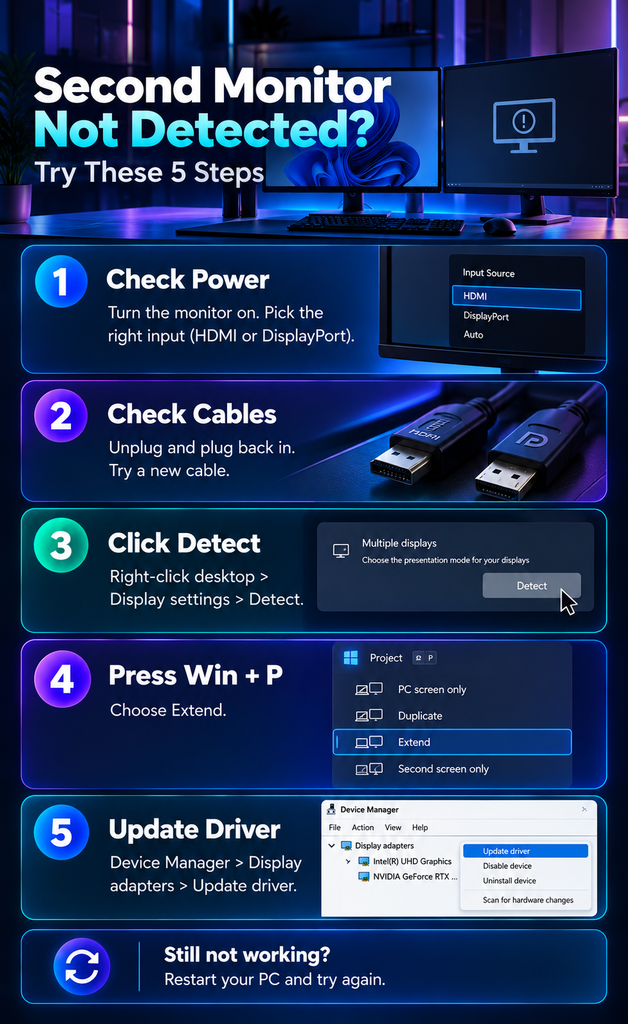
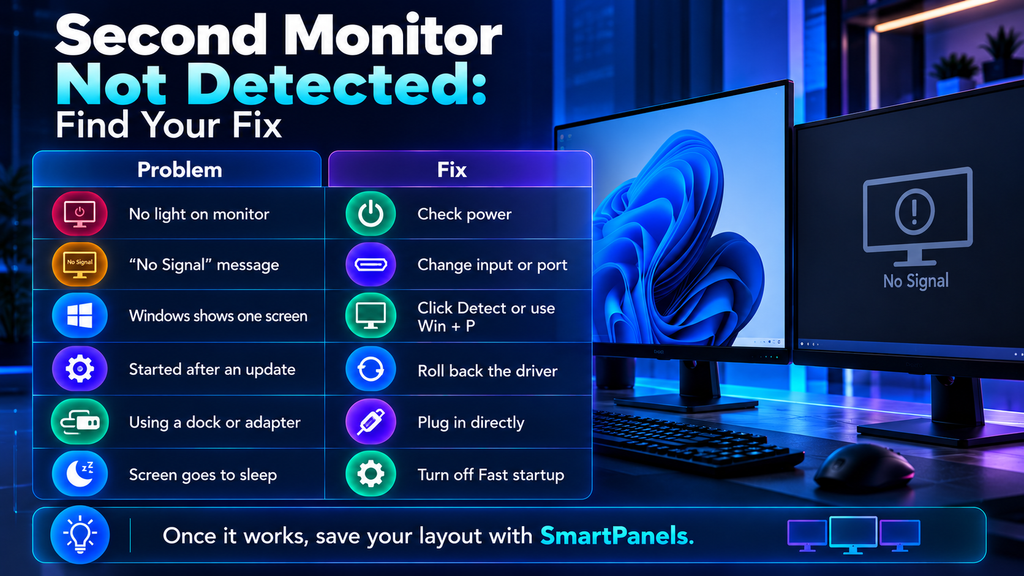
First, verify the monitor is receiving power; a small light on the front should be visible. Go into the menu and check the input setting. Select HDMI for an HDMI cable or DisplayPort as the case may be, since an incorrect input will leave you with a black screen.
- Plug the Cables Back In
If there are issues, unplug the cable at both ends and give it ten seconds before reconnecting them securely. Inspect for any damage to the wires or bent pins. Even if everything else is in order, a faulty cable is enough to trigger a “second monitor not detected” error, so put in a different one if possible.
- Try a Different Port
There is a chance your PC is equipped with more than one video port, so try relocating the cable to a different one. In the case of a desktop that has a dedicated graphics card, make sure you are using a port on the card and not the one on the motherboard; such a minor adjustment will frequently do the trick.
- Test the Monitor on Another Computer
You can also rule out any issues by hooking the monitor up to another machine. Should it function properly there, the trouble is with your PC. If it does not, then the cable or the monitor itself is in need of some attention. It is a good way to determine whether you are dealing with a hardware or software fault.
- Restart Everything
Another option is to give the system a fresh start. Unplug the power cord from the monitor for half a minute or so and put it back. Once you have done that, restart the PC, making sure to switch the monitor on first. The process will clear up any minor glitches and re-establish the connection.
Windows Settings Fixes for Second Monitor Not Detected
If a computer not detecting second monitor problem stays after the quick checks, open your Windows settings. Sometimes Windows waits for you to ask it to look for a screen.
Click the Detect Button
To get started, right-click on any open space of the desktop and select Display settings. From there, find the Multiple displays option by scrolling down and hit Detect to have Windows do a search for additional screens (if you are on Windows 11, it is best to open that section first). It is a straightforward way to resolve issues with a second monitor not being recognised.
Change the Screen Mode
You can also press the P and Windows keys at the same time to bring up a menu. Selecting Extend will make the two screens function as a single large workspace, whereas Duplicate puts an identical image on each one. There is also Second screen only if one wishes to disable the primary display. On occasion, Windows will register the monitor yet still only present one screen.
Pick “Extend These Displays”
Return to the Display settings and from there open the Multiple displays menu. Select the option to Extend these displays; you will likely see your new screen listed as Display 2. Simply drag it into position so it corresponds with where it actually sits on the desk, then make the change.
Make Sure the Monitor Is On in Device Manager
In the event of a “second monitor not detected” message following a driver update, the remedy is to go into Device Manager. Under the Monitors section, find the icon for the monitor and check for a small down arrow. A right-click on that arrow will give you the chance to Enable device.
Match the Screen Speed
The refresh rate is what one would call the screen speed, and a disparity in those speeds can put a strain on the connection. To be sure, go into Display settings and open the advanced display page to see what each screen is running at. Put them both at 60 Hz and see how it goes. Should Windows still fail to pick up the second monitor, then the matter is likely with the drivers.
Driver Fixes for a Second Monitor Not Detected Error
Drivers are but small programs that allow Windows to interface with the graphics card. When they are faulty or out of date, a “second monitor not detected” error is the usual result. It is an issue that has been seen more than its share since the switch to Windows 11.
Update the Graphics Driver
To begin, right-click on the Start button and go to Device Manager. From there, open up Display adapters and right-click the graphics card in question. Select Update driver and let it search automatically. Once that is done, a restart of the PC is in order.
Get the Newest Driver From the Maker
That said, Windows is not infallible when it comes to locating the most recent driver. It is better to head over to the site for your manufacturer, be it NVIDIA, AMD or Intel, and put in a download for the latest version made for your particular card. After installing, restart the machine; you will find these drivers are good at resolving any display bugs.
Check Windows Update
To start, go into Settings and select Windows Update. From there, hit Check for updates. You will also want to head to Advanced options and make your way to Optional updates; install a display or monitor driver if one is available.
Reinstall or Roll Back the Driver
Then do the following in Device Manager: right-click on the graphics card and opt to Uninstall device. A restart of the PC should have Windows put in a new driver. In the event the problem is a result of an update, take a different approach. Open the Properties for the card, navigate to the Driver tab and use the Roll Back Driver option.
Graphics Tool, Dock, and Power Fixes for Second Monitor Not Detected
Sometimes the fix lives outside Windows. Graphics tools, docks, and power settings can all hide a screen and cause a second monitor not detected message.
Check NVIDIA and AMD Settings
Start by going into the NVIDIA Control Panel and selecting Set up multiple displays; you will want to see a check mark next to your second monitor. For those on an AMD system, the same can be done in AMD Software to confirm both screens are active. Be aware that such tools have been known to disable a port following an update.
Test Docks, Hubs, and Adapters
Then there are docks and adapters, which only introduce more opportunities for trouble. To rule them out as the source of a not detected issue with your second display, try connecting the monitor directly to the PC. Should that work, you can put the blame on the dock or adapter. An update to the dock’s software may be in order, as is an inspection of the USB-C port, since some are data only and will not put out a video signal.
Change Power Settings
A screen can be put into a deep sleep by power saving, and in some cases it will not rouse from that. To remedy this, go to the Control Panel and open up Power Options. Under the heading for what the power buttons do, you will need to select the option to change settings that are at present unavailable. From there, disable Fast startup and save your changes before restarting. That setting is responsible for the quick boot of the PC, but once you have done so, give the second monitor another try.
Laptop Fixes for a Second Monitor Not Detected
Laptops have a few extra parts to check. Try these steps if a second monitor not detected message appears on your laptop.
- Plug in your charger, since battery mode can limit graphics power.
- Press the display key, often Fn plus an F-key with a screen icon.
- Restart the laptop with the cable already plugged in.
- Update both graphics drivers, because many laptops use two graphics chips.
- Try another video port if your laptop has one.
Advanced Fixes for a Stubborn Second Monitor Not Detected Issue
Still stuck? These steps need a bit more care. They are still easy to follow.
- Restart the Graphics Driver with a Shortcut
A quick way to rouse a screen that has gone to sleep is with the following: hit the Windows, Ctrl, Shift and B keys in unison. You will see the display flicker as Windows goes about restarting its graphics driver.
- Update the BIOS and Chipset Drivers
Then there is the BIOS, the system software at the heart of your PC. The manufacturer will have any necessary BIOS or chipset updates on their support site; these are put out to ensure the various components of the machine operate in concert. Take care to follow the maker’s instructions when applying them. A botched update can be more trouble than it is worth, so make sure to back up your files beforehand.
- Know Your Hardware Limits
There is a limit to how many screens an older graphics card can support, so review the specifications for your card to see what that is. You should also verify that your cable is up to the task of the monitor in question; a simple one will not allow for higher settings given the size and speed involved.
- Ask for Professional Help
Should you run into trouble after trying everything, get in touch with the PC or monitor manufacturer. An issue with the port or the unit itself is best left to a technician. Do put down the steps you have already taken when you call, it will let their support staff get to work on a solution more quickly.
Keep Your Windows Organized After You Fix Second Monitor Not Detected
Once Windows sees both screens, you may face a new problem. Windows often moves your apps around when a screen disconnects and comes back. SmartPanels can help. This Windows app saves your app positions, browser tabs, and layouts. Then you can restore your workspace in one click.
Here is what else the app offers:
- Multi-monitor support for up to six screens
- Custom hotkeys to open a saved workspace fast
- Smart browser tab restore for Chrome, Firefox, and Edge
The app also has a free version, so you can start without paying. Want to learn more? Read how it works or see the pricing page for plan details. Fix your screen first. Then let the app keep your desk tidy.
Simple Habits to Prevent a Second Monitor Not Detected Error
- Use good cables and replace worn ones.
- Update your graphics driver every few months.
- Restart your PC after big Windows updates.
- Install monitor updates when the maker shares them.
- Plug in your screens before a video call.
- Write down the settings that worked for you.
These habits cut down surprises. They also keep your desk steady each day. For more tips, visit the blog.
FAQs About Second Monitor Not Detected
1. Why does my second monitor work and then disappear?
The root of the problem is usually a driver issue, power saving mode or even a cable that has come loose. To remedy it, make sure to reseat the cable. You should also update the graphics driver and disable Fast startup.
2. Can a bad cable cause a second monitor not detected error?
And yes, a frayed wire or a bent pin will put an end to the signal. Put in a new cable or use another port to see if that makes a difference; if it does, there is no point in keeping the old one.
3. Do I need new drivers after a Windows update?
It is not uncommon. An update to Windows may well have put in a new graphics driver for you. The best course of action is to get the latest one from NVIDIA, Intel or AMD. Should the trouble have started in the wake of that update, use the Roll Back Driver function.
4. Can a USB-C port cause a second monitor not detected problem?
As for your question, yes. There are USB-C ports that will transfer data yet are not capable of video output. A DisplayPort or screen symbol next to the port is usually a telltale sign; the PC manual will confirm it. When in doubt, stick with an HDMI or DisplayPort.
5. How do I stop my windows from moving when I reconnect my second monitor?
Windows often rearranges apps when a screen turns off and on. You can save your layout and restore it with one click each time. You can also set a hotkey for faster access.
Final Thoughts
There is no need to be put out by a “second monitor not detected” notice; the solution is generally at hand. For a start, look into the power and cabling, then move on to your Windows display settings and make sure the graphics driver is up to date. Should the issue persist, you can test the dock or alter your power options before resorting to the more advanced measures mentioned earlier.
Since each of these remedies is for a different kind of problem, it is best to change only one variable and see what happens. That way you will know which step did the trick and will not introduce any new complications.
When you have both displays running again, take some time to secure your setup. Use quality cables, keep drivers current and save where your windows are. If none of this comes to anything, put in a call to the PC or monitor manufacturer; a faulty component is something for a professional to handle. A little patience and the proper sequence will have your extra screen back in order.