
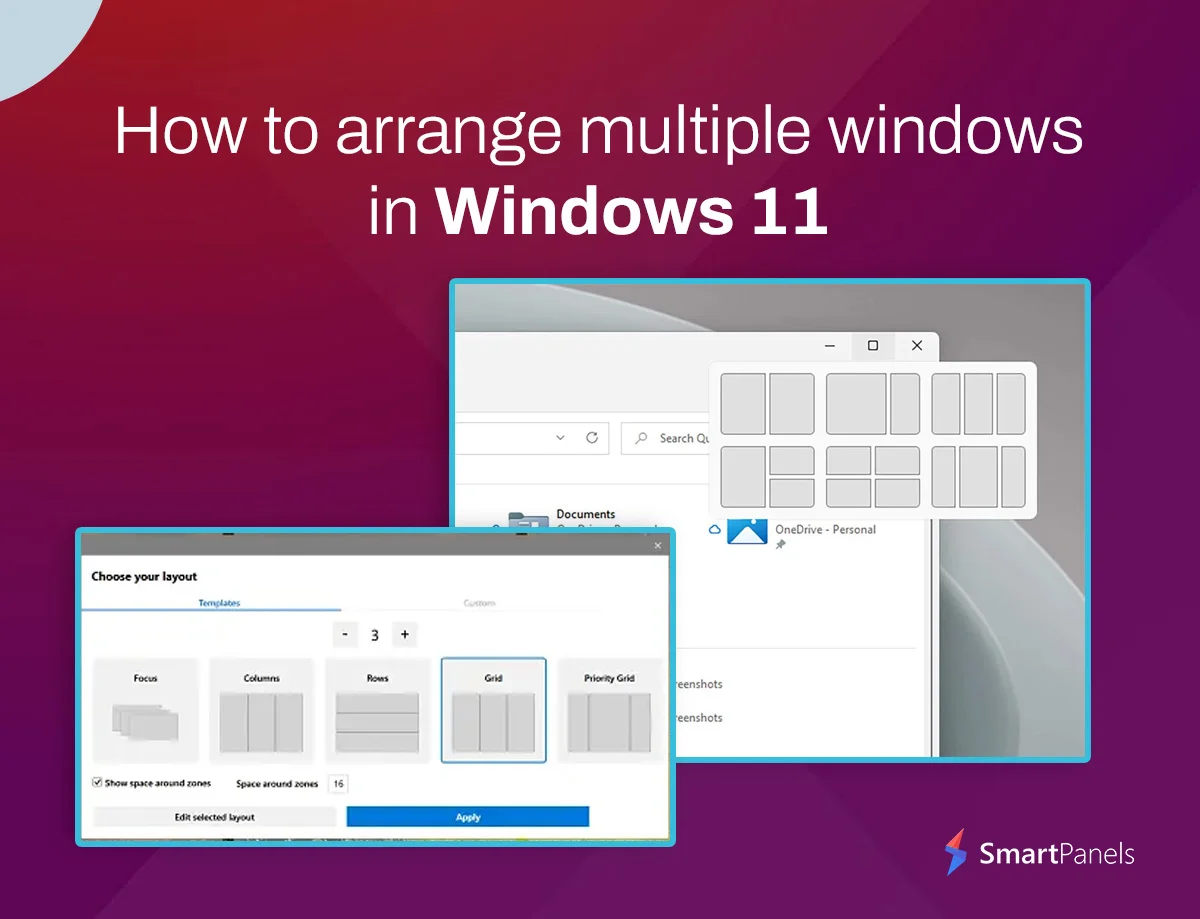
Yesterday your screen was fine. Today the text is blurry, the icons are oversized and the windows have taken up strange positions. It is a familiar scenario. A driver update, a new monitor or even a game can alter your display without fanfare. But it can be put right in a matter of minutes. This guide shows you exactly how to reset display settings in Windows 11 step by step.
We will start by explaining what is behind these changes. Then you can use Windows’ own tools to set the resolution, scaling, color and refresh rate to order. From there we will apply some more thorough remedies for any recalcitrant issues. And in the end, you will see how SmartPanels can restore your apps and monitors to how they should be. One screen or six, the process is the same. Let us make your Windows 11 desktop sharp, clear and in order once more.
Why You Need to Know How to Reset Display Settings in Windows 11
There are several reasons Windows 11 will make an adjustment to your display. Put in a new monitor and it may impose its own resolution. An update to the graphics driver is another cause, one that can alter the refresh rate or color profile.
In the case of video apps and games, they will at times put the screen into a different mode and not change it back. Then there are accessibility options like color filters which influence any window you open.
Your workspace is not immune to these changes either. A shift in scale or resolution has Windows repositioning and resizing the applications you have open. With multiple monitors in use a window could end up on the wrong screen altogether.
The good news is that for your hardware each display menu in Windows 11 has a value set as Recommended. Therefore, how to reset display settings in Windows 11 mostly comes down to picking Recommended in each place.
Before You Start: Save Your Current Setup
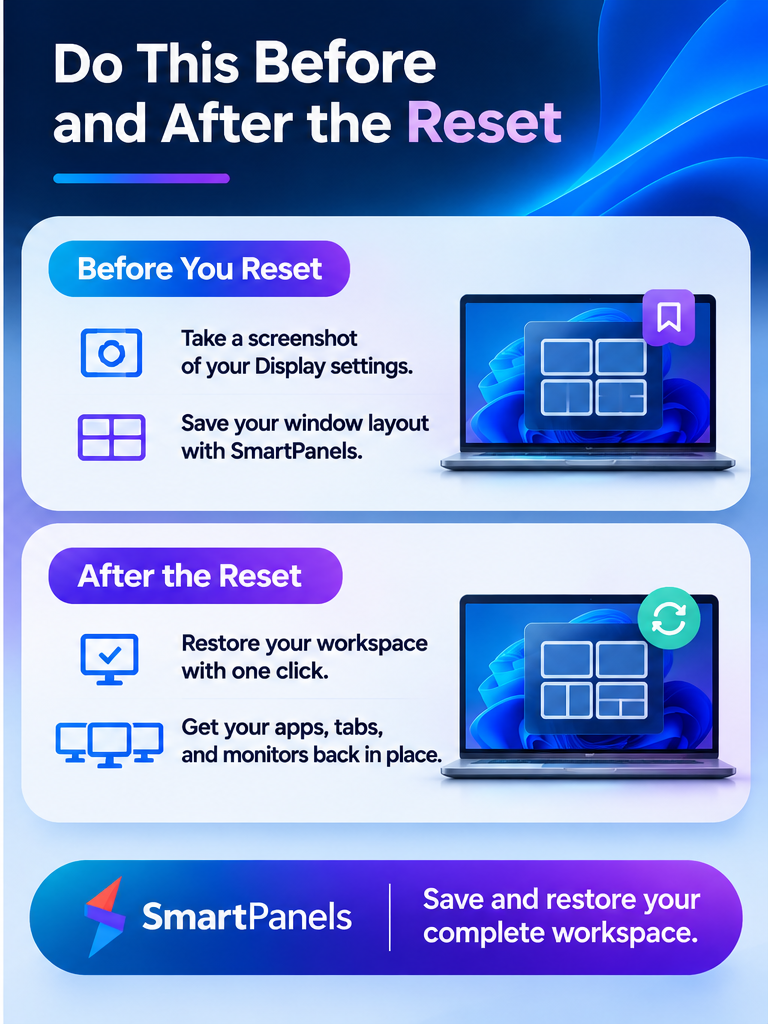
Before you learn how to reset display settings in Windows 11, take a minute to prepare. First, take a screenshot of your Display page so you remember your values. Next, save your window layout with SmartPanels.
SmartPanels records your window positions, browser tabs, app layouts, and display preferences in one profile. As a result, you can restore your full workspace with one click after the reset.
How to Reset Display Settings in Windows 11: Step-by-Step Methods
Most fixes have the same point of departure. Hit Windows + I to go to System and click on Display. From there, follow the methods set out below in sequence.
1. Start With a Quick Keyboard Shortcut
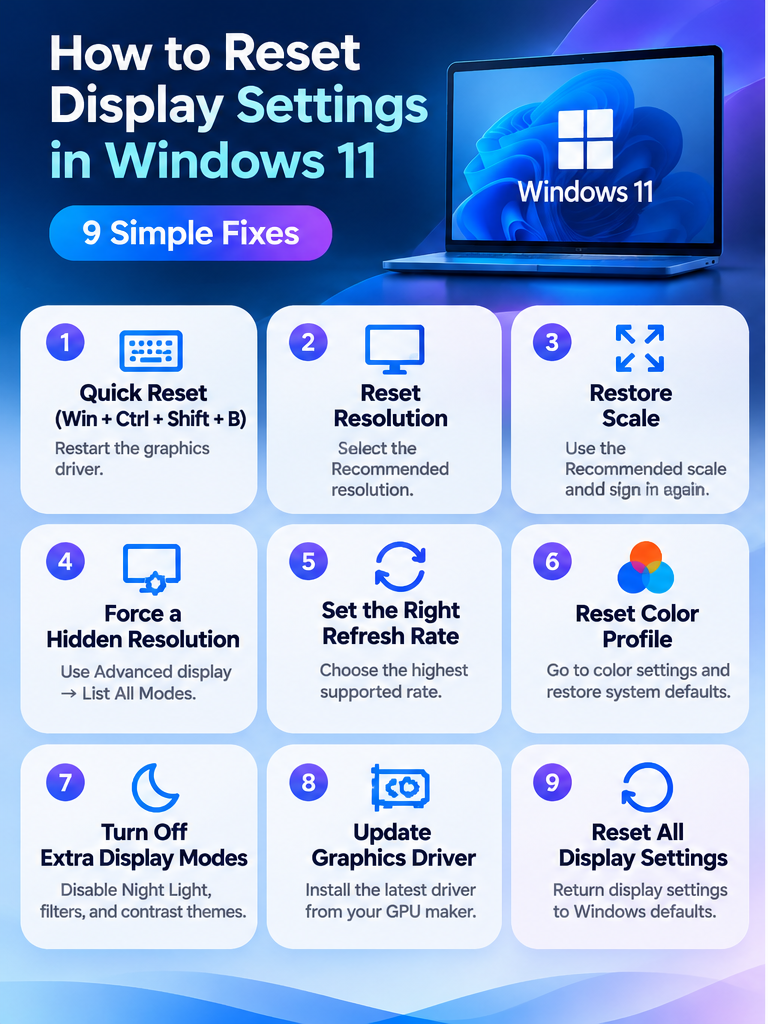
The closest thing to a restore default display settings Windows 11 shortcut is a simple key combo. Do a quick trick by pressing Windows + Ctrl + Shift + B at once. The screen will flicker as Windows reboots the graphics driver, which is usually enough to put an end to black screens, frozen pictures or any other flickering. Should the display be duplicated, hit Windows + P and make your selection for PC screen only.
2. Reset the Screen Resolution
Resolution controls how sharp your screen looks. Here is how to change display settings in Windows 11 for resolution:
- Open the Display resolution dropdown.
- Select the value marked Recommended.
- Click Keep changes within 15 seconds.
Windows restores the old value if you wait too long. For fuzzy text, this step often answers how to reset display settings in Windows 11 on its own.
3. Restore the Default Scale
Scale sets the size of text, icons, and apps. It plays a big role in how to reset display settings in Windows 11. Follow these steps:
- Open the Scale dropdown on the Display page.
- Choose the percentage marked Recommended.
- If you see Turn off custom scaling and sign out, click it.
- Sign back in to see the default size.
4. Force a Hidden Resolution
Sometimes your preferred resolution stays out of the dropdown. Wondering how to force resolution Windows 11 keeps out of the list? Try this:
- Go to Display and click Advanced display.
- Click Display adapter properties for your monitor.
- On the Adapter tab, click List All Modes.
- Pick a mode, then click OK and Apply.
To put in a completely custom value, one can use the NVIDIA Control Panel, AMD Software or the Intel Graphics Command Center. All of them have an option for a custom resolution. Do keep the setting within what your monitor supports to have a stable image.
5. Set the Right Refresh Rate
The refresh rate is a measure of how many times per second the screen is redrawn; the higher it is, the smoother the motion. To make that adjustment, go into Advanced display and under Choose a refresh rate pick the top figure from the list provided by the manufacturer. Finally, click Keep changes. Gamers especially benefit from this part of how to reset display settings in Windows 11.
6. Reset Your Color Profile and Calibration
Custom color profiles can tint your whole screen. Here is how to reset display calibration in Windows 11:
- Press Windows + R, type colorcpl, and press Enter.
- Select your monitor on the Devices tab.
- Check Use my settings for this device.
- Click Profiles, then Reset my settings to the system defaults.
Afterward, search for Calibrate display color in the Start menu. The free wizard helps you fine-tune gamma, brightness, and contrast.
7. Turn Off Night Light, Filters, and Contrast Themes
Several comfort features change colors across the whole system. So, check each one quickly:
- Night light: Go to System, then Display, and switch Night light off.
- Color filters: Open Accessibility, then Color filters, and turn the toggle off.
- Contrast themes: Open Accessibility, then Contrast themes, and choose None.
- HDR: Open System, Display, and HDR, then run the Windows HDR Calibration app.
8. Reset Each Monitor in a Multi-Screen Setup
Monitors each have a native resolution and scale of their own. Start by clicking Identify to put the numbers in order with the right screens. From there, go to the top of the Display page and make your selection for every monitor. Put the Recommended resolution and scale on them. To finish, under Multiple displays be sure that Extend these displays is still the option chosen. This approach shows you how to reset display settings in Windows 11 for every screen separately.
9. Reinstall or Roll Back the Graphics Driver
A faulty driver can undo every fix above. So, the driver is a key step in how to reset display settings in Windows 11:
- Press Windows + X and open Device Manager.
- Expand Display adapters.
- Right-click your graphics card and choose Uninstall device.
- Restart your PC, and Windows reinstalls a working driver.
Was the problem a result of an update? Go to Properties and on the Driver tab hit Roll Back Driver. Should the screen be illegible, put Windows into Safe Mode by holding Shift and clicking Restart. From there pick Troubleshoot and Advanced options before selecting Startup Settings.
When Basic Fixes Fall Short: A Full System Reset
Most display problems end after the methods above. Still, a few stubborn cases need a bigger fix. Here is how to reset Windows 11 settings to default:
- Back up your important files first.
- Open Settings, select System, and then click Recovery.
- Click Reset PC next to Reset this PC.
- Choose Keep my files and follow the prompts.
This option reinstalls Windows and removes your installed apps. So, treat it as your final step after how to reset display settings in Windows 11 fails to help.
How SmartPanels Restores Your Workspace After You Reset Display Settings in Windows 11
Resetting your display fixes the picture. However, it often leaves your desktop in a mess. Apps shrink, windows overlap, and browser tabs scatter across screens.
That is where SmartPanels helps. This Windows workspace manager saves your exact desktop layout and restores it in seconds.
Save Your Whole Workspace as a Profile
SmartPanels captures window positions, app layouts, and display preferences in one profile. For example, you can build a Work profile and a Gaming profile. Then you can switch between them anytime. Learn more about effortless desktop organization.
Restore Everything with One Hotkey
Once you finish how to reset display settings in Windows 11, press your custom hotkey. SmartPanels reopens your apps and places each window where it belongs.
See how to restore your workspace instantly and set up workspaces with custom hotkeys.
Manage Up to Six Monitors
Multi-monitor desks suffer most after a resolution change. SmartPanels supports setups with up to six displays. So, each app returns to the right screen every time. This makes resetting display settings in Windows 11 far less stressful on big desks. Explore multi-monitor productivity.
Bring Back Browser Tabs
SmartPanels also saves browser tabs in Chrome and Edge. As a result, your research tabs return after a restart or reset.
Read more about smart multi-browser management.
Share Your Setup with Your Team
IT teams and managers can share profiles by email. That way, every new PC gets the same clean layout after setup.
Best of all, you can download SmartPanels and start with the free version. Then upgrade whenever you need more features.
Frequently Asked Questions
Does Windows 11 Have a One-Click Display Reset?
Windows 11 handles each display option in its own menu. Each fix takes under a minute, so how to reset display settings in Windows 11 stays quick and simple.
Will a Display Reset Affect My Files or Apps?
Your files and apps stay safe. These changes only affect how your screen looks. However, Reset this PC removes apps, so back up first.
Why Did My Windows Move After I Changed the Resolution?
Windows 11 resizes and repositions open apps to fit the new resolution. A saved SmartPanels profile puts them back with one hotkey.
Why Does My Screen Still Look Blurry?
A mismatch between resolution and scale usually causes blur. Set both to Recommended and restart your PC. Then update your graphics driver to complete how to reset display settings in Windows 11.
How Can I Find My Graphics Card Name?
Press Windows + X and open Device Manager. Then expand Display adapters to see your Intel, NVIDIA, or AMD card.
Final Thoughts
Now you know how to reset display settings in Windows 11 from start to finish. Start with the quick shortcut and the projection menu. Then put the resolution, scale and refresh rate back to what is recommended. Go on to restore the color profile and disable any superfluous color filters. Should you still have issues, do a refresh of the graphics driver or boot into Safe Mode. A full system reset is best left for the rare occasion it is called for. The recommended values are the ones that suit your hardware. But a clear screen is only part of it; your apps, tabs, and monitors must be put back in order as well.
SmartPanels will take care of that with a custom hotkey of your own making. Save your layout and reset the display without worry. Get the free version of SmartPanels to have a Windows 11 workspace that is sharp and in order.