
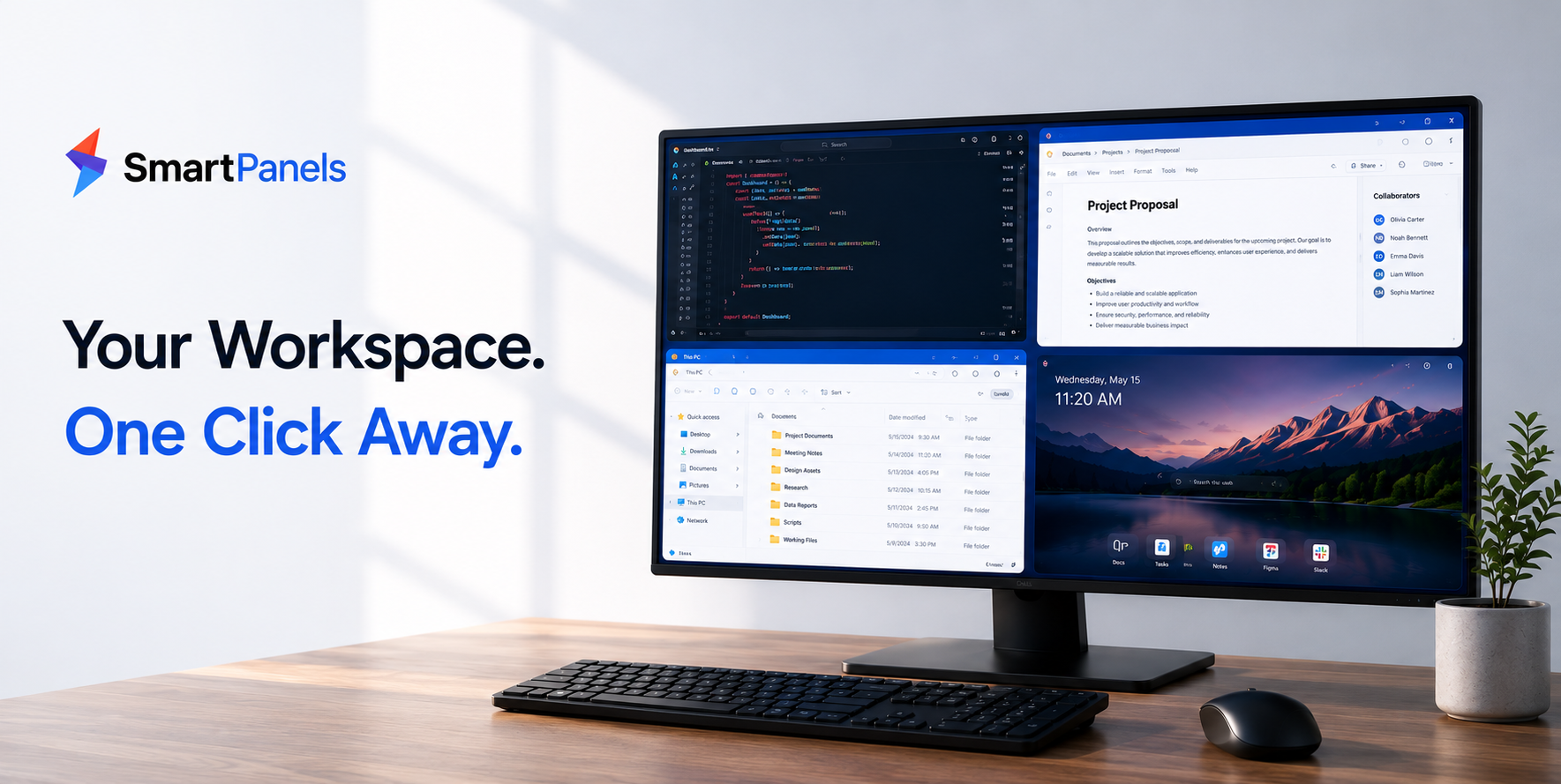
It is a familiar chore for some to put their desktop in order each morning. Many professionals waste the first few minutes of the workday just getting their windows where they want them. Any writer, designer, developer, or researcher can tell you how exasperating it is. But there is a way to put an end to it.
Windows has its own means of preserving your configuration and keeps window data on hand in ways one might not notice. With these built-in options at your disposal, you can easily remedy the problem. We do not intend to offer a superficial list of tips with this guide. To start, we will examine how Windows tracks window state. From there, we cover four sound approaches that make use of the new tools in Windows 11.
We also demonstrate the automation that SmartPanels provides. The objective is straightforward: we want you to remember window size and position in Windows without repeating manual work daily.
How to Remember Window Size and Position in Windows
It’s useful to know what’s going on under the hood before changing the settings. Windows, for instance, has no single master list where it keeps every window; the state is monitored in a few different locations. That is why the native tools are only able to do part of the work.
The mechanics can be put simply like this.
The Technical Reason Windows Forgets
The registry is where Windows keeps tabs on File Explorer folder views, in the form of ShellBags. You will find these keys at “HKCU\Software\Classes\Local Settings\Software\Microsoft\Windows\Shell.” There are two subkeys that handle the job: the BagMRU for mapping out the folder tree and the Bags key to hold the view settings of every folder as binary data. A NodeSlot value serves to connect them. In this way the system preserves the column layout, view mode, position and size of a given folder.
But ShellBags are limited to File Explorer; they do not track what you have open in your browser, editor, or most other desktop applications. Those programs manage their own window state. Windows will generally relaunch an application at the size and spot of the last one you shut down for it, making for a single global position. Even then, a restart tends to reset everything.
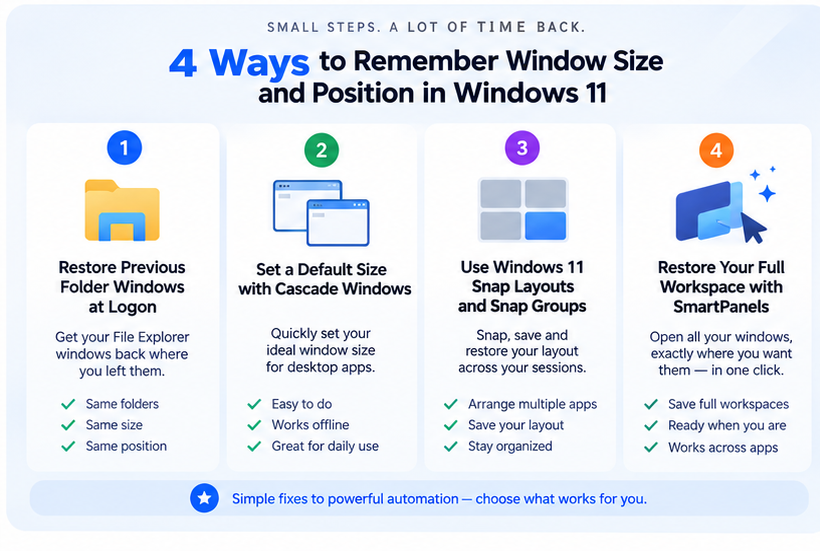
Because of these limits, you have four practical ways to help windows save window positions and size more reliably.
- Restore previous folder windows at logon
- Set a default size with Cascade Windows
- Use Windows 11 Snap Layouts and Snap Groups
- Restore your full workspace with SmartPanels
Let us break each one down, from the simplest to the most complete.
1. Restore Previous Folder Windows at Logon
To begin with File Explorer, Windows can restore any folders that were open prior to shutdown. By making use of the ShellBags data mentioned earlier, this feature will put your working folders back in their original spot and at the size they were saved in.
Here is how to make windows remember window position for File Explorer:
- Open File Explorer.
- Click the File menu.
- Select Change folder and search options.
- Switch to the View tab.
- Scroll through Advanced settings.
- Select the option to restore previous folder windows at logon.
- Click OK to confirm.
You will see those same folders waiting for you after a restart. But there is a caveat: the function is restricted to File Explorer windows. It is not going to pick up where you left off with documents, browser tabs, or other applications. For that reason, it is an ideal setup for those whose work revolves around managing folders.
2. Set a Default Size with Cascade Windows
You might want to make use of the Cascade Windows function. It will put your open applications in an orderly, overlapping stack, but its real value is as a quick means of establishing a window size you like.
Here is how to do it:
- Open the desktop apps you use often.
- Right-click an empty spot on the taskbar.
- Choose Cascade windows.
- Resize a window to the exact dimensions you want.
- Close that window once it looks right.
Windows has a habit of recalling the dimensions of the last window you closed for any given program, meaning it will come back at that size when you reopen it. This is handy for something like MS Word or Microsoft Edge. Do not expect the position to be fixed, however; a change in resolution or an update from the system can put things out of alignment.
3. Use Windows 11 Snap Layouts and Snap Groups
Then there is the matter of Windows 11 and its comprehensive snapping system, which has set a new standard. The functionality goes beyond simply resizing an application; it will put several windows for you and hold onto that configuration.
To make use of what is on offer, one must first activate the feature. Head to Settings and under System > Multitasking, turn on Snap windows. From there the rest of the features are at your disposal.
- Snap Layouts: Press Windows key + Z, or hover over a window’s maximize button. Then pick a grid, from a simple split to a six-zone layout on wide screens.
- Snap Assist: Once you snap the first window, Windows shows thumbnails of your other apps. Click one to fill the next slot.
- Snap Groups: Windows bundles your snapped apps into a group. Hover the taskbar icon of any app in that group to bring the whole set back. Groups also show up in Task View and Alt + Tab.
Then there are the more recent changes. With the 2024 update (24H2), for instance, numbered layouts were introduced to make keyboard selection a quicker affair. And if you put an external display back in place, the monitor-adaptive layouts will ensure your apps are in the right place. Microsoft has also been rolling out AI-driven Snap Suggestions since 2026; these work on data processed locally rather than in the cloud to divine a suitable layout from what is open on screen.
Should one need a simple remedy for a single app, the Shift trick works well: Click the close button while holding down Shift, and Windows will take note of the position and size. Those with ultrawide monitors tend to prefer PowerToys FancyZones, however. It is a no-cost tool from Microsoft that allows power users to set up their own custom zones instead of being limited to the usual grids.
Still, these tools share one honest limit. Snap Groups arrange apps that stay open. They do not relaunch programs you already closed. So if you see windows 11 not remembering window size after a full shutdown, the snapping system alone will not restore a closed session. That gap leads us to the final method.
4. Restore Everything with SmartPanels
The three approaches mentioned so far are only part of the answer; they do not relaunch your applications or restore your layout all at once. For that, one needs the more comprehensive option.
Enter SmartPanels. This Windows 10 and 11 productivity tool is what you want for a complete solution. With it, the whole workspace can be saved and then restored with just a click. You will have your apps, open documents, browser tabs, and their respective sizes and positions back as a set. It even reopens programs you have closed, something Snap Groups will not do.
Because of this, you can remember window size and position in windows across your whole desktop, not just one screen.
Learn How to Restore Everything in One Click!
Create a SmartPanels Profile
Setting up a profile takes about a minute. You do it once, then reuse it as often as you like.
- Open the apps, tabs, and files you want to save.
- Resize and arrange everything to match your workflow.
- Right-click the SmartPanels icon.
- Select Create Profile and name it.
- Click Save.
SmartPanels then records the arrangement in its exact size and display position. Later, you can add more tabs or files to the same profile as your work shifts.
Restore Your Layout in One Click
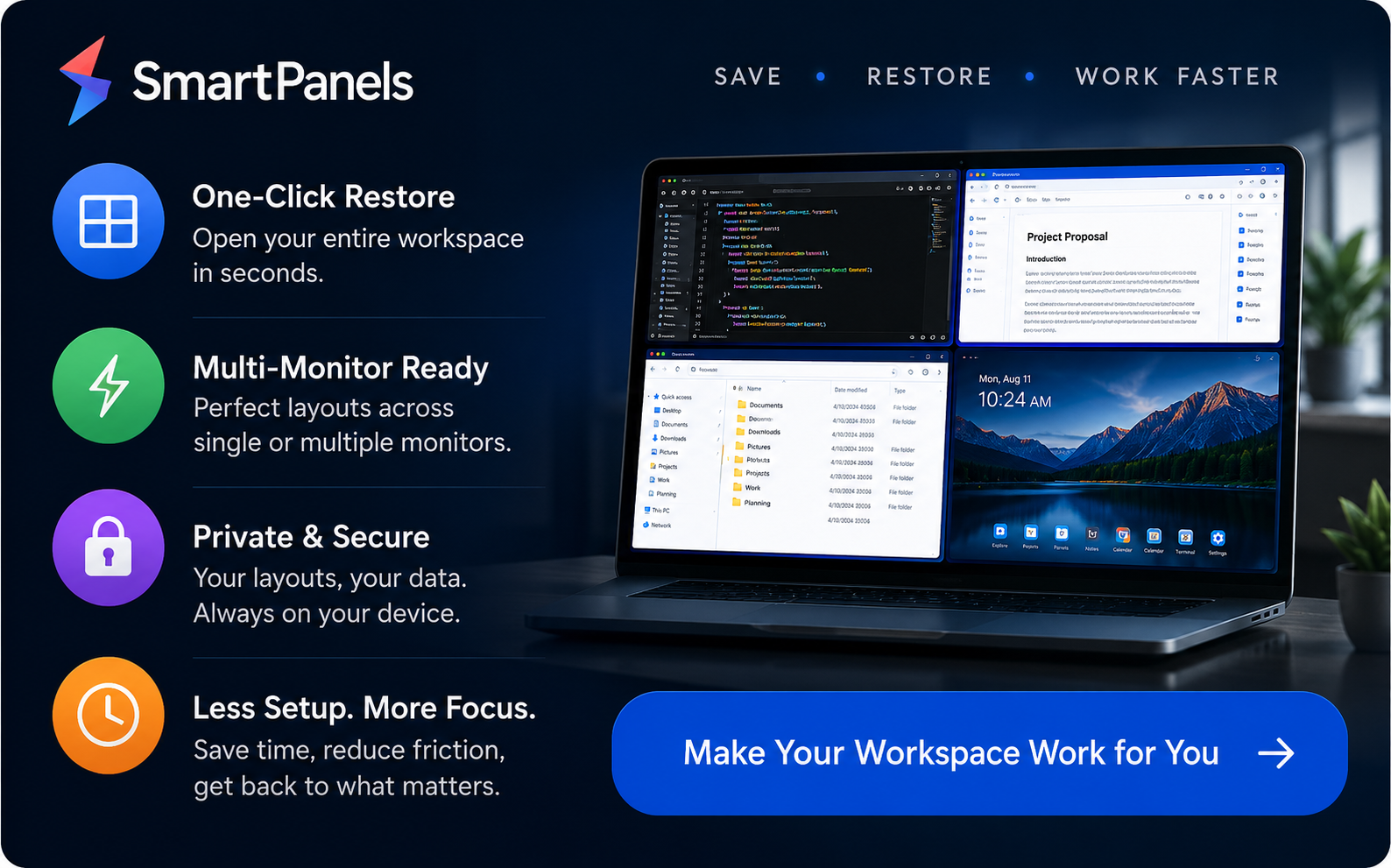
Here is where the time savings add up. Instead of reopening each window by hand, you can restore window positions in seconds.
- Right-click the SmartPanels icon.
- Click Restore Profile.
- Choose the profile you want.
The layout is restored to the way you left it. With SmartPanels, the desktop will conform to your setup since the application takes note of the size and position of each window as it was saved. One can even set up distinct profiles to suit the work at hand; have one for a client project and another reserved for personal business, for instance.
Work Across Multiple Monitors
It is common for professionals to work with multiple screens. SmartPanels makes that easier by accommodating as many as six displays simultaneously, meaning your setup is preserved whether you have a single monitor or an entire desk full of them. You can keep the browser of your choice, be it Google Chrome, Mozilla Firefox, or Microsoft Edge. And in contrast to some rudimentary dual monitor tools, this feature will save both your window configuration and active browser sessions in one go.
Final Thoughts
In the end, there are four dependable means of putting an end to the daily routine of reconstructing your desktop. For one, you can use Restore Previous Folder Windows to let ShellBags hold your File Explorer folders where they belong. Then there is Cascade Windows for imposing a set size on individual applications. Or use Windows 11’s Snap Layouts and Snap Groups to organize multiple windows, including AI-driven suggestions.
All of these are useful, but they only tell part of the story. For example, snapping won’t relaunch a closed app, which is the kind of compromise you make with native tools. SmartPanels is a different matter altogether. With a click it will take care of the entire session, from repositioning and resizing to reopening your files, tabs, and apps. It even works with your browser of choice and can be scaled to as many as six monitors.
If time is of the essence, it is worth a look. Head over to SmartPanels for a no-cost 14-day trial and get back the minutes you tend to lose in the morning.
Frequently Asked Questions
Where does Windows store window size and position data?
Windows is the one that keeps track of folder view preferences for File Explorer, storing them in registry keys known as ShellBags under the Shell\BagMRU and Shell\Bags paths. The rest of your applications tend to look after their window state, and that is what gives native memory its uneven feel.
Can I make Windows remember more than one app at a time?
Dealing with those native settings on an app-by-app basis can be a chore. You have Snap Groups to put multiple open windows in order, but they will not bring back anything you have closed. With SmartPanels it is different; a single click is all it takes to save and then restore an entire session. That way, you remember window size and position in windows across every app at once.
Does SmartPanels work with multiple monitors?
We can confirm that. With SmartPanels, one can run as many as six displays in tandem. The program remembers the way you have things set up on every screen, so your layout will be exactly as you left it when you dock or add a monitor.
Will these methods work on Windows 11 too?
For the most part. You will find that the folder and Cascade settings are preserved. Then there is Windows 11 with its Snap Layouts. Should you experience a reset of your layout upon shutdown, SmartPanels is available for both the 10 and 11 versions of Windows to remedy the situation.
Do I need PowerToys or other tools to arrange windows?
It is not a given. Power users may turn to PowerToys FancyZones to put together custom zones, particularly on an ultrawide. But the average user will do fine with what comes standard in Snap or with SmartPanels and needs no further configuration.