SmartPanels is a feature-rich productivity app for Windows 10 and 11. It allows you to auto-restore and auto-arrange the desktop apps, browsers, and MS office files on multiple displays and profiles. It eliminates the headache of manually arranging apps every time before getting started on work and ultimately increases productivity at work. With one click, you are all set to get the job done!
This article is a quick guide to use SmartPanels on Windows 10 and 11.
Download
You can download the SmartPanels app from the website, or you can also download the app directly by clicking here.
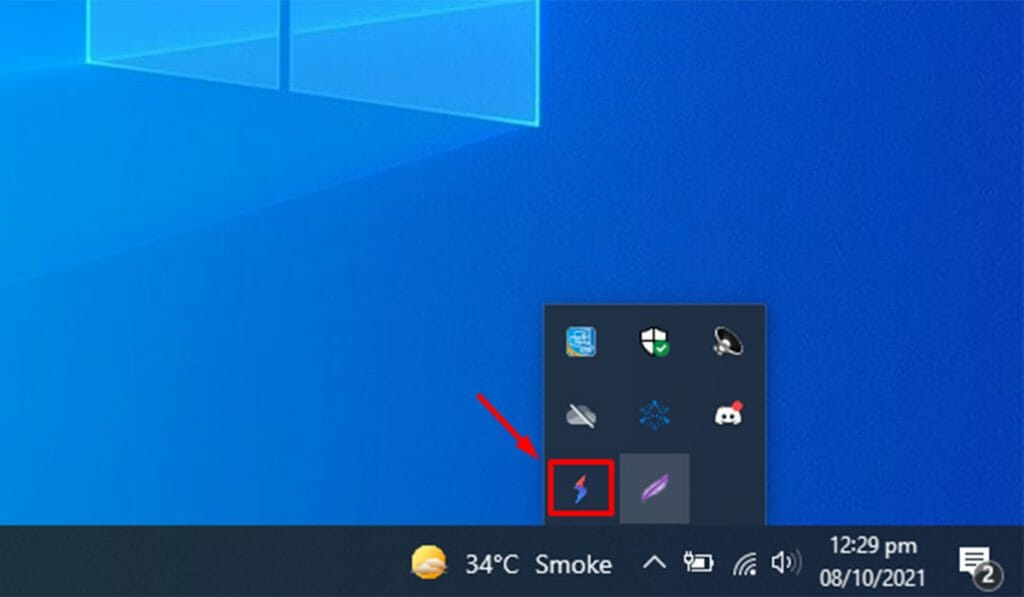
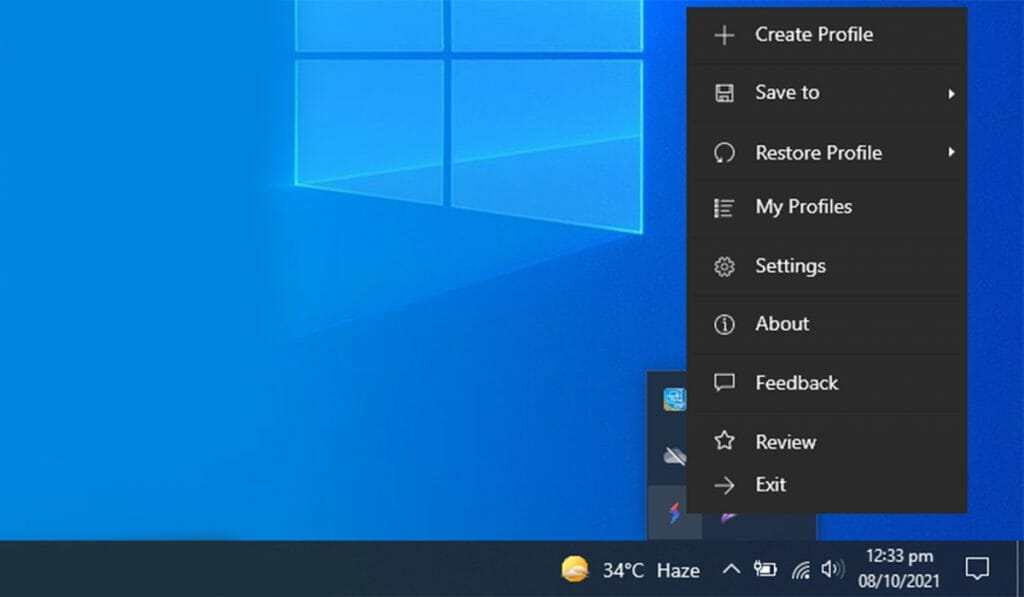
After finishing the installation process, you will be able to see the SmartPanels icon in the taskbar icon tray.
Inside SmartPanels
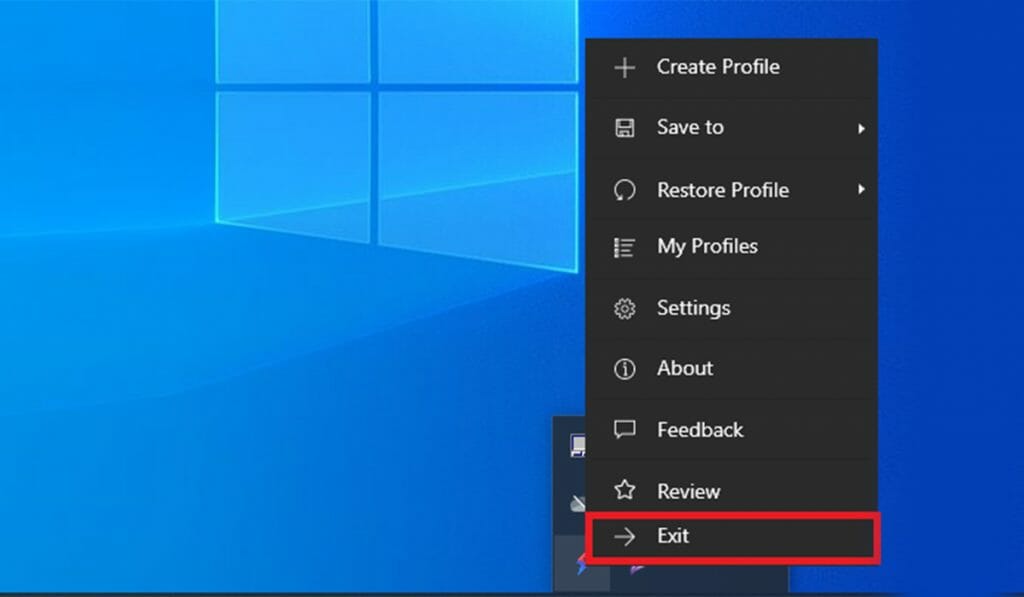
Following are some options in SmartPanels.
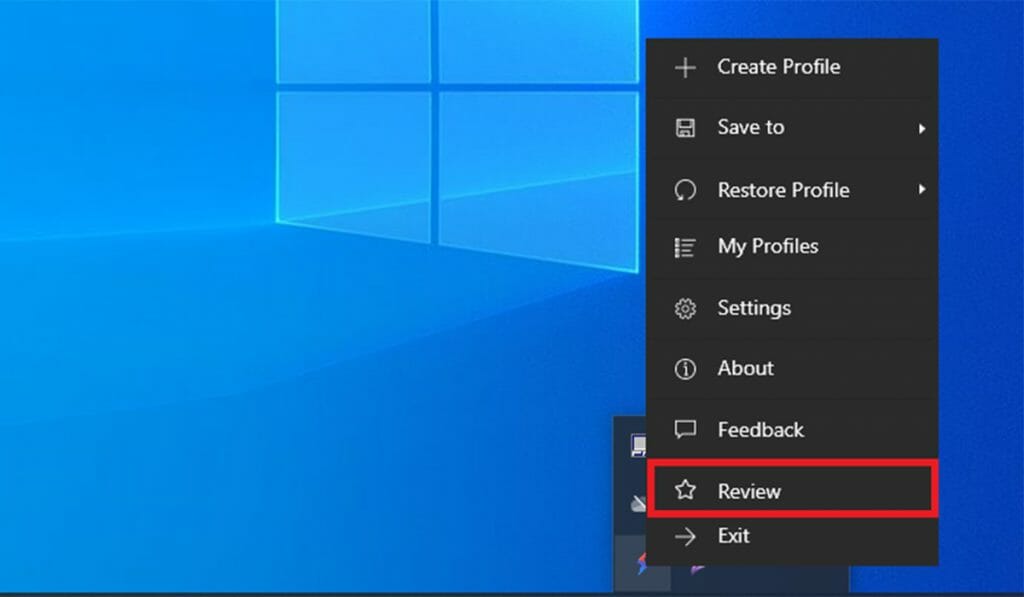
- Create Profile
- Save to
- Restore Profile
- My Profiles
- Settings
- About
- Feedback
- Review
- Exit
Getting Started
Arrange the Apps
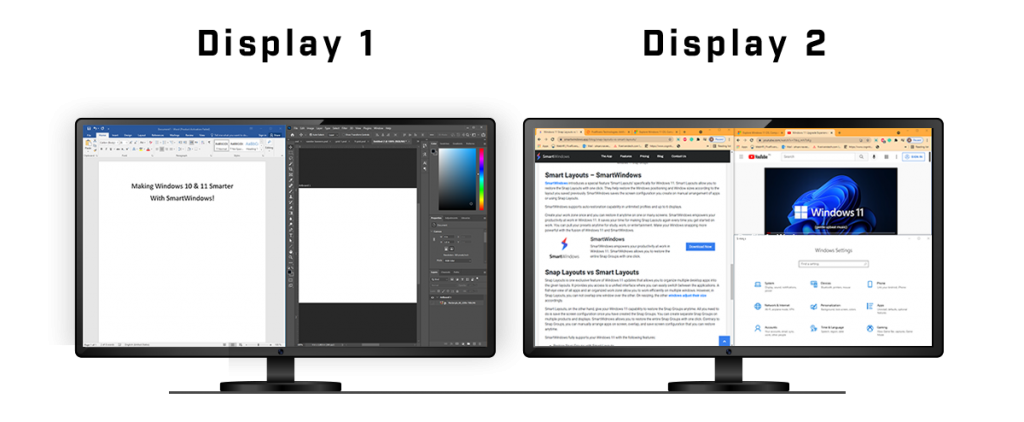
Arrange your desktop screens with the apps you are working on. If you are on your work profile, open and arrange the apps, adjust their window size and position on the screen as shown below.
Let’s go through each one by one
1. Create Profile
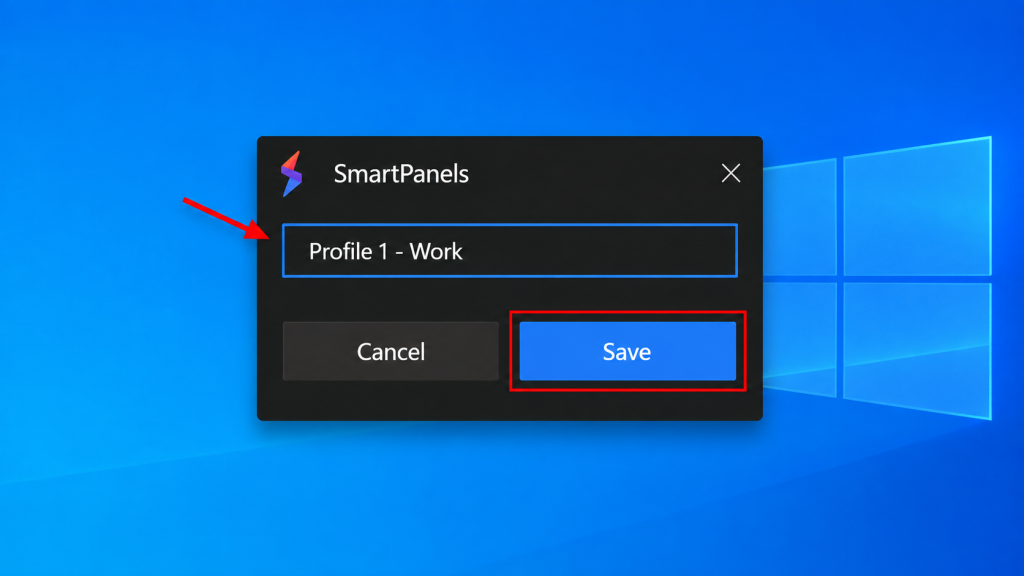
This is the first step you need to do in order to save your screen configurations. Click on “Create Profile”.

1.1. Name your SmartPanels profile and click “Save”. SmartPanels will automatically take a tour of your screen to identify the apps you are working on. Every time you will create a new profile, SmartPanels will automatically save the screen arrangement. So, in this step, SmartPanels is creating as well as saving your profile.
You can create unlimited profiles in SmartPanels paid version and dedicate each to work, study, or entertainment, etc. accordingly. Up to 3 profiles are allowed in the free version.
2. Save to Profile
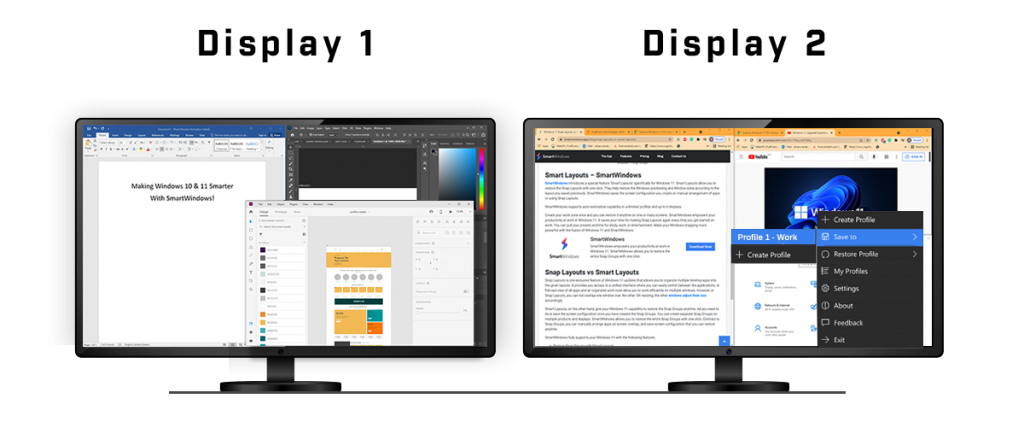
The second step is to save to your profile. Once you have arranged the screen according to your work preferences or needs and you want to open more apps or re-arrange the previous ones, click on the SmartPanels icon and select “Save to”. Select the profile in which you want to save your screen configuration. Whenever you open, re-size, or re-position any app, you would have to save the profile again so that SmartPanels restore the latest saved screen.
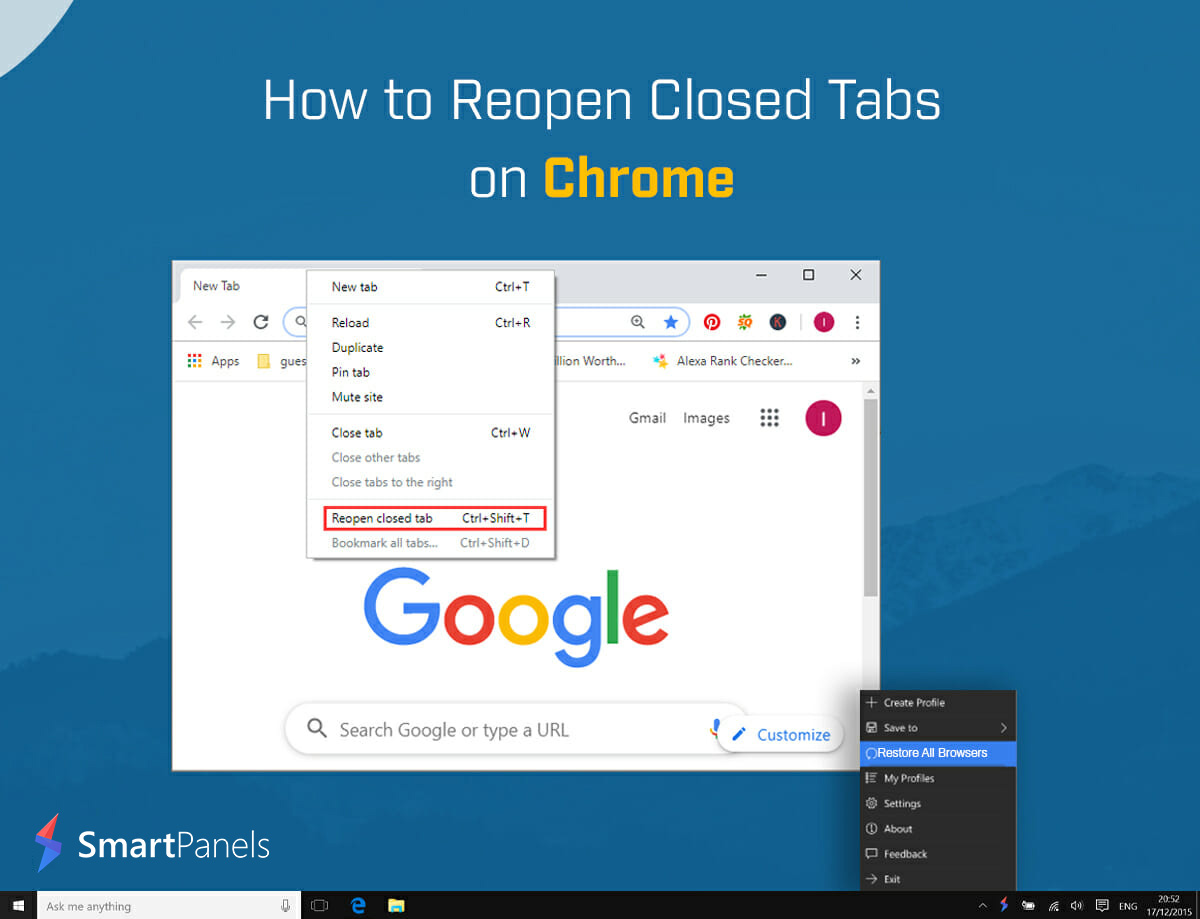
After this step, SmartPanels will remember the browser and apps you were working on. The apps, tabs and URLs, and app positioning will be saved in your SmartPanels profile. So whether it is about arranging the apps or reopening closed tabs, you are just a click away!
Now if you shut down your PC or close all the apps or you might accidentally click ‘X’ and your browser closes, you can restore them all with one click.
3. Restore Profile
You do not need to manually arrange apps every time you get started on work. You can restore your profile with a single click to get your apps auto-arranged on one or many screens.
SmartPanels does not only restore browser windows, tabs, and other desktop apps but also restores their screen size in Windows 10 and 11.
Click on “Restore Profile” and select the name of the profile you want to restore.
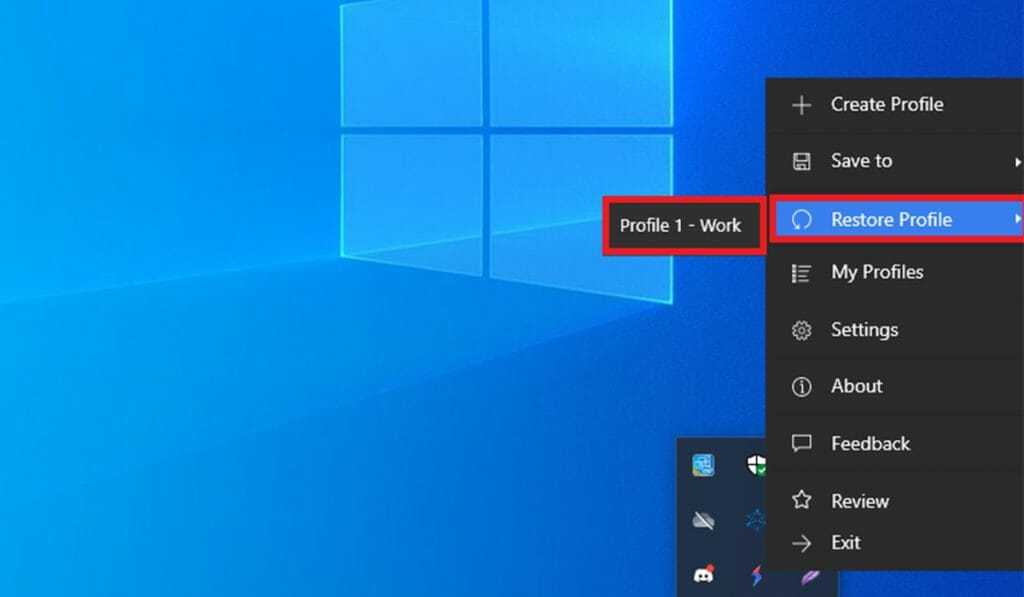
3.1. SmartPanels will restore the screen arrangement that you saved previously. It supports multiple browsers such as Google Chrome, Firefox, and Microsoft Edge. Also, it supports desktop apps and MS Office files such as Word, PowerPoint, Excel, and Project files saved on your desktop or cloud.
4. My Profiles
You can view all your SmartPanels profiles by clicking “My Profiles”.
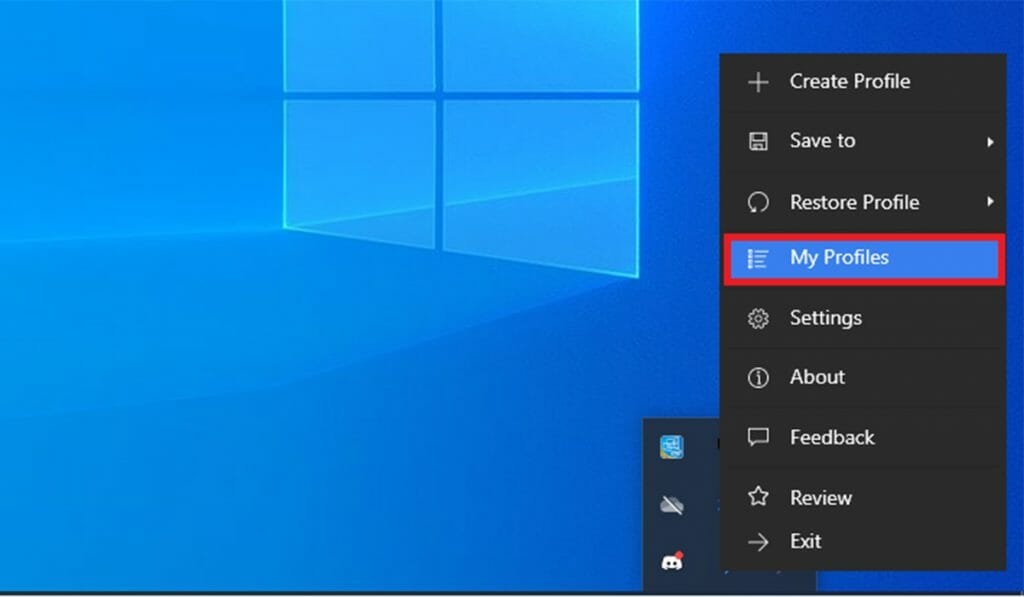
4.1. SmartPanels allows you to create unlimited profiles and in each profile, you can work on up to 6 displays. Its support for dual monitors allows you to multitask efficiently.
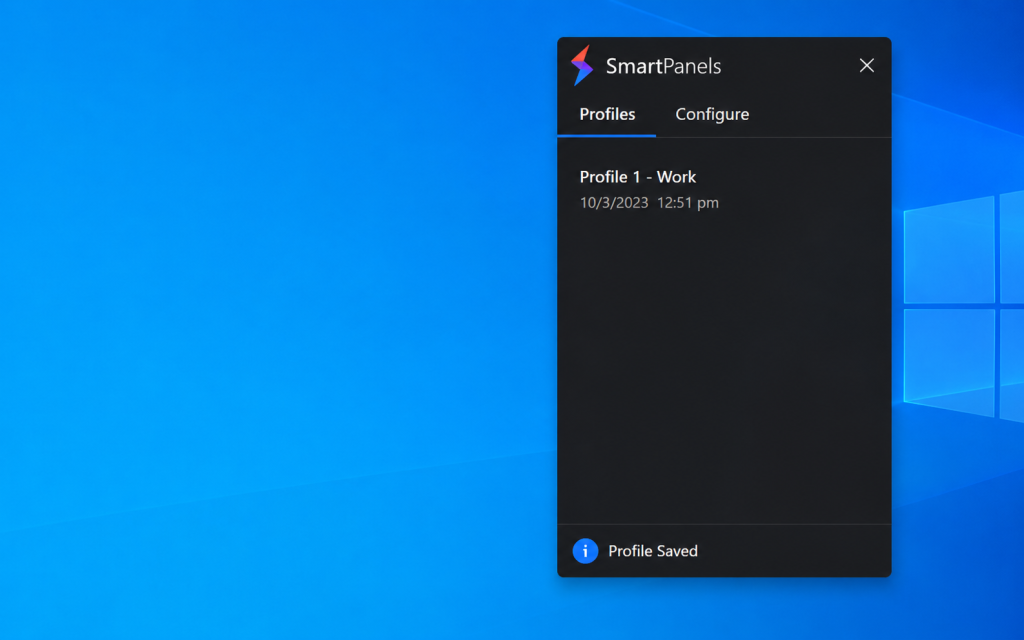
5. Settings
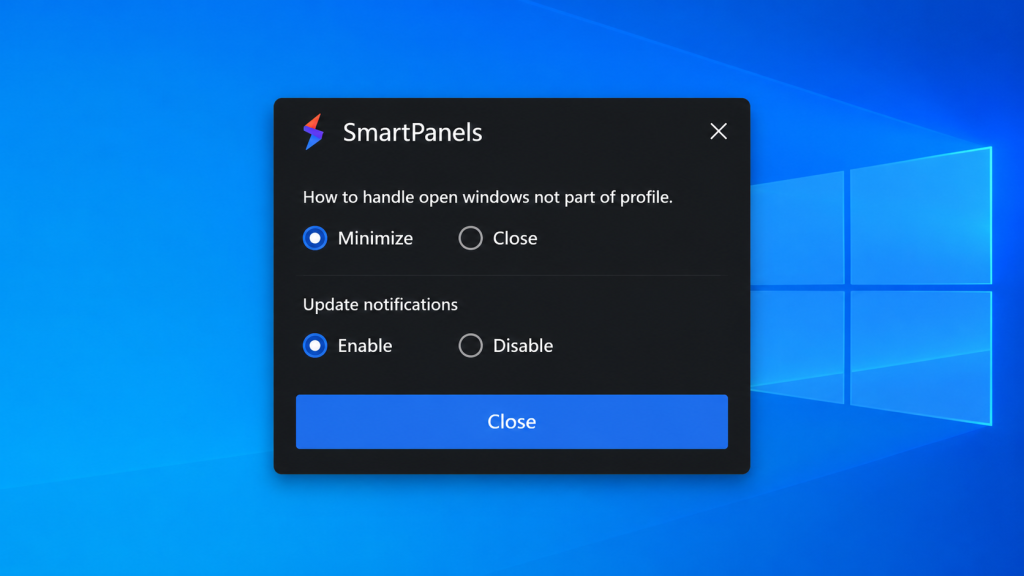
Select “Settings” to configure SmartPanels.
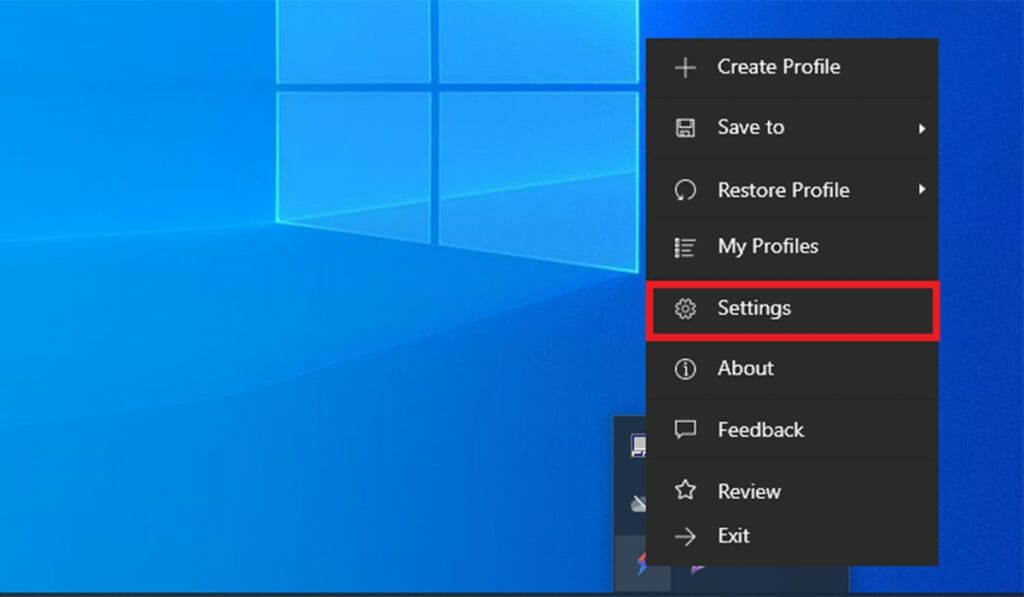
5.1. Choose whether you want to minimize or close the apps that are not part of your SmartPanels profile. Also, you can enable or disable the update notifications of SmartPanels.
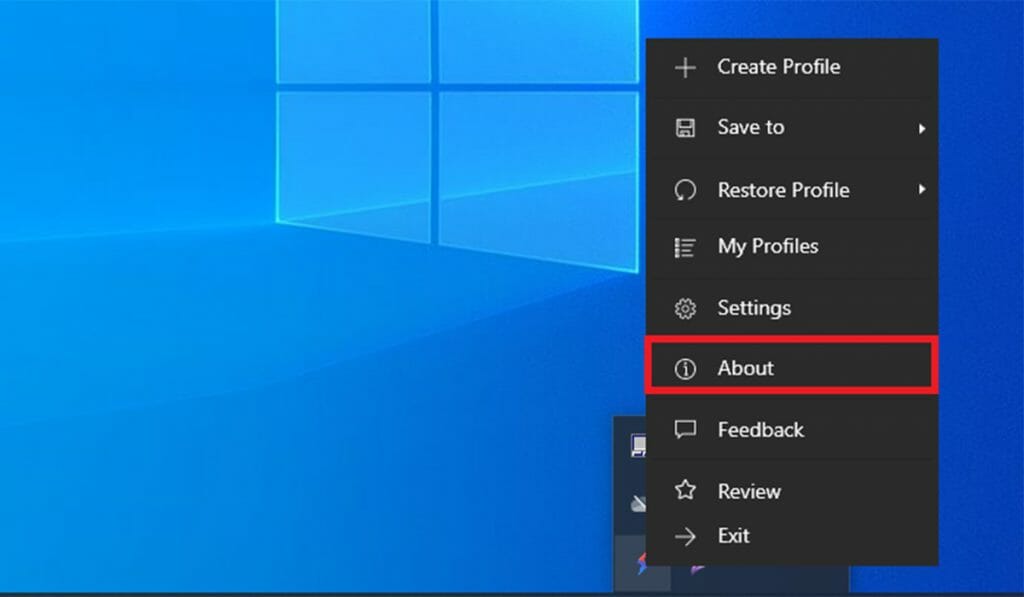
6. About
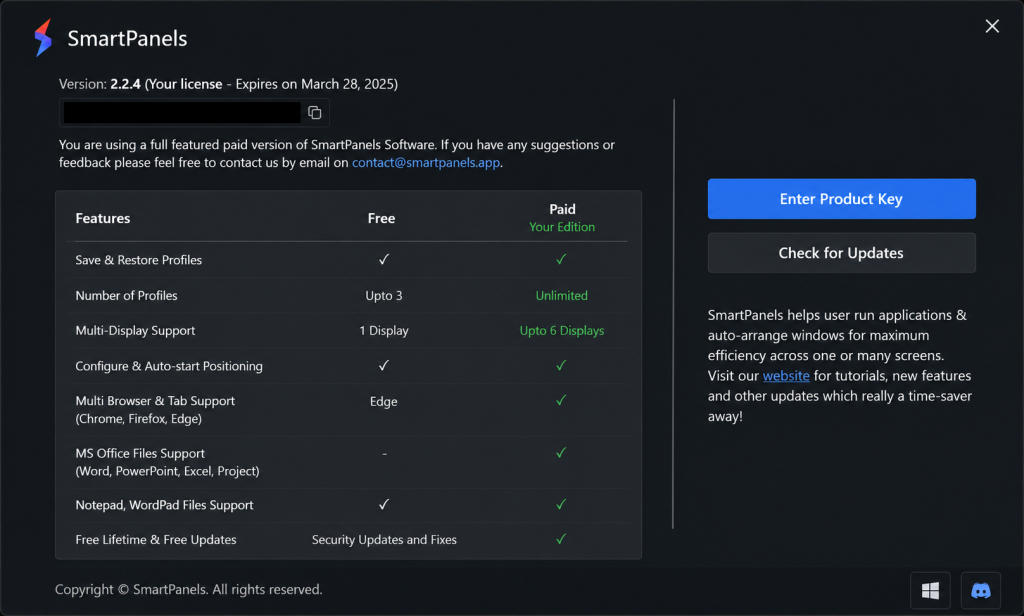
Select “About” to know the features and version of SmartPanels.
6.1. Here you can see detailed information on all the free and paid features of SmartPanels.
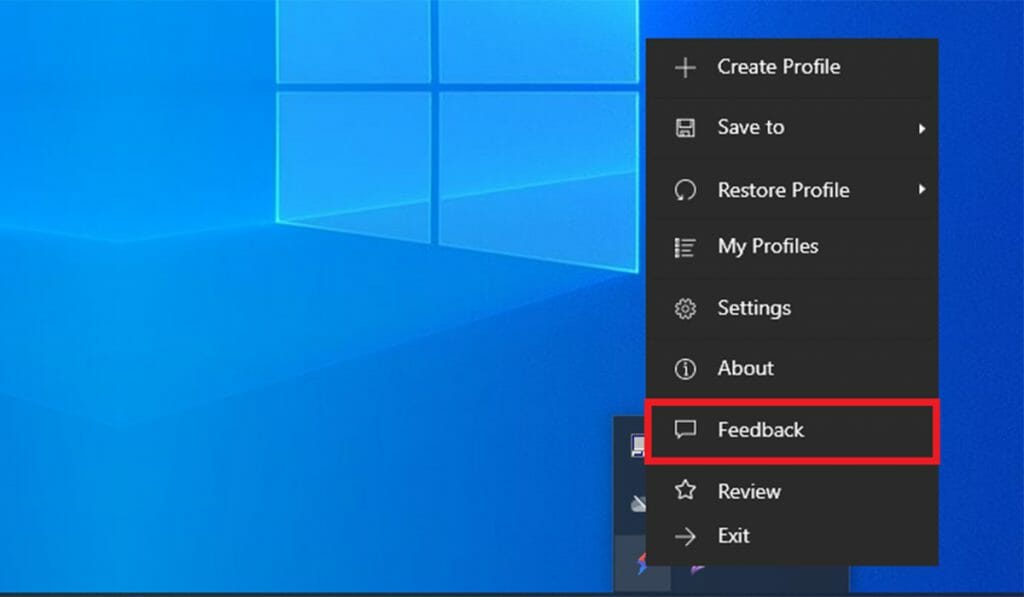
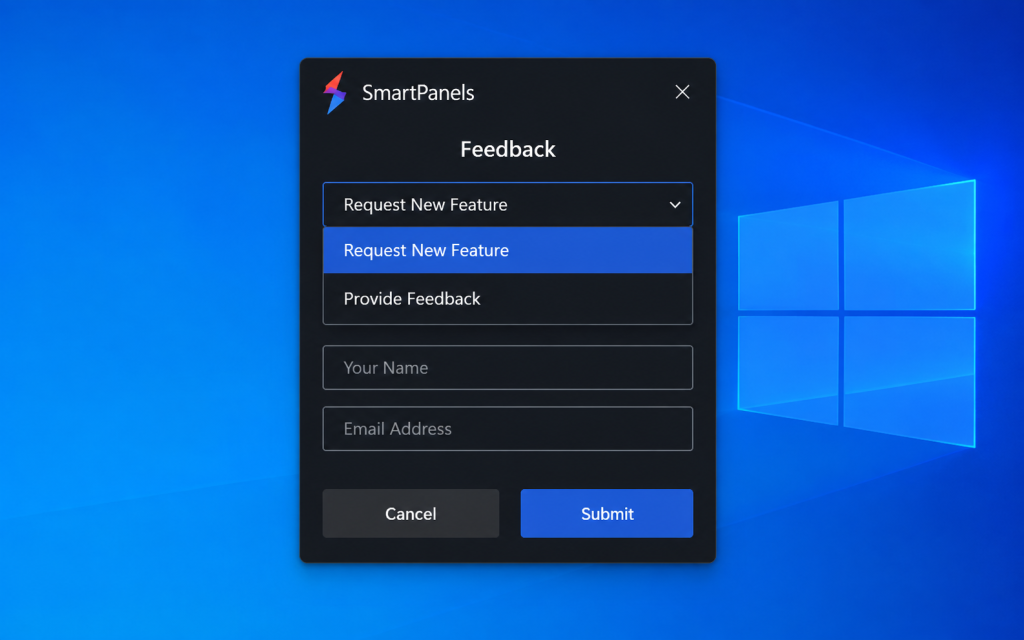
7. Feedback
Here you can give feedback or request new features in SmartPanels.
7.1. Select from the drop-down whether you want to request a new feature or provide feedback. Enter your request/feedback, give your name and address, and submit.
8. Review
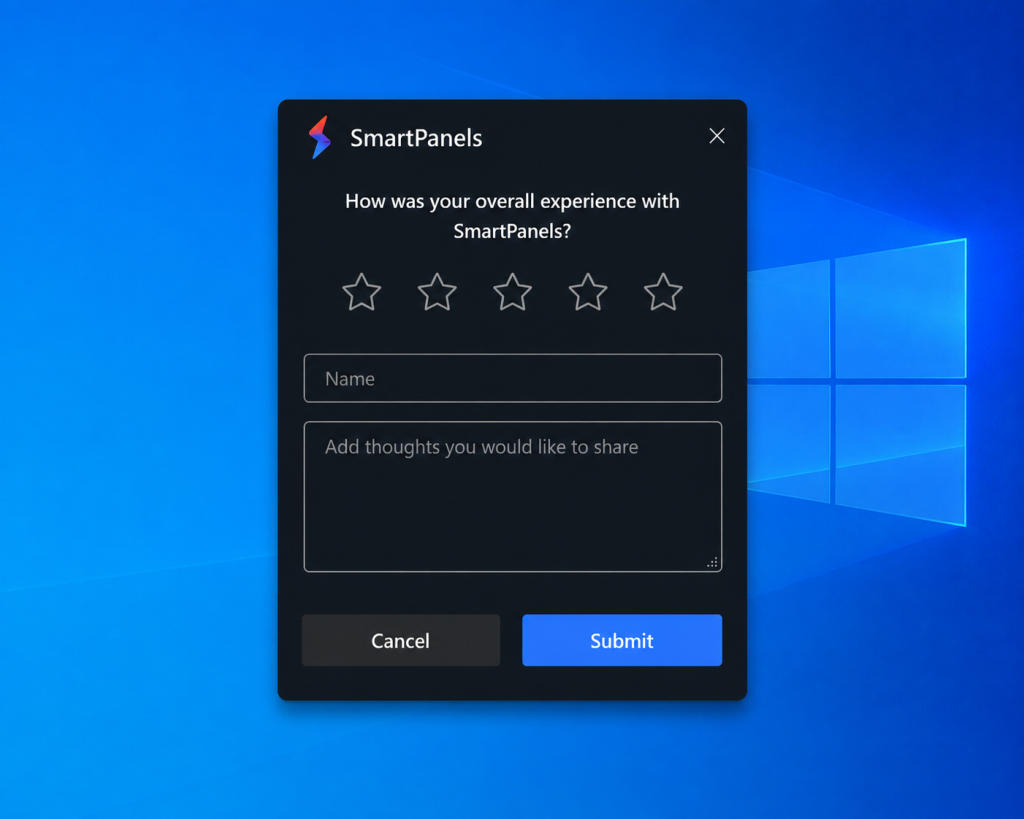
To share your thoughts about SmartPanels, select the option “Review”.
8.1. Rate SmartPanels, mention your name, and share your thoughts about the app. Your valuable feedback can help us make the app better!
9. Exit
SmartPanels is a lightweight productivity app that does not consume much memory or affect the performance of your PC. Still, if you want to close SmartPanels, click “Exit”. SmartPanels will remember the apps, their display positions, and window sizes anyway.