
Few things feel worse than a video call that freezes because your internet vanished. If Windows 11 WiFi keeps disconnecting on your laptop, you are not alone. An update or a fresh install will have some users running into the same issue. Happily, what is at fault is often minor and the remedy straightforward. To begin with, this guide sets out the reason for the dropped connection. After that it takes you through some unassuming steps to put things right, be it a quick restart or an alteration of more fundamental settings.
Why Windows 11 WiFi Keeps Disconnecting
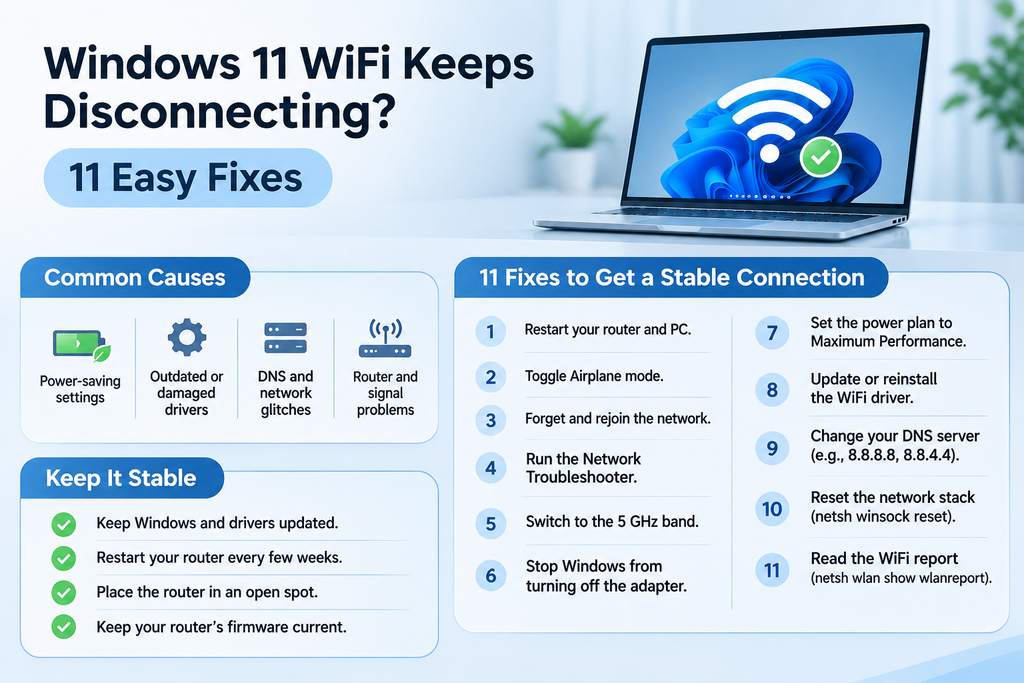
Before you change anything, it helps to know the cause. In most cases, one of four issues sits behind the problem. Therefore, a quick look at each one saves you time.
Power-Saving Settings
Windows often turns off the WiFi adapter to save battery. As a result, your connection drops after the PC sits idle. This habit explains why Windows 11 WiFi keeps turning off on many laptops. Likewise, if WiFi disconnects frequently Windows 11 users usually find this setting first.
Outdated or Damaged Drivers
A driver is the small program that controls your WiFi card. If the driver is old or corrupt, the card behaves strangely. Moreover, a recent Windows update can clash with an older driver. When WiFi keeps disconnecting and reconnecting Windows 11 every few minutes, the driver is the usual suspect.
DNS and Network Glitches
Think of DNS as a phone book for websites. Should it fail, the pages will not load despite what the WiFi connection may indicate. A case of faulty network settings can sever the link altogether.
Router and Signal Problems
Your signal is subject to being weakened by walls and distance, not to mention other devices. Then there is the matter of a router that has been running for months and could do with a restart. Pay attention to what is dropping off. A PC going down points to an issue with the computer itself. When all devices are affected, make the router your first port of call.
Quick Fixes When Windows 11 WiFi Keeps Disconnecting
Start with these simple checks. Use them to fix WiFi keeps disconnecting on Windows 11 without extra tools. Moreover, each one takes only a minute or two.
1. Restart Your Router and PC
Unplug the router for 30 seconds, then plug it back in. Next, restart your computer. This clears small glitches in both devices. Often, Windows 11 WiFi keeps disconnecting because of a simple temporary error.
2. Toggle Airplane Mode
Hit Windows + A for the quick settings panel. Switch on Airplane mode and after ten seconds, switch it back off to give the adapter a clean slate.
3. Forget and Rejoin the Network
To reset your connection, go to Settings > Network & internet > Wi-Fi > Manage known networks. Pick your network and hit Forget. You can then reconnect and put in your password. Be sure to check the box for Connect automatically when in range before you are done.
4. Run the Network Troubleshooter
For any other issues, head to Settings > System > Troubleshoot > Other troubleshooters and run the one for Network and Internet. Windows will have a look at the adapter and correct any common errors.
5. Move to the 5 GHz Band
A good number of routers put out a pair of signals, 2.4 and 5 GHz. While the 2.4 GHz band has more range it is also prone to interference. For that reason, if you are in close proximity to the router, make the change to 5 GHz and the connection will generally be steadier for it.
Advanced Steps If Windows 11 WiFi Keeps Disconnecting
There are times when such an easy remedy does not last. Then you can proceed with the following more involved steps. No aptitude is required to do them, so just take them in order.
6. Stop Windows from Turning Off the Adapter
- Press Windows + X and open Device Manager.
- Expand Network adapters and double-click your WiFi adapter.
- Then open the Power Management tab.
- Uncheck Allow the computer to turn off this device to save power and click OK. If drops happen after idle time, this step often solves it.
7. Set the Power Plan to Maximum Performance
- Open Control Panel > Power Options and choose Change plan settings.
- Next, select Change advanced power settings.
- Under Wireless Adapter Settings, set Power Saving Mode to Maximum Performance.
- Laptop users should apply this to both battery and plugged-in modes.
8. Update or Reinstall the WiFi Driver
- Open Device Manager again and right-click your WiFi adapter.
- Choose Update driver and let Windows search.
- If nothing improves, choose Uninstall device instead.
- Then restart the PC. Windows reinstalls a fresh driver on startup.
- Also, install any pending items in Windows Update, because they often include driver fixes.
9. Change Your DNS Server
- Open Settings > Network & internet > Wi-Fi and select your network’s properties.
- Next to DNS server assignment, click Edit and choose Manual.
- Turn on IPv4, then enter 8.8.8.8 and 8.8.4.4. Save the change. These public servers are often more reliable than the default ones.
10. Reset the Network Stack
Open Command Prompt as an administrator. Type the following commands, and press Enter after each one:
netsh winsock reset
ipconfig /flushdns
Restart your PC afterward. If problems continue, open Settings > Network & internet > Advanced network settings > Network reset. Note that this step erases saved WiFi networks. Therefore, write down your passwords first.
11. Read the WiFi Report
From the administrator window put in the command netsh wlan show wlanreport. Windows will put together an HTML report of all recent errors and connections so you can tell what caused the drop and when it happened. Should the problem persist, pass the report on to your internet provider.
Prevention Tips and When to Get Help
Once your connection works, a few habits keep it that way. Likewise, knowing when to stop troubleshooting saves frustration.
Habits That Keep WiFi Steady
- Install Windows updates monthly and check your driver after major updates.
- Restart your router every few weeks to clear its memory.
- Place the router in an open spot, away from thick walls and microwaves.
- Keep your router’s firmware current through its admin page.
- Pause VPN or third-party security apps briefly to test if they cause the drops.
When to Get Help
The problem is not always to be found in Windows. A bad router or a WiFi card on the way out will result in constant disconnections, for instance. Put your PC to the test on another network like a phone hotspot. Should it prove stable, then put in a call to your internet provider. If the drops persist, a USB WiFi adapter will make it clear if there is a hardware issue. In that case, get in touch with the manufacturer of your PC or a repair technician you can rely on.
Protect Your Workspace with SmartPanels
A dropped connection often forces a browser restart. As a result, you lose your tab layout and window positions. SmartPanels helps you recover quickly.
- Restore browser tabs: It keeps an active tab history, so you can reopen your work.
- Restore window layouts: It brings back browser size and screen position.
- Work across monitors: It supports one screen or many.
- Use custom hotkeys: You can switch between saved workspaces fast.
Therefore, you spend less time rebuilding your desktop after each interruption. Visit smartpanels.app to learn more.
FAQs
Why does my WiFi disconnect every few minutes on Windows 11?
Power-saving settings and outdated drivers are the most common causes. Turn off the adapter’s power-saving option, then update the driver.
Can a Windows update cause WiFi drops?
Yes. A new update can clash with an older WiFi driver. Update or reinstall the driver to fix it.
Does a network reset delete my saved WiFi passwords?
Yes. It erases saved networks, so write down your passwords before you start.
Why does WiFi disconnect when my laptop sleeps?
Windows may turn off the adapter to save power. Uncheck that option in Device Manager, and set the power plan to Maximum Performance.
How do I know if my router or my PC causes the problem?
Check other devices and try another network. If only your PC drops, the problem sits on your computer.
Final Thoughts
A dropping connection can ruin your day, but you now have a clear path forward. To recap, Windows 11 WiFi keeps disconnecting mostly because of power settings, drivers, DNS errors, or router issues.
Begin with the quick fixes like a device restart and rejoining the network. Should the trouble put in another appearance, proceed to the more advanced measures. Put some prevention habits in place to keep the problem at bay. When making changes, do so one setting at a time to observe what is of assistance. Be patient; every step will narrow down the source of the issue. If nothing has any effect, have a professional look at it and put another network to the test.
For the time being while you are getting your setup stable, give SmartPanels a try. Any interruption and it will have your browser tabs, window sizes and screen positions back where they were. A lost connection does not have to ruin your workspace as a result. Feel free to pass this guide on to a friend having the same difficulties.