
There is a certain annoyance to be had when you pull a window to the edge of your display and the one next to it decides to change its dimensions uninvited. For those who have been there, it is no mystery why so many are looking for how to disable automatic window resizing in Windows 11.
The source of the trouble is Snap, an inbuilt feature that Microsoft has put in place to aid with multitasking. While some make good use of it, it is as much a frustration for others. A writer will find his column width altered, a coder a terminal that was sized with care will be off, or a gamer may see an overlay displaced from where he put it.
Microsoft does offer several means to put an end to it and take back control. We have put together a guide to cover all the practical approaches, from the simplest toggle in your settings to more involved registry and command-line work.
By the end, you will know exactly how to turn off automatic window resizing windows 11. Your layout will stay right where you left it.
Why Windows 11 Resizes Your Windows Automatically
It is worth getting to the bottom of why this happens before one goes about disabling automatic window resizing in Windows 11. The operating system has a way of dealing with open applications through something called Snap Layouts.
For instance, if you drag a window to an edge or corner, the system will present you with the chance to fit it into a preset arrangement, a convenient way to have two tasks on screen at the same time. Yet Snap does more than just put windows in their place; it also links their dimensions. Resize one and its snapped partner will follow suit.
This kind of connected behavior is what is being referred to when someone wants to know how to put a stop to the auto-resizing. There is no bug at work here, it is simply how things are set by default. Fortunately, there are a number of ways to turn it off and we will go over them.
How to Turn Off Automatic Window Resizing Windows 11 via Settings
The fastest fix lives inside the Settings app. Most users only need this one method to see results.
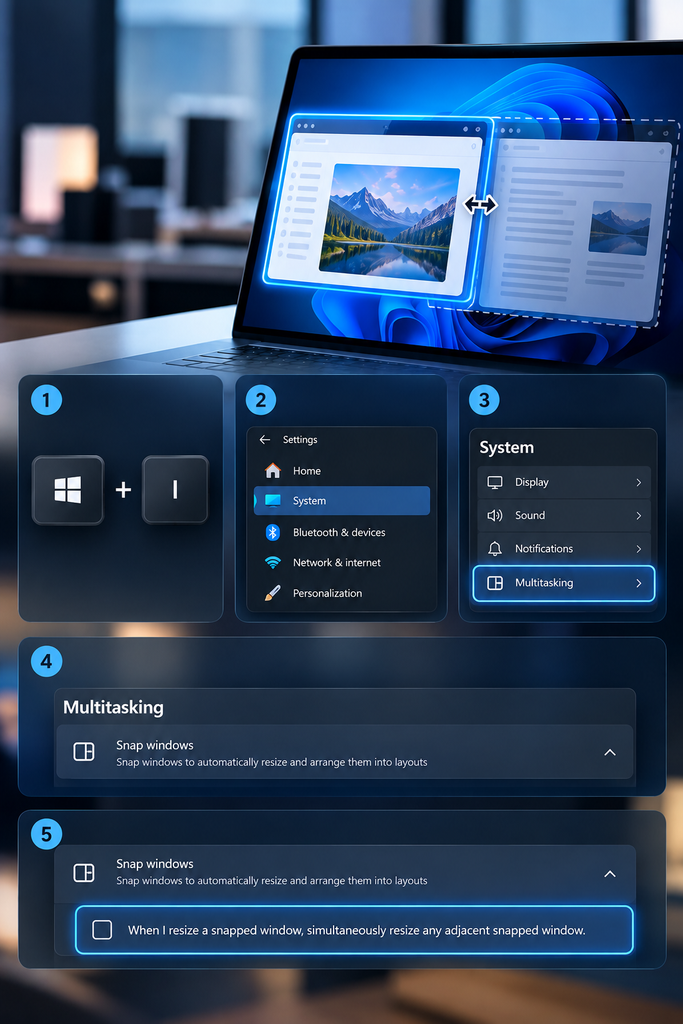
Step-by-Step Instructions
- Press Win + I to open Settings.
- Select System from the left-hand menu.
- Click Multitasking on the right side.
- Find the Snap windows section and expand it.
- Locate the option labeled “When I resize a snapped window, simultaneously resize any adjacent snapped window.”
- Uncheck that box.
After you have put these steps in place, a window will not pull its neighbor with it when resized. In and of itself, that is enough to satisfy the majority of those looking to disable automatic window resizing in Windows 11; it puts an end to the sort of behavior users find objectionable while leaving snapping in effect.
For a more thorough solution, one can simply do away with Snap. Head to the Multitasking menu and toggle off the main switch for Snap windows at the top. That will eliminate both the feature and the attendant automatic resizing. But consider the trade-off before making the change: quarter and half-screen drag layouts are disabled as well, so give some thought to what matters most.
How to Stop Windows from Automatically Resizing Using Older Menus
On certain Windows 11 builds you will find this setting is channeled through the legacy Ease of Access, whereas in others it has been relocated to the contemporary Multitasking page. Should your Settings app not conform to the procedure outlined above, there is an alternative.
- Right-click the Start button and choose Run.
- Type control and press Enter to open the classic Control Panel.
- Select Ease of Access Center.
- Choose Make the computer easier to use.
- Scroll to the section titled Make it easier to manage windows.
- Check the box for “Prevent windows from being automatically arranged when moved to the edge of the screen.”
- Click Apply, then OK.
The old Ease of Access route remains functional on a good number of systems and is a dependable means of preventing windows from auto-resizing that does not require any registry work. It is also a sound fallback in case the device in question does not show the more recent toggle.
Turn Off Auto Resize Windows 11 With the Registry Editor
For the more advanced user, a fix at the registry level is usually the way to go. It is a sound approach when you oversee multiple machines and need something you can replicate. But do not be hasty; an ill-considered edit to the registry has the potential to throw off other settings, so make sure you have a backup before you start.
- Press Win + R, type regedit, and press Enter.
- Navigate to HKEY_CURRENT_USER\Software\Microsoft\Windows\CurrentVersion\Explorer\Advanced.
- Find the value named JointResize.
- Set it to 0 to disable simultaneous resizing of adjacent snapped windows.
- Sign out and sign back in, or restart your PC, to apply the change.
One should be aware that Microsoft has been known to tinker with this setting from one update to the next. In some builds it was put back in Settings, while in others the toggle was taken away for a while. Should you find the key is missing from your system, you would be better off using the Settings procedure we have already gone over.
Then there is the matter of WindowArrangementActive, a value you will find under HKEY_CURRENT_USER\Control Panel\Desktop. Putting a 0 there will put an end to the wider window arrangement functions of Snap. Reserve this for cases where simply turning off the Snap windows option in Settings has not done the trick.
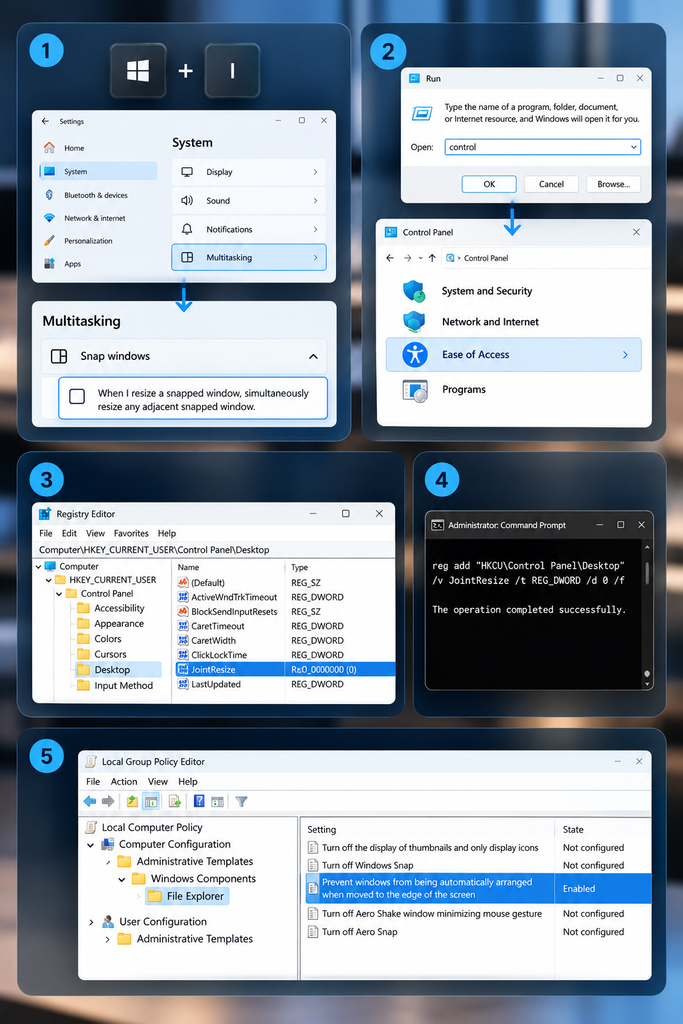
Windows 11 Turn Off Automatic Window Resizing From Command Prompt
For those with several devices to oversee, putting things in a script is a genuine time saver. There is no need to open the Registry Editor and make your way through it manually when the Command Prompt will do for adjusting the relevant values.
- Open Command Prompt as an administrator.
- Run a command to set the JointResize value to 0 under the Advanced key mentioned above.
- Restart Explorer, or sign out and back in, to apply the change.
An IT administrator will find this method ideal for maintaining uniformity on company laptops. Where a team is already in the habit of using scripts to put other configurations in place, this fix can be handled as part of that process without any further manual intervention.
How to Disable Automatic Window Resizing Through Group Policy
For those in charge of a business PC fleet, Group Policy is the way to go for a more centralized approach; there is no need to put in the time to edit every machine individually. The feature is available on Windows 11 Pro as well as the Enterprise and Education editions, though one will not find the Group Policy Editor on Home versions.
- Press Win + R, type gpedit.msc, and press Enter.
- Navigate to User Configuration, then Administrative Templates, then Desktop.
- Look for a policy related to window arrangement or Snap behavior. Availability varies by build.
- If the policy exists, set it to Disabled to block automatic resizing across the account.
- Run gpupdate /force in Command Prompt to apply the change immediately.
There are times when a particular build of Windows 11 does not make a Snap policy readily apparent. In such cases IT staff will typically turn to configuration management tools or scripts to handle registry deployment. The result is unchanged, however: a uniform and predictable window experience for users on all devices under your purview.
Third-Party Tools That Help Beyond Snap Settings
There is an end to the nuisance once you have disabled Snap resizing, but do not expect it to put your windows back in order after a driver update, a monitor change or a simple restart. Windows will not handle that for you; it is a different matter altogether.
Which is the whole point of something like SmartPanels. The utility does more than stave off any unwanted resizing, it keeps track of your desktop in its entirety. Window dimensions and placement are logged, as is the monitor to which each application is assigned. So, when you make the switch from an office to a home rig or hook up a docking station, your layout is there without you having to manually put it back together or let Snap try to figure out what you want.
For a developer or freelancer with several browser profiles open, such a tool can be indispensable. It essentially saves your workspace as a profile so one is not left to start over every morning.
What to Do If the Setting Disappears After a Windows Update
It is not uncommon for users to tell us the resize toggle has gone missing in the wake of a feature update; we have seen it happen on more than one occasion. One can be left somewhat at a loss if the setting was already put to rest by you prior to the change. Should this occur, wait for the installation to complete and have a look at the Multitasking menu.
Windows will typically put the option back in place once it has finished indexing your preferences. Failing that, the registry approach detailed above is the way to go. After all, Group Policy and registry values have a way of enduring an update even if the toggle itself is out of sight for a while.
How Do I Stop Windows From Automatically Resizing Across Multiple Monitors?
There is an added level of complexity with multi-monitor configurations. One will find that Snap does not behave in quite the same way from one display to the next, particularly if there are discrepancies in resolution or scaling.
While you can go into Settings and turn off adjacent-resize for a system-wide effect on all connected screens, for many that is only a partial fix.
The fact remains that if you are in the habit of putting your windows back where they belong, you are still left to do it by hand after every PC restart or when you hook up a docking station. A purpose-built window manager is of real value in these circumstances. With something like SmartPanels, an entire layout can be saved no matter how many monitors are in play.
You put your windows where you want them once and are done with it; thereafter a hotkey or click will bring back the arrangement as it was, sparing you the trouble of contending with Snap on each connection. It is not so much a replacement for the settings as a complement to them, since Snap and manual tools address the issue in different ways.
Best Practices Once You Disable Automatic Window Resizing
Once the above fixes have been put in place, there are some good practices to adopt for a more stable workspace.
- Make it a point to go over your Multitasking settings following any substantial Windows update; you may find that certain toggles have reset on their own. If you are working with several PCs, be sure to back up the registry prior to making edits.
- When you have a new layout, run it through its paces with the applications you see every day. Full-screen programs can be temperamental compared to ordinary windows. For those who frequently change project configurations, a window management tool is worth looking into.
- And if you are making alterations via the Command Prompt or in the registry, put them in writing so the rest of the team has what they need to do the same down the line.
These are the kind of habits that will prevent automatic resizing from creeping back into your work, whether after a hardware swap or an update.
Frequently Asked Questions
Does turning off Snap windows affect keyboard shortcuts like Win plus arrow keys?
Yes. Turning off the primary Snap windows toggle will do away with drag-to-snap, and in the process any associated keyboard shortcuts are gone as well; they are part of the same system.
Will this setting sync across my Microsoft account on other PCs?
No, it will not. Those are multitasking settings that are tied to a given device and user profile, so one has to go through the motions on every machine you make regular use of.
Is there a risk to editing the registry for this fix?
Provided you limit your changes to the values in question, the risk is negligible. One should make a backup of the registry beforehand, however; any number of issues can be introduced by making edits in other areas.
Why does my adjacent-resize toggle look different from other guides?
You may find that Microsoft has shifted this option from one menu to another with an update or two. Should the interface not look as expected, the Control Panel is a more reliable way to go, being the more constant of the two.
Can third-party mouse or display drivers cause automatic resizing even after I disable Snap?
As for whether they can? They certainly can. A good many graphics and docking-station drivers have window-snapping of their own. In the event that resizing persists even after you have turned off Snap in Windows, it is worth looking at the driver software settings, as those can operate on their own apart from what is built into the system.
Conclusion
There are times when automatic resizing seems to be more of a hindrance than a help, particularly if you have settled on a layout to your liking. Windows 11 is accommodating in that regard and offers a number of ways to put things right.
In most instances the Settings toggle will do the trick in less than a minute. Should an update render that option unavailable, one can fall back on the Control Panel or registry with confidence. Then there is the matter of those who put together the same window arrangement every day; for them, combining these remedies with SmartPanels is a different experience altogether.
A single save of the setup means it is there at a moment’s notice for restoration, no matter how many screens are in use.
With these options in hand, you can finally turn off auto resize windows 11 for good. Your workspace stays exactly the way you built it, update after update, without the constant readjusting.