
It’s really easy to get a lot less done when you’re juggling loads of apps, browser windows, meetings, and files all at once. A surprising number of people still turn to the Windows Task Manager to check how things are running, force programs that have stopped responding to shut down, and figure out why their computer is crawling.
While Task Manager is still good for monitoring the system, the way we work now requires a more organized and faster way to return to where we were. Professionals now flip between their browser, spreadsheets, video calls, and things like Photoshop, often on multiple monitors. And because of that, getting your work exactly as you had it before is vital.
SmartPanels saves you time by automatically restoring your apps, browser tabs, and screen layout.
Understanding the Purpose of Windows Task Manager
For ages, Windows Task Manager has been a friend to anyone using Windows. It’s what nearly everyone launches when a program gets stuck, your computer slows down, or suddenly uses a ton of memory. It gives you a lot of specifics about what’s going on with what you’re running, the programs that start up with Windows, your internet use, and how your computer’s parts are doing.
But the way we work is different now. We’re all doing loads of different things at once, flipping between browser windows, applications, files, and multiple screens.
What SmartPanels Does Differently
SmartPanels is different from the Task Manager in Windows. Where Task Manager looks at what’s happening inside your computer, SmartPanels is all about controlling how you work.
SmartPanels workflow lets you save your entire arrangement of open things and restore it quickly.
This includes:
- App positions
- Browser tabs
- Window sizes
- Multi-monitor arrangements
- File layouts
- Workspace profiles
So, instead of spending time every day getting everything back to exactly how you like it, you can get all of it back with just a single click.
Why Modern Professionals Need Better Workspace Management
These days, hardly anyone sticks with just one program all day. We generally have a bunch of things going on at once, like chatting with colleagues, working with spreadsheets, using the internet, being in video calls, being in cloud spaces, and jotting down notes.
And when things get busier, it’s amazingly frustrating and breaks your train of thought to have to set up all your programs on your desk over and over again.
The Task Manager will show you what apps are running in the background, sure, but it won’t put everything back exactly as you had it.
SmartPanels resolves this issue by fully remembering how you arrange your desktop. When you return to work, your apps will be in the same places, showing what you were viewing. This efficient workspace management helps you keep your work on track.
By this you’ll get into your work much more quickly, and with a lot less hassle.
SmartPanels Improves Multi-Monitor Productivity
Many of us working from home, doing video editing, graphic design, keeping up with finances, or coding, are using two or more monitors these days. And while more screens help you get more done, arranging everything on those displays can be a headache.
Windows’ Task Manager isn’t for sorting your screens out or getting your programs to go back to where you had them; it only keeps an eye on what’s currently running.
SmartPanels is different; it’s built around how you work.
It handles multi-monitor productivity and puts your applications back exactly where you had them before. So, your browser windows, your Excel sheets, Slack or Teams, and any files will automatically pop up in the places you expect.
Browser Session Restoration Saves Time
These days, pretty much all work goes on in a browser. Most of us have many browser tabs open all day for looking things up, keeping in touch with people, using online services, and checking our progress on various things.
It’s seriously annoying to restart and lose all those open tabs.
SmartPanels gets you back to exactly how you had your browser set up, and does it by itself. It brings back your open tabs, where your browser windows were on your screen, how big the windows were, and what display you were using for them.
It works with Chrome, Firefox, Microsoft Edge, and a lot of other browsers.
This browser recovery offers a huge benefit, unlike the Windows Task Manager, which cannot restore your browser to its previous state.
Workflow Automation Creates Better Efficiency
Doing the same things over and over, bit by bit, really drags down how much you accomplish. All those little things at the start of each day, like opening the usual apps, fiddling with window sizes, and putting icons where you want them on your screen, don’t seem like much on their own, but they quietly steal a lot of your time.
SmartPanels puts a stop to all that by doing it for you.
You can set up exactly how you like your computer to look for all sorts of things:
- work
- meetings
- digging up information for research
- gaming, creative pursuits
- or even when you’re studying
Each of these ‘profiles’ remembers every detail of your desktop arrangement, helping streamline your workflow automation and daily multitasking. With a single click, you can instantly restore your entire setup exactly the way you left it.
Comparing Performance Monitoring and Workflow Management
What Task Manager and SmartPanels are for is fundamentally different. Task Manager, the one that comes with Windows, is all about monitoring your computer’s performance and fixing issues when they arise.
With it, you can find out which programs are hogging all your computer’s memory, force anything that’s stopped responding to close, control which programs automatically open when you start up your computer, and check how busy your computer’s brain (CPU) or internet connection is.
SmartPanels, on the other hand, is for getting back to how you were working and tidying things up. It doesn’t look at what programs are running, but allows you to save everything. about a particular way you have things set up on your computer and then go right back to it with a click.
Here is a direct comparison between both tools:
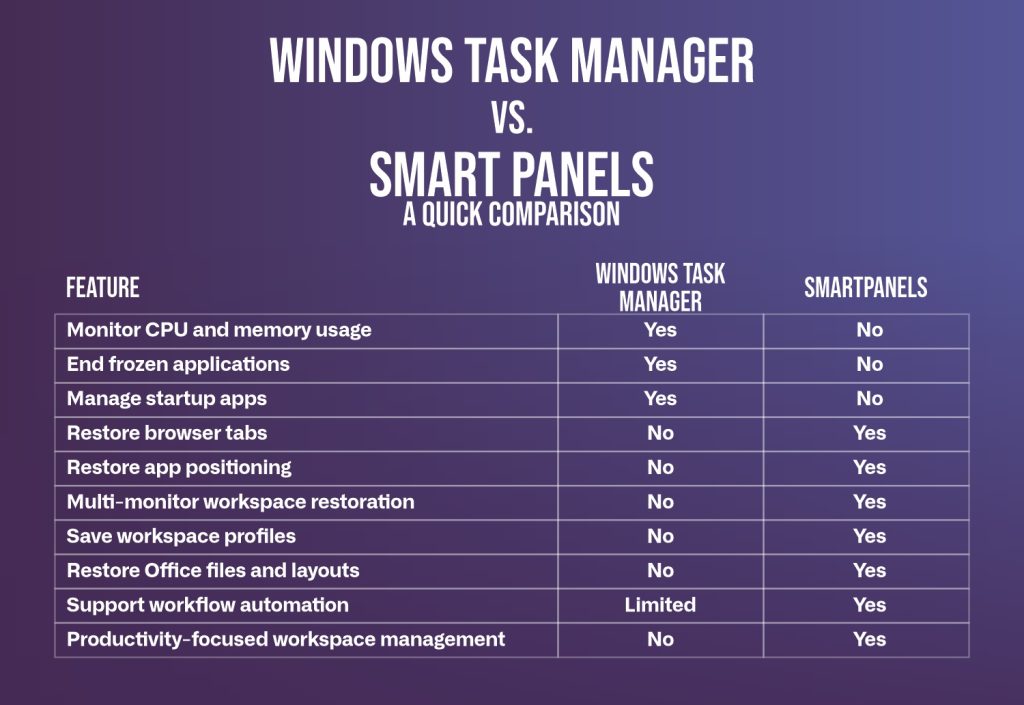
These two programs are for quite different things.
Windows Task Manager is still the go-to for when your computer is acting up or for keeping an eye on how much it’s doing, but SmartPanels is all about making your work flow seamlessly by bringing all your desktop stuff back as it was.
In fact, if you’re a professional juggling lots of projects, many browser windows, and perhaps a bunch of screens, getting your work set back up for you probably ends up being a bigger time saver each day than fixing problems as they come along.
Final Thoughts
Task Manager in Windows is still a really important tool for anyone with a Windows computer. It lets you keep an eye on how your computer’s doing, force programs that have stopped responding to close, control which programs automatically start up when you turn on your computer and get to the bottom of many technical headaches. It’s still best for figuring out what’s going wrong with the computer itself.
But the way we work now is very different. Most of us have several screens going, tons of browser tabs open, are using things in the cloud, have Microsoft Office files open, and are on a bunch of messaging apps all at the same time. And having to set all of that back up from scratch each day is a real drain on your time and breaks your train of thought.
SmartPanels is a program designed to solve this. It’s able to bring back your browser tabs, where your applications are on the screen, how your monitors are arranged, and your whole work setup with an immediate click.
Task Manager is about keeping the computer running smoothly. SmartPanels, on the other hand, ensures your work flows and maximizes your productivity.
Want to streamline your daily workflow? Switch to SmartPanels.