
Most of us think dual display tools are the perfect way to boost how much you get done, giving you a bigger area, more programs open, and a quicker workflow. Yet, in 2026 most of us are still dealing with cluttered windows, browser tabs that have disappeared, and endlessly moving things around on the screens instead of finishing work.
The problem isn’t how many screens you have, it’s that you have no organized way of using them.
That’s where SmartPanels, and tools like it, are currently the best options. Rather than seeing each monitor as a completely different display, SmartPanels organizes all of them into one system that ‘remembers’ things and immediately brings back the way you like to work.
Why Most Multi-Monitor Display Setups Fail
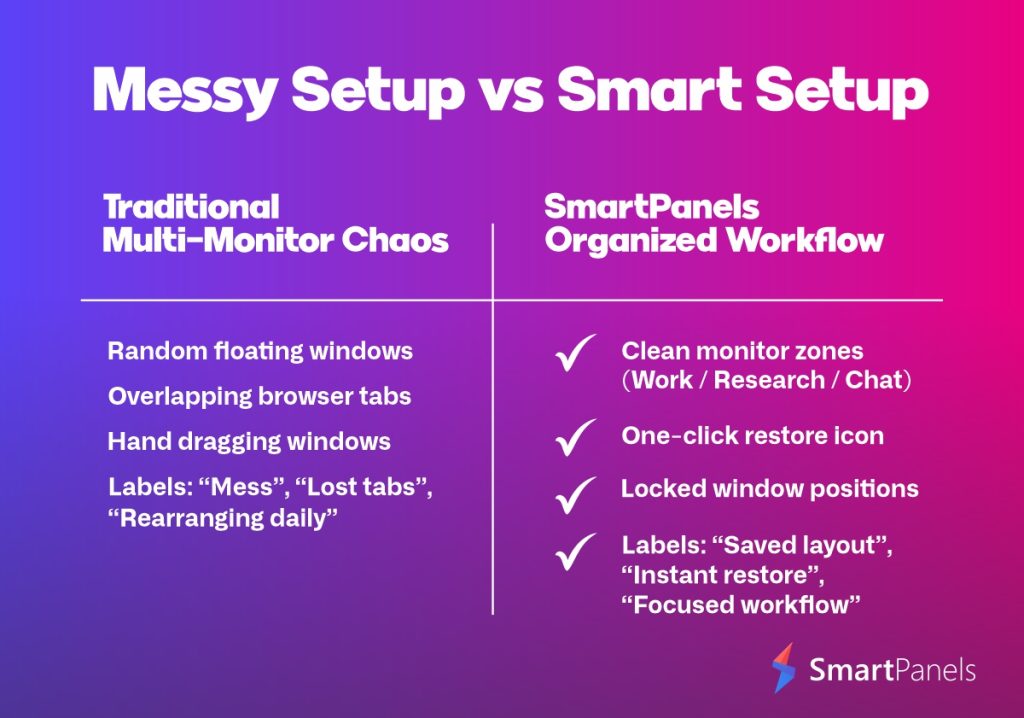
Today’s computers are strong, but most of us have a messy experience with them because we don’t have an organized way to do things. We generally move windows around by hand, open programs in any order that comes to mind, and pretty much create our work area all over again each time we start.
Frequently, this means you have to keep putting your windows in the right places during each session. This is time you’d better spend getting your work done, and you end up wasting it just with app placement.
Also, you lose where you were on the internet and in all your open tabs. Often this leads to you having to look for websites again instead of keeping your browsing organized. You have no way to do things the same way each time and starting from scratch every workday removes a lot of predictability.
What a Proper Multi-Monitor Display Should Actually Do
A high-performance multi-monitor display is not just about screen count; it’s about workflow clarity. Each screen should serve a purpose and reduce decision-making.
A well-structured setup usually includes:
- A primary screen for deep work: This is where your core task happens, such as writing, coding, designing, or analysis.
- A secondary screen for reference or support: Use it for documentation, research, dashboards, or media reference.
- An optional third screen for communication: Utilize it for chat apps, email, meetings, or system monitoring tools.
When each display has a defined role, your workflow becomes predictable and significantly faster.
Fixing the Real Productivity Bottleneck: Window and Browsers’ Tab Chaos
People generally think a slow or frustrating computer is because of the machine itself. But it’s about being in charge.
A good system means you won’t have to bother with things like getting back tabs you’ve accidentally closed or repeatedly arranging what you see on the screen. It just gets rid of those annoyances.
Core frustrations users face:
- Reopening lost browser sessions repeatedly
- Searching for misplaced application windows
- Relearning layout placement every day
- Manually resizing apps across screens
A much better way to work is to have your system stop the mess in the first place. This means using layouts that are saved and remembering where you were in your work (session memory) as opposed to having to do everything by hand.
Why SmartPanels Is the Best Multi-Monitor Display Tool in 2026
SmartPanels is designed specifically to eliminate the repetitive setup problem in multi-monitor workflows. Instead of treating screens individually, it manages your entire workspace as a single system.
What makes SmartPanels different:
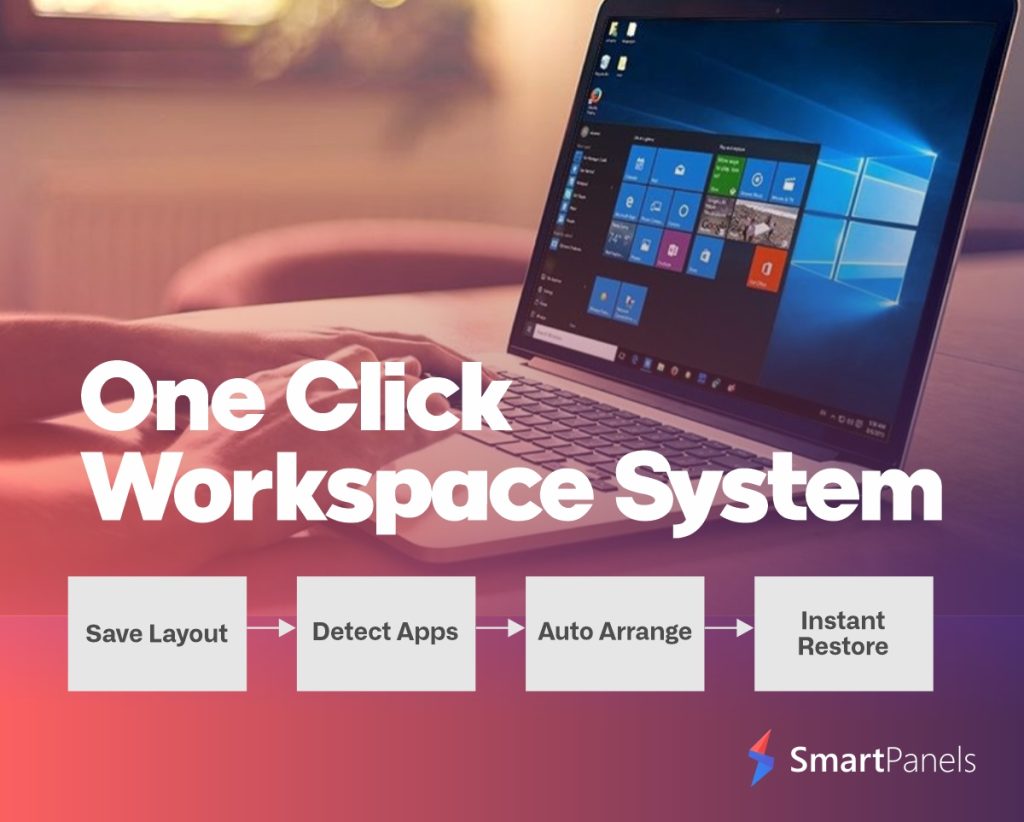
- Instant Workspace Restoration: Save your full multi-monitor layout and restore it in one click without rebuilding anything.
- Multiple Workspace Profiles: Switch between work modes like development, meetings, research, or design instantly.
- Full Application Memory: Your apps, positions, and layouts come back exactly as you left them.
- Seamless Multi-Monitor Support: Built for complex setups where users can connect up to six monitors.
This is why SmartPanels is considered one of the most effective productivity tools for multi-monitor display users, it removes manual work entirely.
Setting Up a Proper Multi-Monitor Display System
Building a productive setup is about structure first, tools second.
Step 1: Define your workflow types
Start by identifying how you work:
- Deep work sessions
- Communication-heavy tasks
- Research or browsing work
- Creative or design tasks
Each of these deserves its own workspace.
Step 2: Assign meaning to each monitor
Instead of random placement, assign roles to each screen.
- Primary monitor for focused execution
- Secondary monitor for supporting information
- Third monitor for communication or tracking
This removes confusion and builds consistency.
Step 3: Add visual consistency with wallpapers
Visual structure matters more than people realize. A unified or coordinated wallpaper setup helps reduce distraction.
- Use a multi-monitor wallpaper for a seamless visual flow
- Or apply a dual-display desktop wallpaper for alignment across screens
- On Windows 11, some users prefer two different backgrounds on dual monitors to separate tasks visually
This improves mental clarity and reduces screen fragmentation.
Step 4: Automate your workflow with SmartPanels
Instead of manually setting everything every day, SmartPanels lets you:
- Save complete multi-monitor layouts
- Restore them instantly
- Switch contexts in seconds
This removes repetitive setup entirely and creates a true system-based workflow.
The Future of Multi-Monitor Display Workflows
It’s becoming clear how we will get things done in 2026: the old way of having a bunch of things on your desk that don’t change isn’t how we work now. Having multiple monitors isn’t simply about having more screens anymore, but about how those screens cleverly change with what you’re doing, as it’s happening.
The way we’ve always done it makes people have to create their entire work area all over again, and that slows you down before you even start.
Instead of having to rebuild things each day, people are moving past habits that take up time and mental energy. Having to drag windows to where you want them every morning stops your flow and is unnecessarily annoying. This endless shuffling, over time, is a secret drag on how much you get done and most of us don’t even realize it.
People are now going for more intelligent systems that emphasize a sensible arrangement and quickness, instead of you having to oversee everything by hand.
SmartPanels is a part of this change. It transforms your multi-monitor display into an orderly, self-managing setup instead of a pile of stuff you have to arrange.
As a result, your whole workspace can instantly change to your needs, instead of needing to be rebuilt each day.
Conclusion
Having multiple screens is supposed to make your job easier, but for many people it doesn’t. Instead, they end up with messy windows, can’t find what they have open in their browser, and have to rearrange everything repeatedly.
The answer isn’t to get even more screens, but to get things more organised.
If you give each screen a specific job, arrange how you do things, and stop needing to do the same setting up each time, you’ll get a lot more done. Plus, with something like SmartPanels, all of this can happen instantly, can be done in the same way each time, and won’t take effort.
Looking ahead to 2026, the people getting the most done won’t be those with the highest number of screens, they’ll be the ones with the best ways of working.
SmartPanels is at the front of this change, changing any multiple screen setup into a clever, in control and totally automatic work area.
Want to avoid daily hassle of arrange your workspace?