
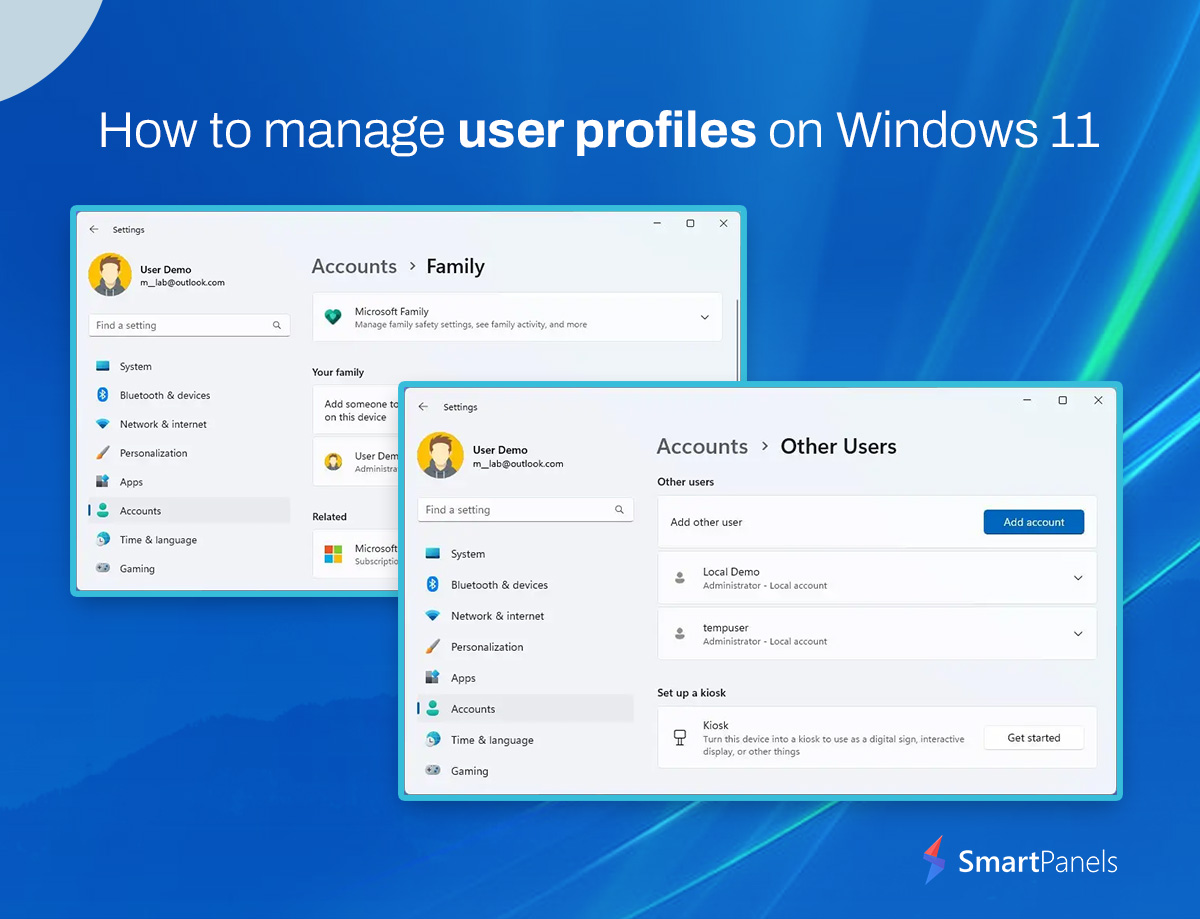
It is not uncommon to have found the prospect of using a computer in the company of family or colleagues to be something of an ordeal. Files would be in disarray and settings changed without any logic to it.
With Windows 11, that sort of thing is a thing of the past. The system assigns separate accounts to each user so that when one logs in, desktop and browser history along with other preferences remain under your own account. Learning how to manage user profiles windows 11 style saves time and prevents confusing mix-ups.
We have put together a guide to the various ways of going about this, be it through Settings or with a quick command line. It also shows how mandatory profiles can be used in an office or school where uniformity is required, and how to go about repairing a profile that has been compromised while keeping your data intact.
The procedure is no different whether you oversee a shared PC at work or configuring a laptop for the household. Once you have gone through these methods, any profile work will come second nature.
What Is a User Profile in Windows?
It helps to first answer what is user profile in windows means.
Think of a user profile as a personal repository for an individual’s settings. It is something Windows puts in place on a device at the point of first sign in.
A typical profile includes:
- A desktop background, taskbar layout, and Start menu pins
- Saved browser bookmarks, passwords, and history
- Personal folders such as Documents, Downloads, Pictures, and Desktop
- A private registry file called NTUSER.DAT, storing account-specific settings
The upshot of this arrangement is that each person on a shared machine has a workspace all his own. No one can inadvertently get at your files or alter your preferences.
That is of particular importance on a family PC or a classroom computer, or even a workstation that is handed off from one shift to the next.
Where to Find User Profiles in Windows 11
Many people ask where to find user profiles in windows 11 once several accounts exist on one machine. Windows stores this information in two main places.
Using File Explorer:
- Open File Explorer and click the C: drive.
- Open the Users folder to see every profile on the device.
- Each subfolder uses that account’s exact name.
- Enable hidden items (View > Show > Hidden items) to see system folders like Default and Public.
Using the Registry Editor:
- Open Registry Editor by typing regedit in Windows search.
- Navigate to HKEY_LOCAL_MACHINE\SOFTWARE\Microsoft\Windows NT\CurrentVersion\ProfileList.
- This key lists every profile by its security identifier, or SID.
- Click a SID to reveal its ProfileImagePath value, showing where that folder lives.
Windows 11 List Users CMD: Fast Command Line Methods
Command line fans often prefer typing windows 11 list users CMD commands over clicking through menus.
Net User command:
- Open Command Prompt and type net user, then press Enter.
- This displays every local account, including hidden ones like Administrator and Guest.
- Export the list with: net user > accounts.txt
PowerShell method:
- Open PowerShell and run Get-LocalUser.
- This shows account names alongside their enabled or disabled status.
- Administrators often prefer PowerShell since it integrates with scripts and automation.
How to Manage User Profiles on Windows 11 Using Settings
The Settings app is the simplest way to manage user profiles windows 11 without touching the command line.
- Open Settings using the Windows key plus I.
- Click Accounts, then Family & other users.
- Choose the profile you want to adjust.
- Pick Change account type, Remove, or another available option.
This graphical method suits most home users and small offices, since it avoids registry risks.
How to Create User Profile in Windows 11
Setting up a new account is easy once you know how to create user profile in windows 11 properly.
- Open Settings, then Accounts, then Family & other users.
- Click Add account under “Other users.”
- Choose “I don’t have this person’s sign-in information.”
- Select “Add a user without a Microsoft account.”
- Enter a username and password, then click Next.
Windows builds the profile folder the first time that person signs in.
How to Add User Profile in Windows 11 With a Microsoft Account
Sometimes you need how to add user profile in windows 11 using an existing Microsoft account, which syncs settings across devices.
- Open Settings, then Accounts, then Family & other users.
- Click Add account.
- Enter the person’s Microsoft account email address.
- Send the invitation and wait for it to be accepted.
Once accepted, that person can sign in and sync OneDrive files, themes, and browser history.
How to Delete User Profile Windows 11
Removing unused accounts keeps a shared computer tidy. Here is how to delete user profile windows 11 the safe way. Always back up important files first.
Through Settings:
- Sign out of the account you plan to remove.
- Open Settings, then Accounts, then Family & other users.
- Choose the account, then click Remove and confirm.
Through Advanced System Settings (alternative):
- Open System Properties, click the Advanced tab, then Settings under User Profiles.
- Choose the profile and click Delete.
How to Restore User Profile Windows 11 After Corruption
There is the matter of a corrupted profile, which has the potential to bar access to one’s own desktop. Restoring a user profile in Windows 11 is generally a straightforward way to regain entry without any loss of files; the operating system will have put in place a backup registry key with a .bak extension for just such an event.
- Open Registry Editor and navigate to the ProfileList key.
- Find your account’s SID, then locate a second key ending in .bak.
- Rename the original, broken key by adding .bak to its name.
- Remove .bak from the working key so it becomes active again.
- Restart your computer and sign in to test the fix.
If this fails, try in order:
- System Restore to a point before the corruption.
- Running sfc /scannow and DISM to repair system files.
- Creating a fresh profile and copying files across manually.
What Is a Mandatory Profile Windows 11 Setup?
Then you have the case of schools or commercial enterprises that require uniformity and want the same settings on every account. For those needs, a mandatory profile windows 11 setup is the solution.
- It locks certain settings so users cannot permanently change them.
- Changes made during a session disappear after logging off.
- Administrators create one by renaming NTUSER.DAT to NTUSER.MAN, making it read-only.
- A stricter variant, called a super mandatory profile, blocks sign-in entirely if the profile server is unreachable.
- Schools use these on shared lab computers to prevent clutter.
- Businesses use them on kiosks where consistency matters most.
Windows User Account Management Best Practices
Proper management of a Windows user account is not simply a matter of making and discarding profiles.
- For day-to-day work, stick with standard accounts and hold off on admin privileges unless a change truly calls for it.
- Be sure to put in place strong, distinct passwords for each account on the machine and turn on two-factor authentication or Windows Hello if the option is there.
- It is also wise to back up your files on a regular basis; even with care, things can go wrong. Make a habit of running through your account list from time to time to cull any that are no longer in use.
- And do not neglect to keep Windows current, as an update will frequently address bugs in the profile area.
Managing Per-User Workspace Layouts
While Windows profiles are good at keeping the files and settings of one account distinct from another, they will not put your desktop back the way you left it. Open applications or the position of a window is not automatically put in place again upon login.
To get around that, there are third-party programs like SmartPanels that can be of service. They work by taking a snapshot of your open windows and their layout for each profile and will restore them when called on. It is something to be aware of in the course of managing a shared or multi-monitor environment where users are constantly switching back and forth; not quite the same as profile management at the account level, but nonetheless useful to have in mind.
Frequently Asked Questions
1. What happens if I delete a user profile in Windows 11?
When Windows revokes sign-in privileges it will also, at your option, clear out the profile folder. Any personal files residing there are lost if they have not been backed up in advance.
2. Can I recover a deleted user profile?
There are occasions when one can get them back by way of System Restore to a pre-deletion state or by looking for any stragglers in the ProfileList registry key. But do not count on it; should the files have been done away with for good, recovery is not assured.
3. Where are user profiles stored on Windows 11?
You will find the profile folders at C:\Users[username]. The registry maintains a record of every profile’s SID and path in ProfileList.
4. What’s the difference between a roaming and a mandatory profile?
As for the profiles themselves, a roaming type is set to sync any changes with the network server once a session is done. A mandatory profile is different in that it will not retain alterations; on logoff it reverts to what it was originally.
5. How do I switch between user profiles quickly?
To make use of another profile, go to Start and pick the account icon. From there one can select a different profile from the list while Windows leaves the prior session to run in the background.
Final Thoughts
There is no need to be put off by account management on Windows 11 when one has a grasp of the fundamentals. The process for locating, making or removing profiles in a secure manner, as well as restoring them in the event of corruption, should be second nature. For those who type with confidence, the command line offers a quicker way to get things done via net user and PowerShell. And where an office or school demands uniformity, mandatory profiles are the answer.
To ensure a shared device remains trouble free for all its users, combine that knowledge of how workspace layouts and profiles vary with good old-fashioned habits like strong passwords and periodic checks. Should the occasion arise to put in a new account or do some housekeeping on an old one, this guide is here to be referred to.